GST DSC Error: Why Your Digital Signature isn’t Working and How to Fix it
 AuthorMehul Jagwani
 Reviewed ByCA Ajay Savani



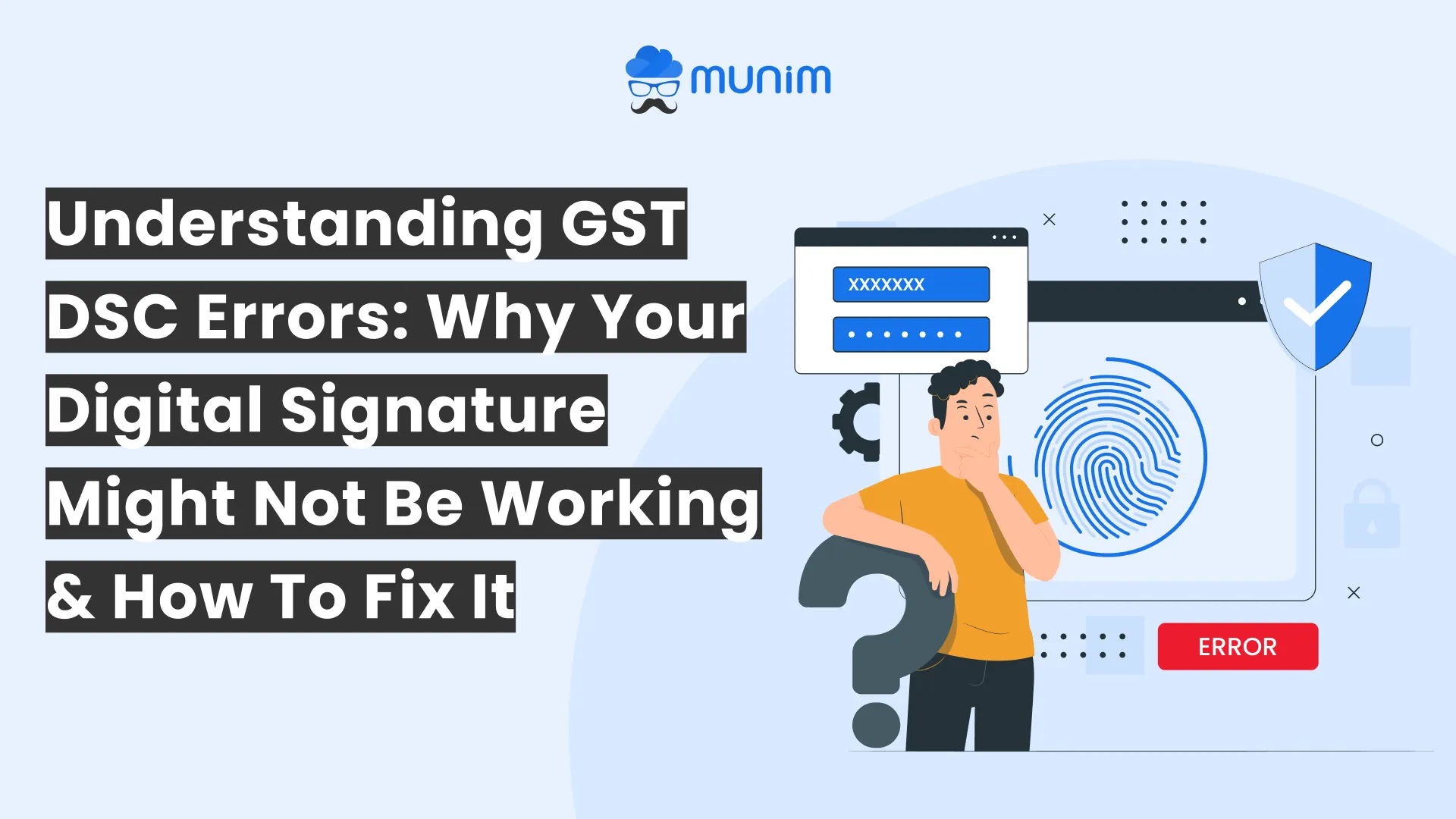
Has it ever happened to you that you tried to submit your GST returns online, but you could not file the return due to digital signature error?
This guide covers what these DSC errors in GST are, why they occur and the most important thing: how to resolve them. Anyone looking for help with GST digital signature error., no matter if you are a business owner, accountant, or only keeping up with these rules, will find this guide helpful.
What is a DSC? Why is it Important for GST?
Let’s take a quick moment to understand what DSC means before we get into the errors. DSC is an acronym for Digital Signature Certificate. It acts as your online identification that proves who you are when you file GST returns or any government documents. Picture it as electronically signing a paper. If you don’t have GSTIN, the government’s portal will not accept your filings.
Now, after you prepare your GST return, you use your DSC, and you get an error message. That is the root of the DSC error in GST.
How to Fix GST DSC Errors: Step-by-Step Solution
Normally, DSC errors in GST can be corrected by having patience and following the right instructions. Below, we have discussed a practical and efficient solution to resolve when emSigner does not function properly, whether it is due to https 127.0.0.1:1585 or https 127.0.0.1:1565 error. The steps listed below are solutions to almost all errors:
Step 1: Check Your emSigner Setup
Before doing anything, confirm you are using the latest version of emSigner. Many users are facing problems with older versions. Here is how you can uninstall the old emSigner.
Go to Control Panel > Programs > Uninstall a Program. Look for emSigner and uninstall it.
Download the latest version of emSigner from the GST portal and install it.
Step 2: Verify Your DSC
Your Digital Signature Certificate is the centre of the GST filing process. If it is not set up correctly, you will get errors. Here are the things that you need to check:
Plug in your DSC USB: Ensure it is properly inserted in the port. If it is already plugged in, if it is not getting detected, try removing it and connect it once again.
Step 3: Configure Your Browser
The https 127.0.0.1:1585 error mostly occurs due to inappropriate browser settings. In this step, we will walk you through Google Chrome settings in detail since most people use it. However, we will also explain the settings for other browsers in brief.
For Google Chrome:
- Update Chrome:
Make sure you are using the latest version of Google Chrome. If you don’t know which version you are using, check under Settings > About Chrome.
- Add the URL to allowed sites:
Go to Settings > Privacy and Security > Site Settings > Content > JavaScript.
Under Allowed to use JavaScript, click Add and enter http://127.0.0.1:1585. If you see 127.0.0.1:1565, add that, too, though it’s rare.
- Access the port:
Open a new tab, type http://127.0.0.1:1585, and hit enter. You might see an error “Your connection is not private”. Click on ‘Advanced’ and then go to 127.0.0.1.
- Clear cache:
Press Ctrl + Shift + Delete, select Cookies and other site data and Cached images and files and clear them.
For Mozilla Firefox:
- Update the browser to the latest version.
- Type http://127.0.0.1:1585 in the address bar. If you see any warning, click ‘Add Exception’ to allow the certificate.
- If the error still persists, go to Options > Privacy & Security > Permissions. Uncheck block dangerous and deceptive content if the error persists.
For Internet Explorer:
- Update to the latest version
- Go to Tools > Internet Options > Security > Trusted Sites. Add http://127.0.0.1:1585 to the trusted sites list.
- Enable ActiveX controls and plug-ins under Security Settings.
A quick tip: Google Chrome is a highly recommended browser for GST return filing.
Also, explore our GST Number Search Tool to verify a supplier’s or vendor’s GST status.
Step 4: Check Your Firewall and Antivirus
It may happen that your antivirus software or firewall blocks emSigner, thinking of it as a threat/vulnerability. Follow these steps to fix it:
Open your antivirus software and add emSignerGSTN.exe to the allowed list.
For Windows Firewall, go to Control Panel > System and Security > Windows Defender Firewall > Allow an app or feature. Add emSigner if it’s not listed.
If the problem still persists, disable your firewall or antivirus software for a few minutes while filing GST returns. You can enable it once again when GST filing is completed.
Step 5: Restart and Test
After following these steps, restart your computer, start the emSigner software as administrator, log in to the GST portal and try filing your GST return. If the error persists, try a different browser or internet connection.
Read More: How to Enable API Access in GST
What if the GST DSC Error Persists?
If none of the solutions explained above work and you keep getting the GST digital signature error, here are some more tips for you.
- Switch to a different network or computer.
- Ask your DSC provider to see if the certificate is still active.
- Contact GST portal support with a screenshot of the error message.
- Renew your DSC if it’s near to expiry.
Quick Recap: Remember These Tips
emSigner error or emSigner not working means your browser is not able to communicate with the software managing your digital signature.
- Make sure you update emSigner regularly.
- Make sure to use Chrome.
- Make sure your USB and the drivers are in order.
- Turn off your firewall or antivirus temporarily, if required.
Final Words
GST return filing should happen without problems. Small issues such as GST digital signature errors can lead to a lot of difficulties. Don’t worry; these challenges are common; they can be solved easily. The most important thing is to have patience; don’t get carried away by the situation. Otherwise, you won’t be able to resolve the problem.
If you are looking for trustworthy GST return filing software, we encourage you to try Munim GST Return Filing software. Whether you are an accountant, CA or business owner, it has everything you need.
Frequently Asked Questions (FAQs) on GST DSC Error
1. What is a GST DSC error?
A GST DSC error is an error that occurs on the GST portal when your Digital Signature Certificate fails to authenticate during return filing or registration. It is commonly caused by outdated emSigner software, browser misconfigurations, expired DSC, or USB token issues.
2. Why is emSigner not working on the GST portal?
emSigner may not work due to an outdated version, blocked ports (127.0.0.1:1585), antivirus or firewall interference, or incorrect browser settings. Uninstalling the old version, downloading the latest emSigner from the GST portal, and configuring your browser settings typically resolves the issue.
3. How do I fix the 127.0.0.1:1585 error in GST?
To fix this error, open Chrome, go to Settings > Privacy and Security > Site Settings > JavaScript, and add https://127.0.0.1:1585 to the allowed list. Then open the URL in a new tab, click Advanced, and proceed to the site. Clear your browser cache and retry filing.
4. Which browser works best for fixing DSC errors in GST?
Google Chrome (latest version) is the most recommended browser for GST filing. It offers the best compatibility with the emSigner utility and the GST portal.
5. Can an expired DSC cause a GST DSC error?
Yes. An expired Digital Signature Certificate will always trigger a DSC error in GST. You must renew your DSC with your service provider and re-register it on the GST portal before attempting to file again.
6. Can my antivirus cause a DSC error in GST?
Yes. Antivirus software or Windows Firewall can block emSigner from communicating with the GST portal. Add emSignerGSTN.exe to your antivirus allowed list or temporarily disable the firewall while filing your returns.
7. What should I do if the GST DSC error still persists after trying all fixes?
If the error persists, try switching to a different network or computer, verify your DSC is still active with your provider, and contact the GST helpdesk at 1800-103-4786 with a screenshot of the error for further assistance.
8. Is DSC mandatory for GST return filing?
DSC is mandatory for companies and LLPs filing GST returns. Proprietors and other taxpayers may use EVC (Electronic Verification Code) as an alternative, but DSC remains the most secure and widely used method.
Disclaimer: "This blog post is for informational purposes only. For specific tax advice related to your business, please consult a qualified Chartered Accountant or GST practitioner."
About the author
Related Articles
Explore the latest market news, useful resources for business, and Munim updates.