How to Download and Install emSigner for GST Return Filings.
 AuthorMehul Jagwani
 Reviewed ByCA Ajay Savani
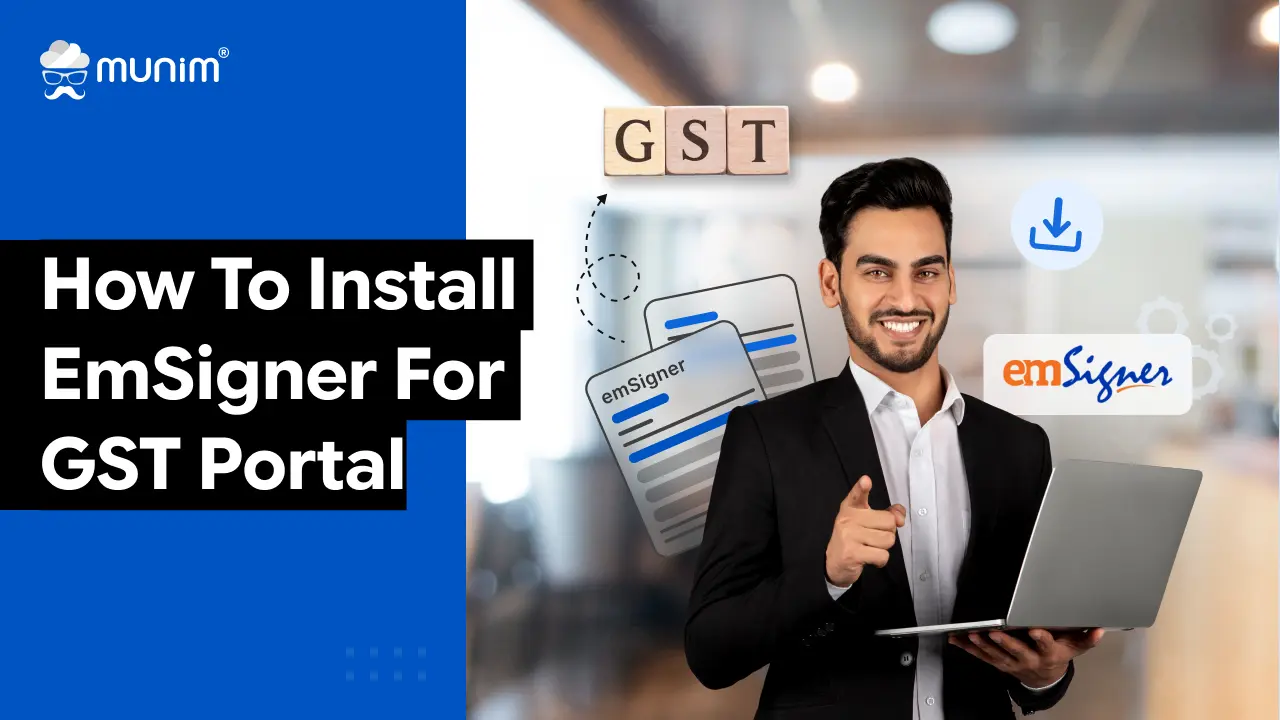
Has it ever happened to you that you are filing a GST return and get stuck at the last step? The step at which the portal asks for a digital signature, and you keep staring at the screen.
This is where GST emSigner comes into the picture.
If you are a business owner, CA or tax consultant handling GST filings, installing emSigner on your desktop is not optional but a necessity. To authorise the GST filing, the portal relies on emSigner for secure filings, refunds, amendments and notices. Thus, having emSigner installed on your computer system is a must.
In this blog, we will explain how to install emSigner for GST on your computer in a step-by-step manner. No tech-heavy jargon. Simplified guide.
System Requirements to Install GST eMudhra emSigner
This is the step where most mistakes begin. If your system does not meet GST gst.gov.in emSigner’s basic requirements, then your computer may show errors while installing or during use.
Hence, it is best to ensure that before installing. The system requirements for emSigner for GST are as follows:
- Your operating system should be Windows 10 or Windows 11 (32 or 64 bit). You may experience instability with older versions of Windows, such as 8.1 or 7.
- Java is installed in your system. Java 1.6 or Java 1.7 Java 1.8 Typically, emSigner can be run on Java 1.6 or later, such as 1.7 or 1.8.
- You have admin rights on the system to install software and run it as Administrator.
- One of these ports is not blocked by firewall and antivirus in 1585, 2095, 2568, 2868 or 4587 ports. emSigner uses these ports to communicate with your browser and GST portal.
With office computers, these ports may be blocked out by firewall policies or IT policies. At that, you may require the help of your IT administrator in order to enable emSigner.
Note: If you're using an office computer, it's quite common that firewalls or IT policies block these ports. In that case, you might need support from your IT admin to allow gst.gov.in to use emSigner.
Browser and DSC Token Requirements
Along with the hardware requirements, you need to check:
- Use an updated version of Chrome, Edge, or any other compatible browser.
- Install the drivers (software) to run the DSC USB token and confirm the token is detected in your system before attempting to sign on to the GST portal.
GST Portal eMudhra emSigner Installation Steps for Windows 2026
The following is the full process of installing gst.gov.in emSigner for the GST Portal:
Step 1: Go to the GST Portal and sign in with your credentials
Step 2: Go to your ‘Profile’ section located on the left side of the screen.
Step 3: Click on the ‘Register/Update DSC’ option
Step 4: Now, the 'Register Digital Signature Certificate’ page will be displayed. Click on the ‘click here for instructions on installing emSigner utility’ option to get the download link of GST emSigner.
Step 5: On the ‘Document Signer Installer’ page, click on the download button adjacent to the operating system of your computer.
Step 6: Once the file is downloaded, execute the ‘emSigner.msi’ file to initiate the installation process.
Step 7: Run the installer and authorise the required permissions needed to install the emSigner.
Step 8: Click on the ‘Finish’ button when the emSigner is installed.
Step 9: Find the ‘emSigner’ icon on your desktop and right-click on it. Click on ‘Run as administrator’. A dialogue box will appear, click the ‘OK’.
Step 10: Now the emSigner application will open, where you can sign your GST-related documents and returns electronically.
How to Use a GST emSigner on the GST Portal
After emSigner has been installed and you have ensured it is working normally, then the real work starts: signing on the GST portal. Fortunately, this is the easiest part of the process. The following steps explain how to use GST emSigner on the GST portal:
Step 1: Install your DSC token in the USB port and ensure that the token driver has been installed.
Step 2: Run the emSigner administrator and wait till you see the "service started" message.
Step 3: Open the browser (Chrome or Edge) and enter gst.gov.in and log in to your account.
Step 4: Select the form you want to be signed (GSTR-1, GSTR-3B, application to register, etc.).
Step 5: Select Sign with DSC portal.
Step 6: The signing dialogue will show a list of certificates displayed. Select the correct one, then click Sign.
Step 7: A success message will appear on the screen when your form is submitted successfully with an appropriate digital signature.
Tip: If you are facing any error with a digital signature, do read our blog: GST DSC errors and how to resolve them.
Who Needs an emSigner for GST in India?
You may be asking yourself, " Is this something I really require, or can I pass it over?
You need emSigner for GST if:
- You are a company, LLP, or certain types of firms, in which DSC is mandatory for GST filing.
- You are a CA or tax practitioner filing returns for multiple clients using their DSCs.
- You need to add or modify DSC information on the GST portal.
If you are currently using OTP-based e-signing since your business entity type allows you to do so, but you need a GST emSigner for most medium and large businesses.
Over to You
After reading this blog, we hope you now understand the process of downloading and installing GST emSigner on your desktop. Make sure your system complies with the minimum hardware and software requirements. During the GST filing process, if you face any difficulties, consider it a sign to switch your GST return filing software.
Frequently Asked Questions on GST emSigner.
1. What is an emSigner?
emSigner is a small program to enable the GST portal to make use of your Digital Signature Certificate to sign and send returns safely.
2. How to restart emSigner?
To restart emSigner, close your browser and terminate emSigner in the system tray. Next, run emSigner as administrator and restart the GST portal.
3. How to update emsigner for GST?
Simply go to the GST Portal and download the updated version of emSigner.
4. How does emSigner work?
emSigner is a background application that lets the GST portal connect with your Digital Signature Certificate. Upon clicking Submit with DSC, emSigner will sign the information safely, then transfer it to the portal.
5. How to change the emSigner port?
You don’t need to change the emSigner port unless there is a problem. You can resolve the issue by allowing 1585 Port in the firewall settings.
6. How to enable emSigner for GST in Chrome?
Ensure that you are using the latest version of Chrome. Then permit JavaScript 127.0.0.1 in Chrome settings, re-open the GST portal, and then use DSC.
7. How to uninstall emSigner?
Open the Control Panel on your system, go to Programs and Features, find emSigner and click on Uninstall.
8. Can emSigner for GST and income tax be the same?
Yes, emSigner and DSC can be used for GST as well as Income Tax.
About the author

Related Articles
Explore the latest market news, useful resources for business, and Munim updates.