Accounts Payable Invoice Processing: From Bill Receipt to Payment With OCR
 AuthorMehul Jagwani
 Reviewed ByAjay Savani



Summary:
A reliable bill receipt to payment workflow covers capture, verification, purchase confirmation, recording, approval and reconciliation. We help you extract and record purchase information in Munim. Your team checks the transaction, resolves differences and authorises payment.
Accounts payable invoice processing starts with capturing your supplier’s bill correctly. With OCR, we help you reduce manual entry so you can focus on checking the details, recording the purchase and tracking payment.
When bills arrive through email, WhatsApp and paper copies, it is easy to miss an entry or record the same invoice twice. Unadjusted advances can also leave your supplier balances incorrect.
At Munim, we bring AI assisted bill capture and purchase recording into your workflow. You review the extracted details before saving, then follow the payable through settlement.
What is OCR in purchase invoice processing?
OCR stands for Optical Character Recognition. It reads text from scanned documents and images so software can use the information.
We use AI assisted extraction to reduce manual typing during purchase invoice processing.
| What extraction helps capture | What you should verify |
| Supplier details | Correct vendor and supplier GSTIN, where applicable |
| Items, quantities and rates | Agreement with the order and goods received |
| Taxes and totals | Calculations and applicable tax treatment |
| Purchase bill information | Correct accounts and outstanding amount |
How do we help you move from purchase bill to payment?
In Munim Billing & Accounting, we help you capture bills and maintain purchase and payment records. The checks below explain where your team should verify, confirm and approve the transaction.
1. Receive a complete, readable invoice
Keep incoming supplier bills in one designated place and retain the original document.
Before uploading, check that:
- All pages, item lines and totals are visible.
- The invoice number, date and supplier details are readable.
- The document is a final bill, not a quotation.
- You have not already recorded the invoice.
For photographs, avoid glare, blurred numbers and cropped edges.
2. Scan and review your bill in Munim
With our AI Purchase Bill Scanner, we extract purchase information from PDFs and images for you to review before saving.
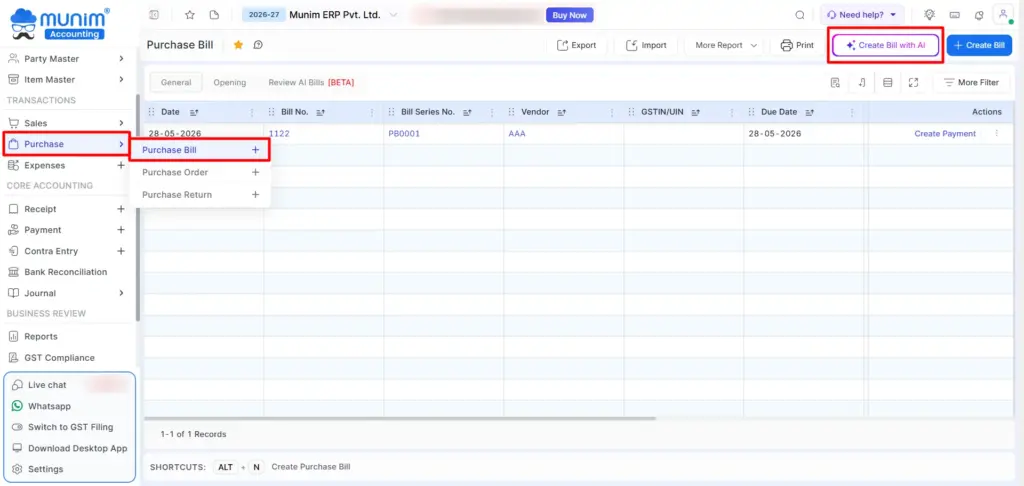
- Open Purchase > Purchase Bill.
- Select Create Bill with AI.
- Upload a PDF, PNG, JPG or JPEG.
- Select Scan With AI.
- Open Review AI Bills.
- For Need To Verify, select Generate Bill.
- Review the information, correct errors and save.
Check inclusive or exclusive tax settings and decimal precision if calculated values differ from your uploaded bill.
3. Verify the extracted information
Keep the original invoice beside the entry and check the following:
| Field | What you should check |
| Supplier | The vendor account and GSTIN match the invoicing supplier |
| Recipient | Your business details and the relevant GSTIN are correct, where applicable |
| Invoice number and date | Match the source document |
| Items and units | Map to the correct products or services |
| Quantity and rate | Agree with the invoice and purchase terms |
| Taxes | Correct rate, taxable value and applicable IGST or CGST plus SGST/UTGST treatment |
| Charges and total | Discounts, freight and rounding reconcile with the bill |
| Possible duplicate | No existing entry for the same supplier invoice |
For duplicate checks, compare the supplier, invoice number, date and amount. A filename is not enough: the same bill can arrive as a PDF and a photograph. Scanning alone does not confirm uniqueness.
4. Confirm the goods or services received
Compare your invoice with evidence of the purchase.
| Purchase type | What to check |
| Goods | Purchase order, goods receipt and invoice |
| Services | Agreed scope, fee and completion confirmation |
| Partial delivery | Quantity received against quantity billed |
| Returned goods | Return record and supplier adjustment |
| Purchase without an order | Agreed price and written receipt confirmation |
Assign any difference to someone who can resolve it. If the supplier’s invoice is wrong, request clarification or correction.
5. Record the purchase correctly
Before saving, confirm:
- Company and accounting period.
- Vendor and relevant purchase, expense or asset account.
- Item mapping, where applicable.
- Payment terms and due date.
- Advances, returns or adjustments requiring allocation.
Recording a liability and approving payment are separate decisions. You may need to record a valid unpaid purchase before payment approval.
6. Approve and record payment
Your invoice approval workflow should identify who confirms receipt, reviews the entry and authorises payment.
Before settlement, check:
- Approved amount and invoice reference.
- Supplier bank details.
- Previous payments and advances.
- Remaining amount due.
Confirm changed bank details through an established supplier contact.
With our Payment Detail option, we let you record payment information while creating your purchase bill. Enter the mode, reference number, paid from account and amount. When you save, we create the linked payment transaction.
This records payment information; the option does not itself transfer money through a bank.
7. Reconcile the payment and remaining balance
Match the payment entry with bank evidence and the correct supplier bill.
- Confirm that the transfer succeeded.
- Allocate payment to the intended invoice.
- Keep any unpaid amount outstanding.
- Investigate differences against supplier statements.
With our accounts payable and receivable software, we help you maintain purchase records and track outstanding amounts and due dates. Use these records to check what has been settled and what remains payable.
Already using Munim? Check your pending bills here
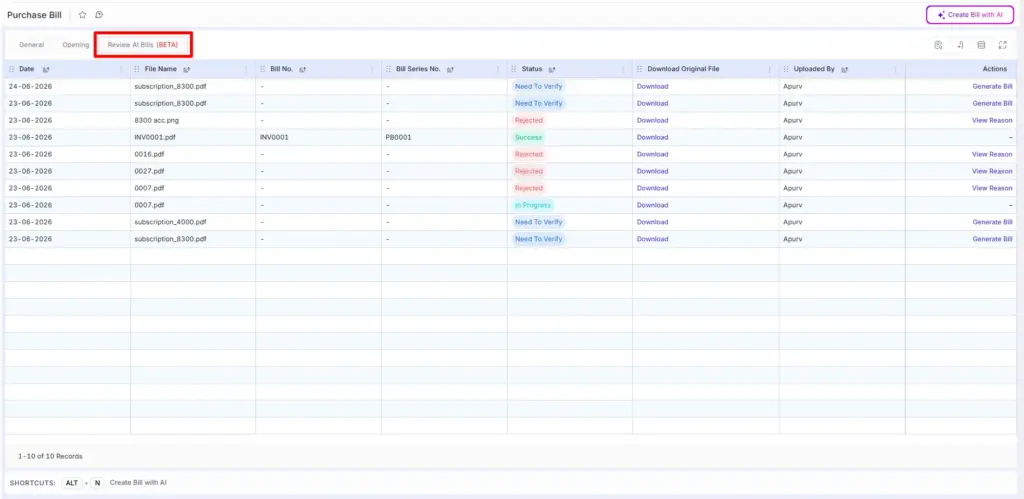
If you’re already using Munim, open Purchase > Purchase Bill > Review AI Bills. Here’s what to do with each status:
| Status | Your next action |
| In Progress | Wait for processing, usually 30 seconds to 2 minutes. You can upload other bills meanwhile. |
| Need To Verify | Click Generate Bill, review and correct the details, then save. |
| Rejected | Click View Reason. Resolve document, format, missing information or settings issues. |
| Success | Your purchase bill has been created. No further action is needed for bill creation. |
Each document upload deducts one credit. Check your settings and bill data before processing.
Frequently Asked Questions
1. Can OCR process photographs of bills?
Yes. In Munim, you can upload supported images such as JPG, JPEG and PNG. Clear, complete photographs make extraction and verification easier.
2. Does OCR software read handwritten invoices?
Support and accuracy vary. Test your actual handwritten bills before relying on the output, and verify the extracted information.
3. Does scanning prevent duplicate bills?
No. OCR invoice processing captures information but does not itself establish that an invoice is unique. Compare its supplier, invoice number, date and amount with existing entries.
4. Can I record a purchase bill before payment?
Yes. Recording an unpaid purchase establishes the liability. Record the payment when settlement occurs.
5. Does a successful scan mean the bill is paid?
No. Bill creation and payment are separate events. Your payment needs its own record and confirmation.
6. Should I retain the original invoice?
Yes. Keep the source accessible for verification, supplier queries and applicable record keeping requirements.
Keep your supplier balances accurate from the start
Getting verification right the first time helps you avoid incorrect entries and unreliable supplier balances. We support that process with AI assisted capture, purchase records and payment tracking that you can use through reconciliation.
Start with a pending bill in Review AI Bills. Check the details, save the verified entry and confirm the amount still payable. That is how we help you turn a scanned invoice into a purchase record you can confidently work with.
Scan and record purchase bills with Munim.
Disclaimer: "This blog post is for informational purposes only. For specific tax advice related to your business, please consult a qualified Chartered Accountant or GST practitioner."
Post Tags
Related Articles
Explore the latest market news, useful resources for business, and Munim updates.