
 1889 views
 Reconciling your GSTR‑3B with your GSTR‑1 ensures that the outward supplies and tax liabilities you’ve declared in your monthly (or quarterly) summary return match the detailed invoices you’ve reported.
This process helps you catch under‑ or over‑reporting early, avoid notices from the tax authorities, and maintain clean books.
A step-by-step guide to compare your GSTR‑3B and GSTR‑1/1A returns in Munim GST.
1. Navigate to the Report
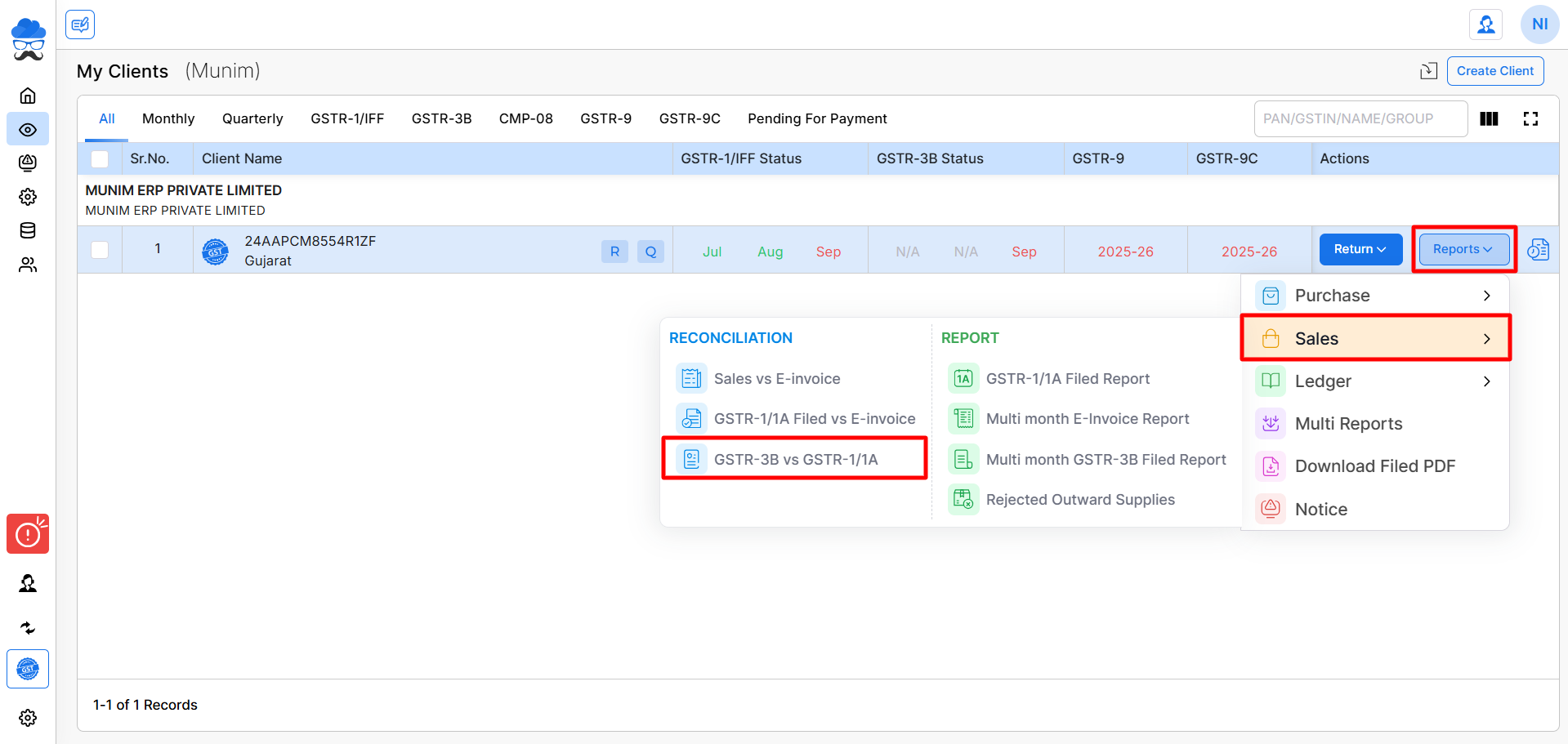
- Log in to Munim GST and go to My Clients.
- Next to the company, Click Reports ▶ Sales ▶ GSTR‑3B v GSTR‑1/1A.
+−⟲
2. Download Portal Data
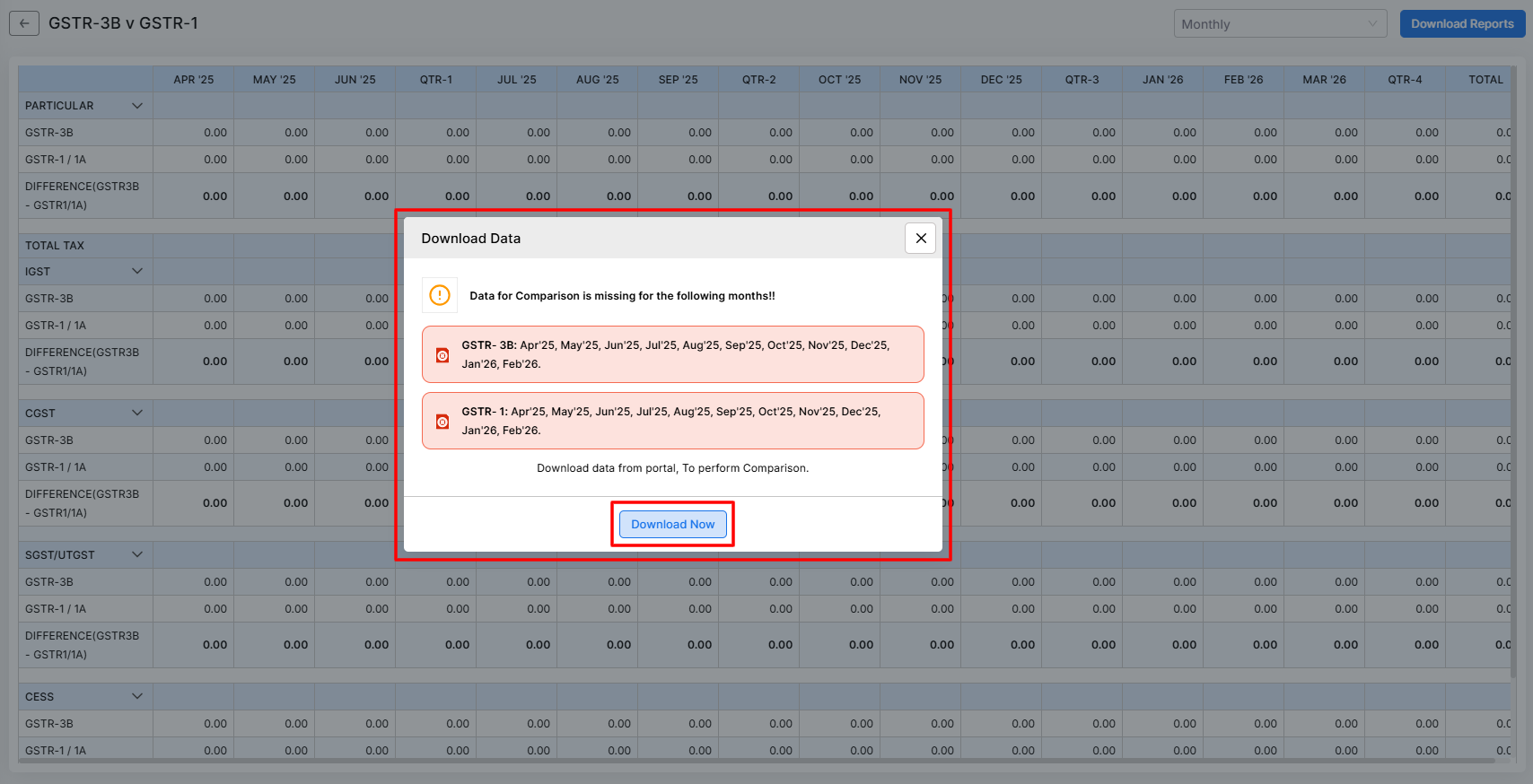
- Once you click on the GSTR-3B v GSTR-1/1A option, the Download Data pop-up will appear.
- In the Download Data pop-up, you’ll see missing months highlighted.
- Click Download Now to fetch the required GSTR‑3B and GSTR‑1/1A data from the GST portal.
+−⟲
3. Monitor Download Progress
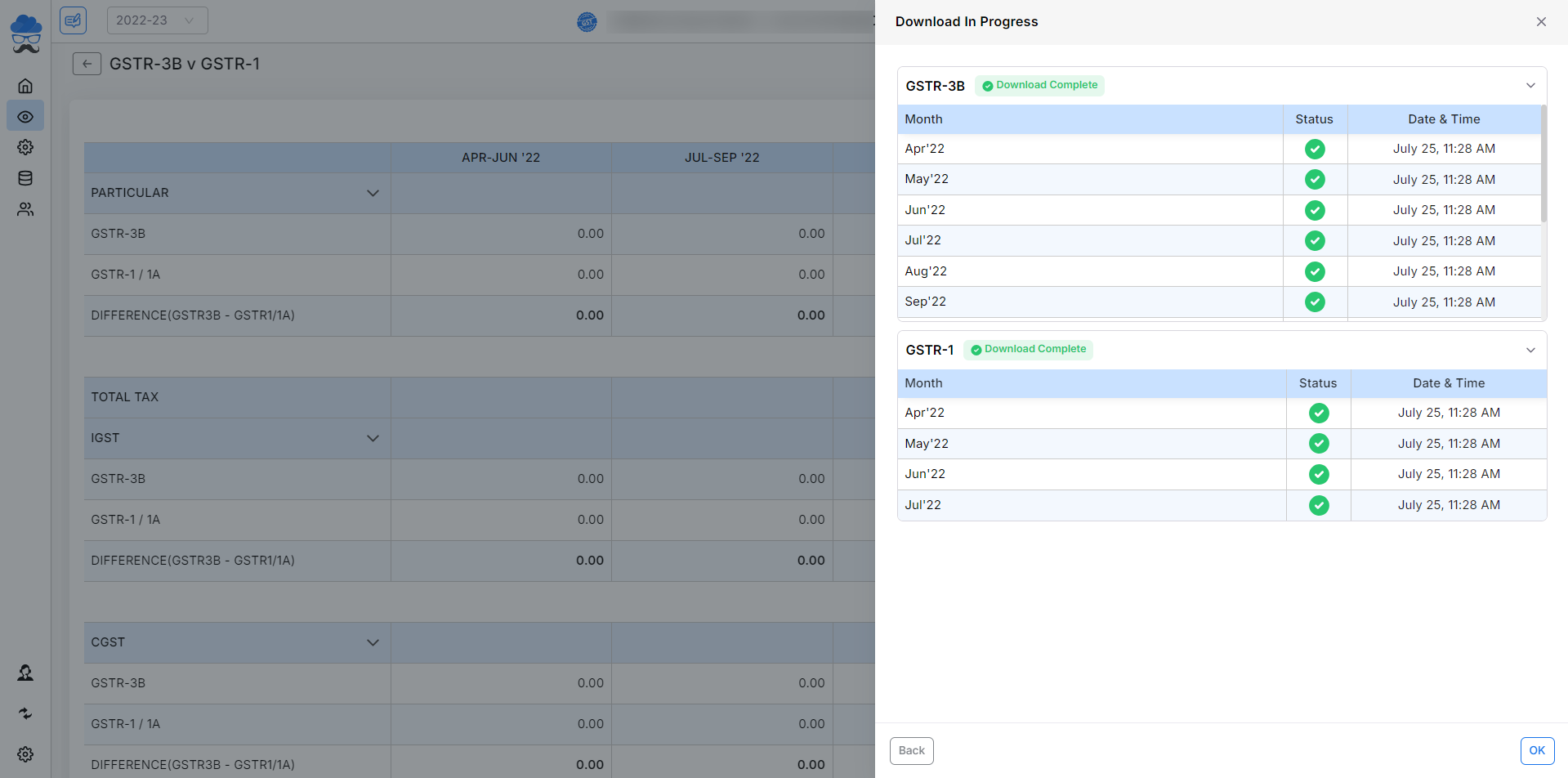
- Once you click the Download Now button, A side panel opens and displays each month’s data download status for GSTR‑3B and GSTR‑1/1A.
- A green tick means data download is complete; a Loading process means data downloading is in progress.
+−⟲
4. Confirm & View Downloaded Data
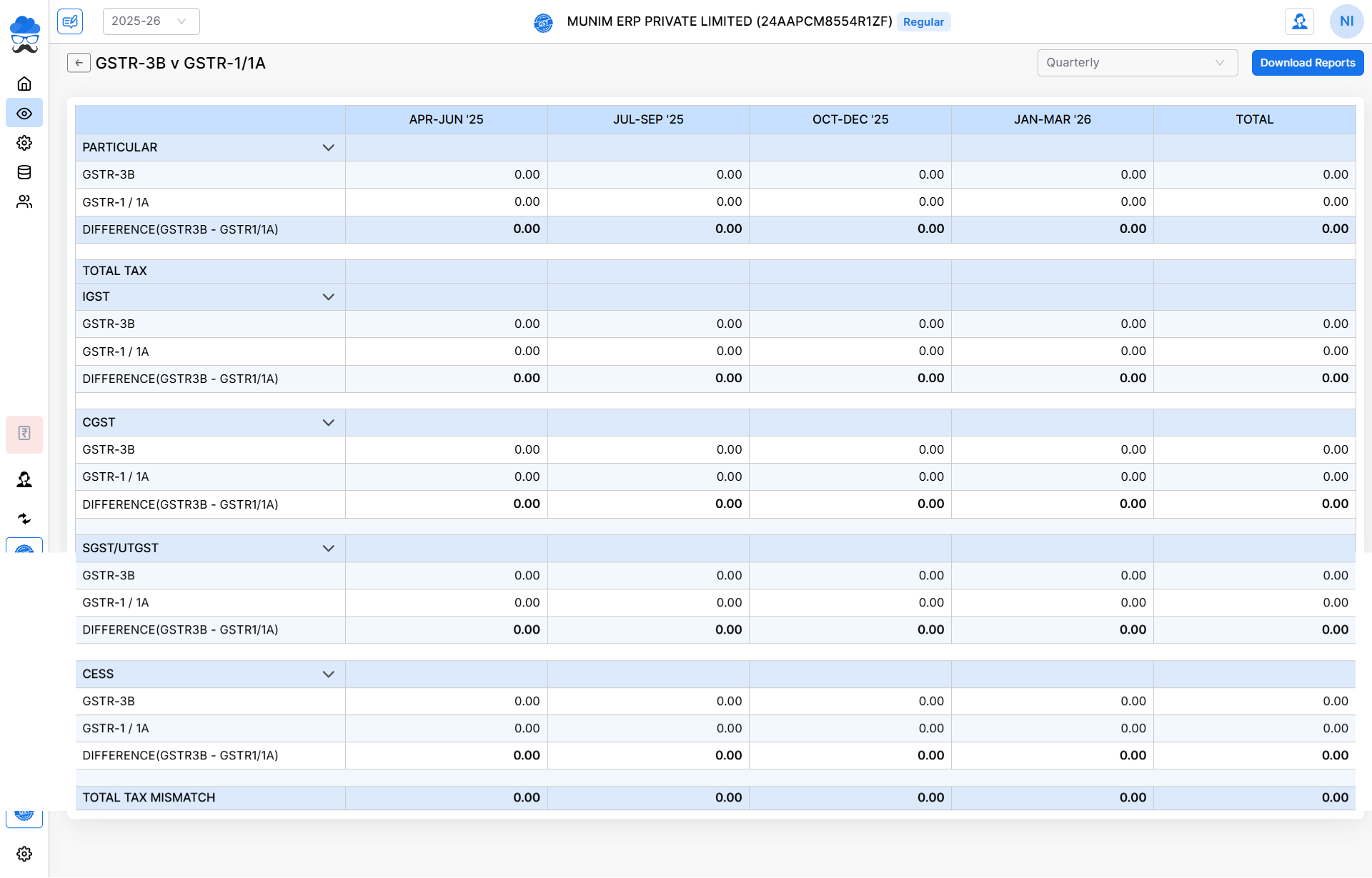
- Once all the months’ data is downloaded, click OK.
- The report summary page will refresh, showing actual values in each period.
- You can switch between Monthly and Quarterly views from the top right side.
- Also, you can download the detailed report in Excel format by clicking on the Download Reports button.
+−⟲
5. Report Layout & Sections
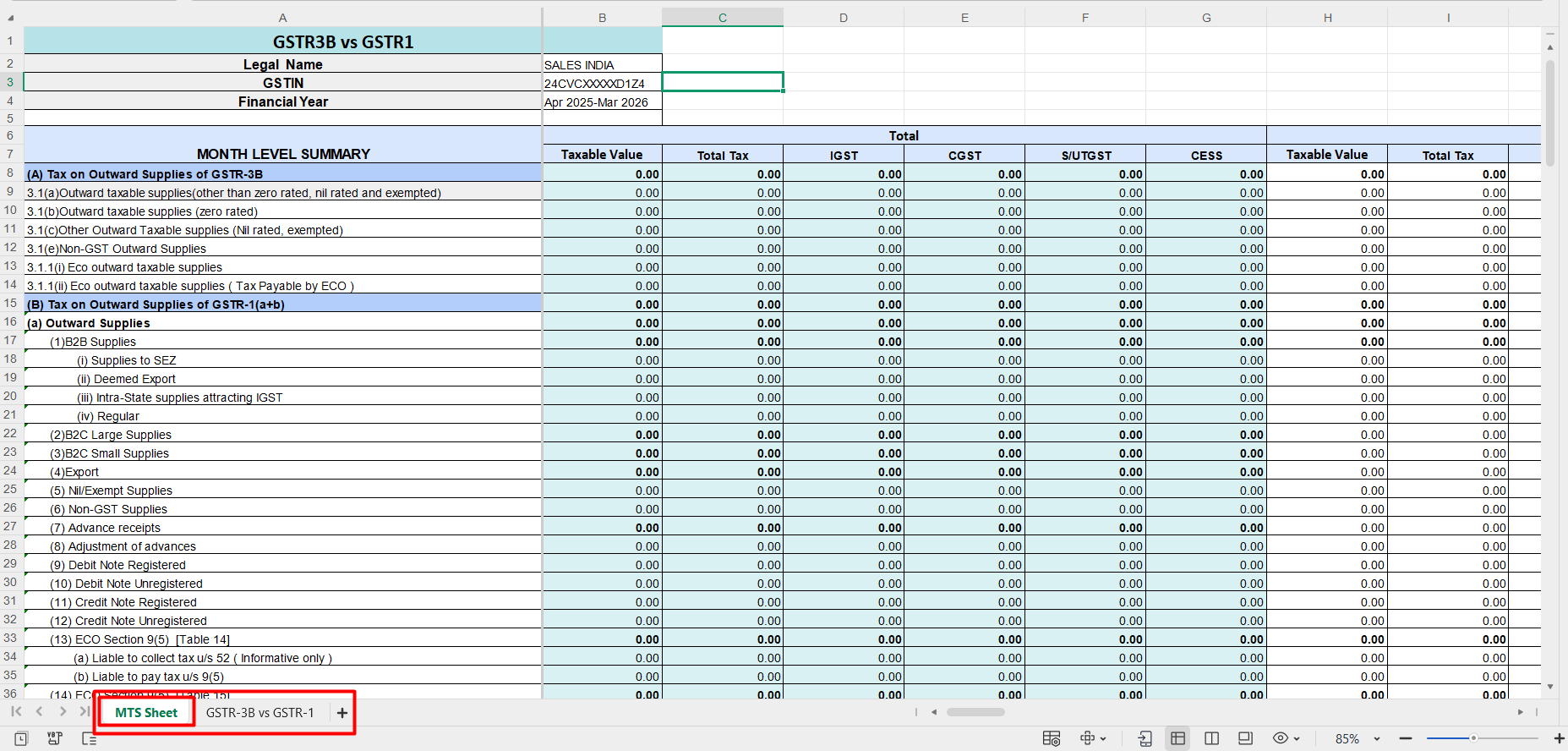
After download, your Excel export contains two sheets: (MTS and GSTR‑3B vs GSTR‑1/1A)
A. Detailed Report (Sheet: MTS Sheet)
- This sheet contains a report in full detail with all sections and values.
B. Summary (Sheet: GSTR‑3B vs GSTR‑1/1A)
- This sheet contains an Overall Summary of the report.
+−⟲
Tips
- Ensure portal credentials are added before downloading.
- Re‑download if you amend any of the two returns on the GST portal.
- Use Quarterly view for smaller data‑sets to speed up reconciliation.
For further assistance, contact our support team


