
 1447 views
 In Munim GST, before you can use E-Invoice and E-Way Bill related reports, you need to ensure that these options are enabled for the respective company. Enabling this setting allows you to generate, view, and reconcile E-Invoice and E-Way Bill data seamlessly.
Steps to Enable E-Invoice / E-Way Bill Reports:
- When creating a company for the first time for GST filing, we have provided the option to enable E-Way Bill and E-Invoice.
+−⟲
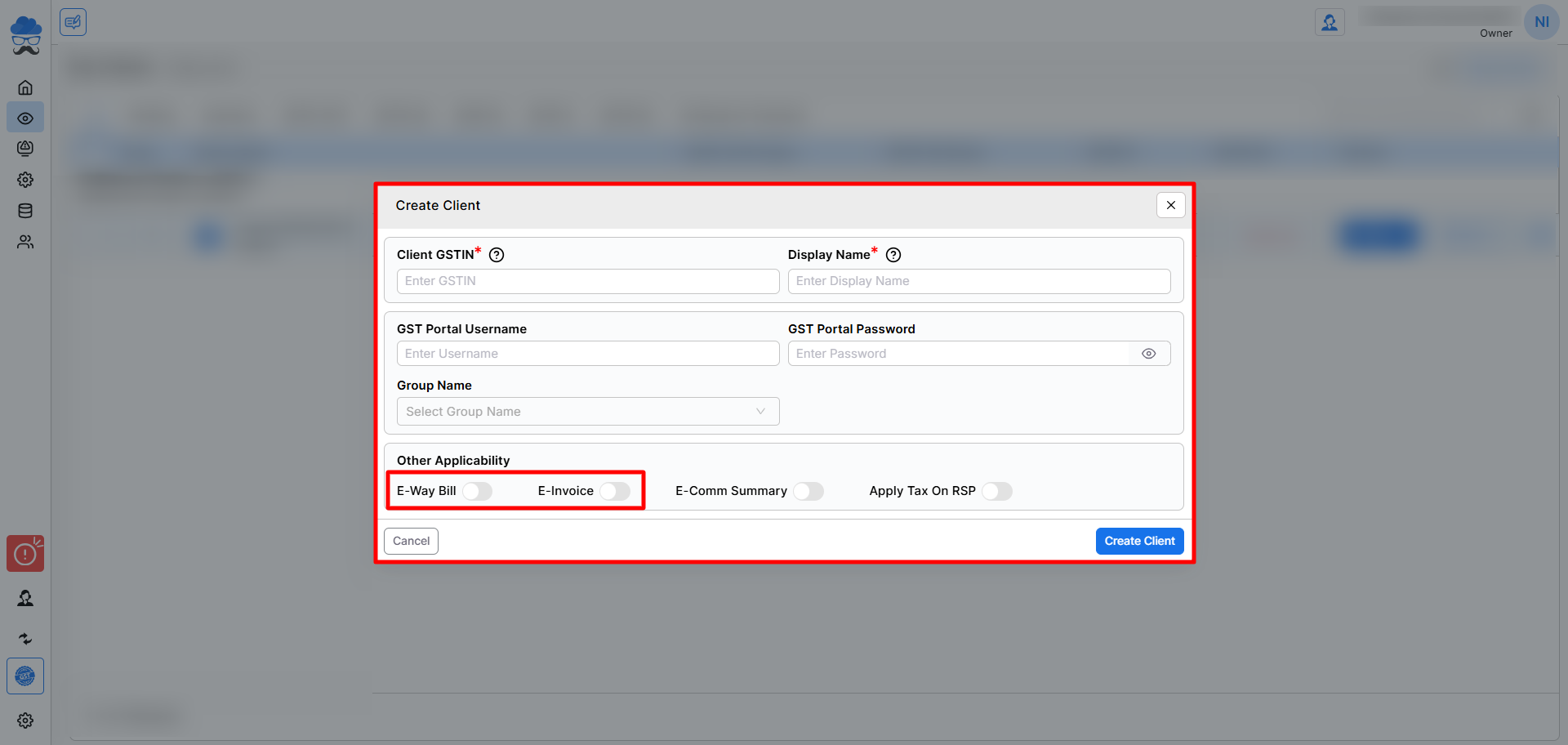
Enabling from GSTR-1 Filing Popup
- When you open a client company for the first time for GSTR-1 filing in Munim, a pop-up message will appear if the E-Invoice / E-Way Bill option is not yet enabled for that client company.
- Once enabled, you can continue filing GSTR-1 smoothly with E-Invoice / E-Way Bill features available.
+−⟲
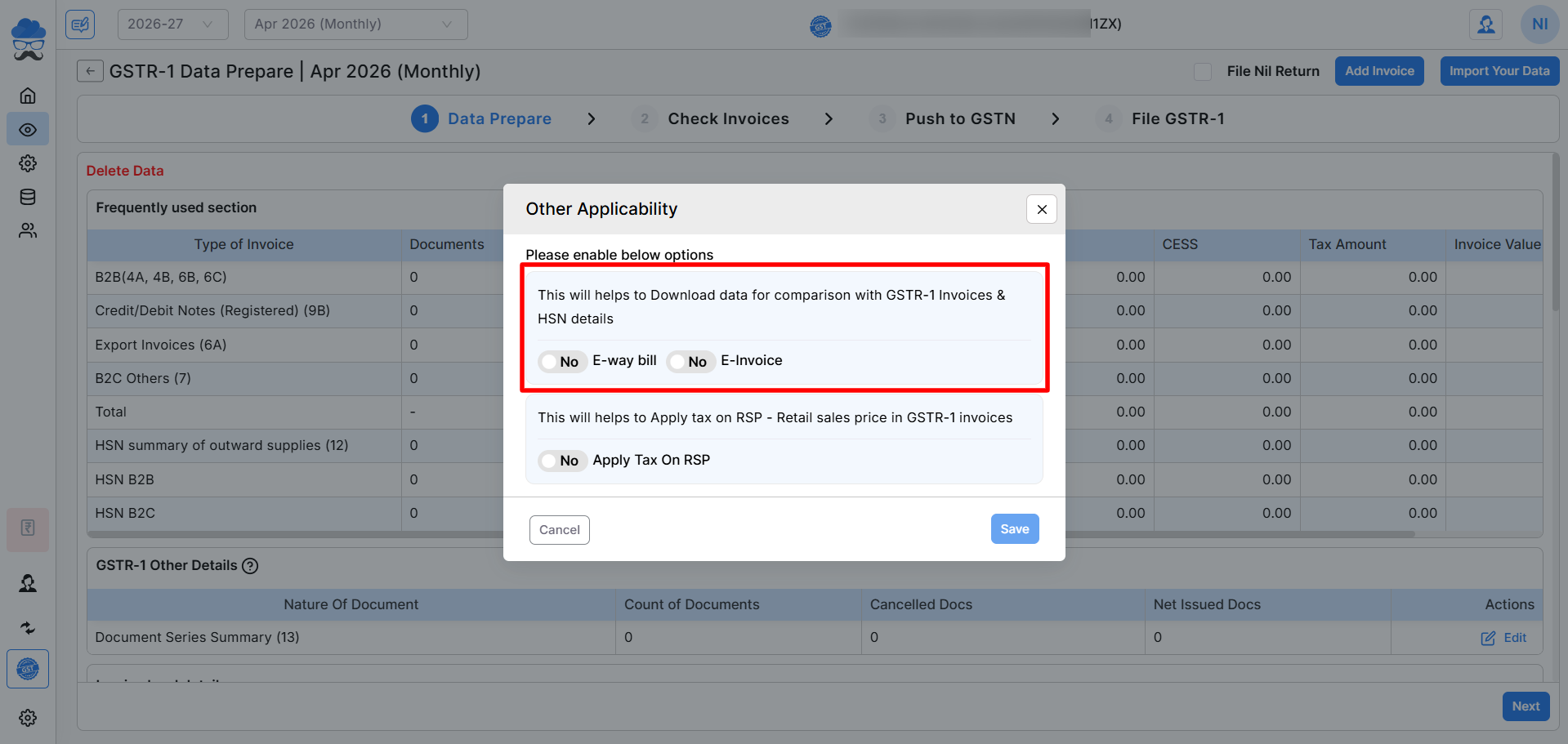
- The pop-up will prompt you to enable E-Invoice / E-Way Bill directly.
- Click Enable Now to activate the option without navigating to Client Settings separately.
Go to Client Settings
- Log in to Munim GST and navigate to the Client Settings page.
- Find the company for which you want to enable the option.
- Click on the button next to the client company.
+−⟲
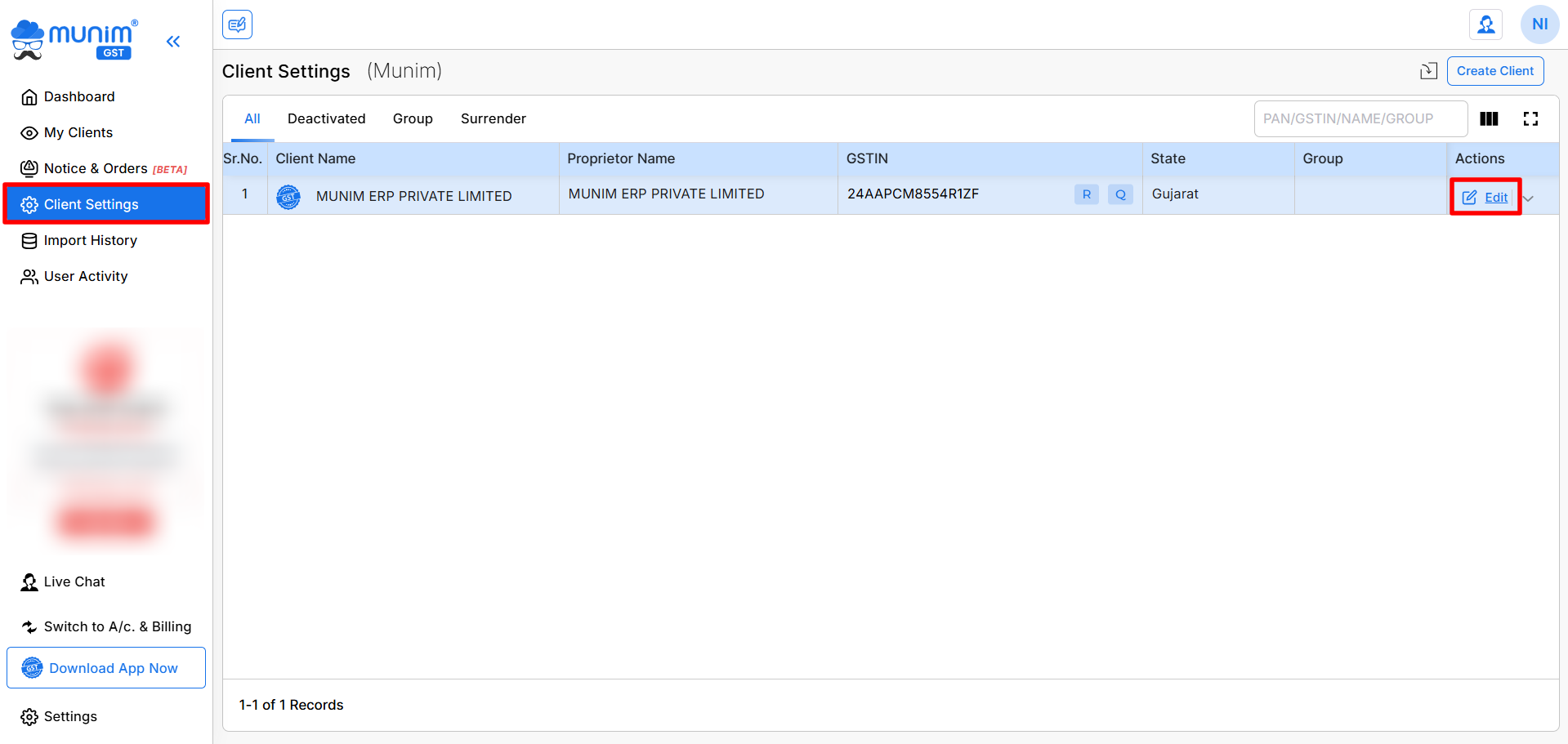
Enable E-Invoice / E-Way Bill
- In the Edit Client Settings, scroll down to the bottom to Other Applicability section. You will see two toggle options:
- Enable E-Invoice
- Enable E-Way Bill
- Set the options to “Yes” based on your specific needs.
+−⟲
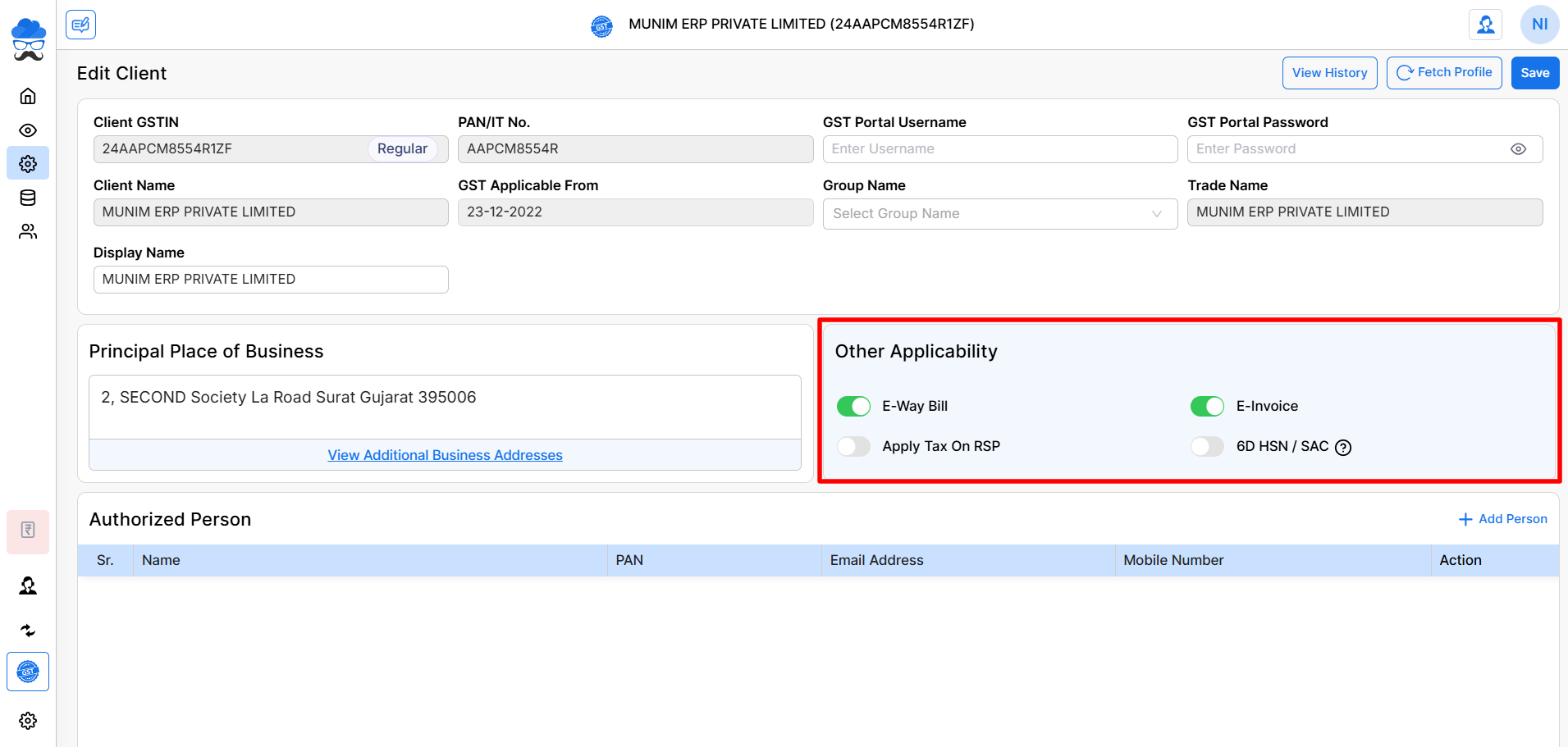
Save Changes
- After enabling, click the Save button to update client company profile.
Important Notes:
- Enabling these options is mandatory to access E-Invoice and E-Way Bill reports in Munim GST.
- Without enabling them, the system will not show you download or reconcile related data.
- Once enabled, you can directly use the Reports section to generate your E-Invoice / E-Way Bill reports.


