

 3607 views
 This helpdesk page will guide you through downloading and accessing the Munim GST App on your Windows devices.
Note: The Desktop app is mandatory to use Munim GST software and complete your filing processes through it.
Download the Munim desktop application:
- You can directly visit the download link: Download Munim for your Desktop
Accessing the download option after login:
- Complete the login process to access the Munim GST software.
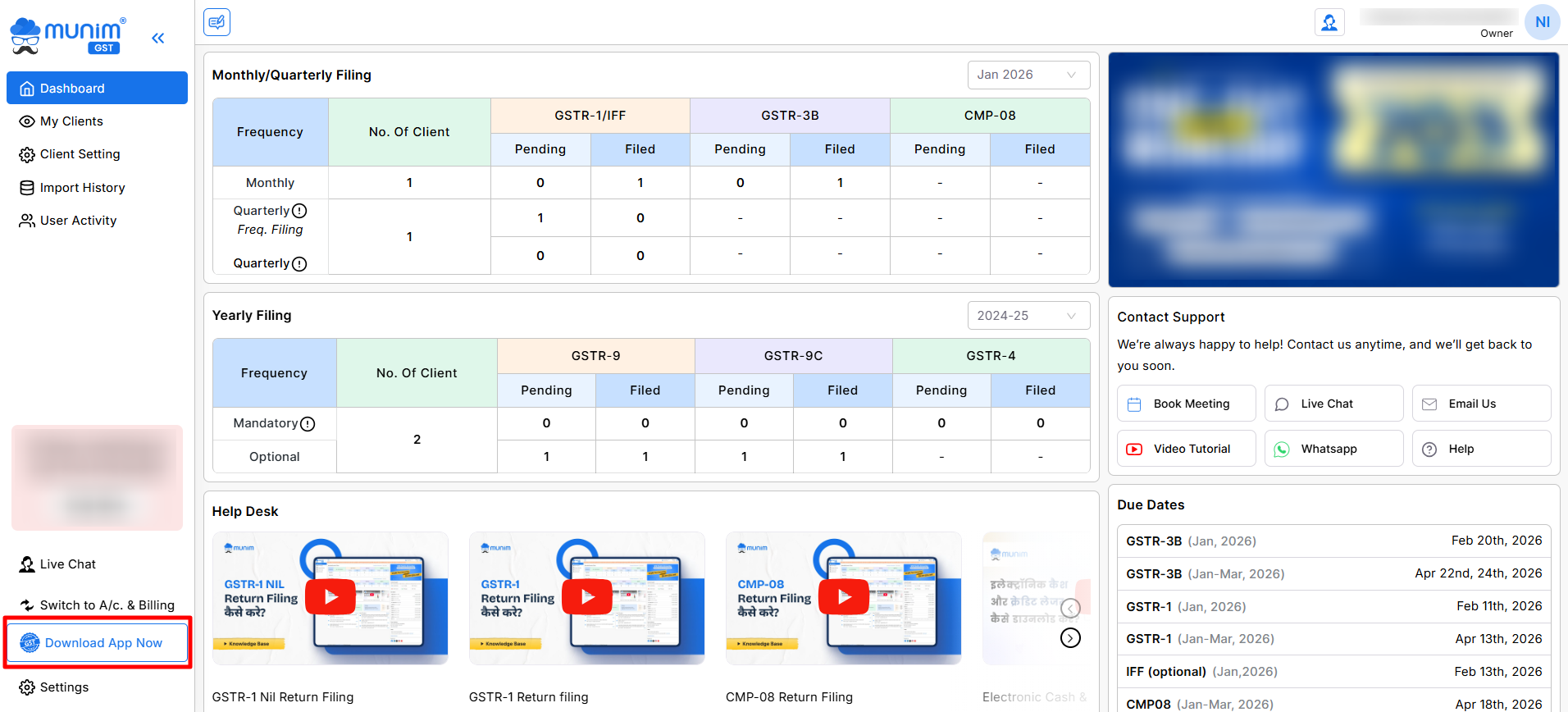
- In the left main menu, you will find the “Download App Now” option.
+−⟲
Download and install:
- Click on the Download App Now option, and you will be directed to the Munim website.
- Here you can see three options for your device system. You can then download and install according to your system.
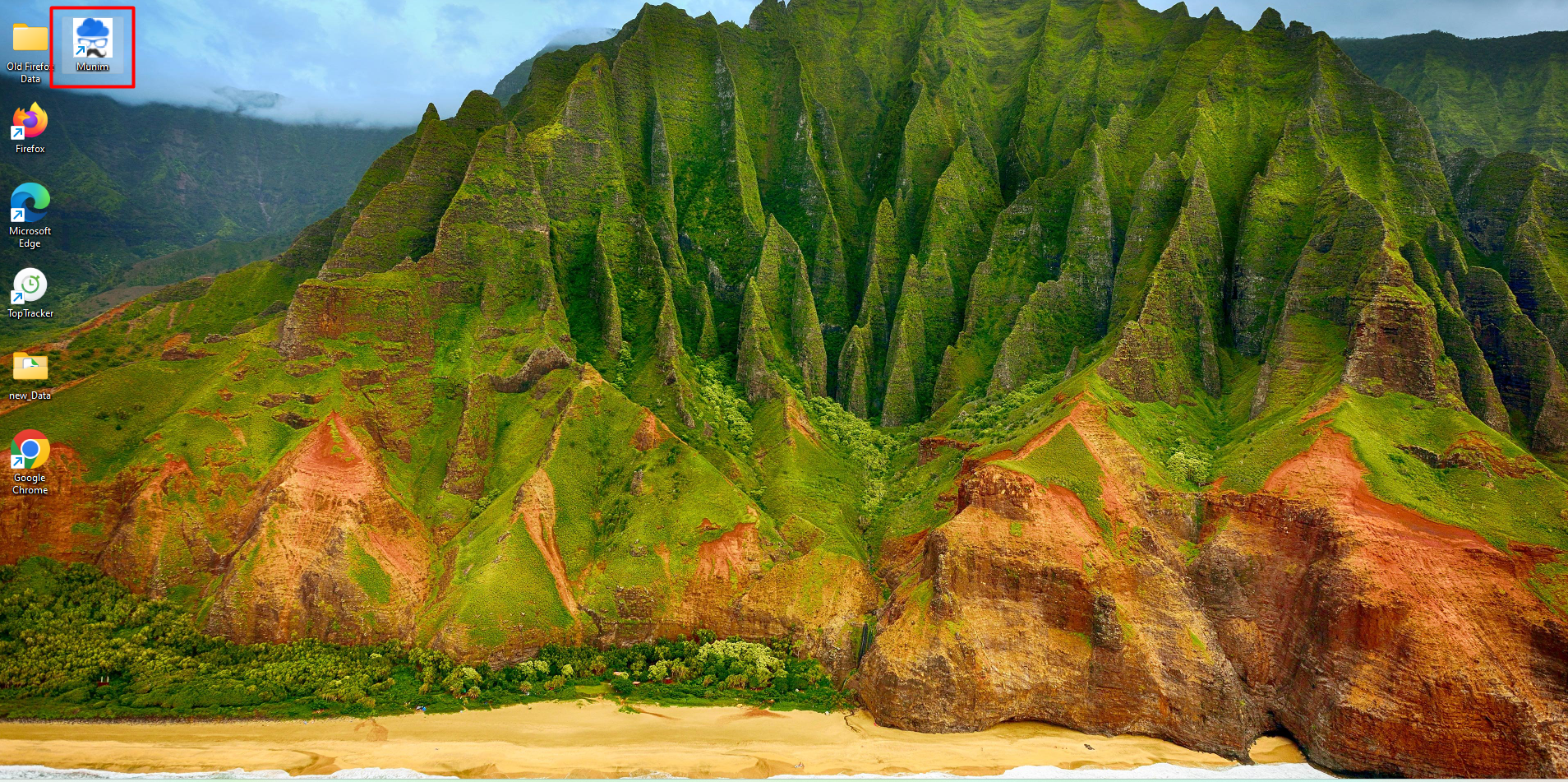
- After a successful installation, you will find a shortcut on your computer screen. This shortcut provides quick and easy access to Munim GST.
+−⟲
Installation Steps:
- Once you download the installation file, run the .exe file as Administrator.
- Wait for the setup to complete – it usually takes 1–2 minutes.
- A shortcut will be created on your desktop: Munim GST
- Double-click the shortcut to launch the app.
How to Update the App:
- Munim GST auto-checks for updates and downloads when the app is opened.
- If an update is available, you’ll be prompted to install it immediately.
- Follow the one-click update flow by clicking Restart.
- You can also check manually by clicking Update at the top left side of the desktop app.
Troubleshooting Installation:
If the installation fails:
- Disable your antivirus temporarily (some block .exe files)
- Microsoft Defender SmartScreen prevent app from installing, then click More info and then Run Anyway.
- Make sure you’re running the installer as Administrator
- Reboot and try again
- For any help, Contact support.


