
 4089 views
 A Multi Month GSTR-2B Report involves consolidating and analyzing the details of the GSTR-2B forms for multiple months. This is useful for businesses that want to ensure accurate and consistent input tax credit (ITC) claims over a longer period. Here’s how to utilize a Multi Month GSTR-2B Report.
Here are the steps for performing a Multi month GSTR-2B report.
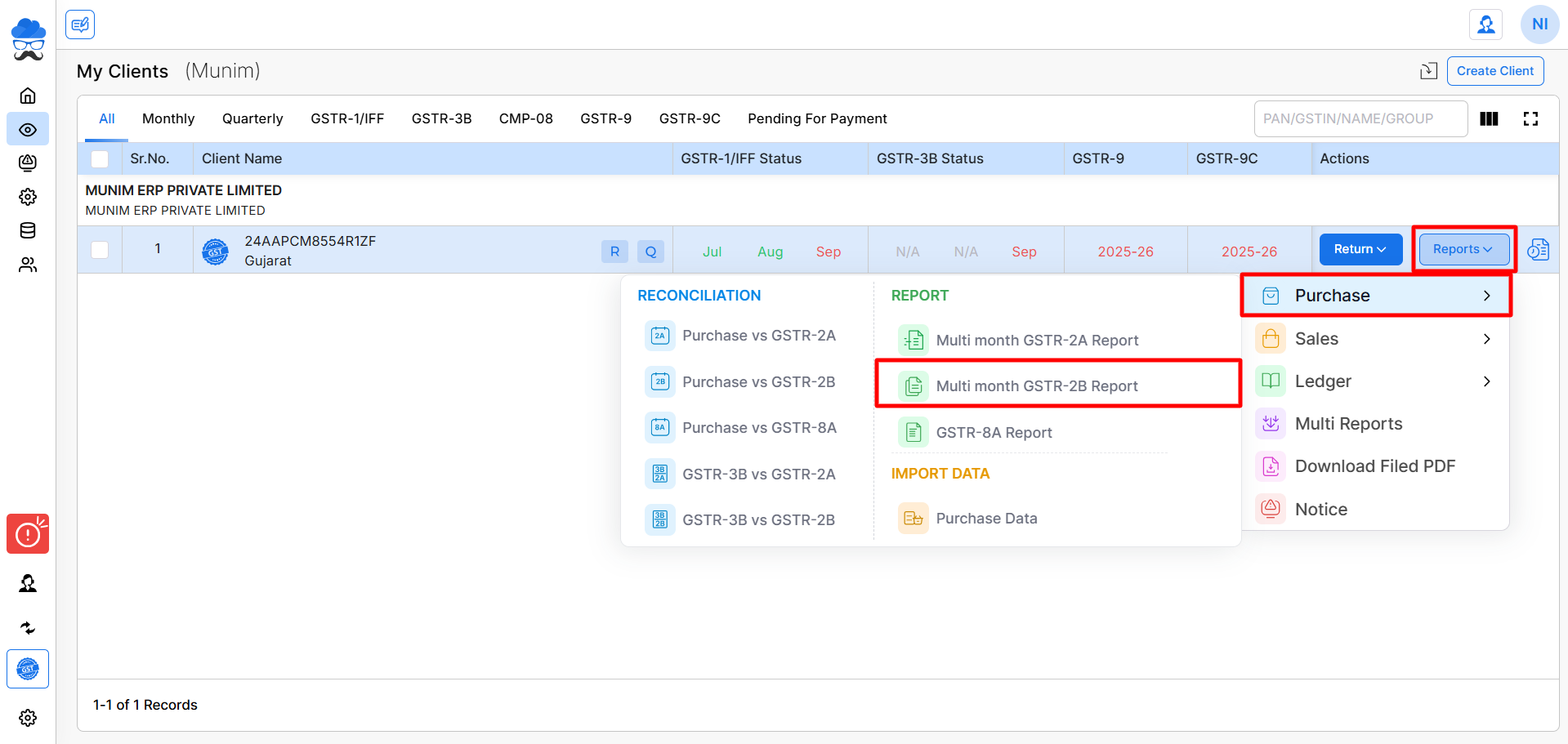
- On the My Clients page, click the Reports button, then click on the Purchase section and select “Multi month GSTR-2B Report”.
+−⟲
- You have been redirected to the Multi Month GSTR-2B Report page based on the selected financial year.
+−⟲
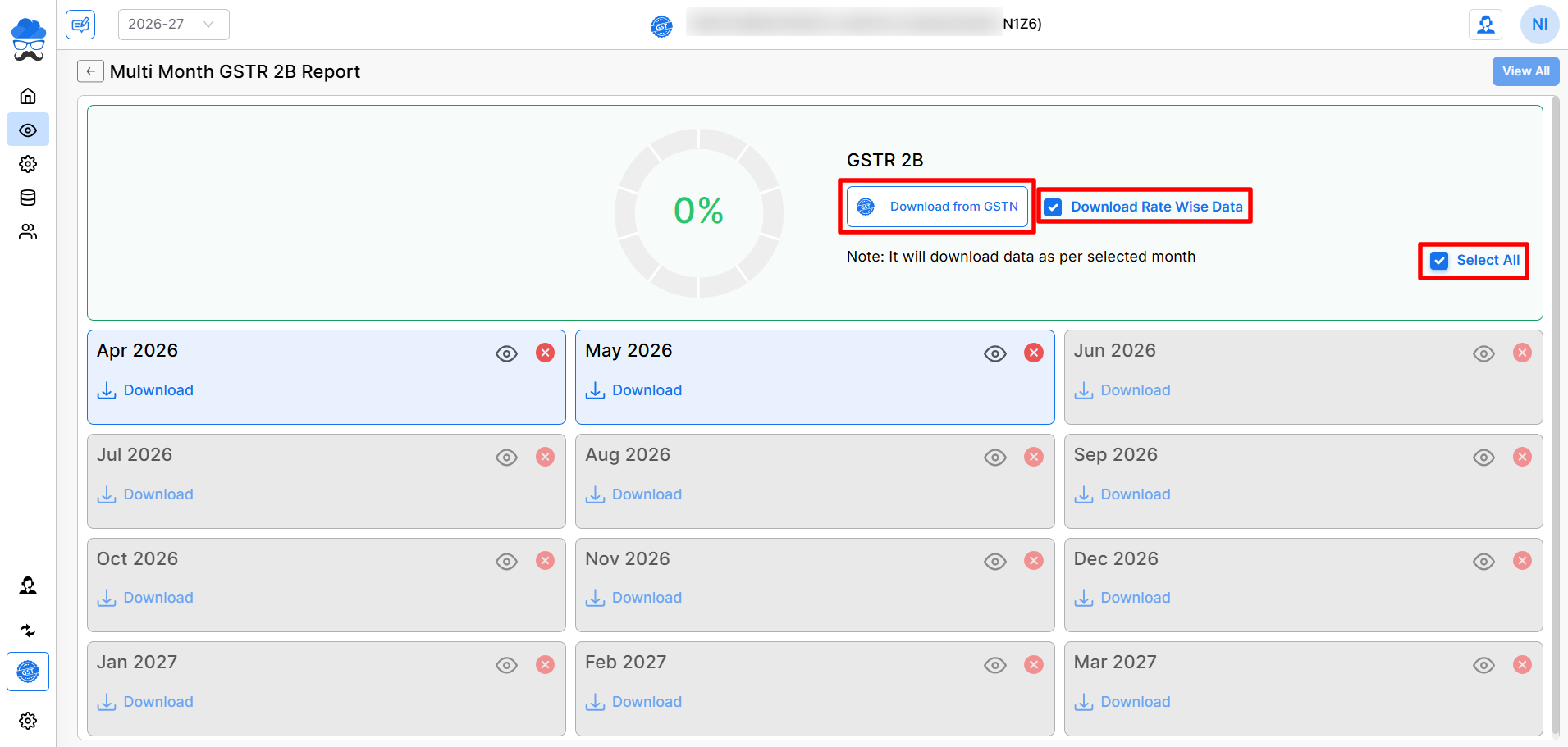
- In the Month view page, you can click to select any months or you can click the “Select All” option to select available months for downloading data.
- Here, you have the option to select “Download Rate Wise Data” to obtain GSTR 2B data, including rate details within the “Rate” column in data.
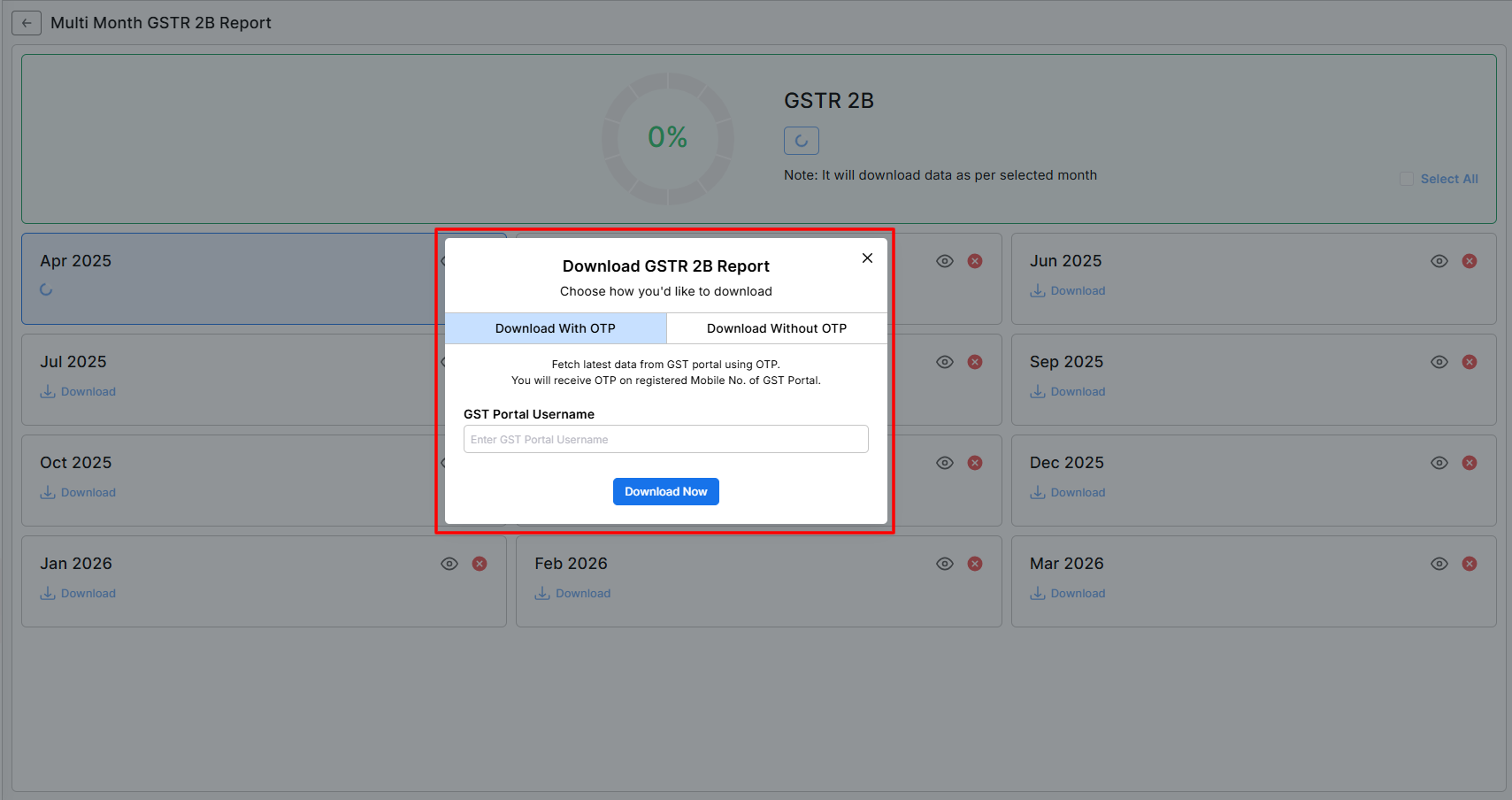
- Now, click the Download from GSTN button, and a Pop-up will open to select from two options.
- Download without OTP: Here, you can enter the GST portal credentials with captcha and download the selected months’ GSTR-1 data from the GST portal.
- Download with OTP: In this option, you can add your username and request for OTP on your registered number. Enter OTP to start data fetching process.
If you are downloading the month’s data and your data exceeds 500 entries, this option will be helpful.
- (Note: You must use the Munim desktop app to download the data.)
+−⟲
- After downloading the data, you will see a page indicating which month’s data has already been downloaded and which month’s data is still pending to download.
- If the data for a month hasn’t been downloaded, a “Download” button will appear. Once downloaded, a “Download Again” button will be displayed.
- After successfully downloading your data, you can view it month-wise by clicking on the View icon (👁) and use it for Purchase vs. GSTR-2B reconciliation.
- Here on this page, you will find the data of the GSTR-2B in two sections, Invoice Summary and Invoice Details
+−⟲
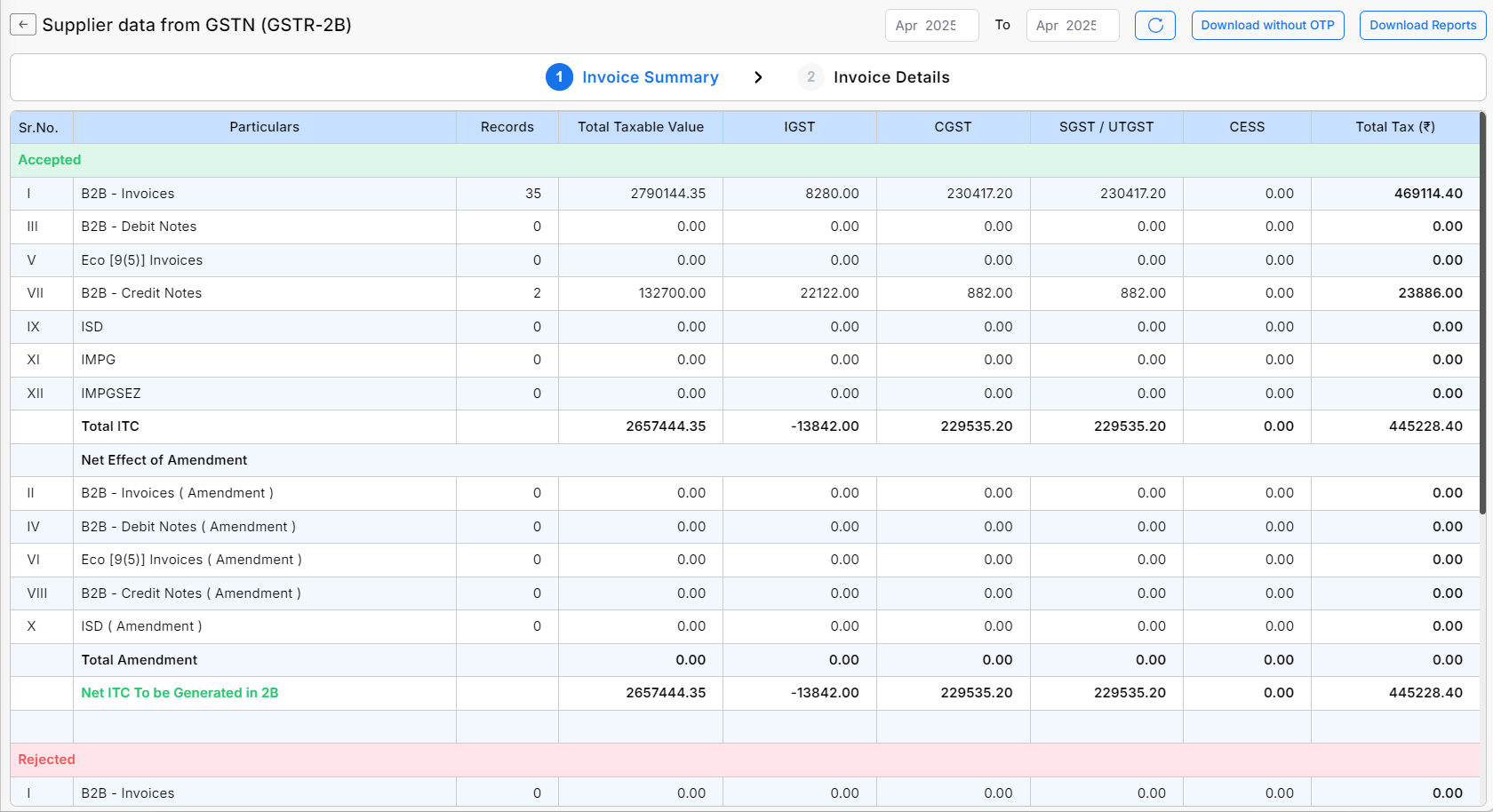
- The first page will be Invoice Summary, where you can check the data Summary-wise.
+−⟲
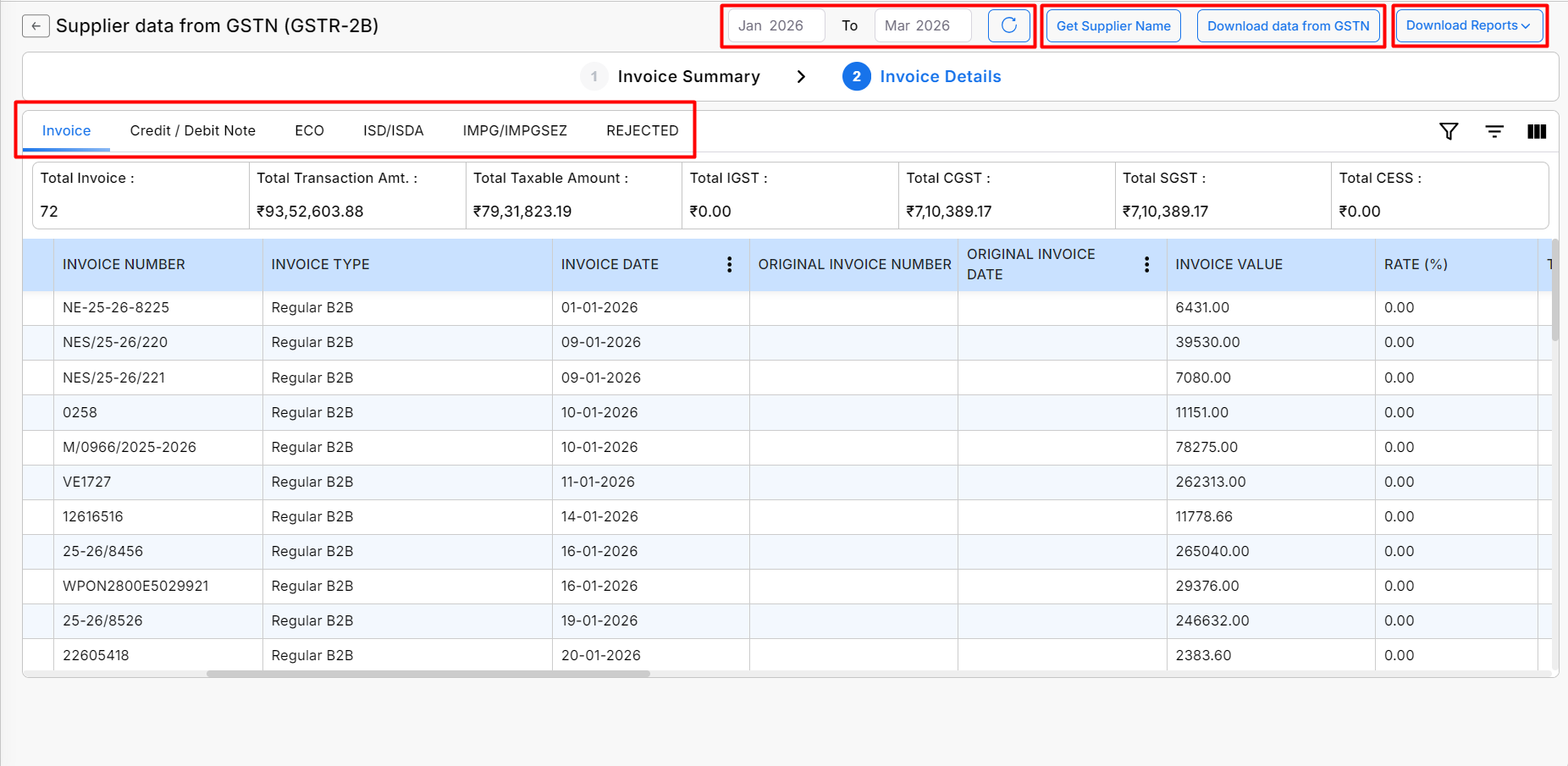
- While on the Invoice Details section page, you can check the data Invoice-wise.
- All data are shown in multiple sections: Invoice, Credit/Debit note, ECO, ISD/ISDA, IMPG/IMPGSEZ and Rejected.
- Also, you can select multiple months from the month selection field on the top right side to see multiple or annual data at once.
- Also, we provided an option for Download Data From GSTN to download data from this page
- Furthermore, the functionality to retrieve supplier names by using Get Supplier Name Button.
Report Download options:
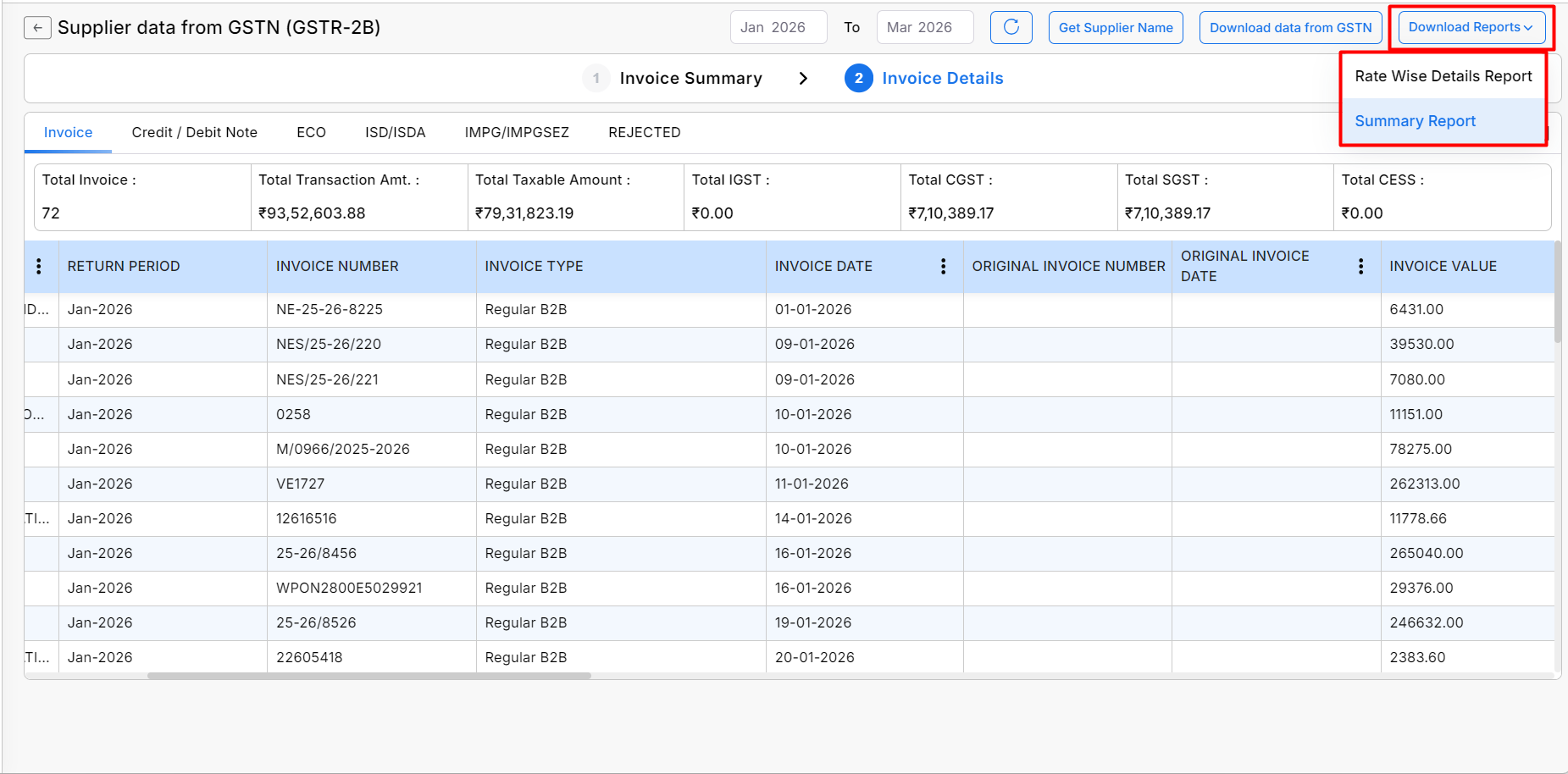
- On this page, we have provided a Download Reports button at the top right corner to download GSTR-2B data in Excel format.
- There are two options under Download Reports: Rate-wise Detail Report and Summary Report.
+−⟲
For any queries or questions, you can contact our support team.


