

 1182 views
 The E-Commerce Excel Template allows you to import sales data directly from marketplaces like Flipkart, Amazon, Meesho, Snapdeal etc., using their seller-provided Excel reports.
This helps you avoid manual entry, Auto-validate e-commerce sales, prepare GSTR-1 faster, and consolidate data when multiple GSTINs exist
As of now, our e-commerce template functionality specifically works with Flipkart, Amazon, Meesho, Myntra, JioMart, Zomato, Limeroad and Snapdeal, and we will provide support for integration with other famous e-commerce platforms later on.
Where You See This Option
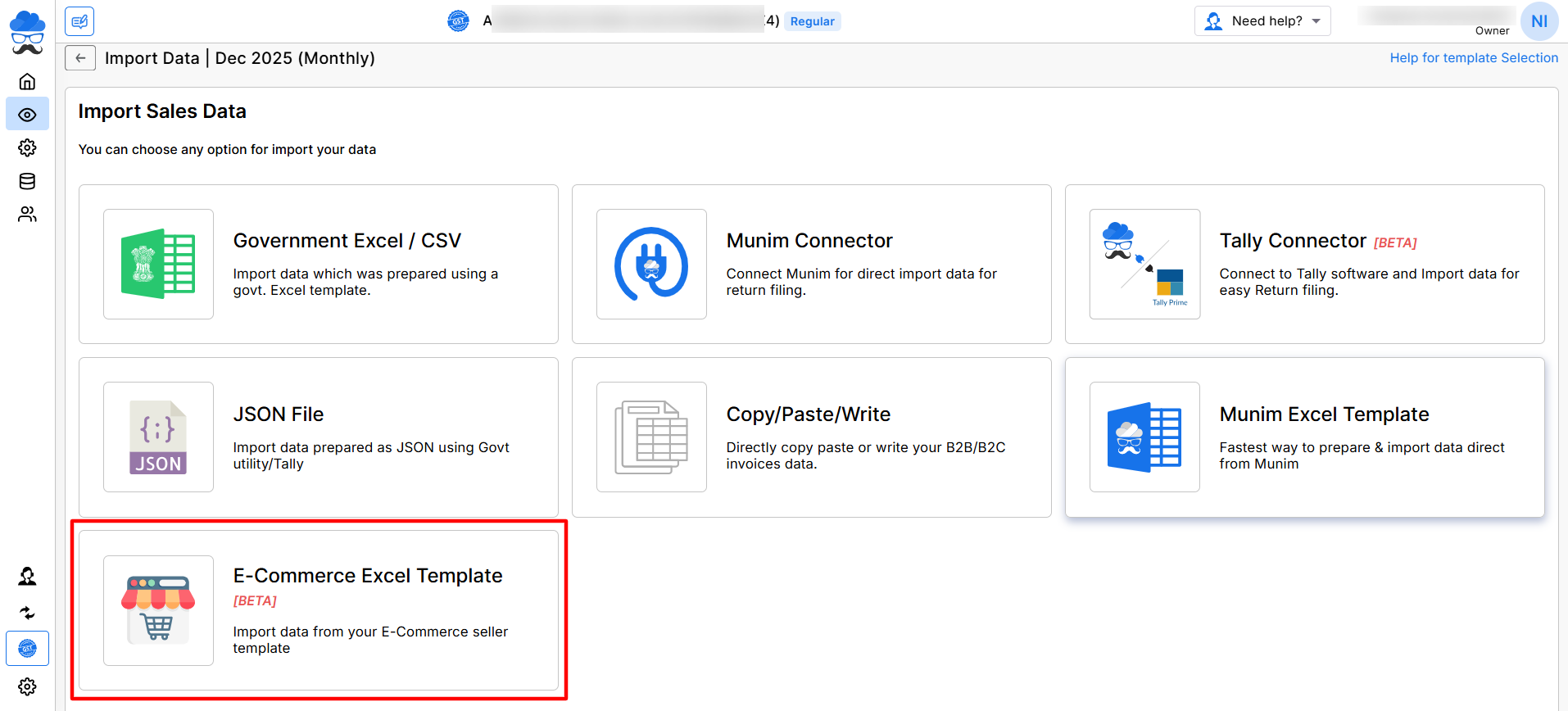
- Navigate to the company Return section, specifically within GSTR-1, and select Import Your Data located in the top right corner.
- Clicking on it will present multiple import options, including the E-Commerce Excel Template (BETA).
- Click this option to begin uploading E-Commerce data.
Selecting GSTIN & Return Period
- Once you open the template, Munim displays the currently selected GSTIN and the filing period
- The interface will display the supported e-commerce operator marketplace options for data upload.
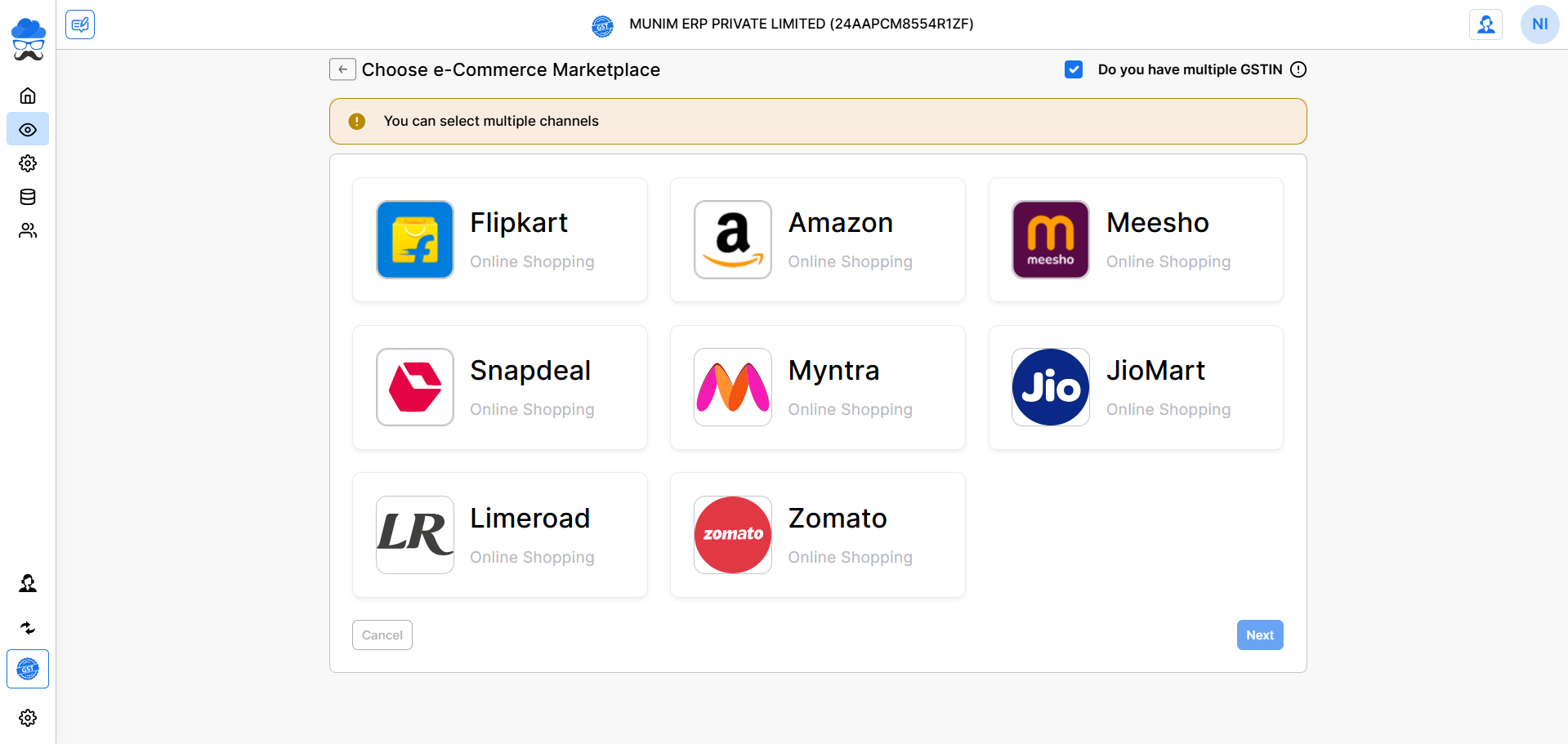
- If your business operates with more than one GSTIN under the same company, enable the option: Do you have multiple GSTIN?
- This lets you upload combined data from all GSTINs in a single Excel file, provided by the marketplace.
- You may select multiple marketplaces and proceed by clicking the “Next” button.
- On this page, you can view the import data options for various marketplaces you have selected and prepare them one by one.
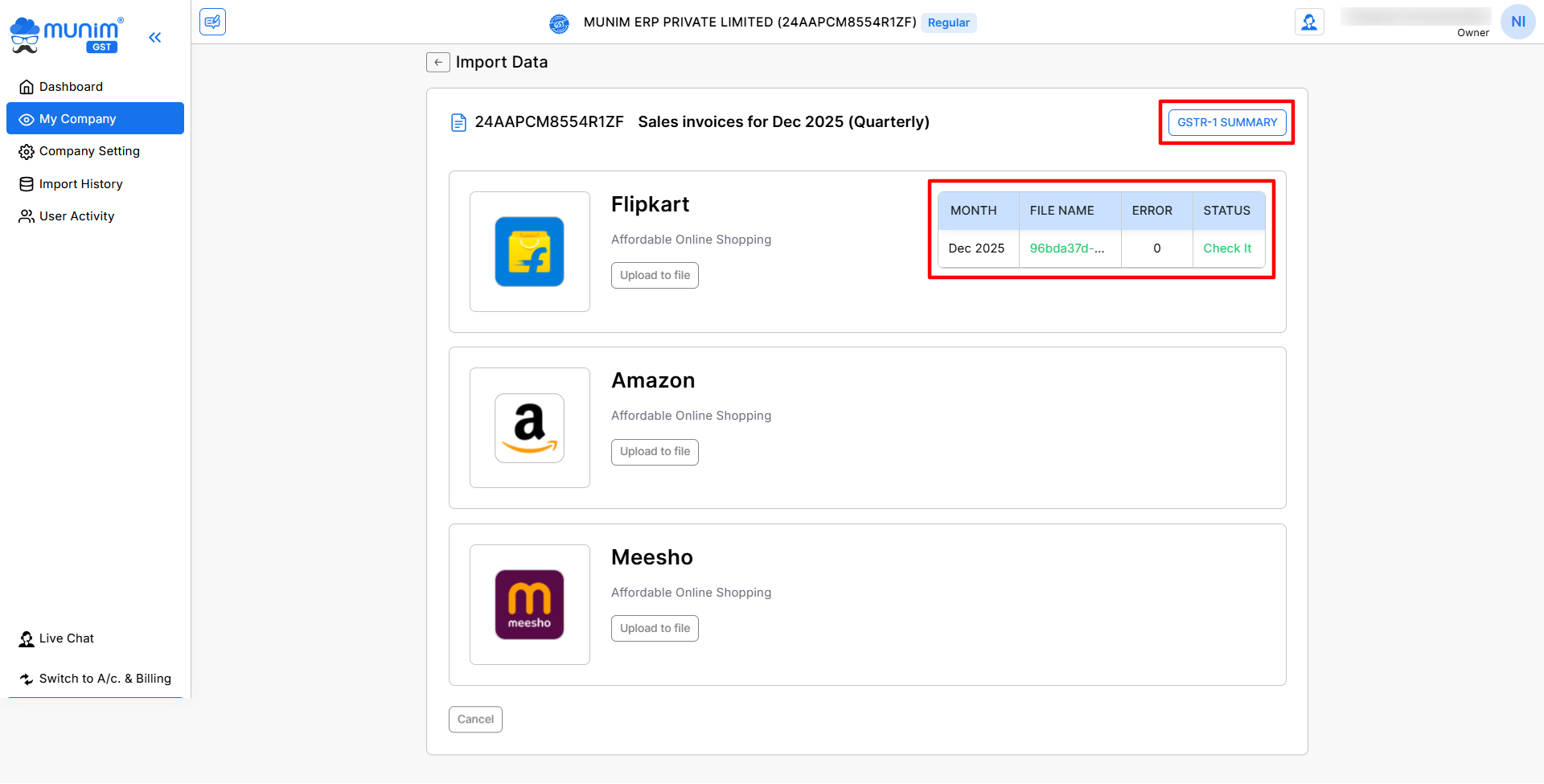
- On this page, you can upload files and utilise the validation process to identify any errors in files.
- You will also find a summary box for each marketplace, displaying the uploaded data with its status.
- You can click on the GSTR-1 Summary button on the top right after successfully uploading and verifying the data.
Uploading Marketplace Excel Files
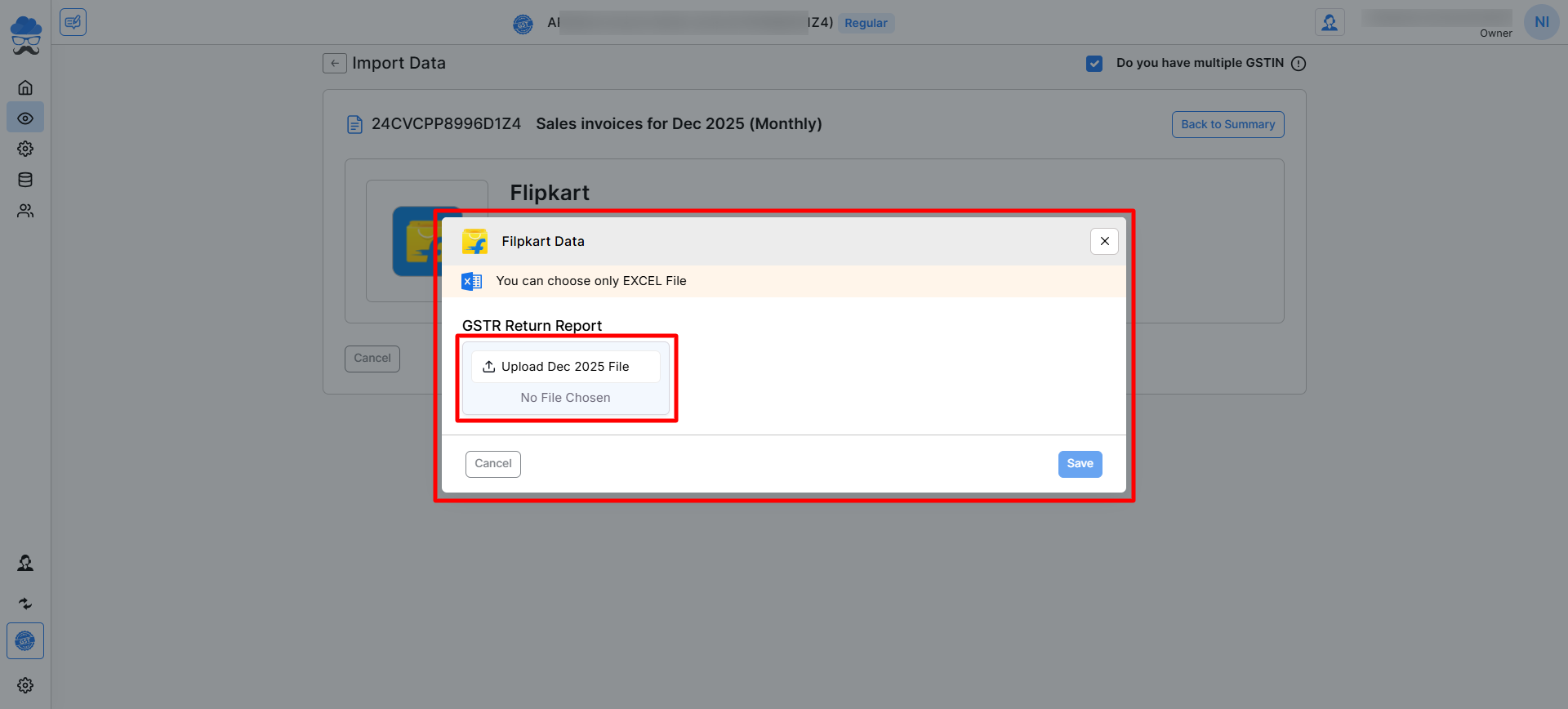
- On the Import data page, under each marketplace, click the Upload file button.
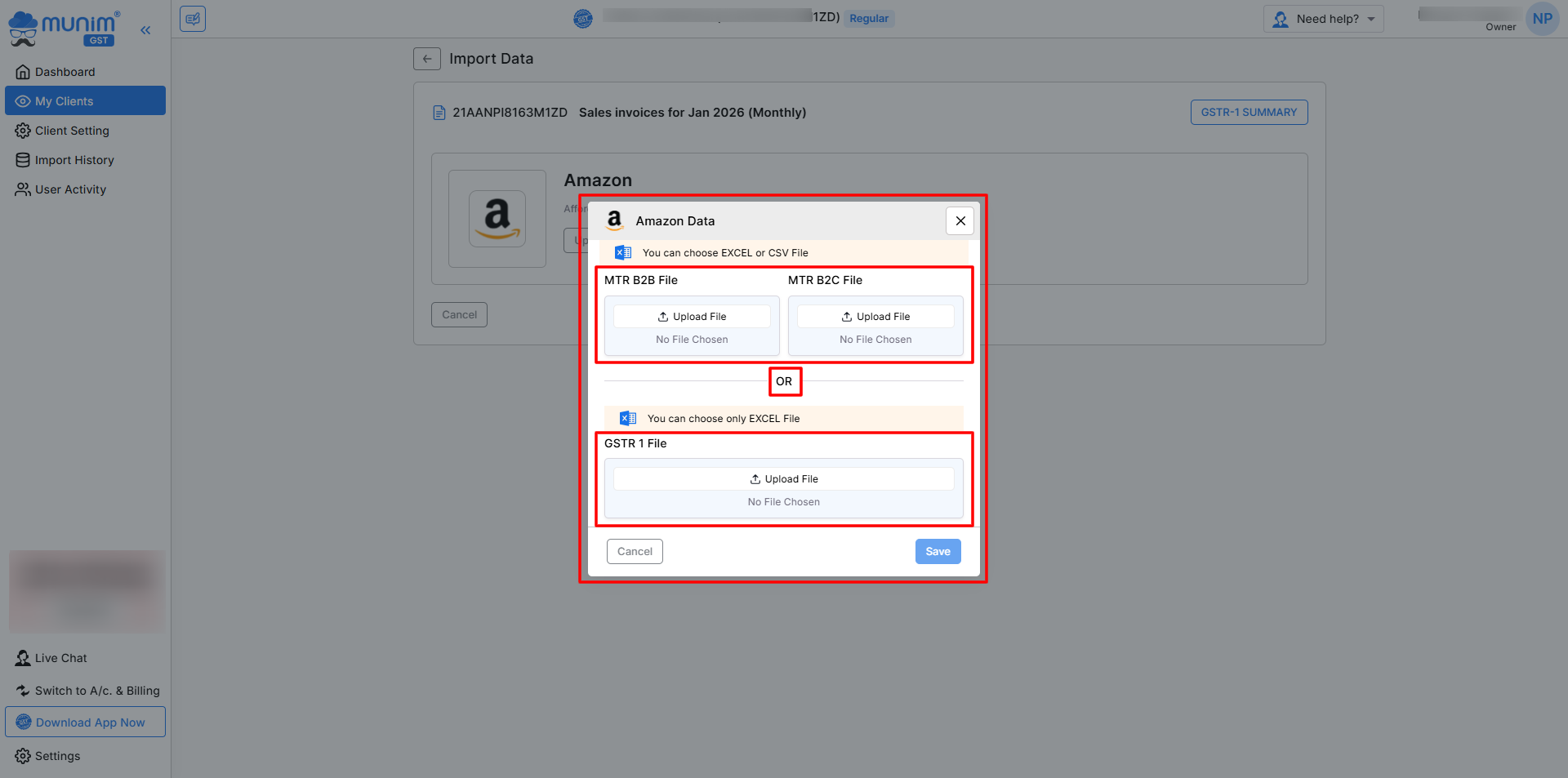
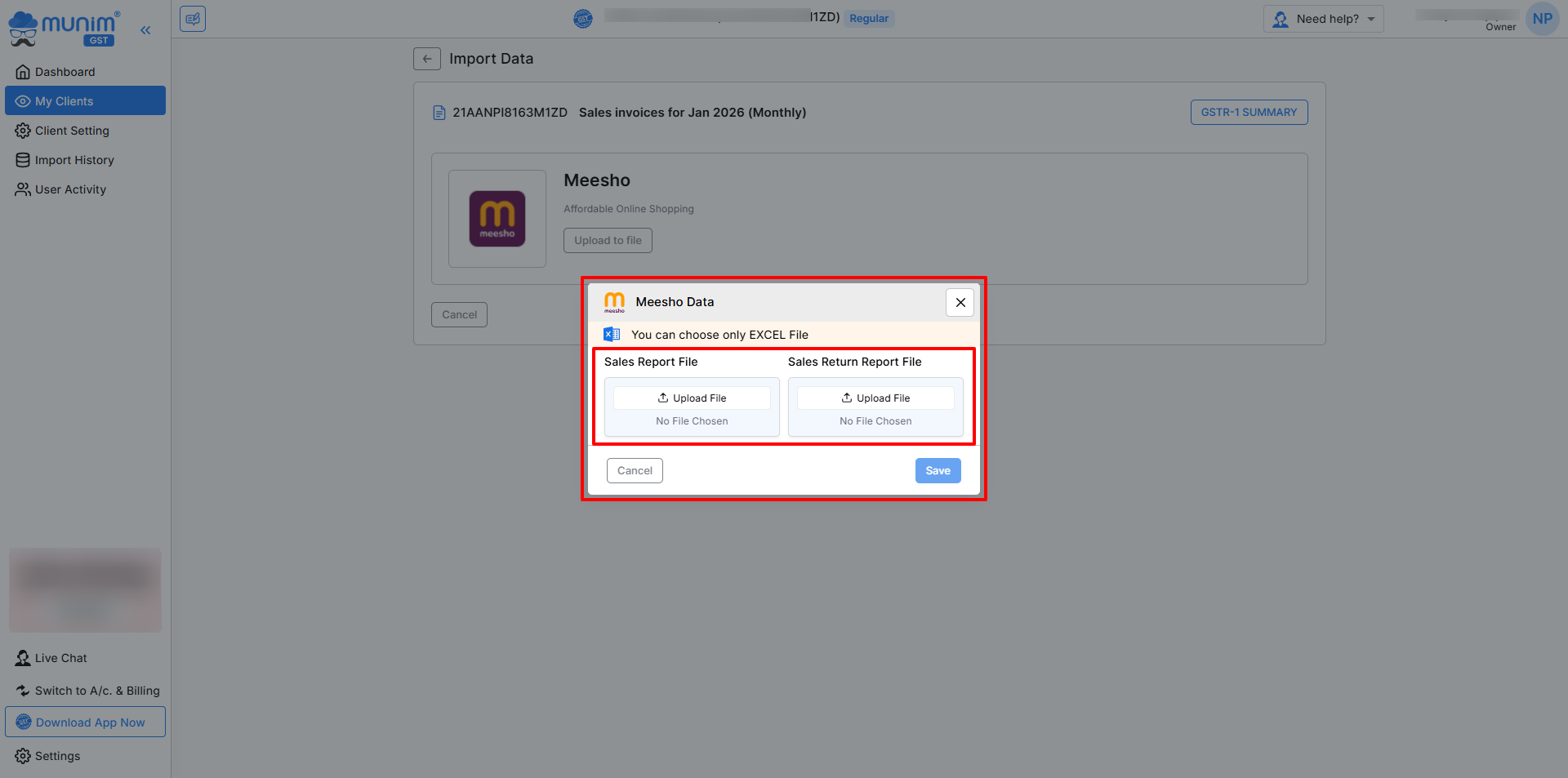
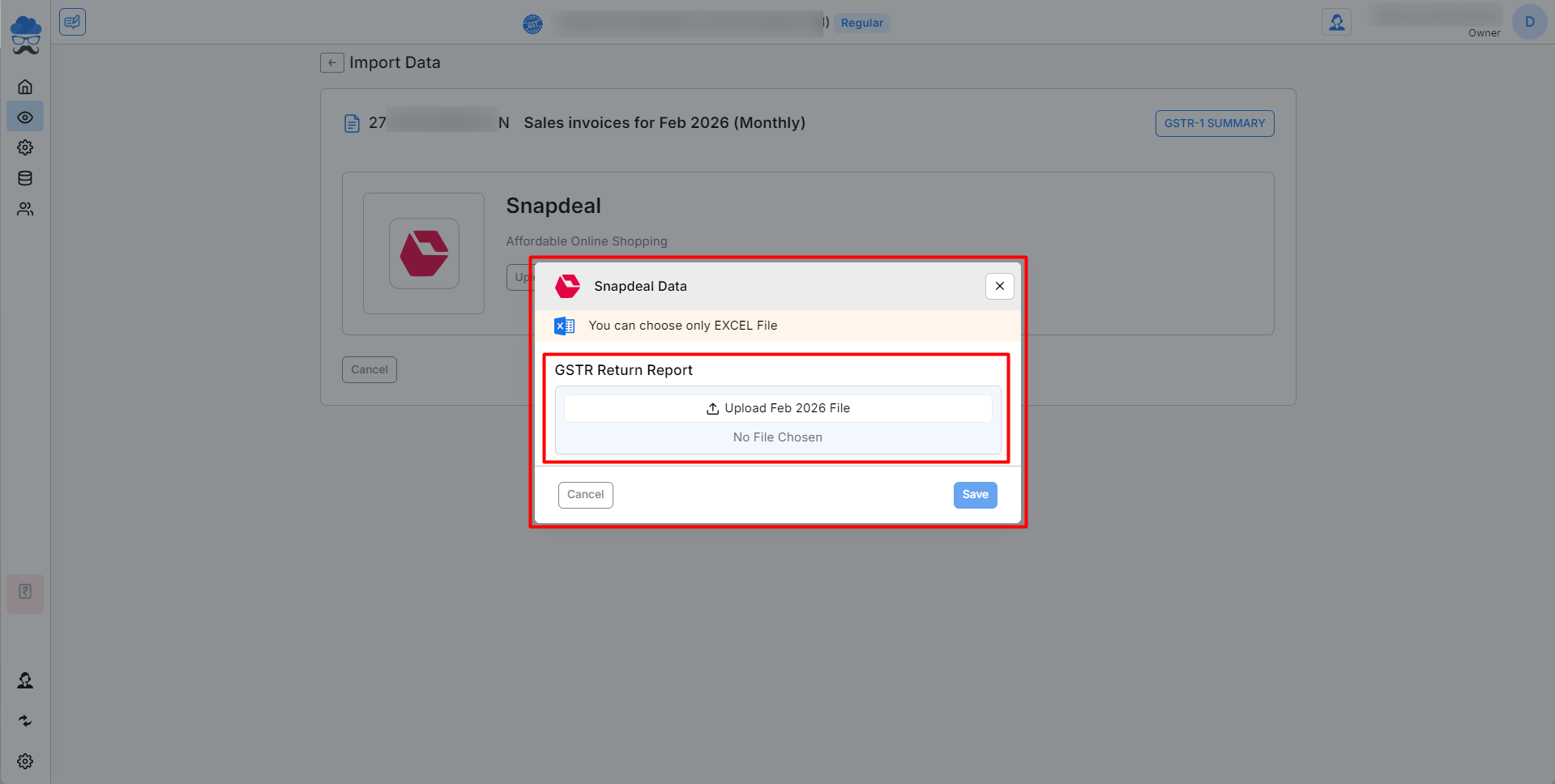
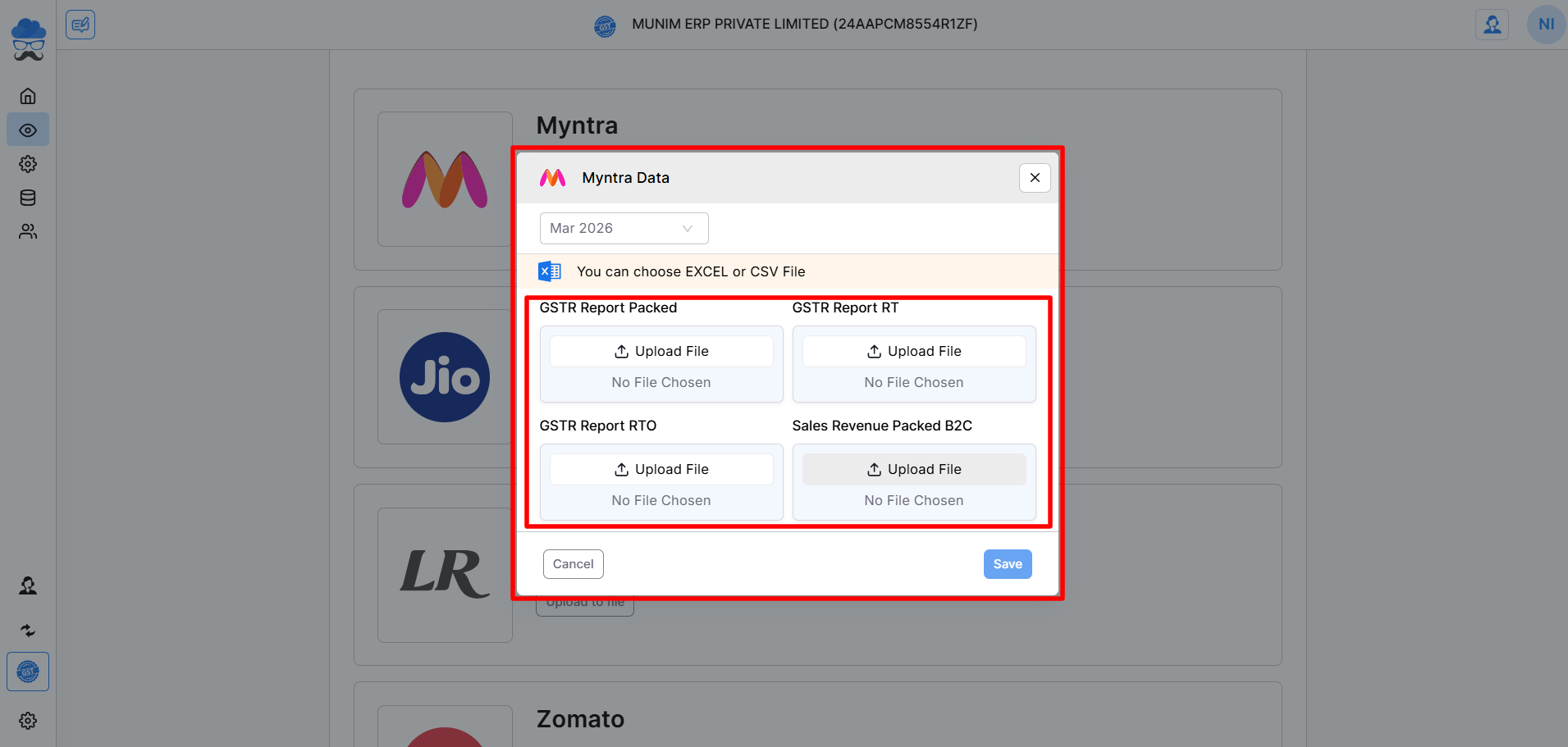
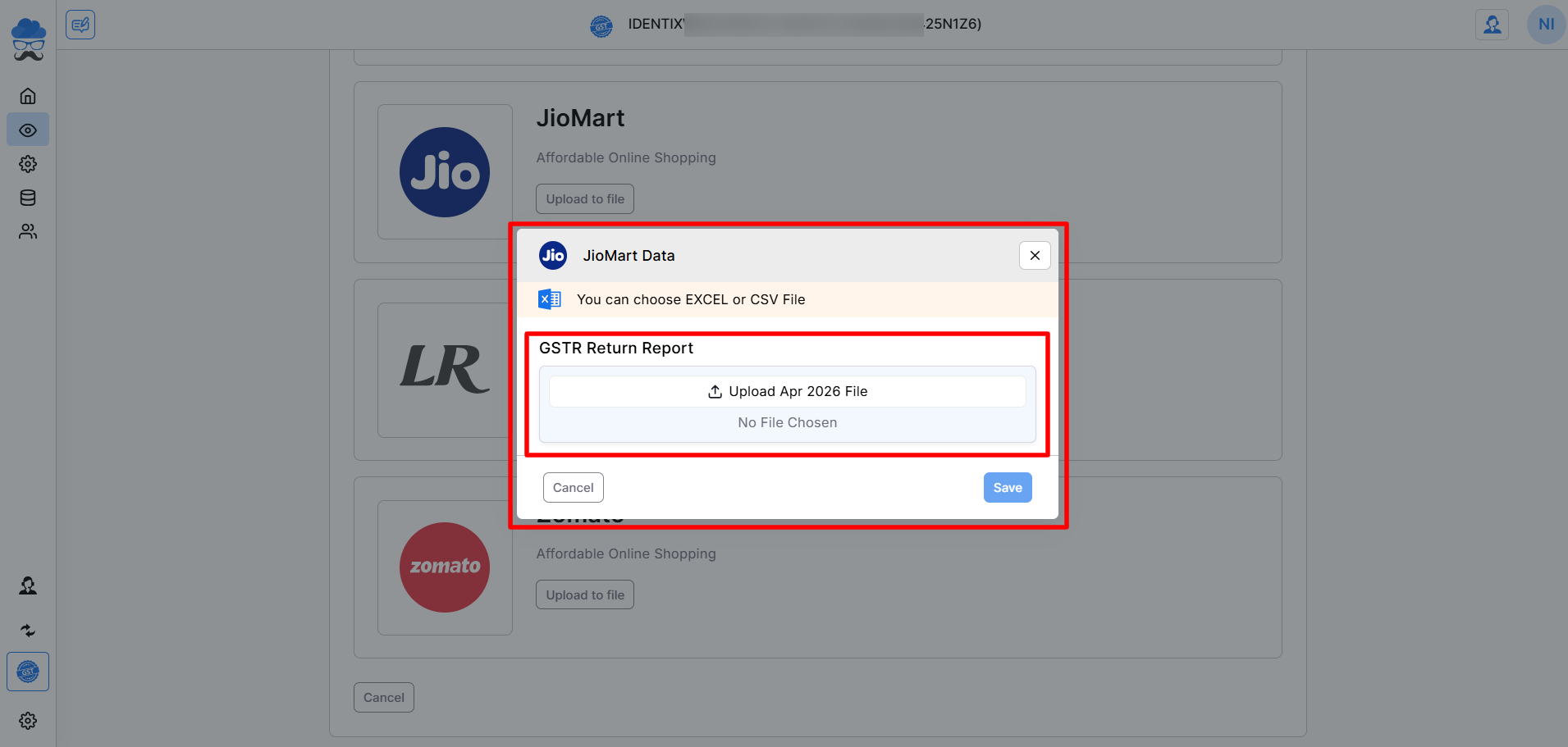
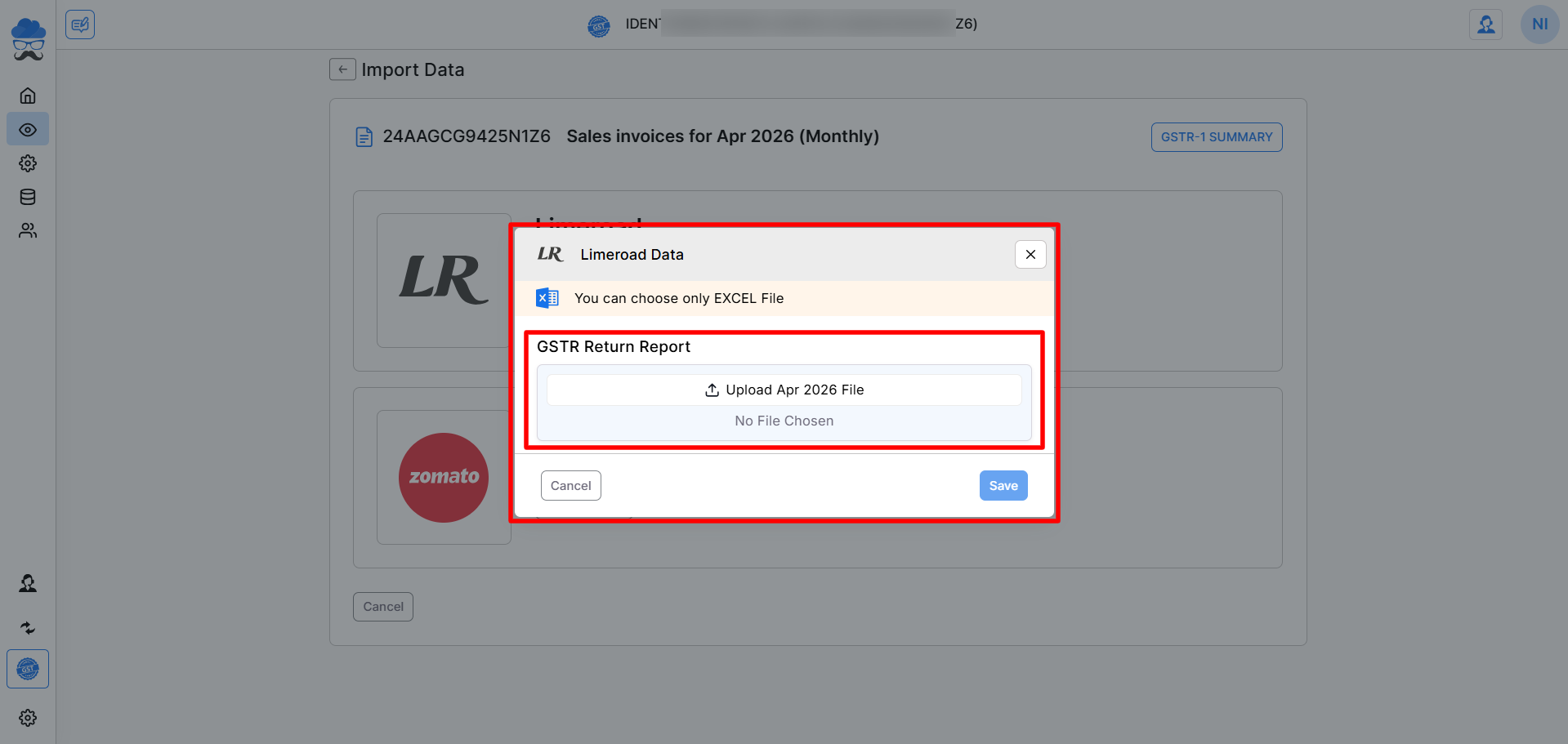
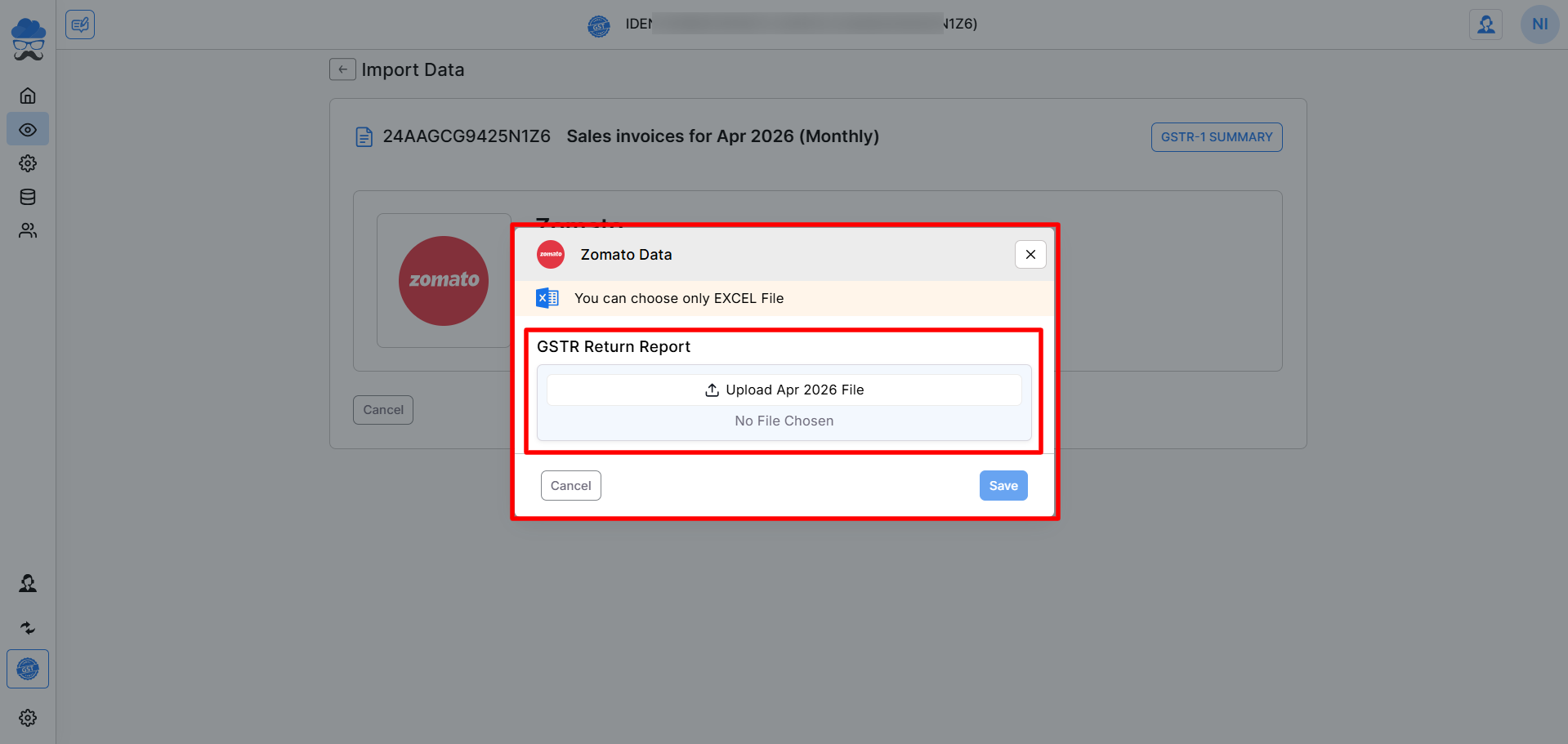
- A pop-up will appear, which shows the upload boxes for the required Excel files.
- There will be one month box for regular filing; for quarterly filing, you will see upload options for each month in qaurter month.
- Only Excel (.xlsx) file format is accepted. File types vary according to the Marketplace. As shown in the screenshots below:
Validation & Import Process
- Once files are uploaded, Munim GST will automatically:
- Reads and validates data, Detects missing GST rate or wrong invoices, Identifies duplicate entries, Checks incorrect formats, Add Ecommerce Operator GST no.
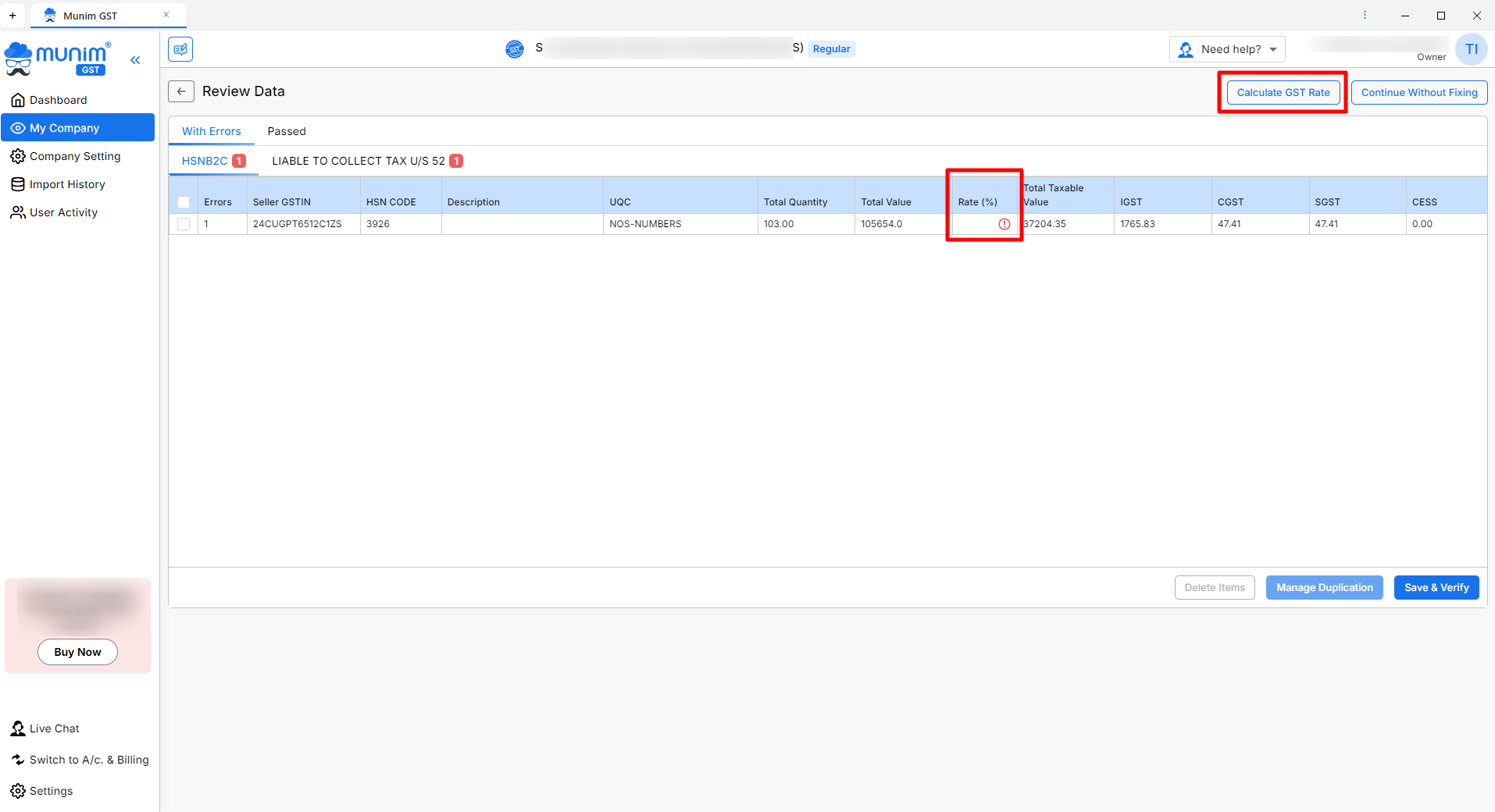
- If any issues are found, an error summary will appear. Here you can correct the data and proceed.
- We have provided a Calculate GST Rate button to fetch the GST rate according to the HSN number.
- If everything is correct, the data will be successfully imported.
Which Files Should You Upload?
- You must upload the GSTR Return Report downloaded from the e-commerce operator’s seller dashboard.
- Supported file types and locations to download (may vary):
- Flipkart GST Return Report- Flipkart Seller Hub → Reports → Report Centre → Tax Reports → GSTR Return Report → Generate & Download.
- Amazon GST Settlement / GST Summary Excel- Amazon Seller Central → Reports → Tax Document Library → GST Settlement / Monthly Tax Report (MTR) → Download
- Meesho GST Report- Meesho Supplier Panel → Orders → Reports → Sales / Sales Return → Download
- Snapdeal GST Report- Snapdeal Seller Panel → Reports → Sales Reports → Tax Invoice Reports → Download
- Myntra GST Report– Myntra Seller Panel → Reports → Sales Reports → GST Reports / Tax Invoice Report → Download
LimeRoad GST Report– LimeRoad Seller Panel → Reports → Order Reports → Tax Invoice / GST Report → Download
JioMart GST Report– JioMart Seller Panel → Reports → Sales Reports → GST Invoice Report → Download
Zomato GST Report– Zomato Partner Dashboard → Reports → Statements → Tax Invoice / GST Report → Download
- Note: Exact naming can slightly vary based on panel updates, but these are the closest standard navigation paths used in practice. Please verify and download the e-commerce operator’s GST-wise sales breakdown report.
Make sure you download the file directly from the operator without modifying it.
How This Helps in GSTR-1 Filing
After import, all e-commerce invoices directly appear in your GSTR-1 module, accurately sorted into:
- B2B sales
- B2C sales
- TCS collected by the operator
This reduces manual entry and ensures accurate filing.
Important Notes
- Only Excel files are supported.
- PDF or CSV files are not accepted.
- Do not modify the downloaded Excel manually.
- File names should be simple, without special characters.
- For quarterly returns, monthly files must be uploaded separately.
For any queries or assistance, please reach out to support.


