

 184 views
 The Sales Filed vs E-Way Bill reconciliation process involves comparing the outward supply data reported in your GSTR-1 data with the invoices generated on the e-Way Bill portal.
This process helps ensure that all invoices uploaded in the e-Way Bill system are correctly reflected in the GSTR-1 Sales Invoice data, and any missing or mismatched invoices can be identified easily.
Enable E-Way Bill Option First:
- Before starting reconciliation, you must ensure that the E-Way Bill option is enabled for the selected client company.
- To enable this feature, go to the Client Settings module from the main menu. Locate the client company you want to update and click Edit.
- Find and enable the E-Way Bill option. Turn it on and click Save.
+−⟲
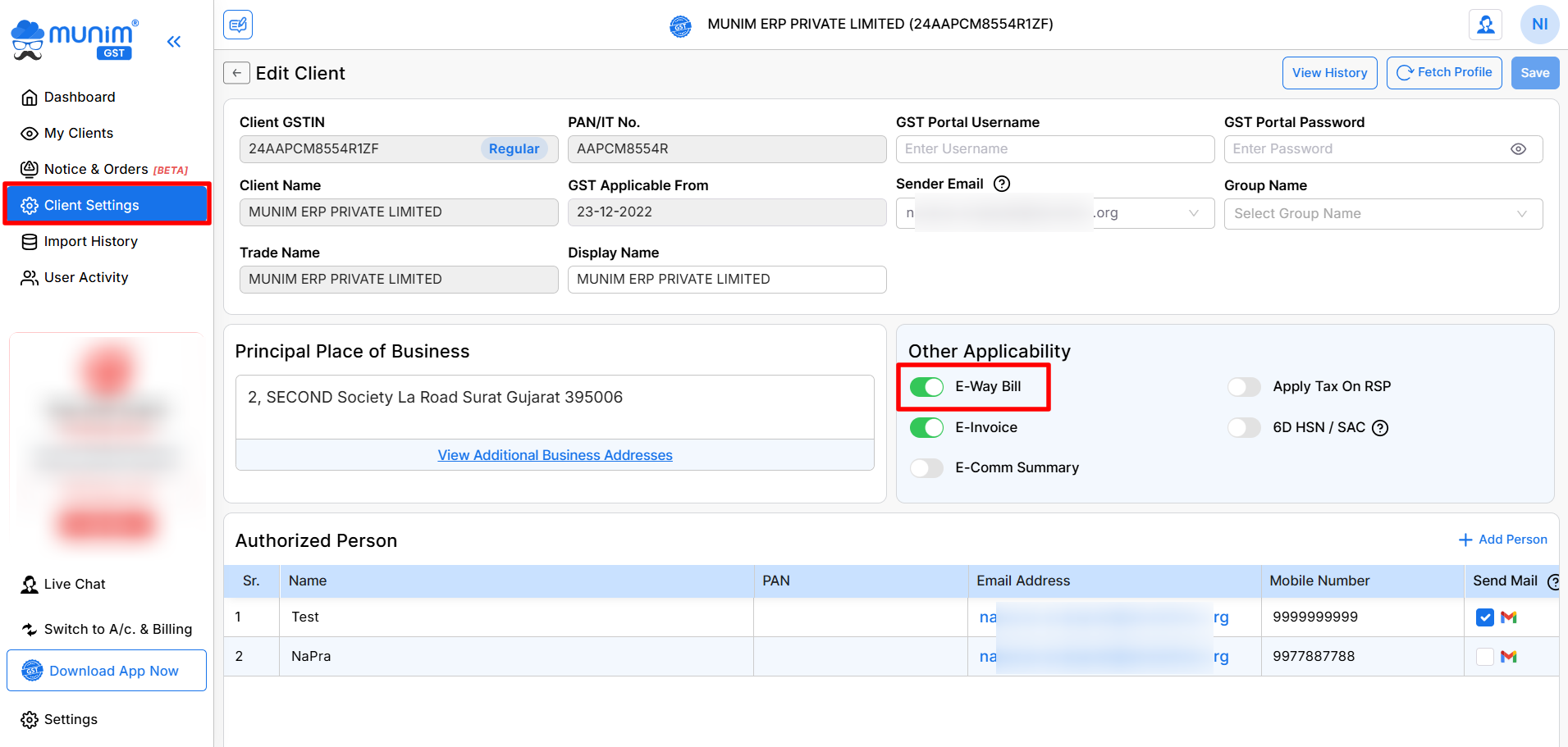
Note: Without enabling this option, you won’t be able to see E-Way Bill related reports and download or reconcile E-Way Bill data for the company.
How to Access the Sales vs E-Way Bill Reconciliation Feature:
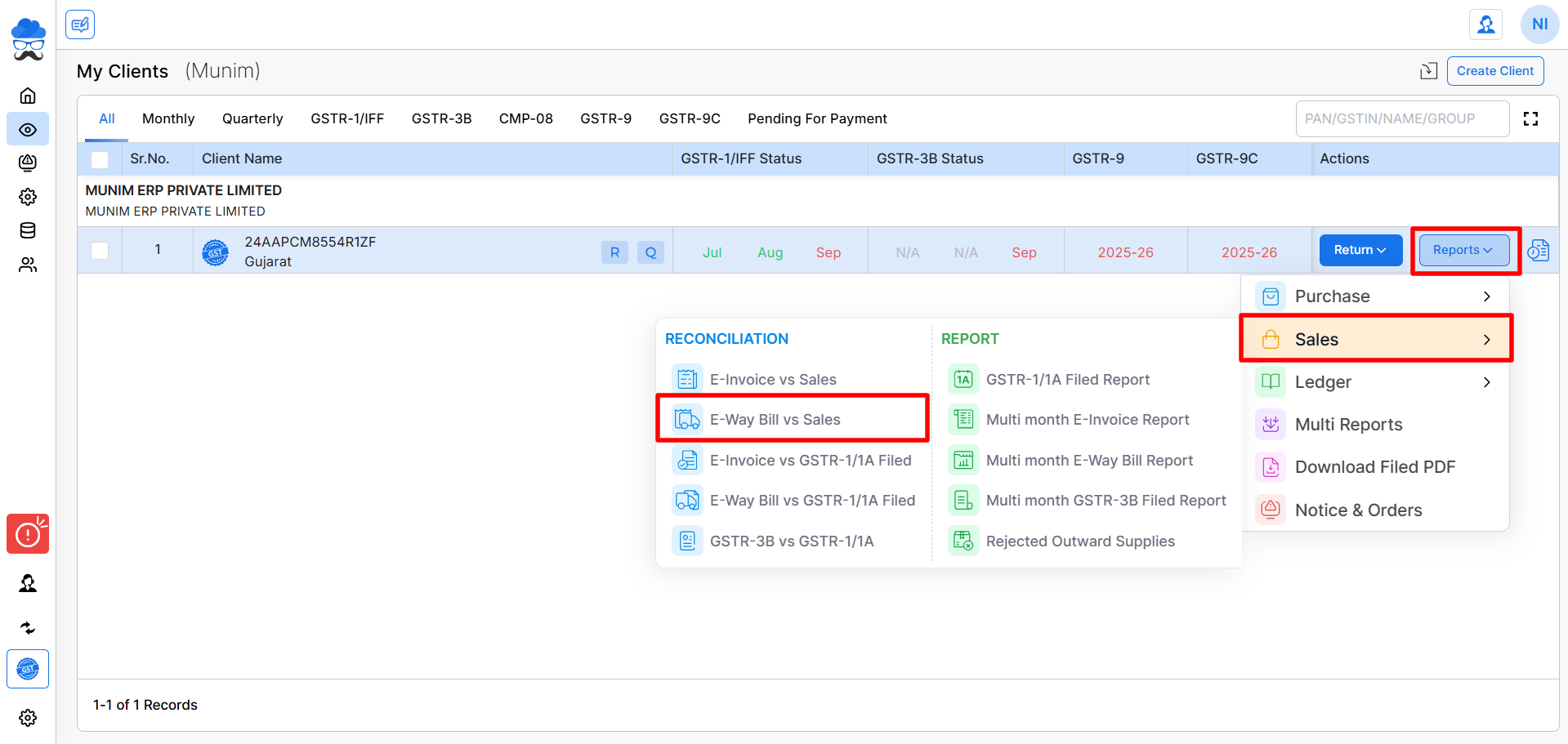
- On the My Company page, click the Reports button, then click on the Sales section and select “E-Way Bill vs Sales”.
+−⟲
Begin the reconciliation process:
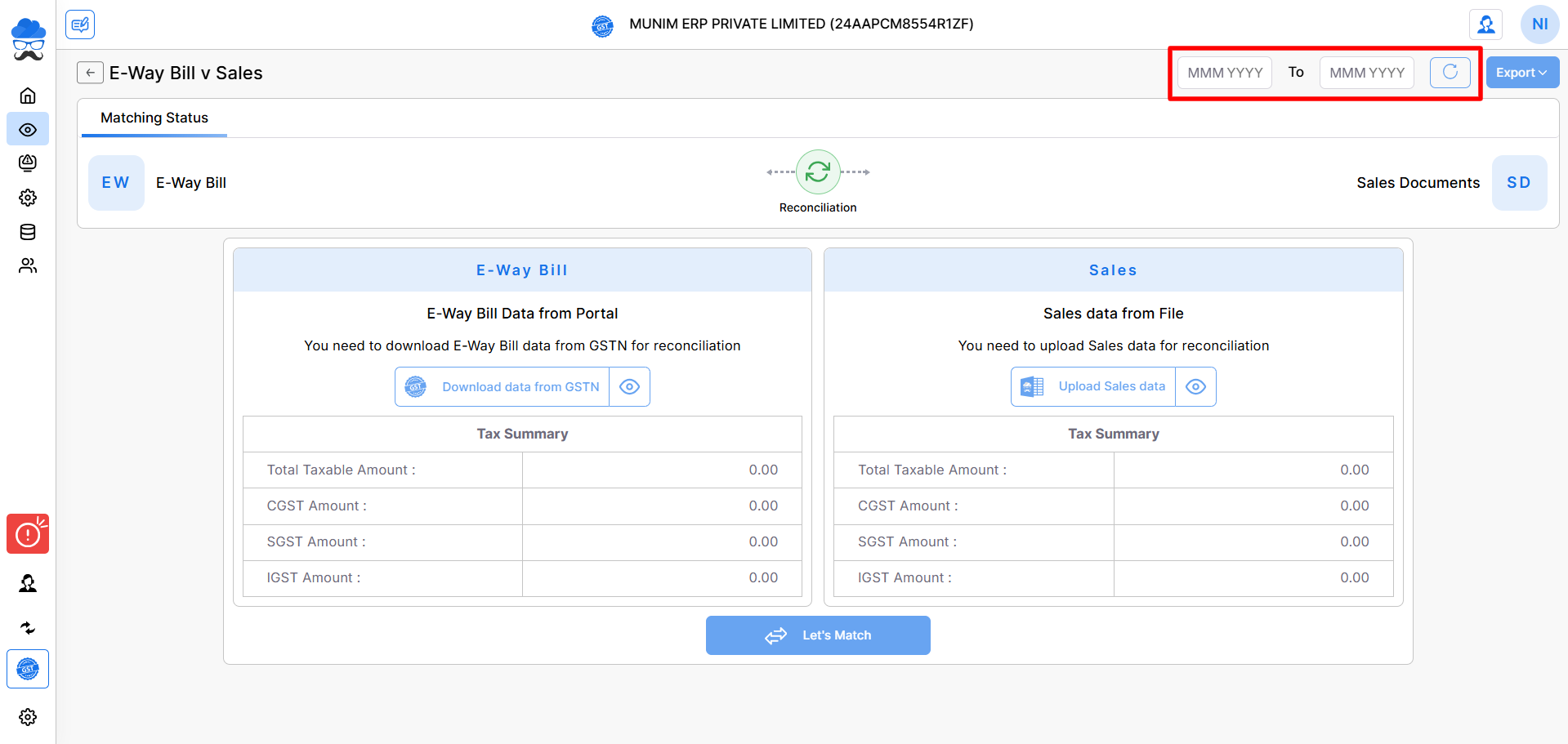
- On the reconciliation page, you will see two sections named Sales and E-Way Bill Data.
- Select the return period range from the top right month and year section fields.
- After selecting the return period, click on the Reload button to view the selected range for reconciliation.
+−⟲
Download E-Way Bill Data from the portal:
- In the E-Way Bill Data section, click the Download Data from GSTN option to fetch the E-Way Bill data.
- Again, ensure the correct portal credentials are added before downloading.
Upload Sales Data:
- In the Sales section, click the Upload Sales Data option to add the data of outward supplies.
- Make sure you have uploaded all the data successfully for reconciliation.
Continue to Data Overview:
- Once all data is downloaded, click on the Let’s Match button to set an acceptable mismatch difference value for reconciliation.
+−⟲
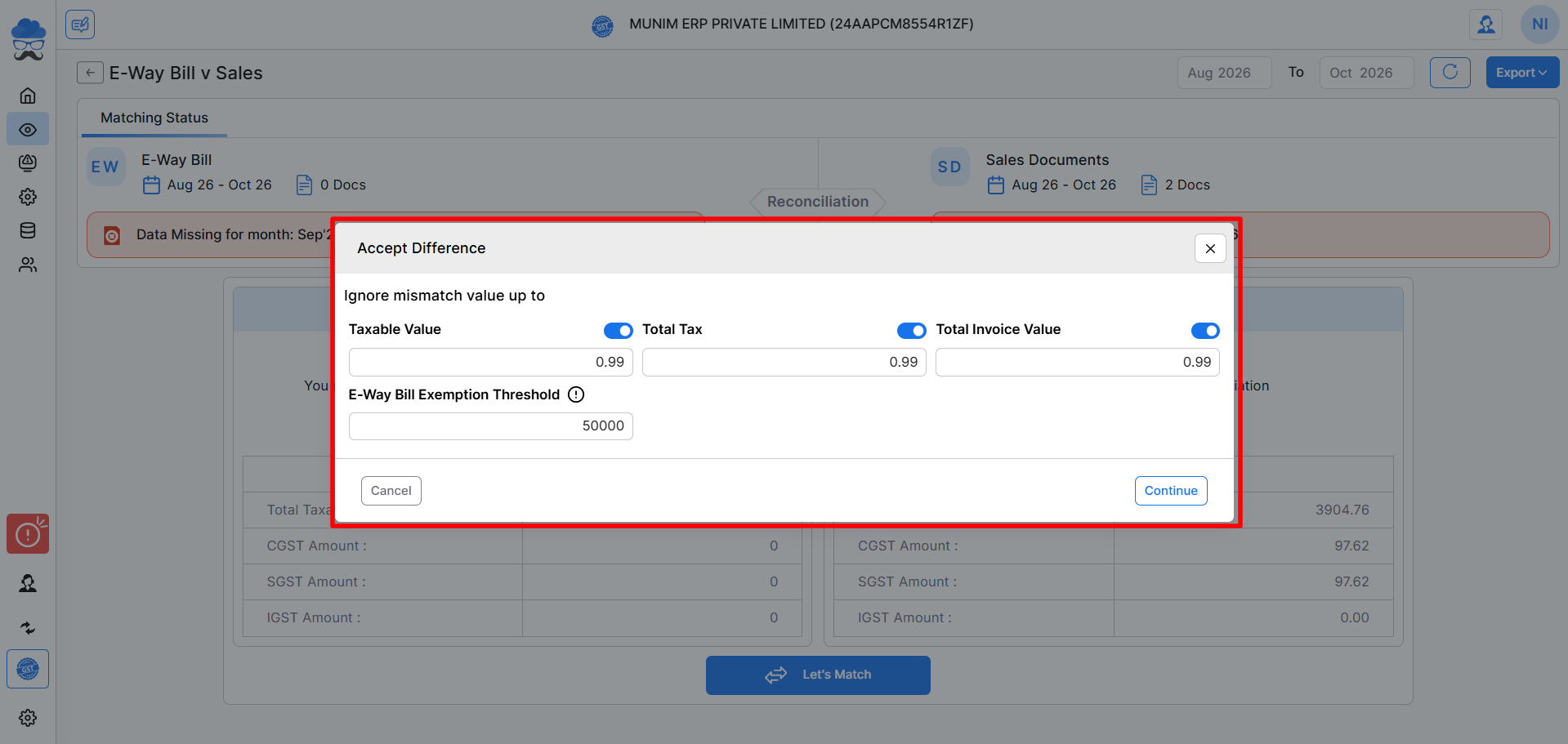
- After accepting the mismatch value and setting E-way Bill Threshold limit and then click Continue.
- Again click on Continue to Overview from the matching data pop-up to proceed to the matching summary page.
Matching Summary page:
- Here on the Matching Summary page, you can select Type of Document from the top left dropdown menu.
- You will see filter boxes such as:
- All
- Exact Match
- Suggested Match
- Mismatched
- Missing in E-Way Bill
- Missing in GSTR-1 Filed
- E-Way Not Applicable
+−⟲
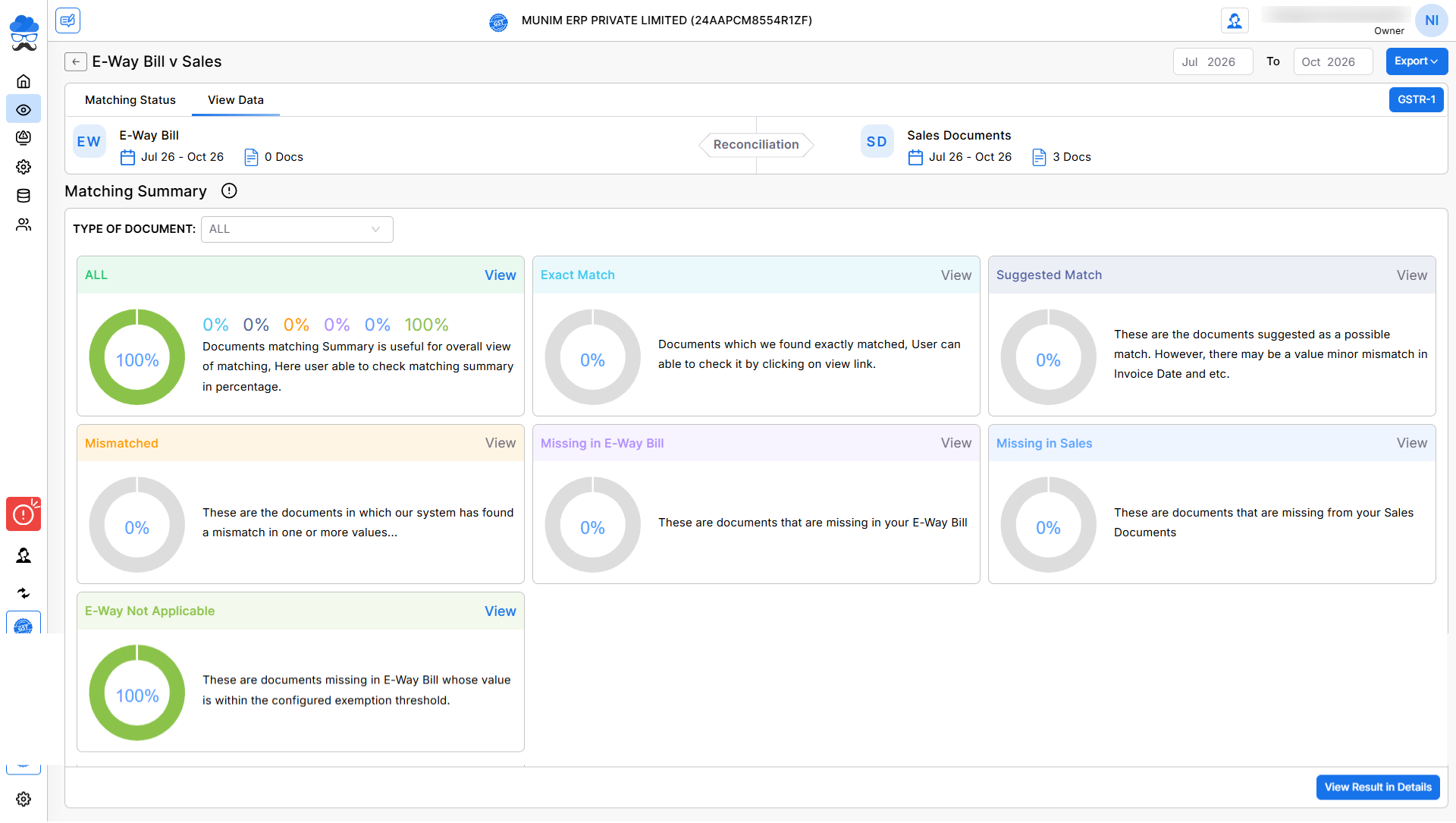
- Click View Result in Details to see the detailed comparison of the data.
View Result in Details page:
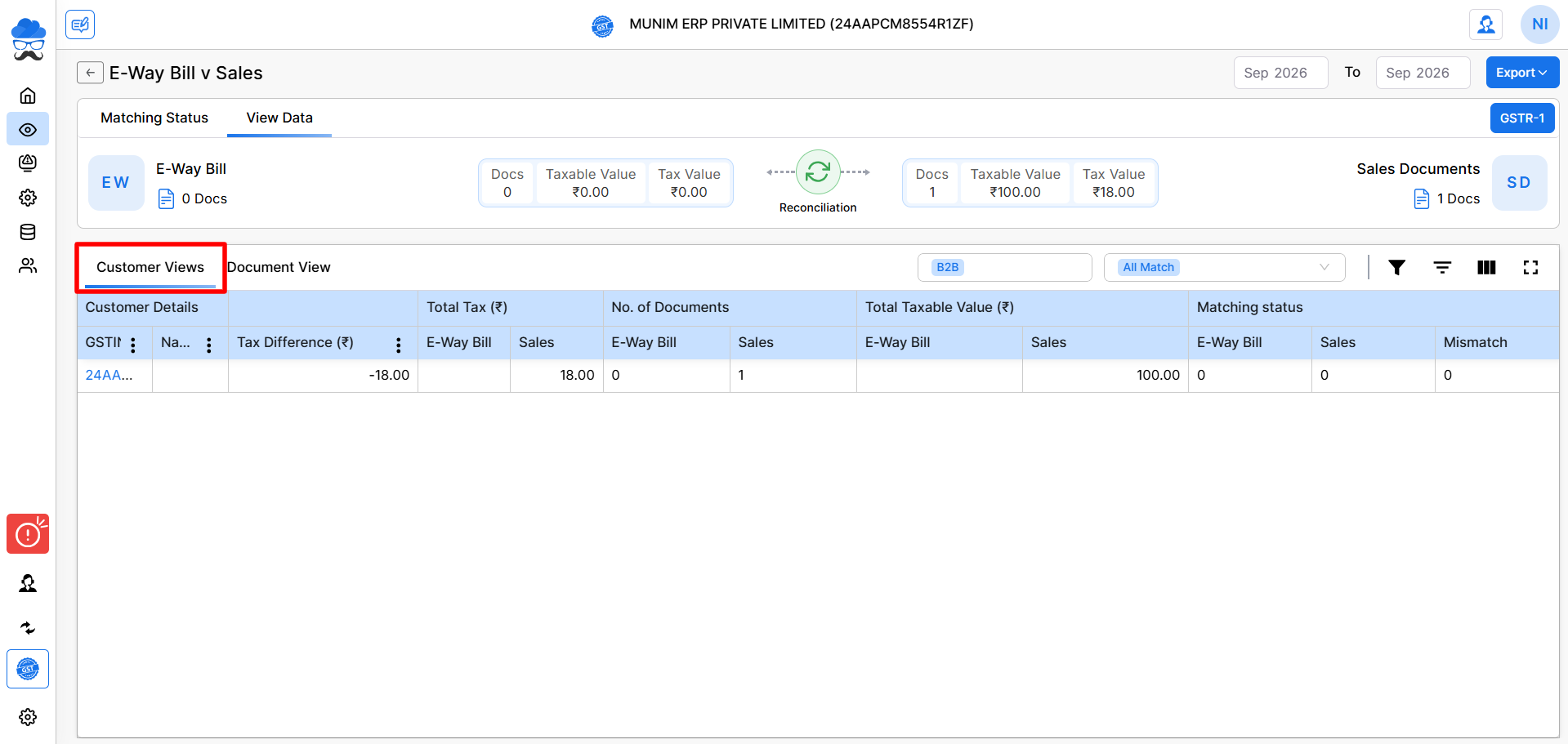
- Here you can choose between Customer View and Document View.
Customer View:
- Data is shown by the supplier’s GST number.
- You can filter data by Document Type and Summary Type.
- Reports can be downloaded using the Download Reports option at the top right.
+−⟲
Document View:
- Data is shown by Document number. You can filter by Document Type like B2B CDNR, etc., and Summary Type like Matched, Mismatched, Missing etc.
+−⟲
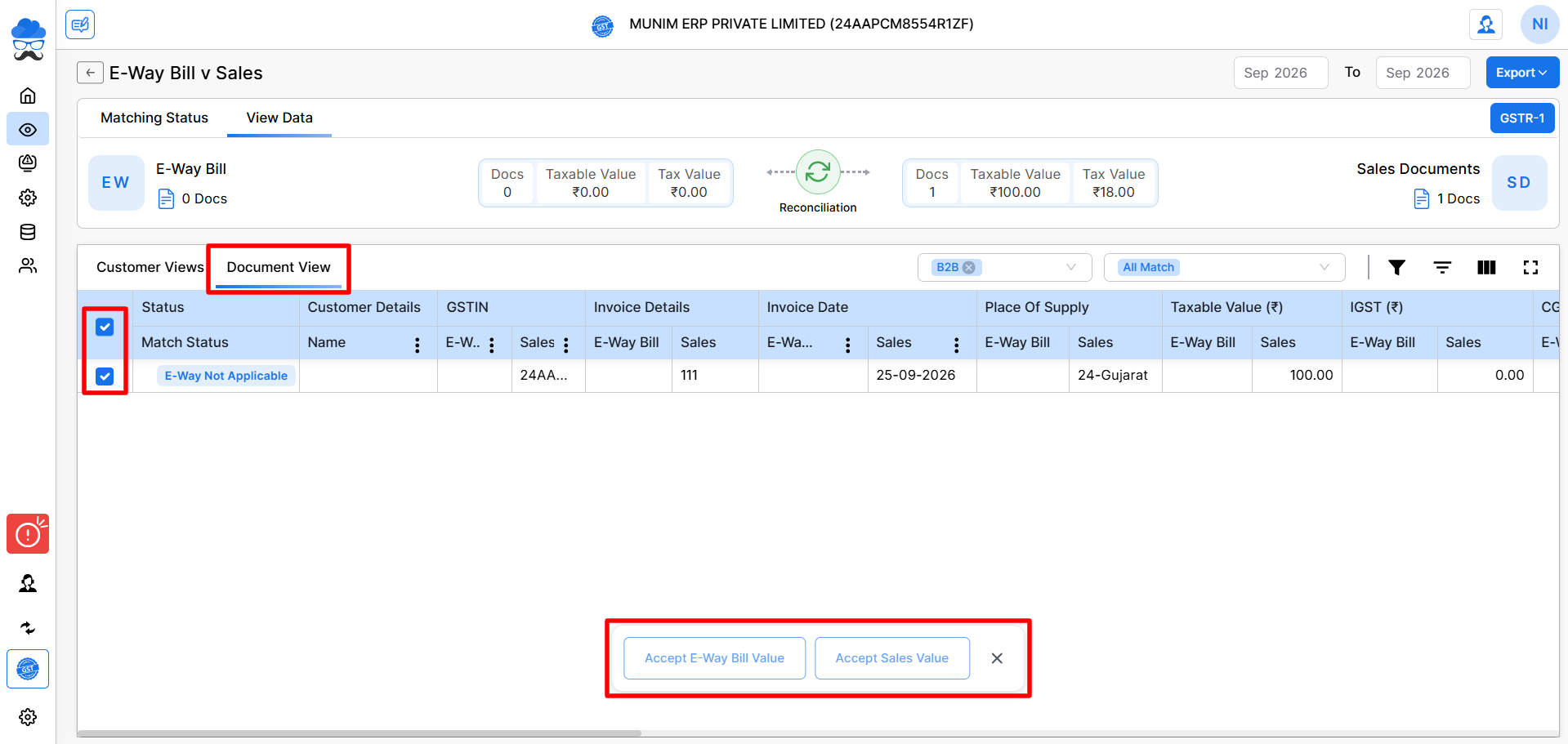
- You can also change the status of a particular mismatched or suggested document:
- Accept E-Way Bill value → Accepts the value reported in E-Way Bill
- Accept Sales value → Accepts the value reported in Sales Data
- Reports can also be downloaded from the Download Reports option at the top right.
- In the Download Report button, you have the option to select whether you would like the report in its default format or with the applied filters.
Need Assistance?
If you have any questions or need further assistance, please contact our support team. We’re here to help!


