

 175 views
 A Multi-Month E-Way Bill Report involves consolidating and analysing the e-Way Bill data for multiple months.
This is useful for businesses that want to review and reconcile e-Way Bills over a longer period to ensure accuracy and compliance.
Here are the steps for performing a Multi-Month E-Way Bill Report:
Enable E-Way Bill Option First:
- Before starting reconciliation, you must ensure that the E-Way Bill option is enabled for the selected client company.
- To enable this feature, go to the Client Setting module from the main menu. Locate the client company you want to update and click Edit.
- Scroll down to the bottom of the settings page, where you will find the Enable E-Way Bill option. Turn it on and click Save.
- Check this helpdesk for more details: Enable E-Invoice/E-Way Bill Option
1. Access the Report
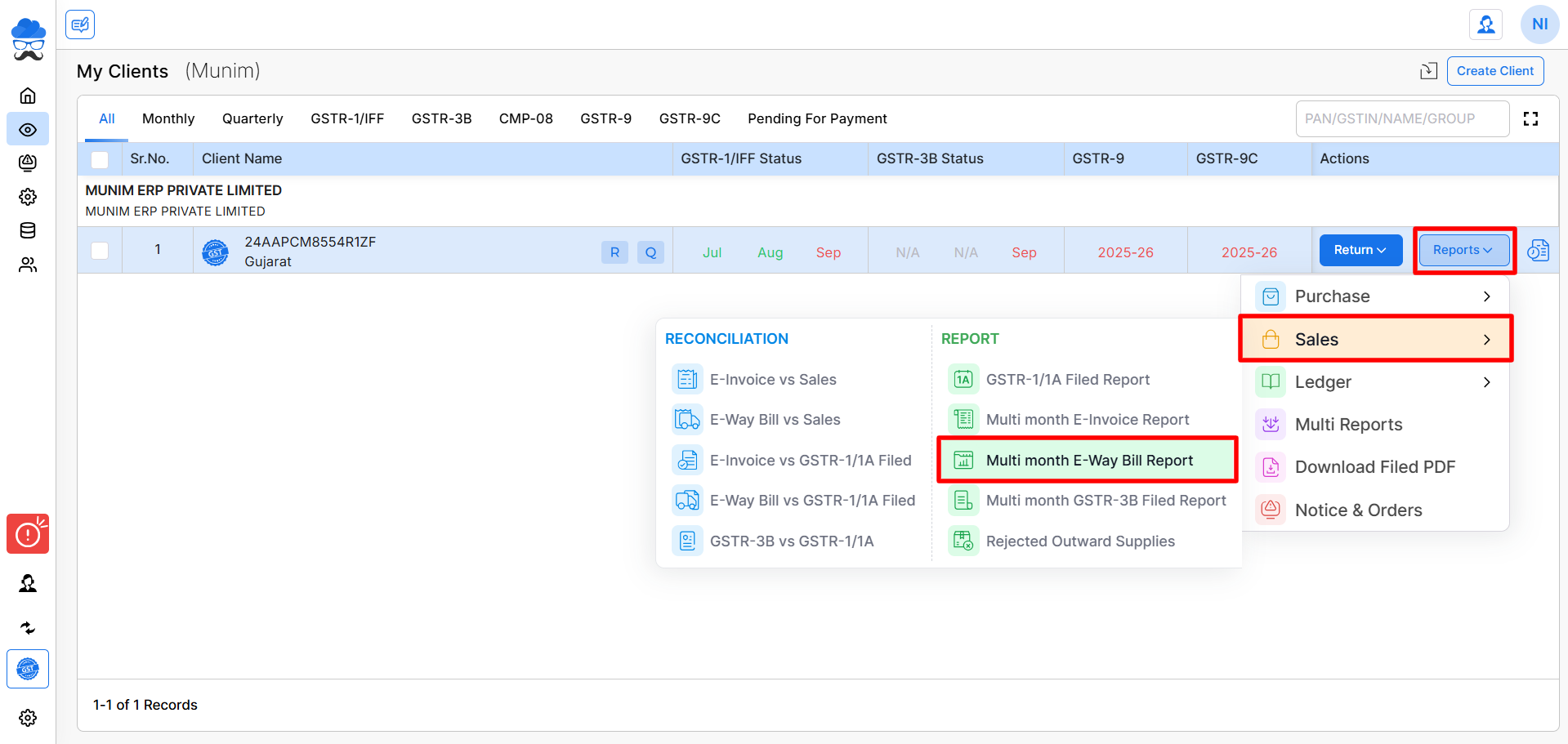
- On the My Clients page, click the Reports button, then go to the Sales section and select “Multi Month E-Way Bill Report”.
+−⟲
2. Open the Report Page
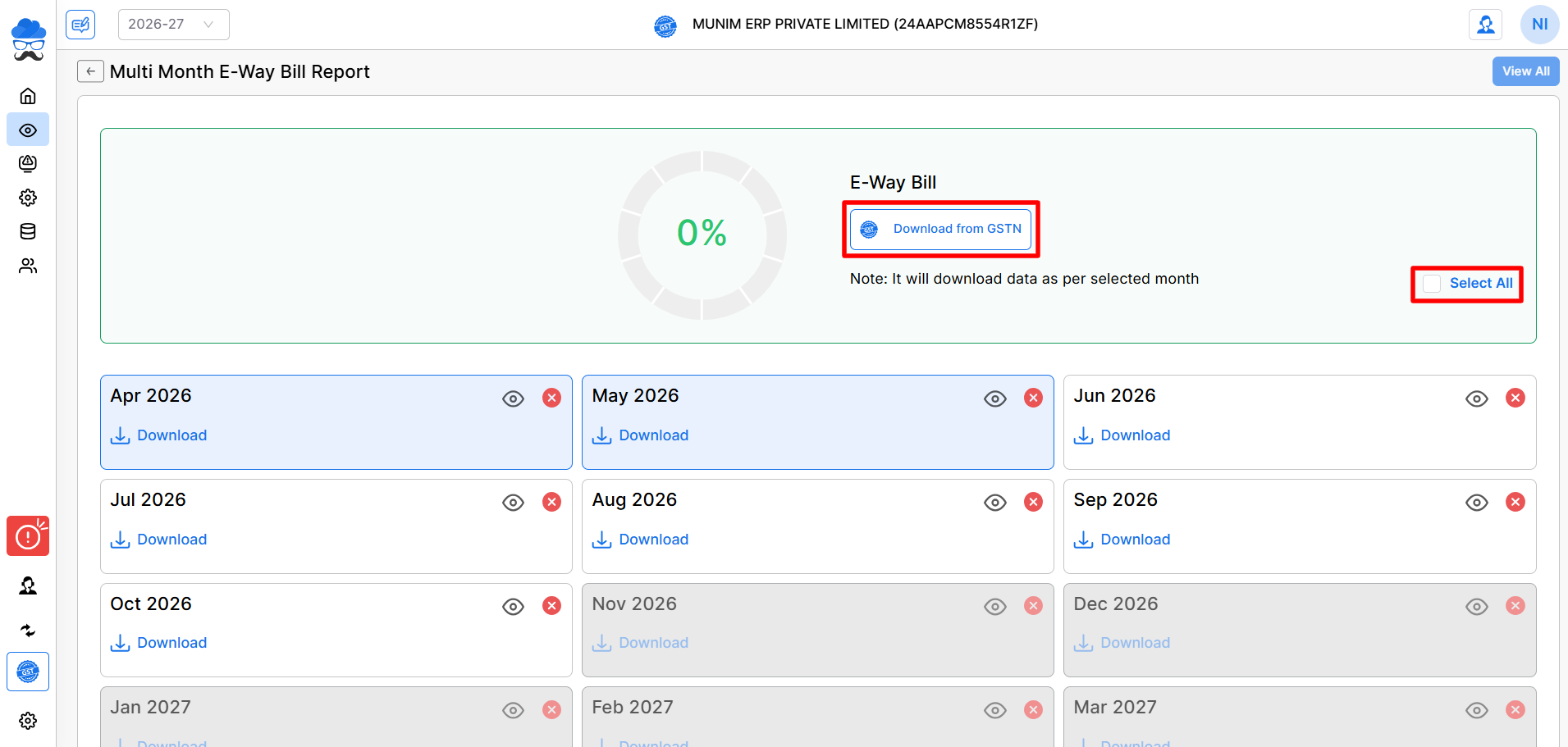
- You will be redirected to the Multi-Month E-Way Bill Report page based on the selected financial year.
- In the Month View page, you can select specific months or click the Select All option to choose all available months for downloading data.
+−⟲
4. Download data from GSTN Portal
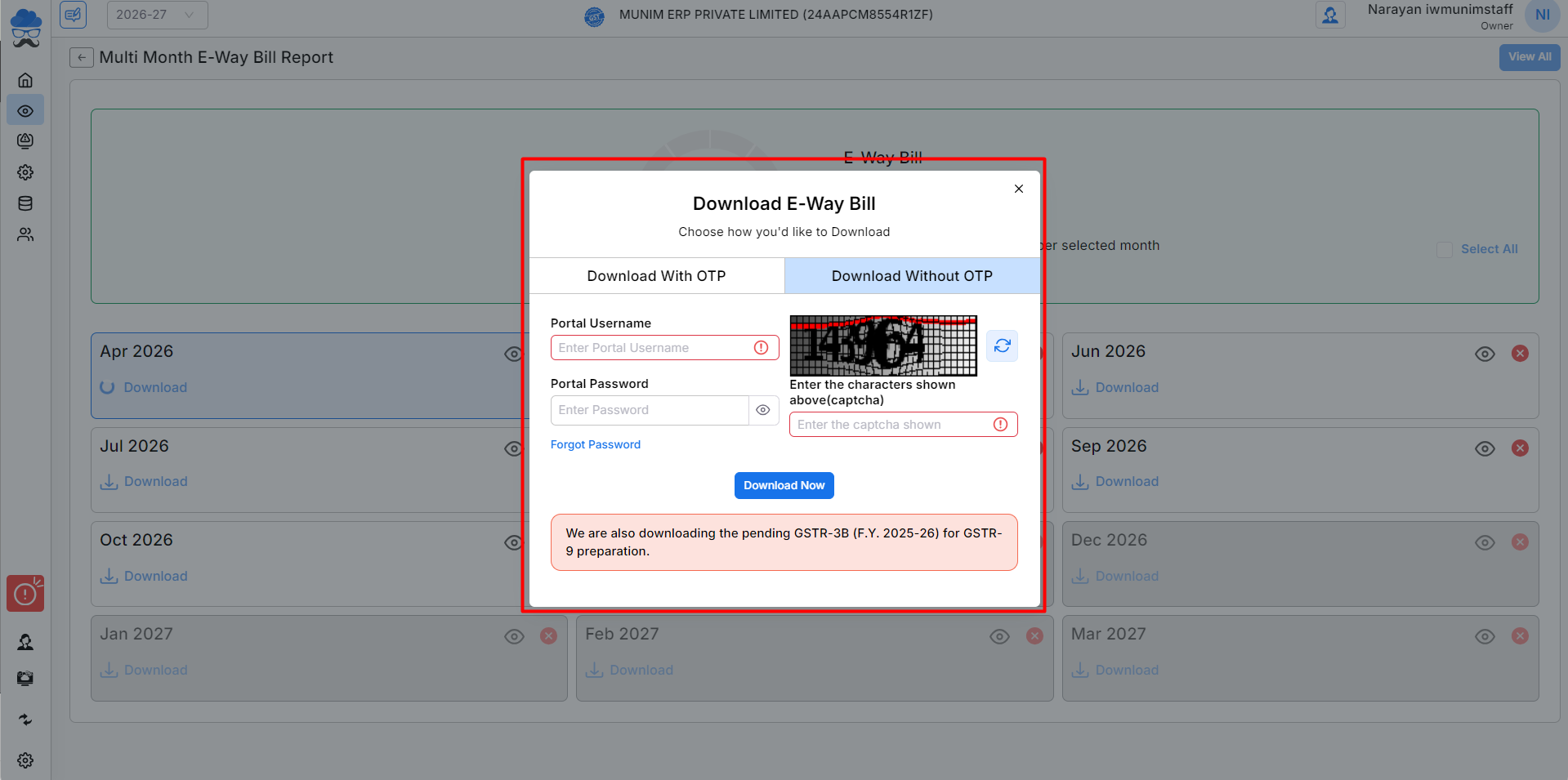
- Click the Download from GSTN button, and a pop-up will open with two options:
- Download without OTP: Enter your GST portal credentials with the captcha to download the selected months’ data.
- Download with OTP (NOT AVAILABLE CURRENTLY): Enter your username and request an OTP on your registered number. After entering the OTP, the data fetching process will begin.
- (Note: The With OTP option is recommended if the data set is large and contains more than 500 invoices in a month. You must use the Munim Desktop app to download data via the Without OTP option.)
+−⟲
5. Track Download Status
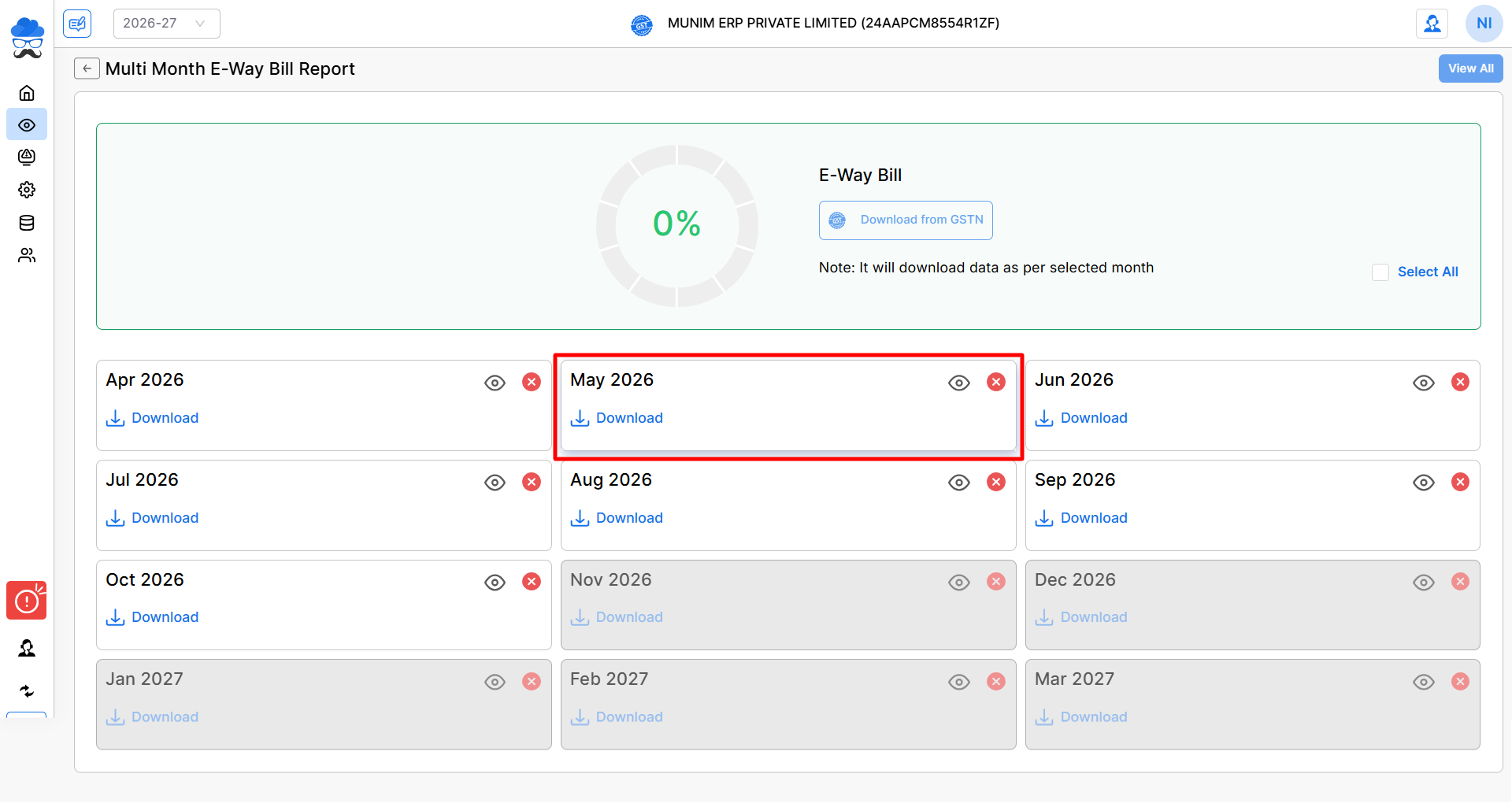
After downloading, the page will show the status of each month:
- If the data for a month has not been downloaded, you will see a Download button.
- If the data has already been downloaded, you will see a Download Again button.
+−⟲
6. View Month-Wise Data
- Once the download is complete, you can view data month-wise by clicking on the View icon (👁).
- In the Invoice Data section, you can check B2B Invoices, B2C, B2CS and EXP data.
- You can utilise the month selection fields to check the report on an annual basis. Also, you can Download Reports in Excel format
+−⟲
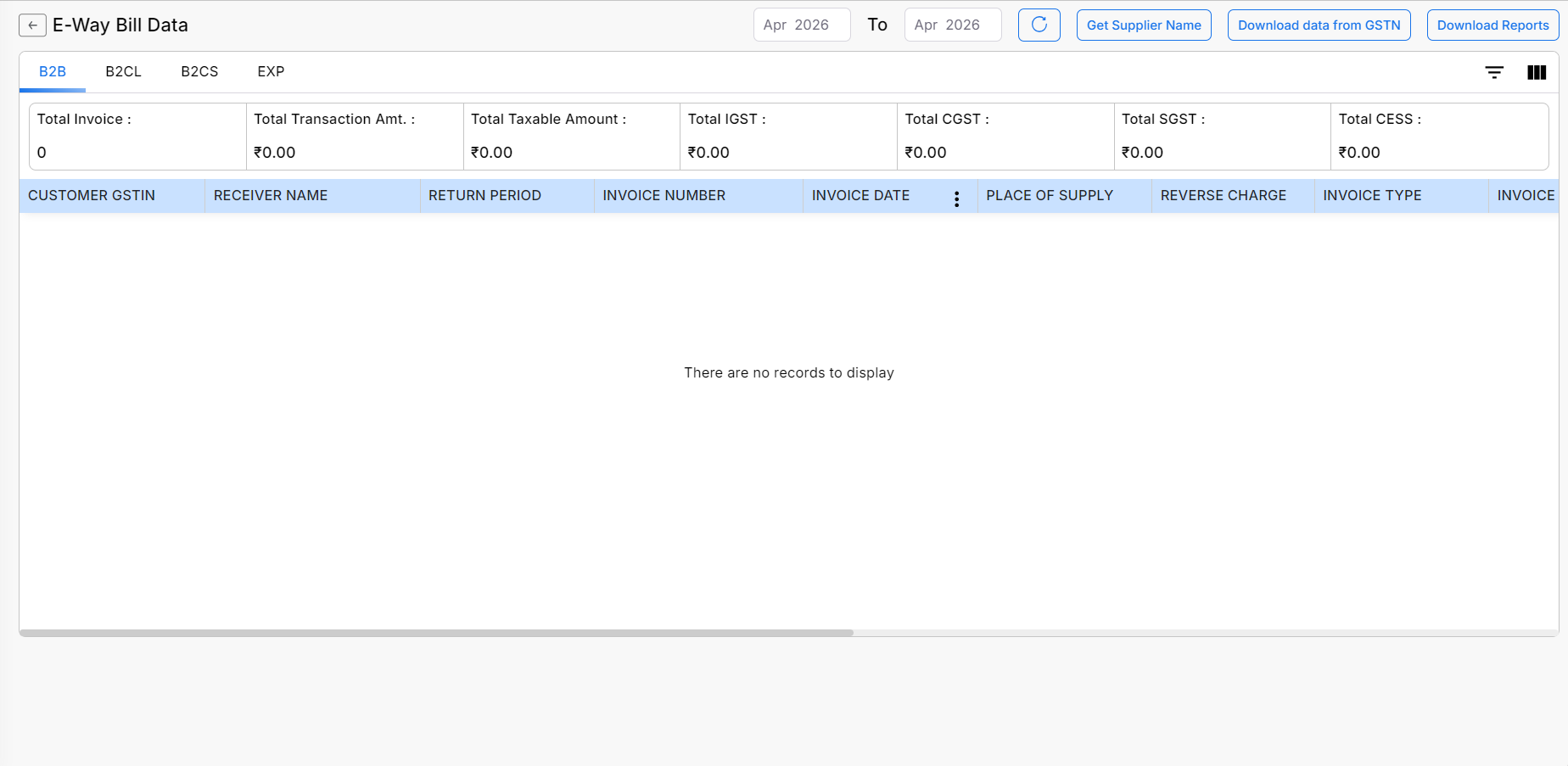
- Here, you can click the Download Data From GSTN button at the top right to download the Data again.
- Additionally, a “Get Supplier Name” button will be available to retrieve supplier details within the entries.
- This consolidated data can also be used for further reconciliation, such as GSTR-1 vs E-Way Bill.
Need Assistance?
If you have any questions or need further assistance, please get in touch with our support team. We’re here to help!


