
 459 views
 Overview
The Client Settings page is the central place for managing all registered clients in Munim GST Software. It allows users to create, edit, organize, and manage client information, GST credentials, business details, and other applicability settings from a single location.
This page helps accountants and tax professionals maintain accurate client information and quickly access important client configurations whenever required.
Why Use the Client Settings Page?
The Client Settings page helps you to:
- Manage all client details from one place.
- Create and edit client information.
- Organise clients into groups.
- Configure/add GST Portal credentials.
- Manage E-Way Bill, E-Invoice, RSP and 6 Digit HSN applicability.
- Add authorised person details.
- View client history and profile information.
- Search and filter clients easily.
Client Settings List Page
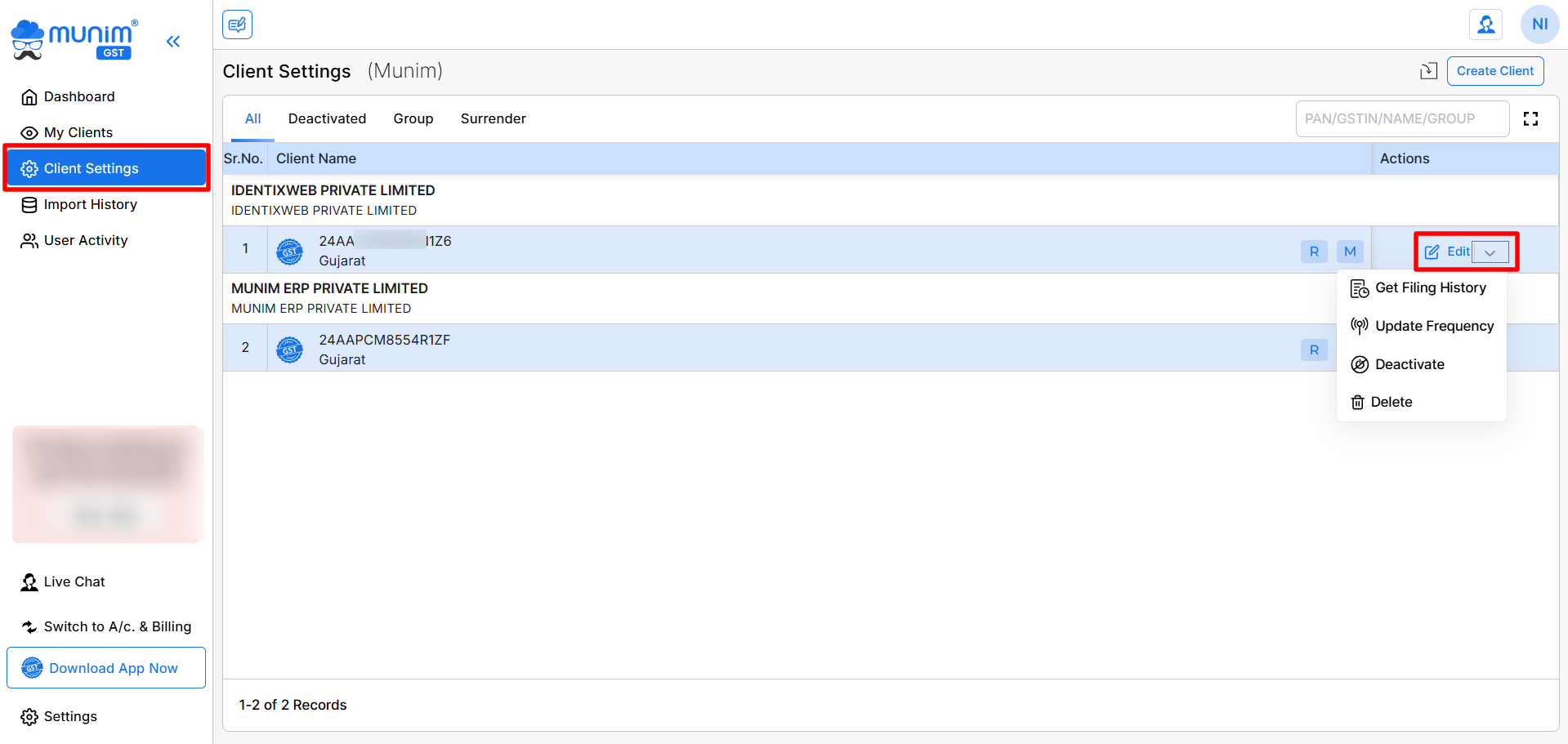
The Client Settings list page displays all registered clients and provides various options for managing them.
Available Tabs:
All – Displays all active clients added and available in the software.
Deactivated – Shows clients that have been deactivated and provides the option to activate them again.
Group – Displays created groups and allows for creating new groups or adding clients to groups.
Surrender – Displays clients marked as surrendered by the admin due to account limitations resulting from a plan degradation.
Configuration options and fields:
Create Client – Click the Create Client button to register a new client in the software.
Search Client – Use the search box to quickly find a client by: GSTIN, Client Name, PAN Number, Group Name
Client Action Buttons – Different action buttons may appear based on the client’s status and configuration.
Edit – Opens the client settings page for modifying client details.
Return Status Indicators – Certain badges or icons may appear to indicate: Return filing frequency, Registration Type, Client information
Additional Actions Menu – The dropdown menu provides additional client-specific operations whenever applicable. such as:
- Get Filing History: Retrieve and verify the filing status for each company.
- Update Frequency: Update the filing frequency in Munim to align with any modifications made on the official portal.
- Deactivate: Use this option to deactivate a company temporarily.
- Delete: Use this option to permanently delete a company from the software.
Edit Client Page
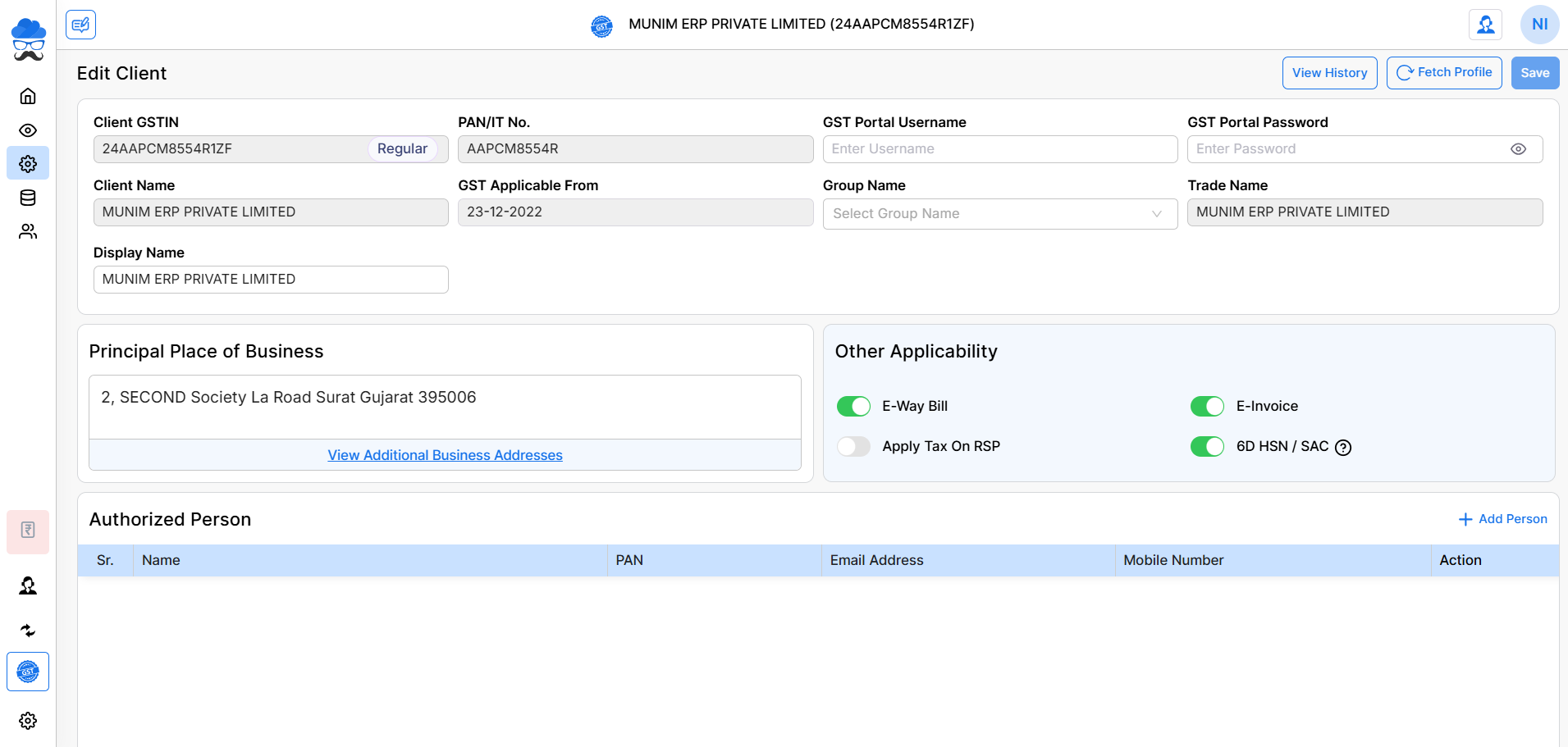
The Edit Client page contains complete information related to a particular client.
Basic Client Information
Client GSTIN – Displays the client’s GST registration number.
Registration Type – Shows the registration category, such as:
- Regular
- Composition
- Other applicable registration types
PAN/IT Number – Displays the PAN associated with the GSTIN.
Client Name – Shows the legal name of the taxpayer.
Display Name – Allows you to maintain a custom display name inside the software.
GST Applicable From – Displays the date from which GST is applicable for the client.
Group Name – Assign the client to a specific group for better management and reporting.
Trade Name – Displays the trade name registered on the GST portal.
GST Portal Credentials
GST Portal Username – Enter the GST Portal username of the client.
GST Portal Password – Enter the GST Portal password to enable various GST portal integrations and automated activities.
Note: Credentials are securely stored and can be updated whenever required.
Principal Place of Business
This section displays the client’s registered business address.
Additional Business Addresses – Click View Additional Business Addresses to view all additional places of business registered under the GSTIN.
Other Applicability
This section allows you to configure additional features applicable to the client.
E-Way Bill – Enable this option if the client uses E-Way Bill services.
E-Invoice – Enable this option if the client is required to generate E-Invoices.
Apply Tax on RSP – Enable this setting when tax needs to be calculated on the Retail Sale Price (RSP).
6D HSN/SAC – Enable this option if six-digit HSN/SAC reporting is applicable for the client.
Authorized Person
The Authorised Person section allows you to maintain contact details of individuals associated with the business.
Information that can be stored includes:
- Name, PAN Number, Email Address, Mobile Number
Click Add Person to add a new authorised person for the client.
You can maintain multiple authorised persons whenever required.
Additional Options
View History – Displays the history of changes made to the client’s information. can be updated.
Fetch Profile – Fetches and updates the latest client information directly from the GST portal, wherever applicable.
Save – Click Save to store the changes made to the client settings.
Important Note
- Keep GST Portal credentials updated for smooth portal integration.
- Verify business details after fetching profile information.
- Update applicability settings whenever there is a change in client compliance requirements.
- Maintain authorised person details to keep client records complete and accurate.
Result
Using the Client Settings page, you can efficiently manage client master information, GST credentials, business details, applicability settings, and authorized person information from a single location, making client administration faster and more organized.
Need Assistance?
If you face any issues while managing client settings or updating client information, please contact the Munim Support Team for assistance.


