
 3498 views
 Here, we provide a step-by-step guide on how to update your app to the latest version, ensuring you stay up-to-date with the newest features, performance improvements, and security updates.
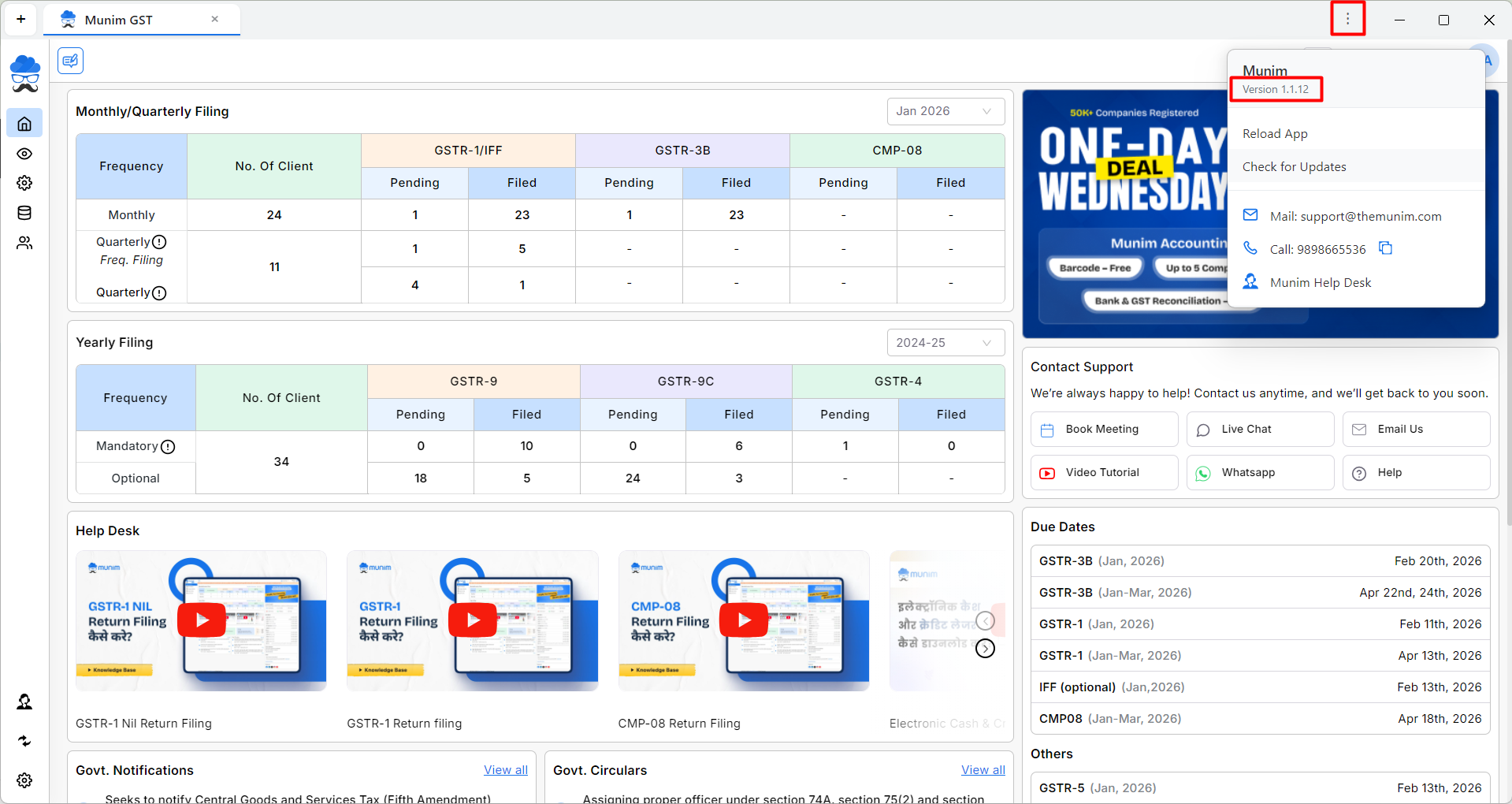
- Here you can see the current version of the installed app and other options like Update and Reload.
+−⟲
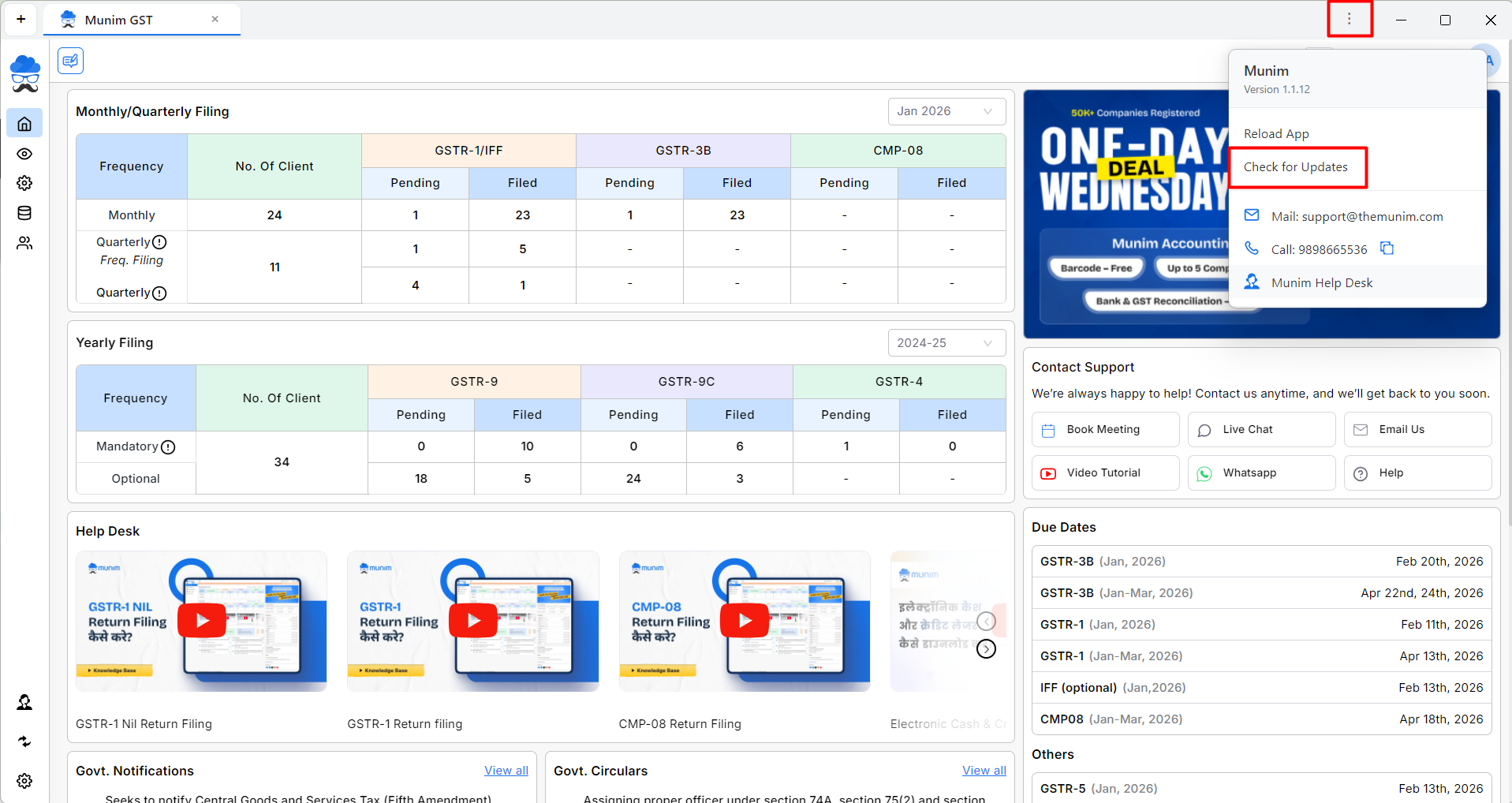
- Once you click on the Check For Update option, if updates are available, then the app update will be downloaded in the background.
- Please keep the app open to allow the update to download smoothly in the background.
+−⟲
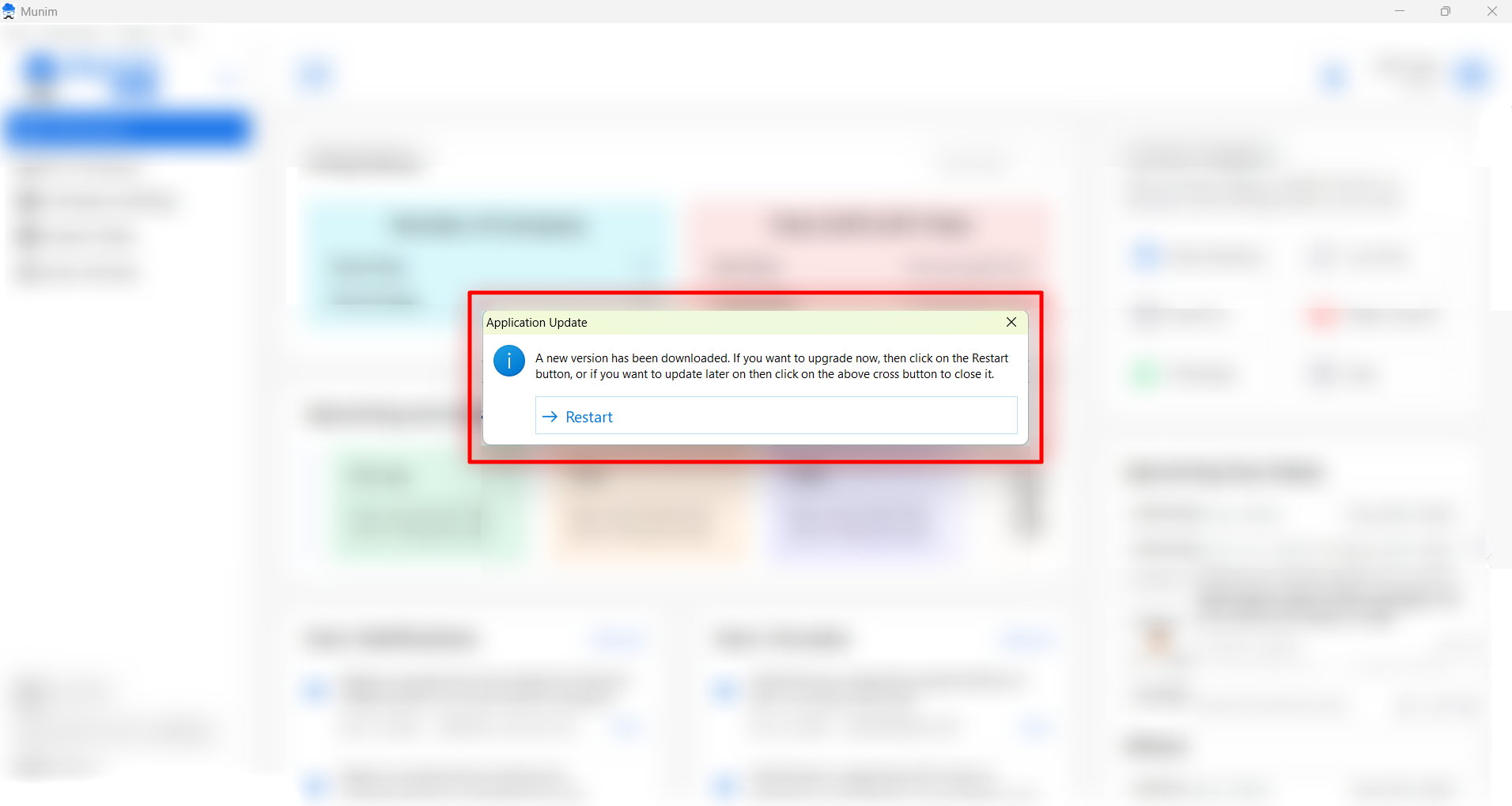
- Once the update is downloaded in the background, you will see the pop-up message below prompting you to restart and complete the update.
- Now, click on the Restart button, and your app update will be installed, and the app will restart.
+−⟲
- Once integrated, you can see that your application is updated with the Latest version shown at the top.
- If no updates are available, then the ” Application is up to date” message will be displayed when you check for updates.


