
 236 views
 Overview
The PAN Level Reconciliation feature enables Enterprise users to reconcile purchase data across multiple GSTINs linked to the same PAN. Instead of reconciling each GSTIN separately, you can fetch GSTR-2A/2B data, import purchase data for all linked GSTINs, and perform reconciliation from a single screen. The feature also introduces Cross Reconciliation to identify invoices matched across different GSTINs under the same PAN. Available in PR v 2A, PR v 2B and IMS modules.
Benefits
- Reconcile multiple GSTINs linked to a single PAN in one process.
- Reduce manual reconciliation across multiple business registrations.
- Identify invoices matched across different GSTINs.
- Detect cross-GSTIN mismatches and suggested matches.
- Download reconciliation reports with or without filters.
- Improve reconciliation accuracy for Enterprise businesses.
Perform PAN Level Reconciliation
PAN Level Reconciliation is available across the Purchase Register v GSTR2A, Purchase Register v GSTR2B, and IMS modules.
Let’s review the following example of PR v 2A to understand the PAN level reconciliation process.
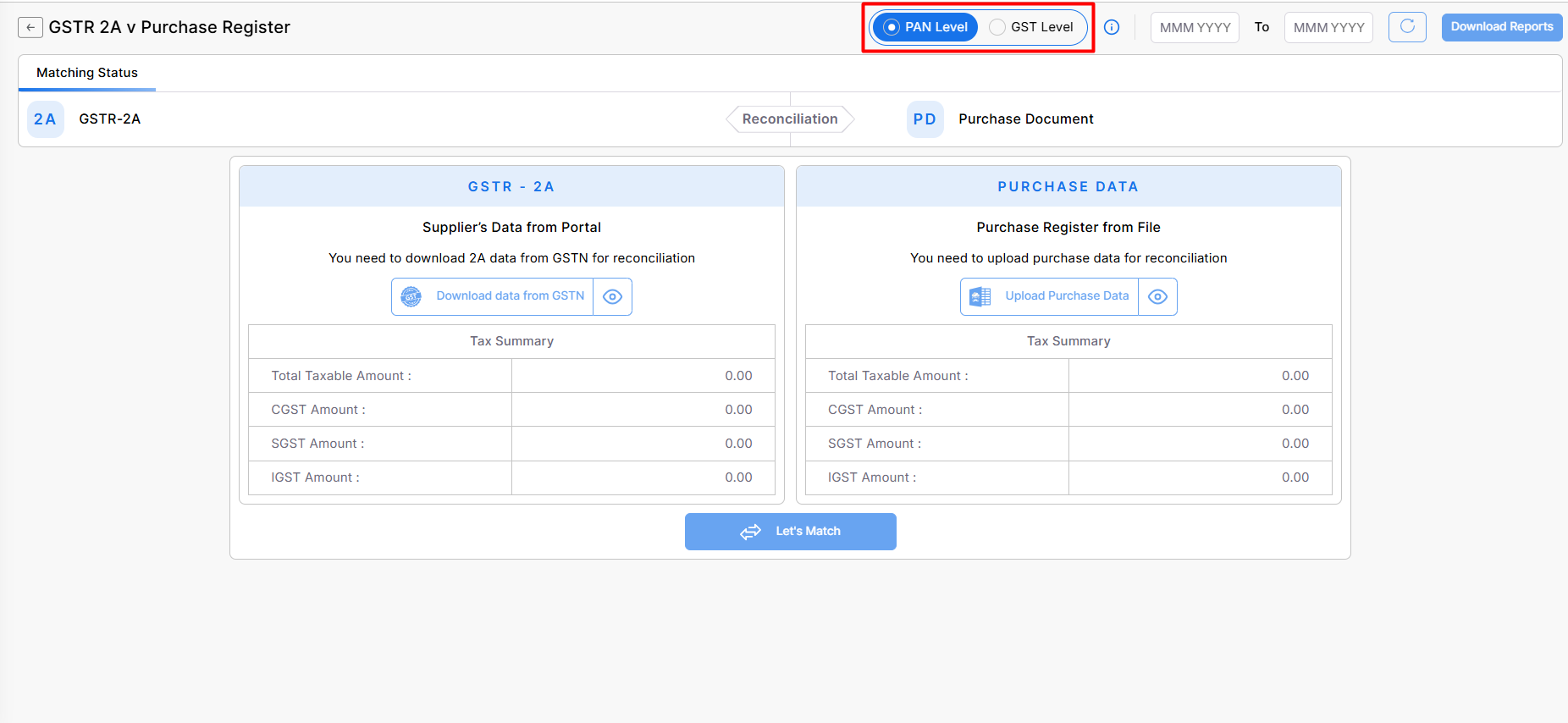
Step 1: Select PAN Level Reconciliation
- Open GSTR-2A vs Purchase Register for a company that has the same PAN but multiple GSTINs.
- Select the PAN Level option from the top and select the reconciliation period range on the reconciliation page.
Step 2: Download GSTR-2A Data
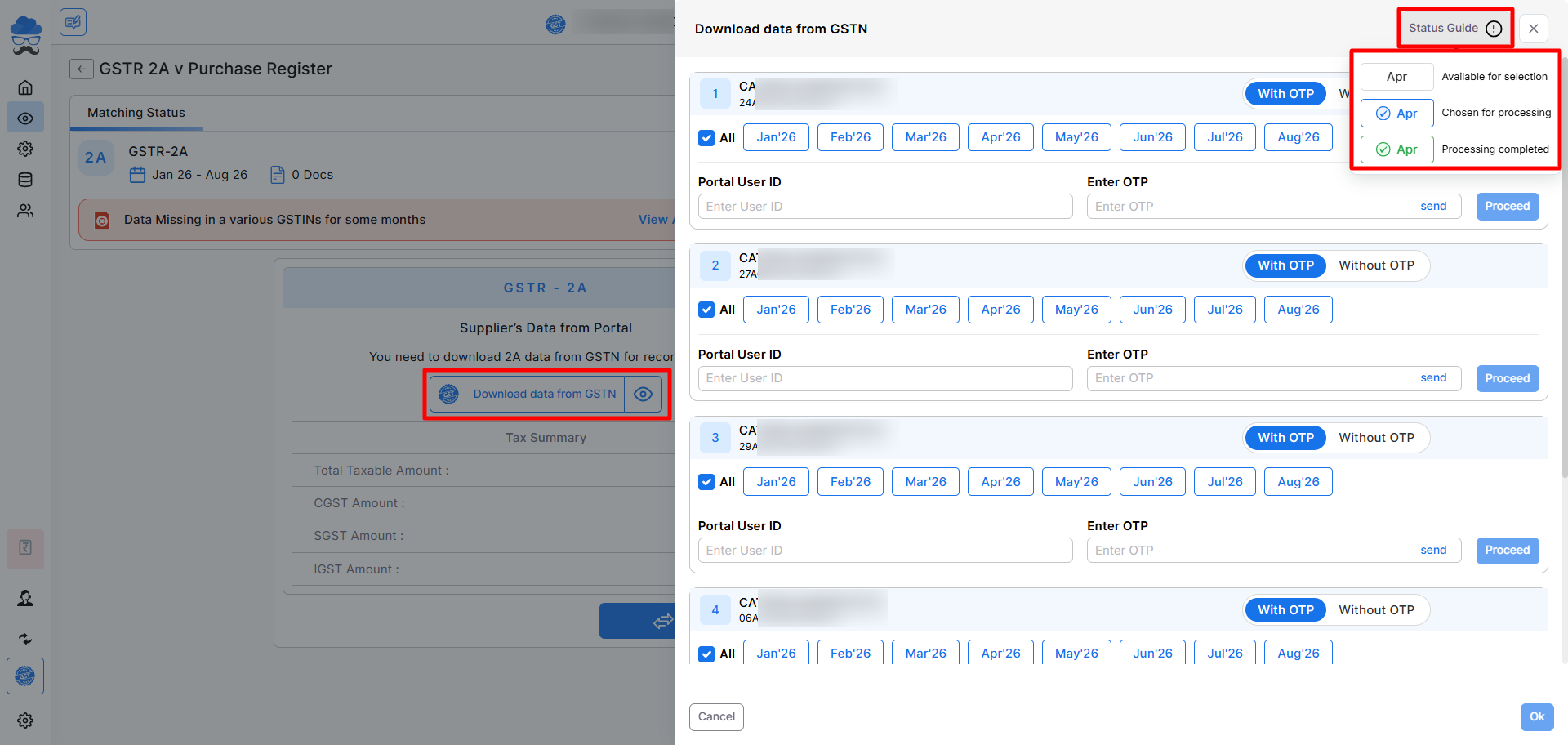
- Click Download Data from GSTN.
- Select the required GSTINs or choose All.
- Select the return periods. Enter the Portal User ID.
- Download data using With OTP or Without OTP (where applicable).
- Click Proceed.
Note: You can process a maximum of six companies simultaneously during the data download process.
Step 3: Import Purchase Data
- Click Upload Purchase Data.
- Choose from PAN-Based Import Purchase Data or GST-Based Import Purchase Data
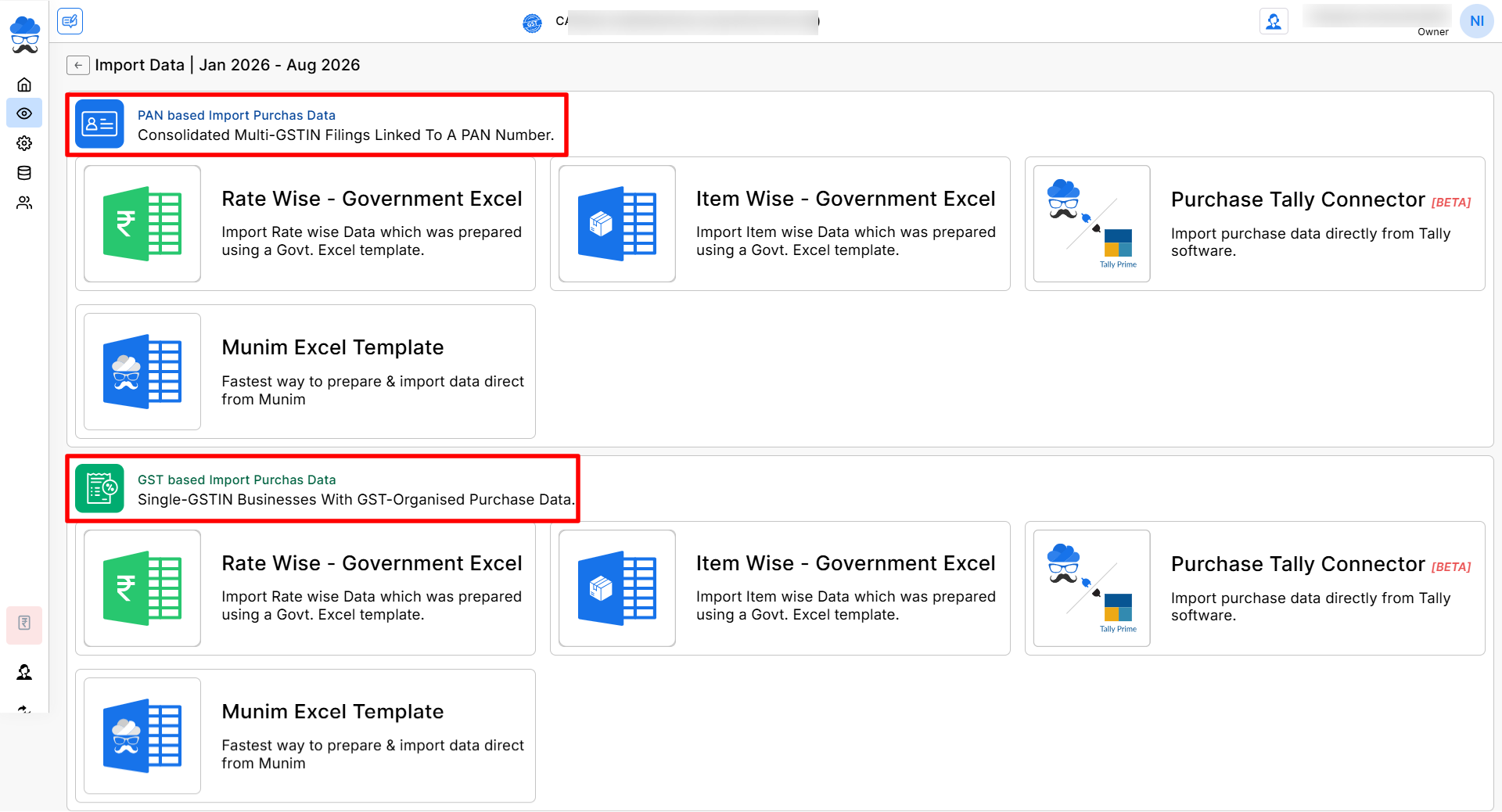
- If your purchase data is consolidated for all GSTINs, select the PAN-based Import option; otherwise, use the GST-based Import option to upload Purchase data for each GSTIN individually.
- In the GST-based import section, select the required import method.
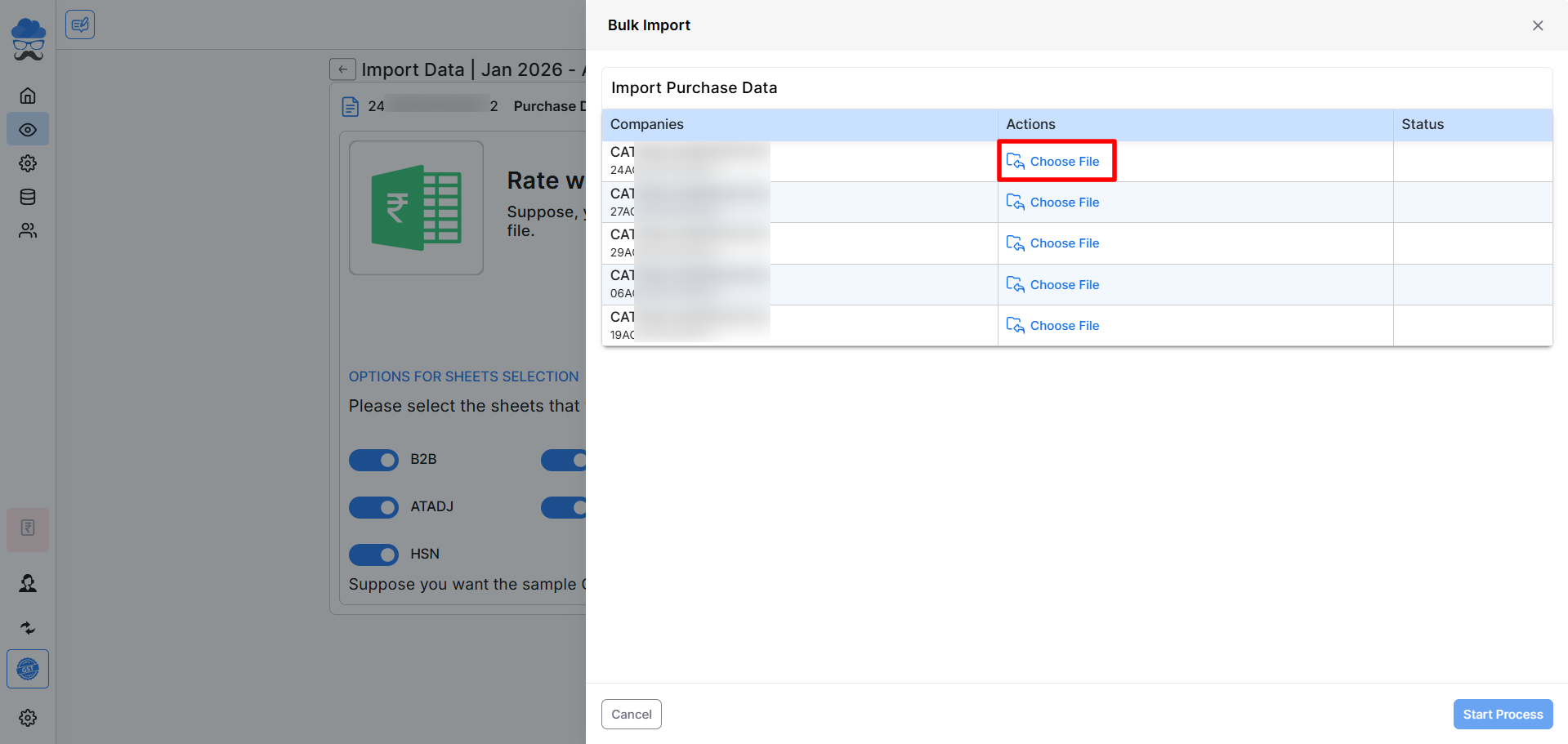
- Here in the Bulk Import sidebar, upload purchase data separately for each GSTIN.
- Once the import is done, click Start Process.
Step 4: Start Reconciliation
After both datasets are available, click Let’s Match.
Munim compares:
- GSTR-2A data
- Purchase Register data
- Documents across all GSTINs linked with the PAN
Cross Reconciliation Statuses
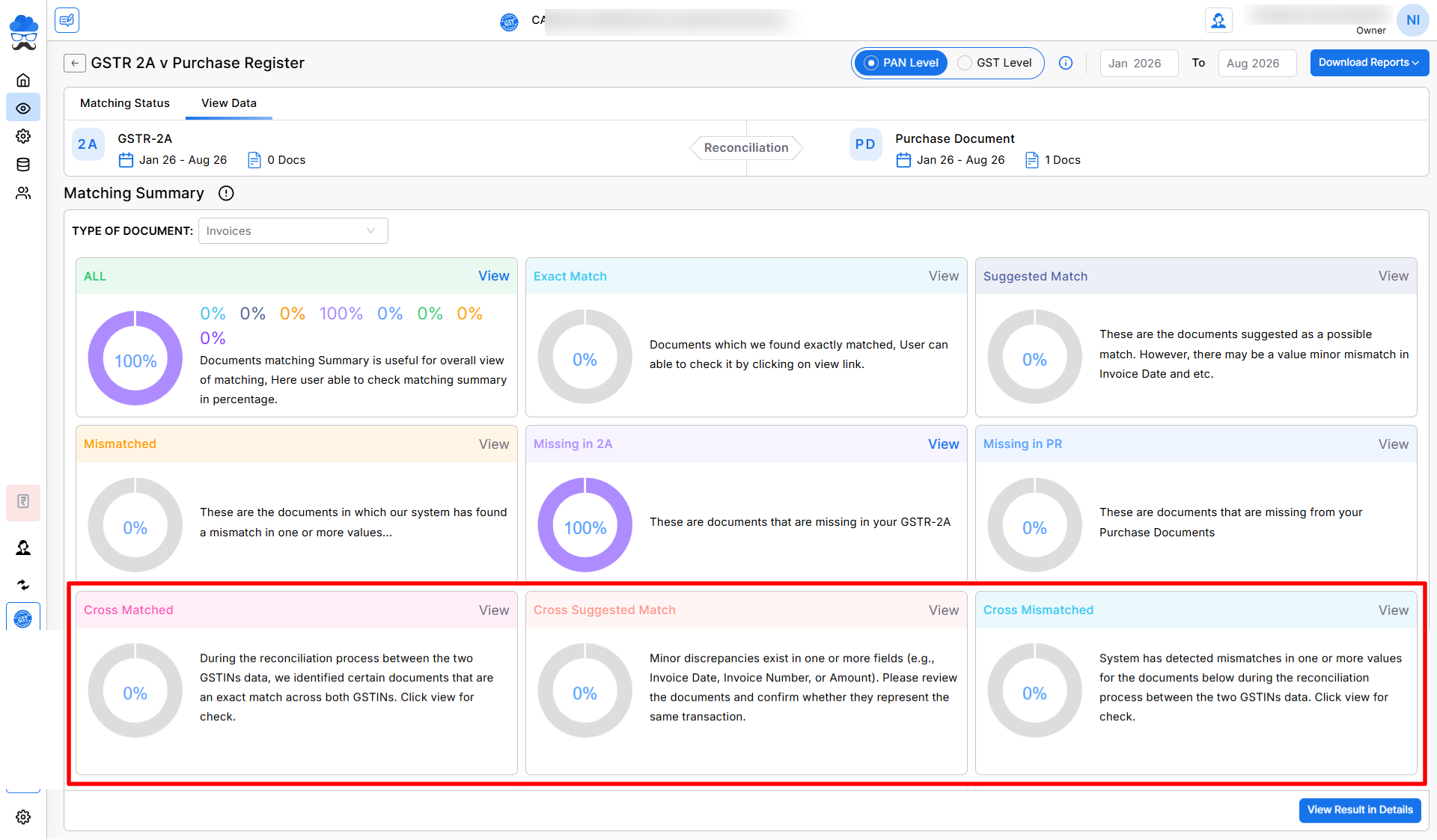
Along with the standard reconciliation results, PAN Level Reconciliation provides three additional cross-reconciliation statuses.
Cross Matched
Shows invoices that are an exact match across different GSTINs linked to the same PAN.
Use this status to identify documents successfully matched during cross-GSTIN reconciliation.
Cross Suggested Match
Shows invoices that appear to belong to the same transaction but contain minor differences, such as:
- Invoice Number
- Invoice Date
- Taxable Value
- Tax Amount
Review these records before confirming the reconciliation.
Cross Mismatched
Shows invoices where the system detected significant differences between GSTIN records during cross reconciliation.
These invoices require manual verification before finalising reconciliation.
View Reconciliation Details
Click View Result in Details to:
- View Supplier-wise or Document-wise data.
- Filter records by reconciliation status.
- Review tax differences.
- Analyse document and update.
Download Reconciliation Reports
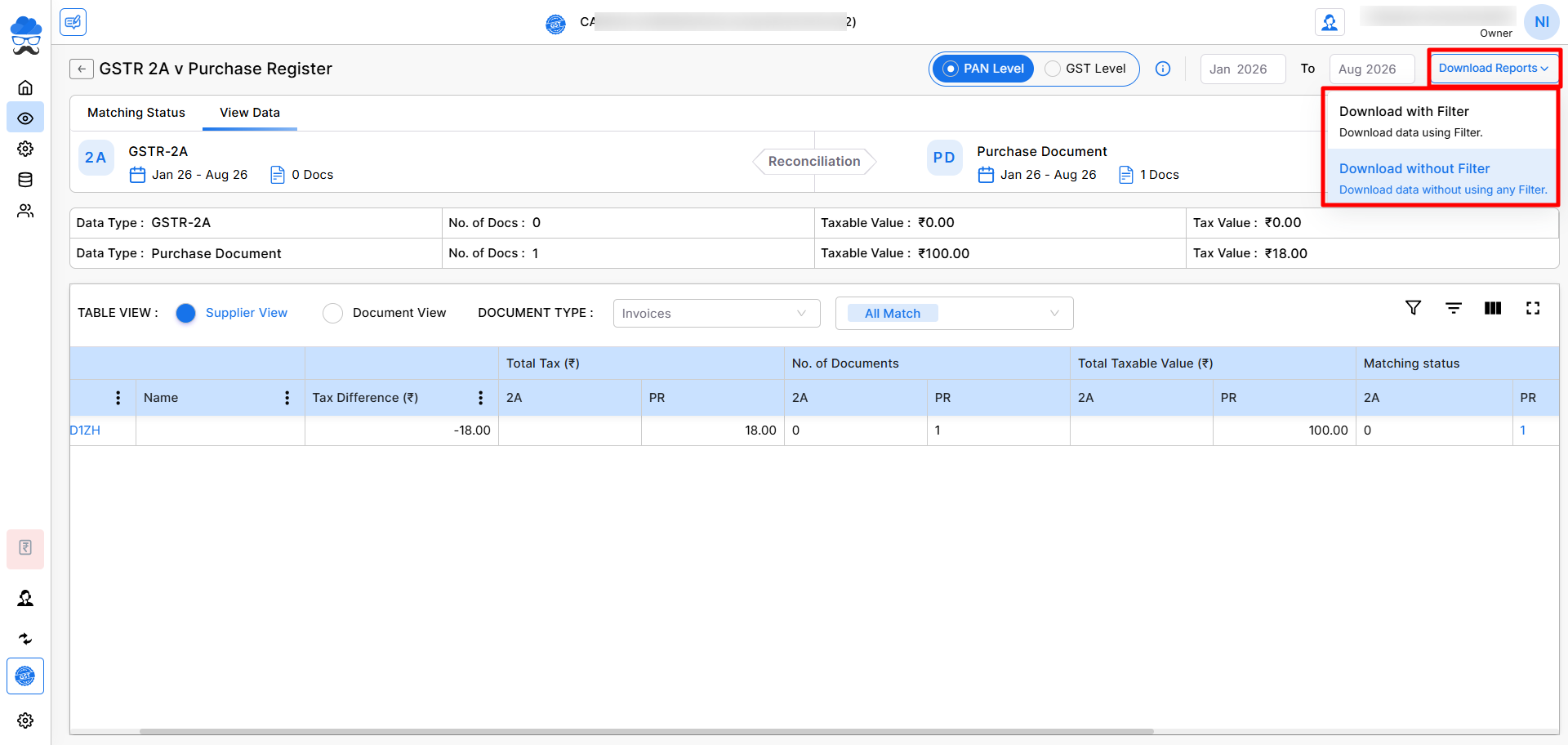
Click Download Reports and choose:
- Download with Filter – exports only filtered records.
- Download without Filter – exports the complete reconciliation data.
Important Notes
- PAN Level Reconciliation is available only in the Enterprise Plan.
- PAN Level Reconciliation is available in PR v 2A, PR v 2B and IMS modules.
- Only GSTINs linked to the selected PAN are included.
- Purchase data must be uploaded before reconciliation.
- GSTR-2A/2B or IMS data should be downloaded for the selected period before matching.
- Cross Reconciliation statuses are available only in PAN Level mode.
Need Assistance?
If you experience any issues while performing PAN Level Reconciliation, please contact the Munim Support Team.


