
 45 views
 Overview
The Notice & Orders feature in Munim GST helps you view and track GST notices, orders, assessments, proceedings, and other communications for your clients. You can fetch notices directly from the GST portal or add them manually, monitor their status, and identify notices that require action.
Benefits
- View and track GST notices and orders in one place.
- Identify notices requiring immediate attention based on their due dates and status.
- Filter notices by category and quickly access client-specific notices.
- Monitor recent communications and review important updates.
- Add and update statuses manually when needed.
Access Notice & Orders
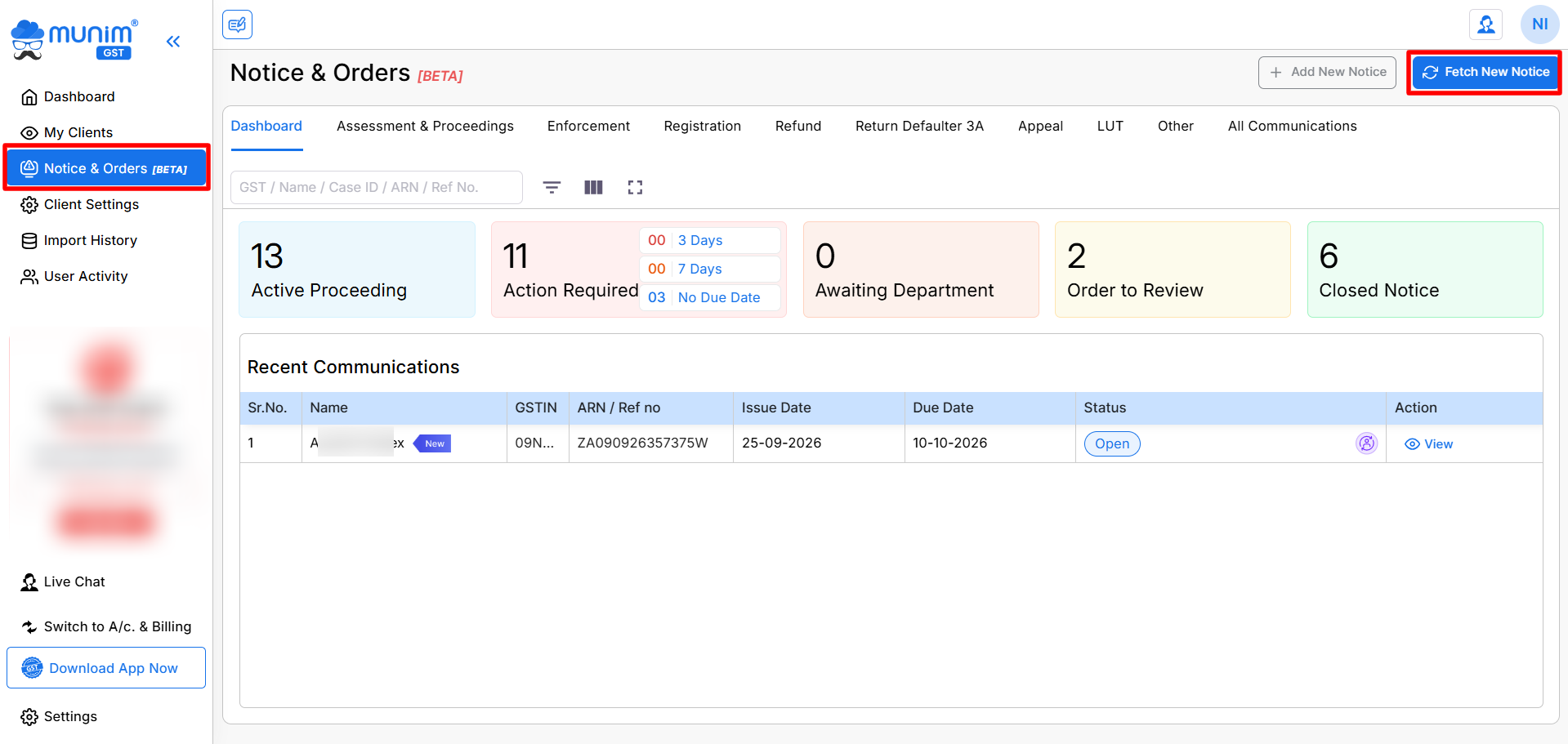
- Access the full module directly by clicking Notice & Orders in the left-hand navigation menu.
- Click Fetch New Notice from the top left corner to retrieve available notices from the GST portal.
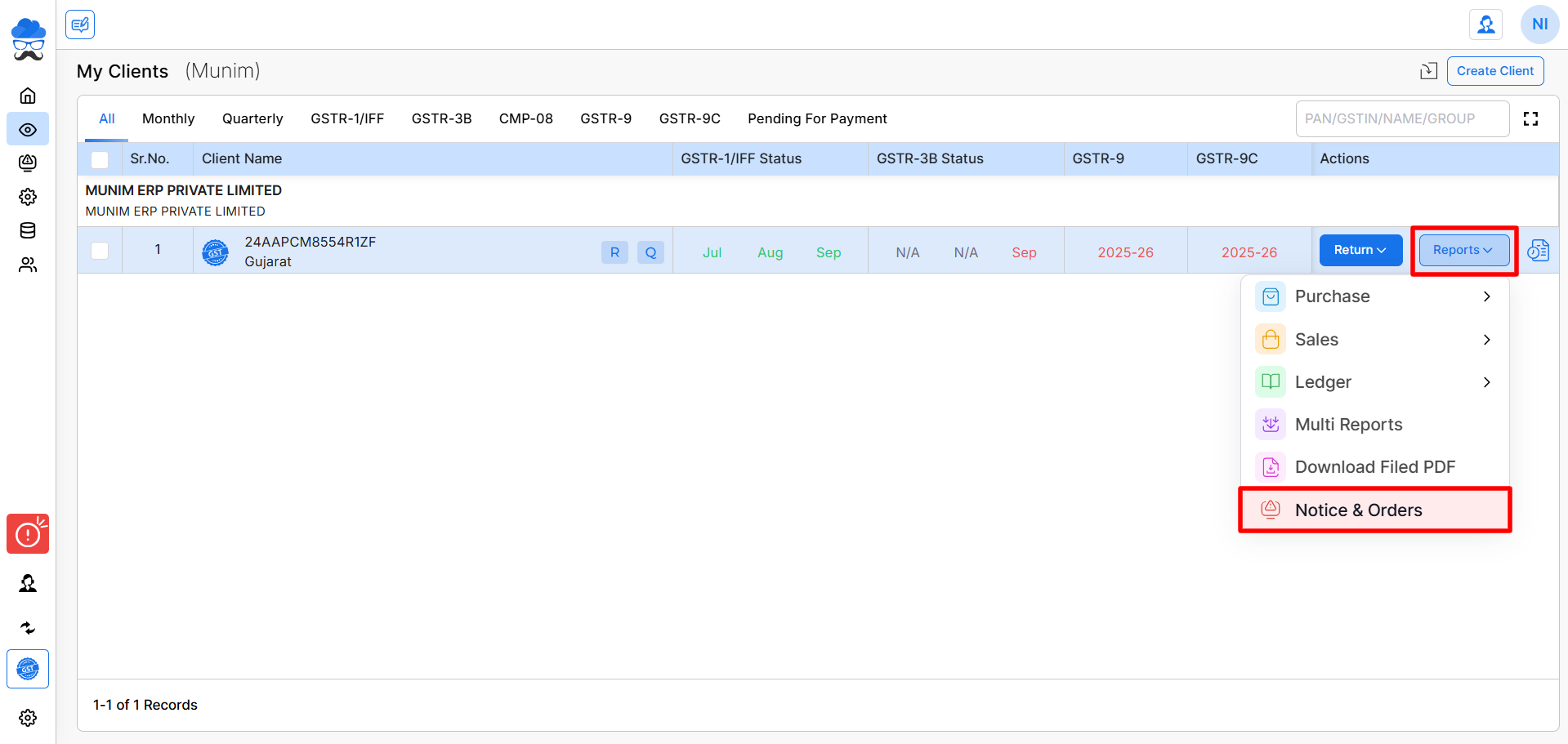
- Alternatively, open the My Clients module. Click the Reports dropdown against the required client.
- Select Notice & Orders to view notices for that specific company filter.
Notice & Orders page: View and Filter Notices
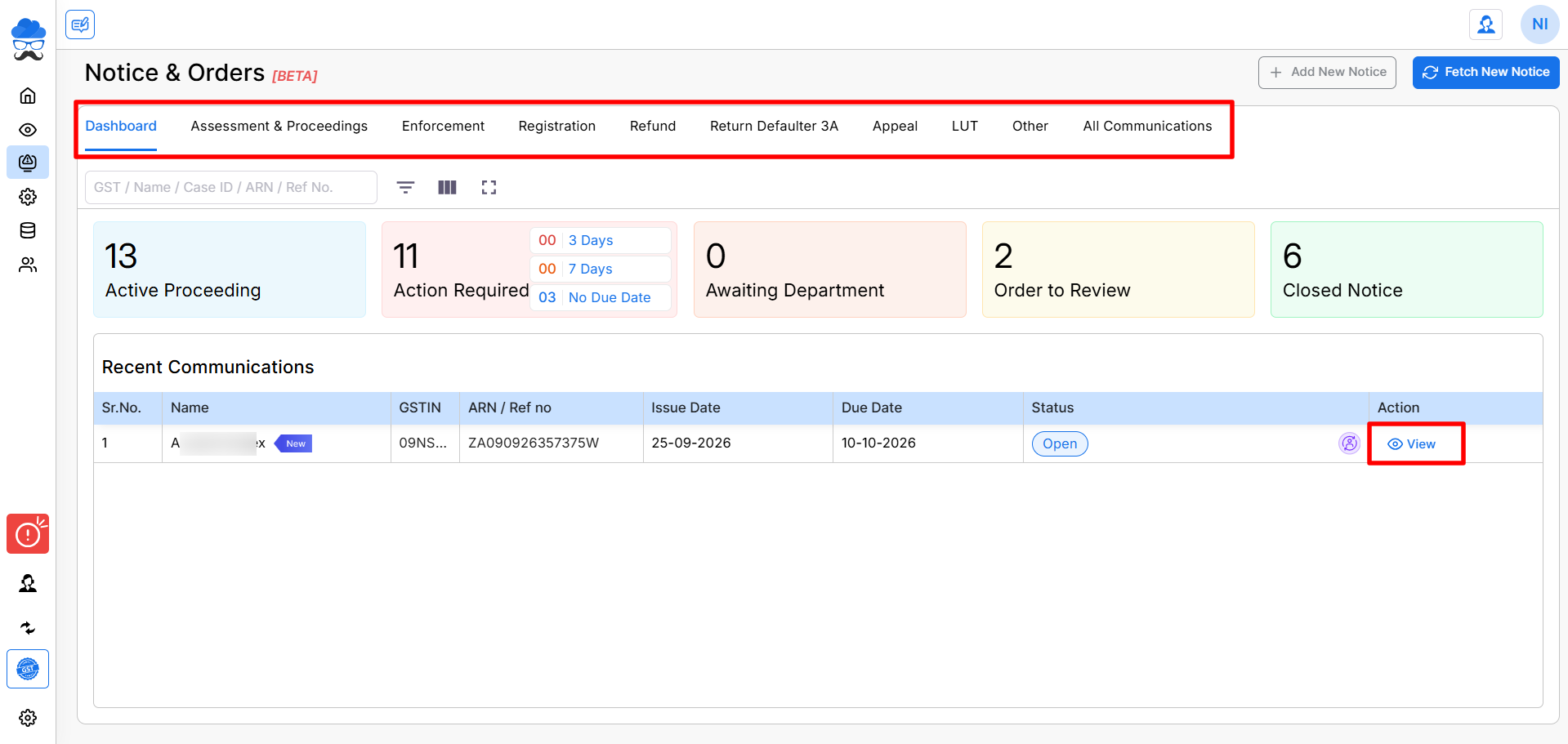
The Notice & Orders page provides the following tabs to organise notices by type filters:
- Dashboard: View the notice summary and recent communications.
- Assessment & Proceedings: Review assessment-related notices and proceedings.
- Enforcement: Access enforcement-related notices.
- Registration: View registration-related notices.
- Refund: Check refund-related notices.
- Return Defaulter 3A: Review notices related to return defaults under this category.
- Appeal: Access appeal-related notices.
- LUT: View notices related to the Letter of Undertaking.
- Other: View notices not covered by the other categories.
- All Communications: View communications across the available categories.
Use the Search field to find notices by GSTIN, Name, Case ID, ARN, or Reference Number.
Monitor Notices by Status
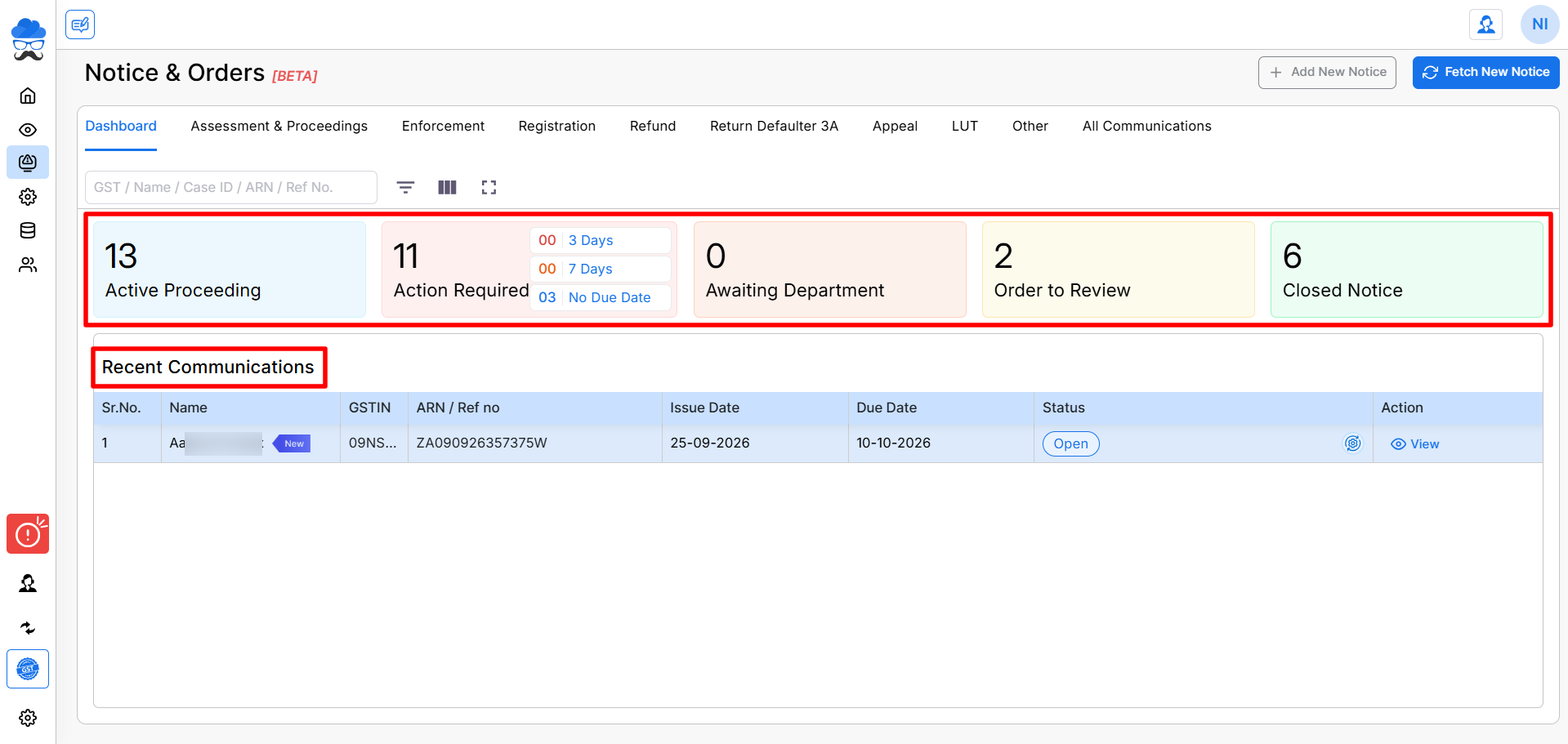
The dashboard displays colourful clickable summary cards to help you monitor notices by their statuses:
- Active Proceeding: View ongoing proceedings.
- Action Required: Identify notices that require action, including notices approaching their due dates.
- Awaiting Department: Track notices awaiting a department response or action.
- Order to Review: Identify orders that need to be reviewed.
- Closed Notice: View notices marked as closed.
Click a summary card to quickly check the corresponding notices.
Review Recent Communications on Dashboard tab
The Recent Communications section displays new communications list received during the last 30 days.
You can review details such as:
- Name and GSTIN, ARN / Reference Number, Issue Date, Due Date and Status.
- View: Open the notice to review its details and timeline.
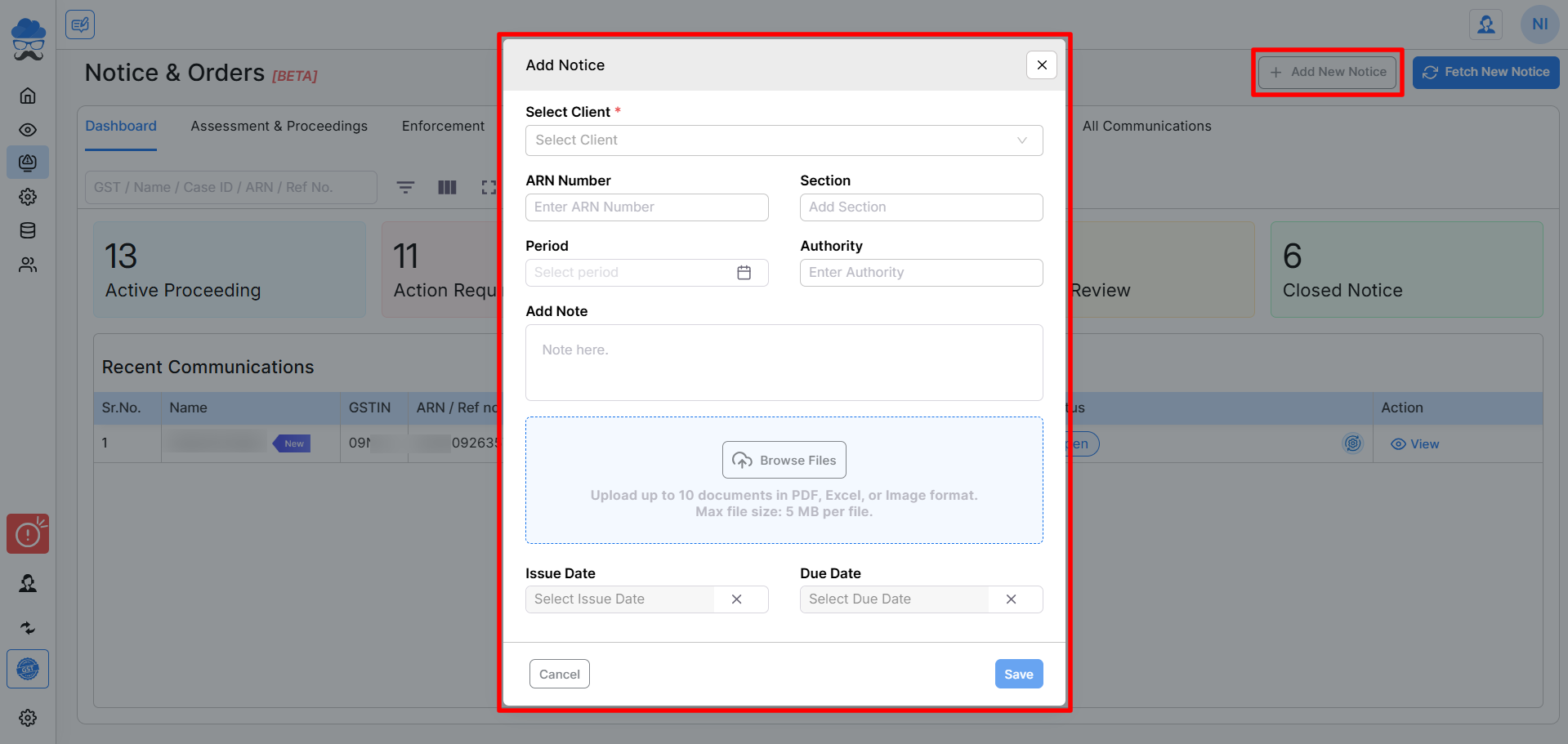
Add New Notice Manually
- Click Add New Notice to manually enter a notice when required.
- Select the appropriate company and provide the required information to add a new notice.
View Notices Timeline and statuses in detail
- Within each filter tab, a View button is available in the Action column for every record.
- Upon clicking this option, the system will redirect you to the detailed Case View page for that specific notice.
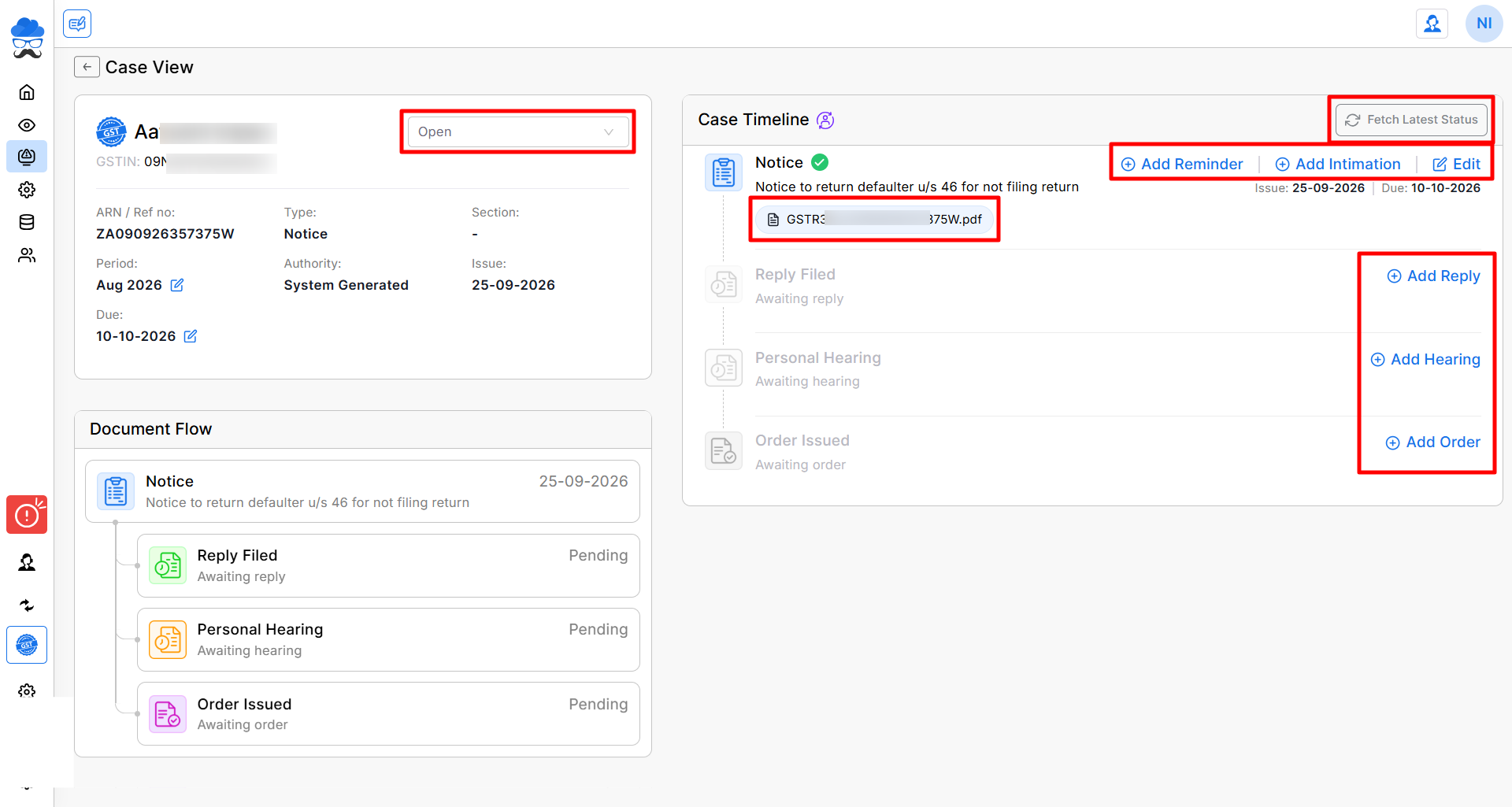
This page allows you to review the specific details like:
- Client Case Details:
- This section allows you to review client details, including the ARN/Reference number, case type, and relevant deadlines.
- Document Flow:
- This section allows you to monitor the status and progression of each case in an informative chart view.
- Case timeline:
- In the case timeline, you can review the detailed Case flow and Status updates, including access to Downloadable PDFs fetched directly from the GST portal.
- You can also manually update status details by clicking “Add” to record replies, hearings, or orders.
- Add reminders, Add intimations, and Edit notice information as required for viewing purposes.
Important Notes
- System refreshes and retrieves notices for company once daily in the background when any report download process is initiated for that specific company.
- Select the correct client before accessing Notice & Orders to ensure you are viewing the appropriate company’s notices.
- Check the Action Required section and due dates regularly to avoid missing important deadlines.
- Use Fetch New Notice to retrieve available updates from the GST portal.
- Review each notice carefully and take the required action within the applicable timeline.
Need Assistance?
If you face issues fetching notices, adding records, or reviewing notice details, contact the Munim Support Team for assistance.


