
 7 views
 Overview
The Sales Register feature in Munim GST helps you view, add, import, and track all your sales invoices and credit/debit notes for your clients in one centralised place. It allows you to maintain accurate sales records, monitor real-time tax summaries, and import external sales data through various methods to ensure seamless GST compliance.
Quick Summary
- Invoice / Credit & Debit Note: Switch tabs to manage sales invoices or credit/debit note records.
- Add New Data: Manually input sales transaction entries directly into the register.
- Import Your Data: Bulk import sales records using Tally Connector, Copy/Paste/Write, or Munim Excel Templates.
- Reconciliation: You can utilise these invoices to perform real-time reconciliations against GSTR-1 data within Munim GST.
Note: This feature is available as a paid add-on and can be enabled upon request. It is available for Enterprise Plan users only.
Accessing Sales Register
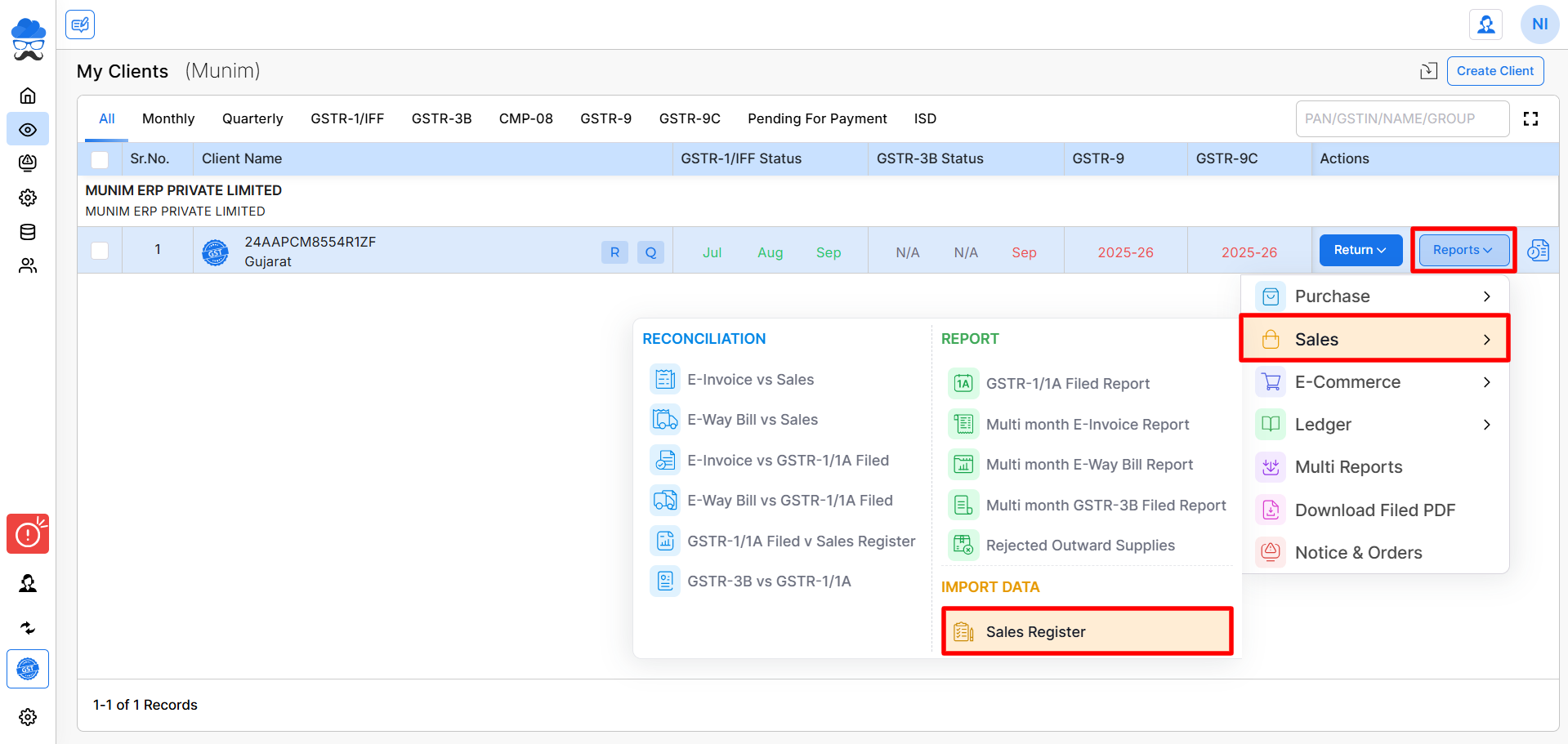
- Navigate to the My Clients module. Find the required client company and click the Reports dropdown menu.
- Now, hover over Sales and click Sales Register under the Import Data section.
Adding Sales Data Manually
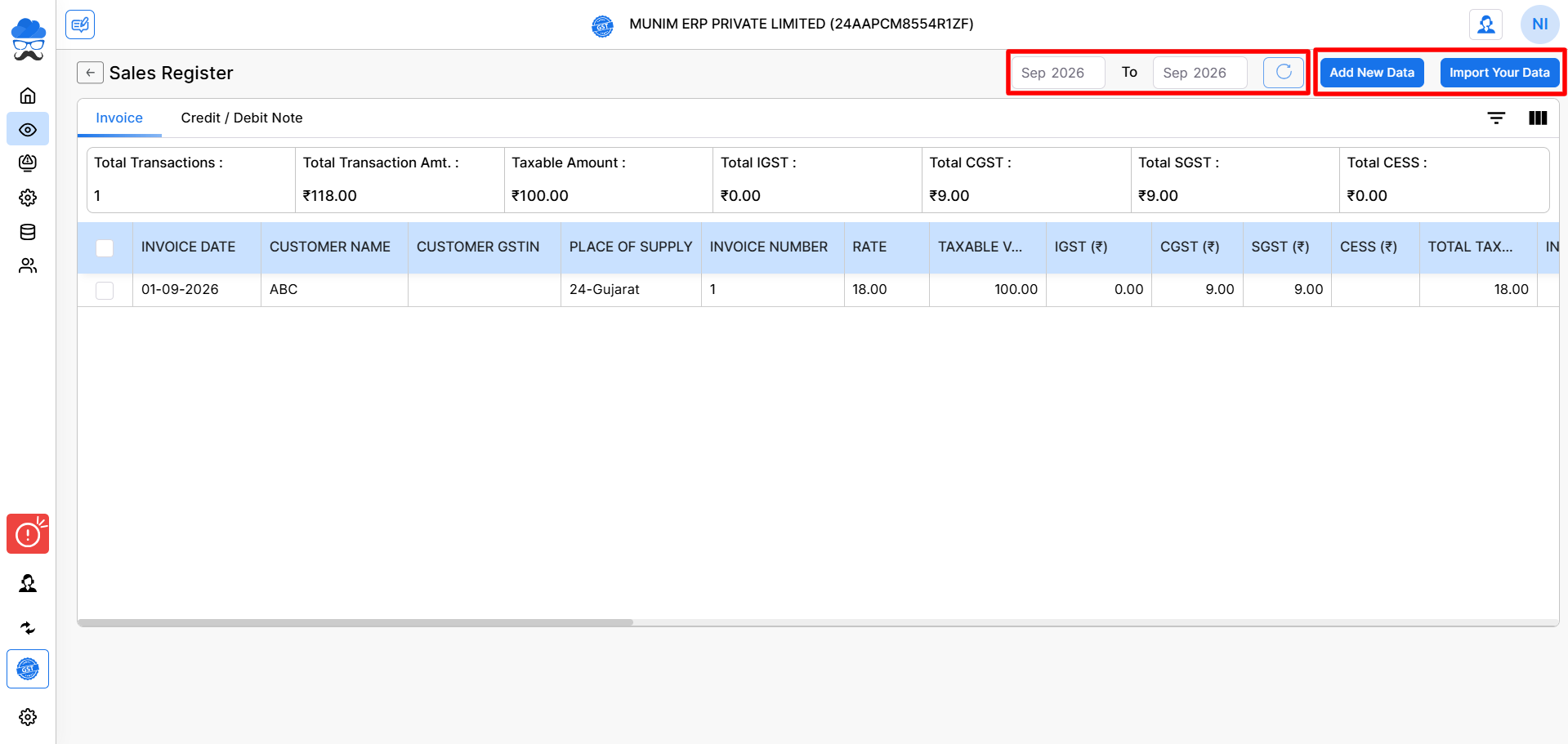
- Select the required return period using the date filters at the top right. Click the Add New Data button in the top right corner.
- Choose the appropriate Doc Type (Invoice or Credit / Debit Note). Fill in the required transaction details manually.
- Click Save & Verify to record the sales entry. The manually entered sales transaction is verified and saved directly into the Sales Register for the selected period.
Importing Sales Data
- Click the Import Your Data button located at the top right of the Sales Register screen.
- Select your preferred import method:
- Tally Connector: Connect directly to Tally Prime software to pull sales data into Munim GST.
- Copy/Paste/Write: Copy and paste your sales data directly into the provided grid.
- Munim Excel Template: Download standard Munim Excel templates (Sales Invoice, Sales Returns, or Combined Data) and upload completed files.
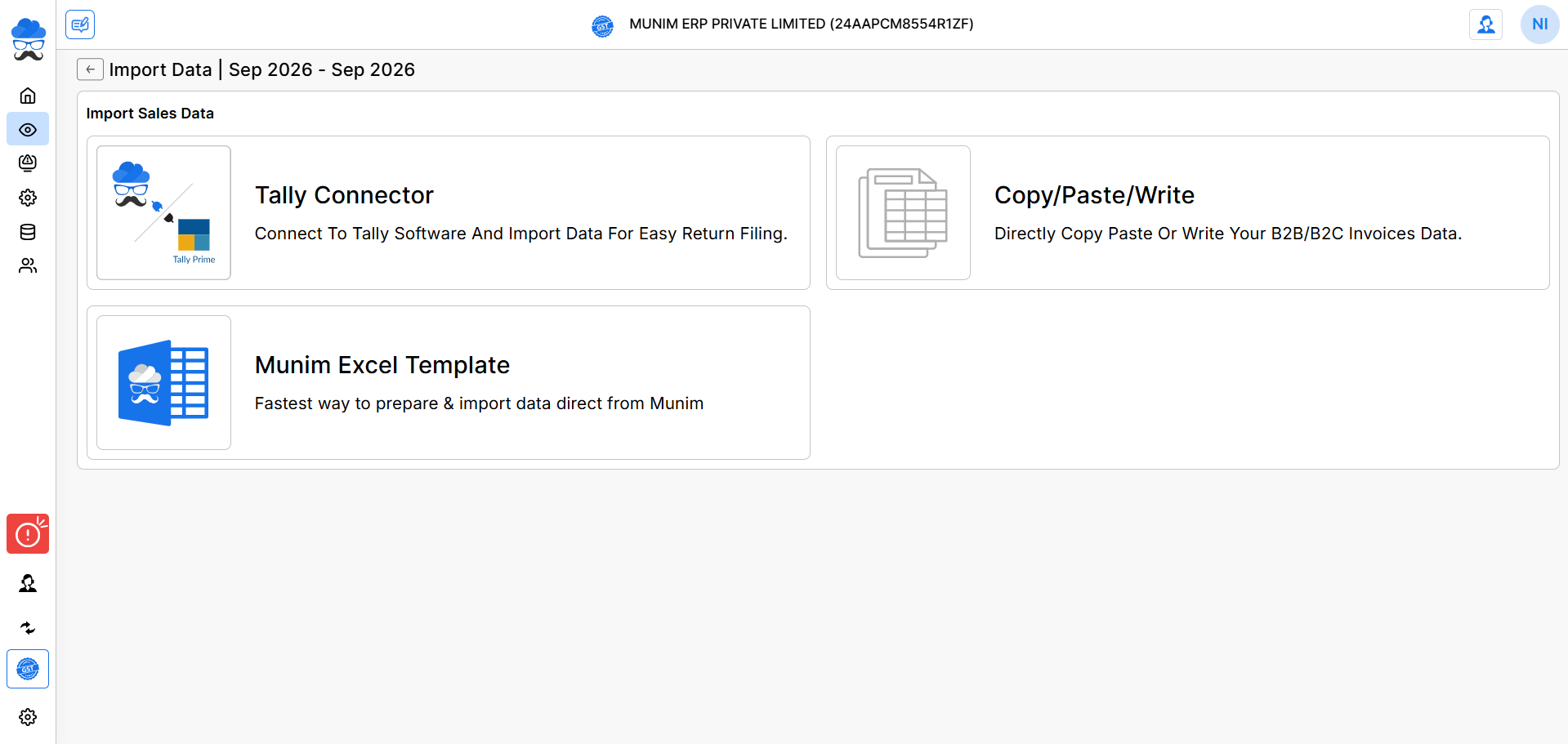
- Sales data from external sources is parsed and imported into Munim GST, automatically populating the register and recalculating tax summaries.
Reviewing Sales Summaries & Registers
Summary Metrics
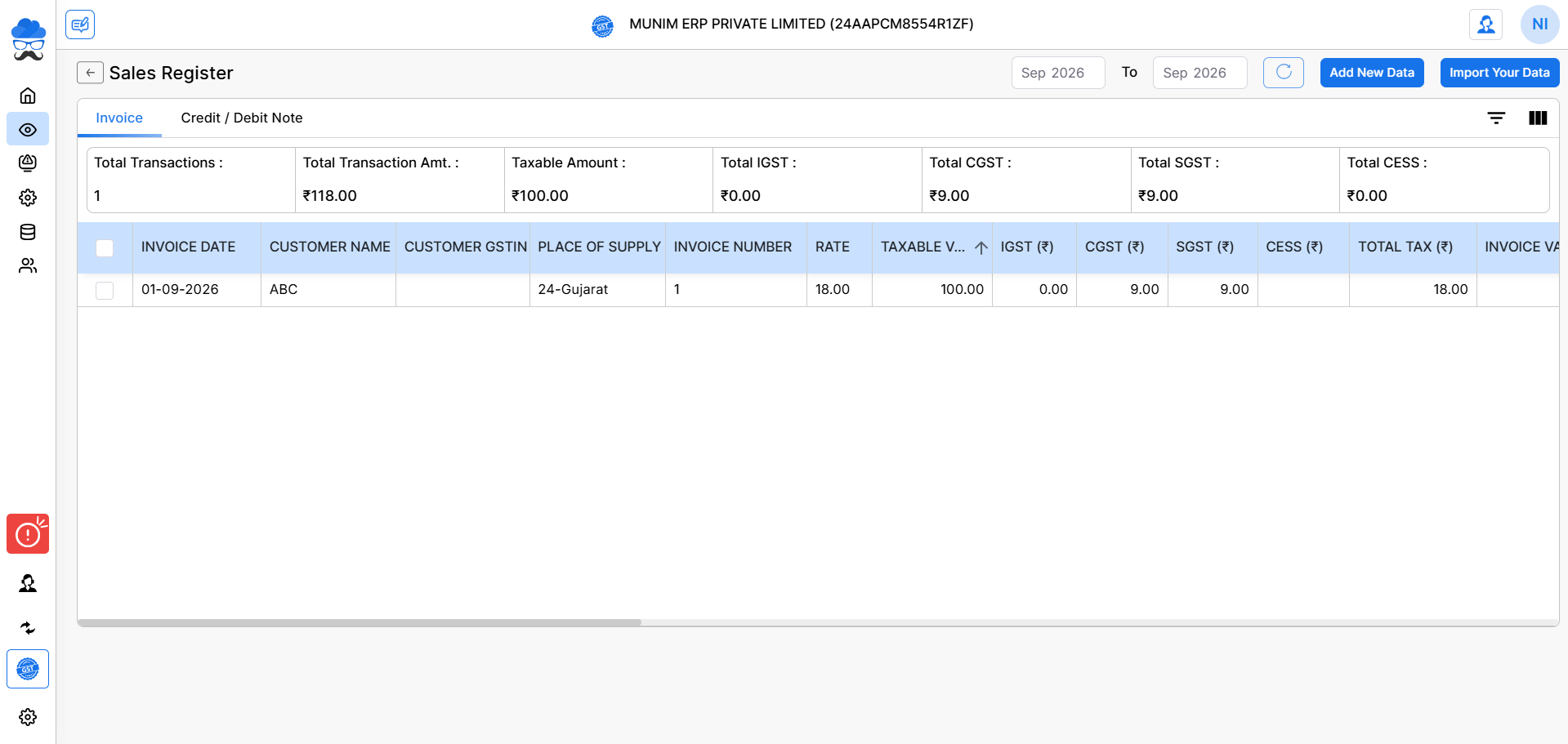
This section allows you to view and navigate between separate tabs for invoices and credit/debit notes, which are categorized accordingly.
The header panel provides real-time totals for the selected return period:
- Total Transactions, Total Transaction Amt., Taxable Amount, Tax Breakdown, Total IGST, Total CGST, Total SGST, and Total CESS.
Register Data Grid
The main table displays detailed line-item fields including:
- Identification: Invoice Date, Customer Name, Customer GSTIN, Place of Supply, and Invoice Number.
- Tax Details: Tax Rate (%), Taxable Value, IGST, CGST, SGST, CESS, and Total Invoice Value.
- GST Attributes: Invoice Type (e.g., Regular B2B), Reverse Charge status, HSN/SAC Code, UQC, Total Quantity, Supply Type, E-Commerce Operator GSTIN, Export/Shipping details, and many more related data can be added.
Important Notes
- Sales Register data can be fetched in GSTR-1 filing, but GSTR-1 filed data cannot be fetched to generate Sales Register.
- Verify date filters to make sure you are adding or reviewing records for the correct GST return period.
- Ensure proper selection of Place of Supply to enable accurate splitting between IGST and CGST/SGST.
- Download the latest Munim Excel Template directly from the import window to ensure file formatting compatibility.
Need Assistance?
If you face issues fetching data, uploading Excel files, or reconciling sales totals, contact the Munim Support Team for assistance.


