
 7 views
 Overview
The GSTR-1/1A Filed v Sales Register Reconciliation tool helps you cross-verify sales data filed on the GST portal against the records maintained in your Munim Sales Register. It identifies discrepancies, missing invoices, and value mismatches across both sources to ensure accurate tax filing and avoid compliance issues.
Quick Summary
- Download Data from GSTR-1/1A Filed: Fetches filed GSTR-1/1A data directly from the GST portal.
- Upload Sales Register Data: Uploads sales register records for the chosen reconciliation period.
- Matching Status: Categorises Exact Match, Suggested Match, Mismatch, Missing in GSTR-1/1A, and Missing in SR.
- View Data Tabs: Provides Month View, Customer View, and Document View breakdown of sales and tax differences.
- Export: Downloads or emails the reconciliation report with or without applied filters.
Note: This feature is available as a paid add-on and can be enabled upon request. It is available for Enterprise Plan users only.
Accessing Reconciliation Module
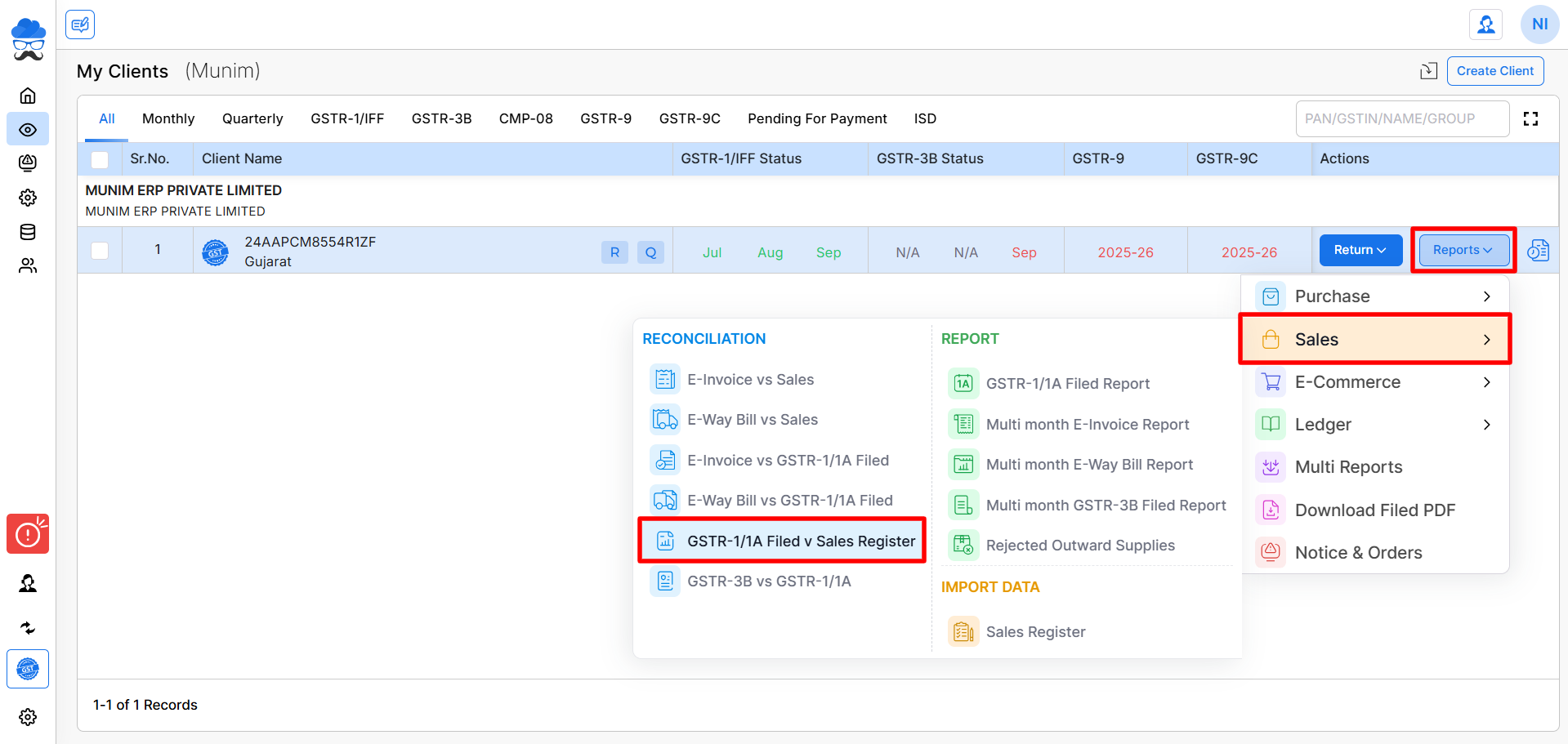
- Navigate to the My Clients module in Munim GST.
- Click the Reports dropdown button next to the required client company.
- Hover over Sales and select GSTR-1/1A Filed v Sales Register under the Reconciliation section.
Running Reconciliation Matching
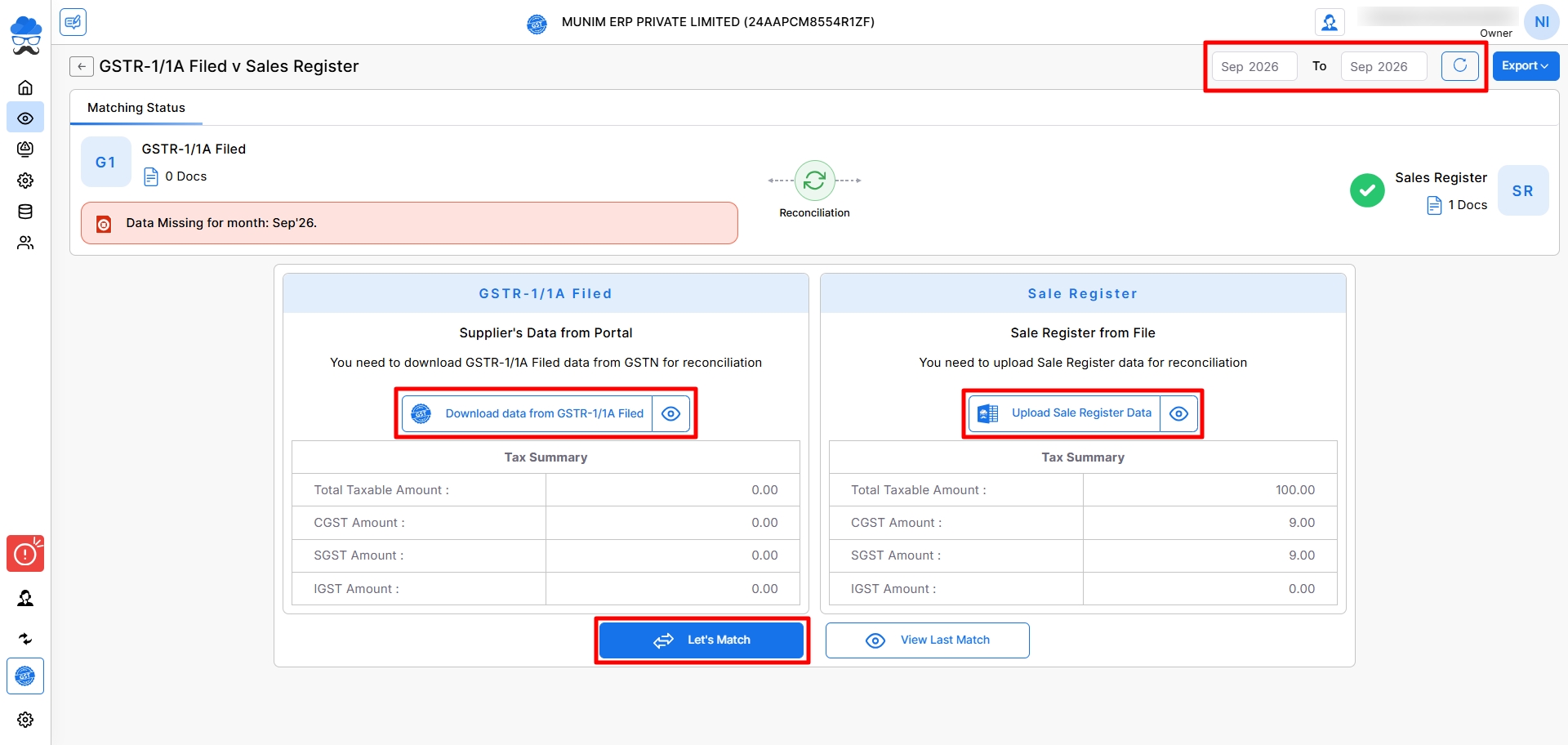
- Select the required date range using the date filters at the top right.
- Under Supplier’s Data from Portal, click Download Data from GSTR-1/1A Filed to retrieve filed GST portal data.
- Under Sales Register from File, click Upload Sales Register Data if records are not already synced.
- Click the Let’s Match button at the bottom.
- In the Accept Difference pop-up, set the acceptable difference for Taxable Value, Total Tax, and Total Invoice if required.
- Then click Continue. Once processing completes, click Continue to Overview.
Reviewing Matching Status & Summaries
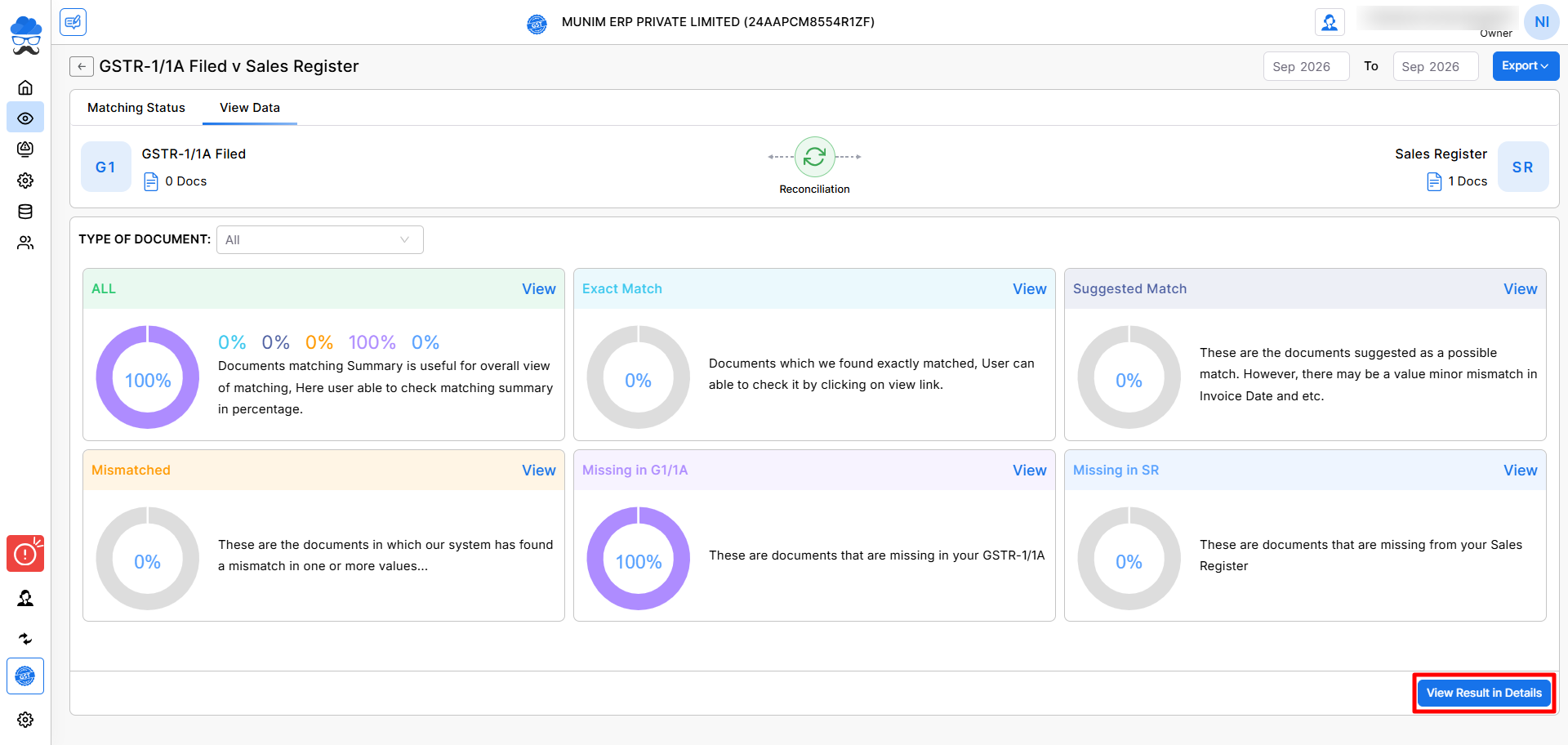
You will be redirected to a dashboard featuring categorised matching cards that allow for a filter-based review of your data.
- ALL: Overall document summary and match status percentage.
- Exact Match: Documents that match completely across all fields.
- Suggested Match: Potential matches with minor value or date differences.
- Mismatched: Invoices where data fields differ between portal and register.
- Missing in G1/1A: Invoices present in Sales Register but missing from the portal.
- Missing in SR: Invoices present on the GST portal but missing from Sales Register.
Click View Result in Detail on any card to examine specific mismatched invoices.
Analysing Detailed Reconciliation Data Views
Click the View Data tab. Use the three available view layouts to analyse tax discrepancies:
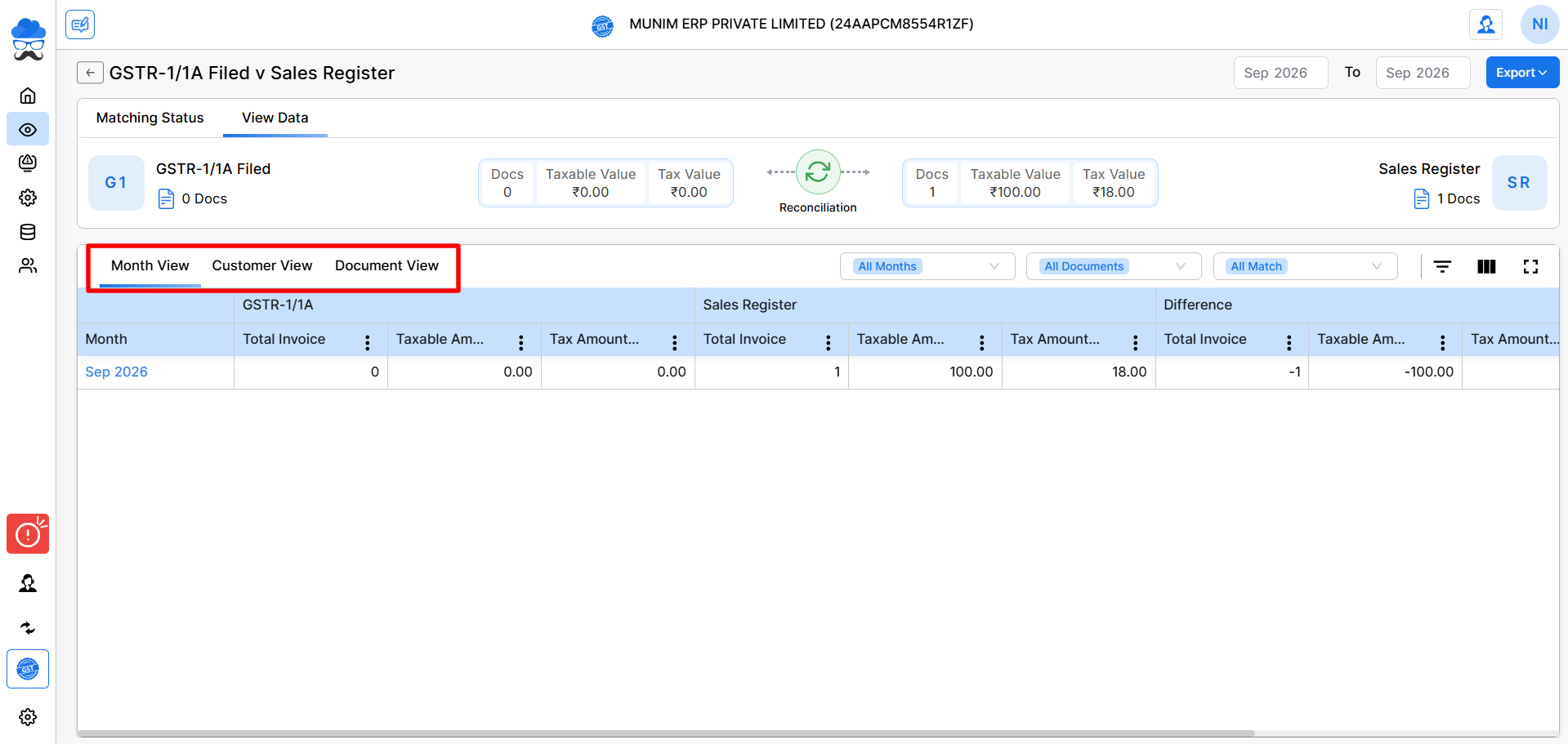
- Month View: Summarises month-wise GSTR-1/1A filed values vs Sales Register values and calculates overall differences.
- Customer View: Breaks down tax differences and document counts by customer GSTIN and name.
- Document View: Lists line-by-line invoice comparisons highlighting tax differences (IGST, CGST, SGST, CESS) and matching statuses.
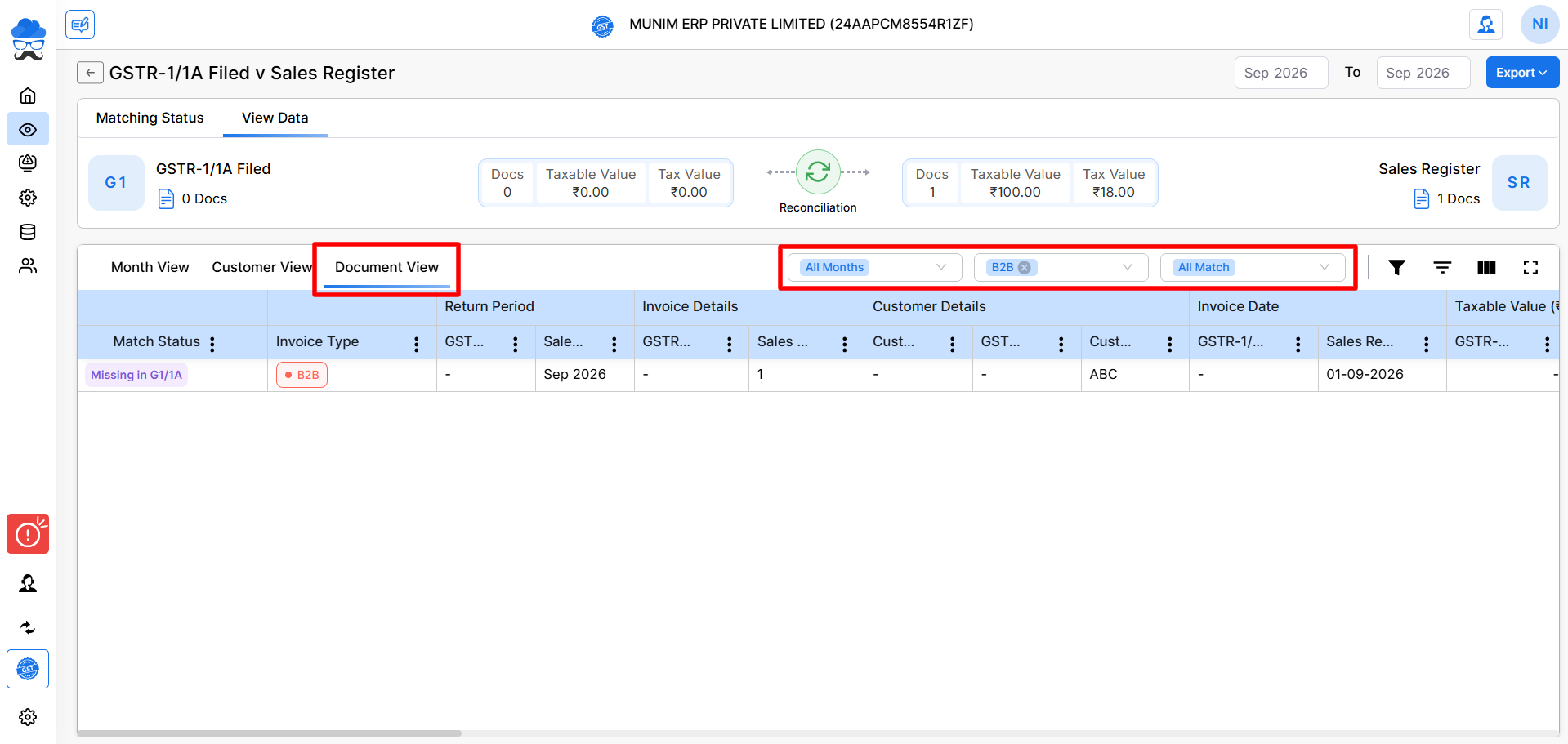
- Selecting a month in the Month View redirects users to the Customer View data tab, while selecting a customer GSTIN in the Customer View directs them to the Document View tab.
- Use the available filters to sort data by month, invoice type, or matching status, or click the custom filter icon for advanced filtering options.
Exporting Reconciliation Reports
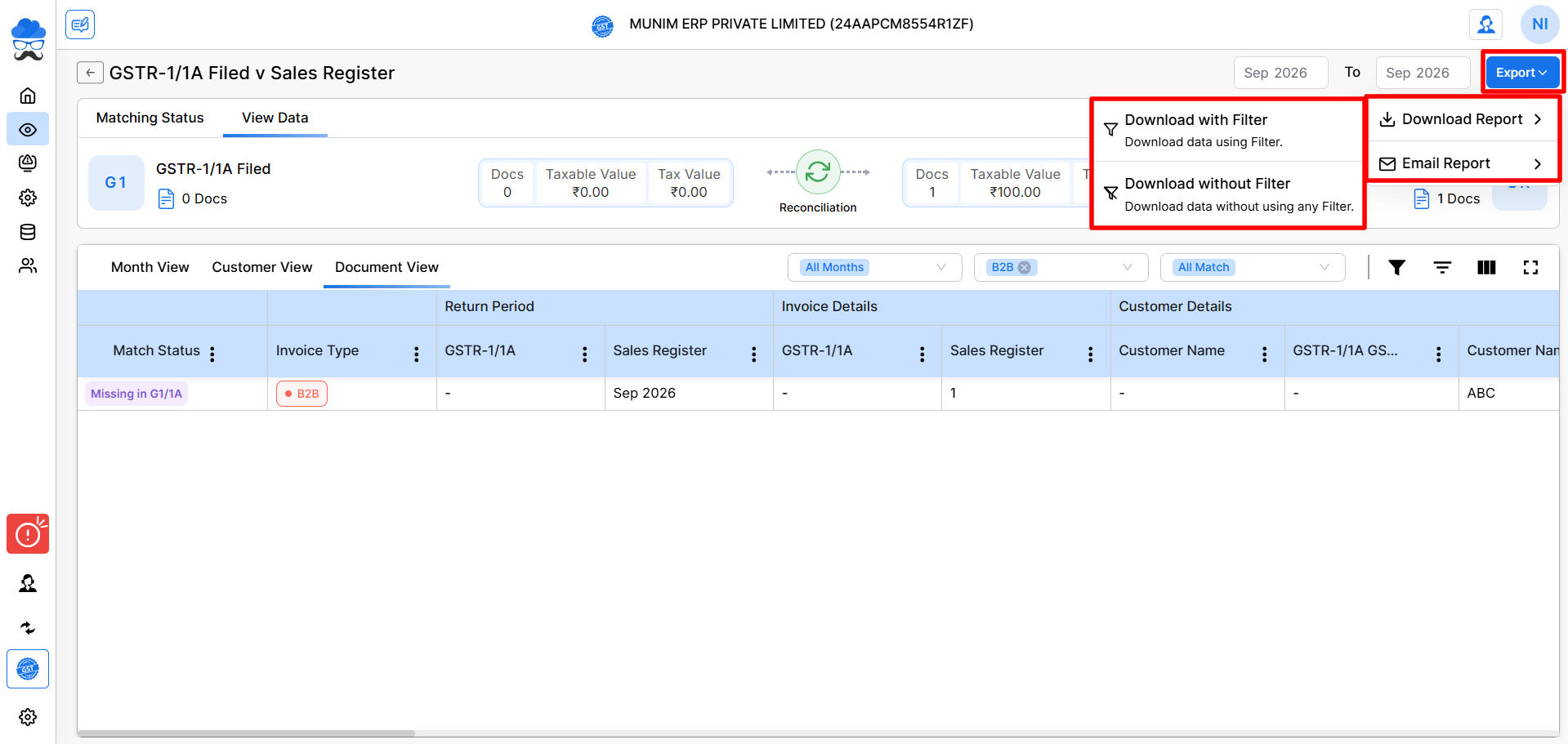
- Click the Export button in the top right corner. Select Download Report or Email Report.
- Choose either With Filter (downloads filtered data currently in view) or Without Filter (downloads the complete raw reconciliation dataset).
Important Notes
- Ensure portal credentials/session access is active before clicking Download Data from GSTR-1/1A Filed.
- Update amount in the Accept Difference pop-up to ignore minor rounding differences in invoice values or tax amounts.
- Check the Missing in G1/1A category to catch unfiled sales invoices before closing monthly returns.
- Utilise search and custom filters in Document View to quickly locate specific invoices by GSTIN or invoice number.
Need Assistance?
If you face issues downloading portal data or resolving reconciliation mismatches, contact the Munim Support Team for assistance.


