
 448 views
 Overview
The Create Purchase Bill with AI feature allows you to generate a Purchase Bill automatically by uploading a vendor bill or invoice. Munim AI scans the document, extracts the required information, and creates the Purchase Bill entry, reducing manual data entry and improving accuracy.
Why Use Create with AI?
- Save time by eliminating manual bill entry.
- Automatically capture invoice details from uploaded documents.
- Reduce data entry errors.
- Speed up purchase accounting processes.
- Support multiple document formats such as PDF and image files.
Note: The uploaded bill may display different calculation values after processing due to the following reasons:
- Tax Calculation: If your uploaded invoice uses inclusive tax at the item level, but your software is configured for exclusive tax (or vice versa), the item values will be recalculated accordingly.
- Decimal Precision: Your software is configured to use 2 decimal places, while the uploaded invoice contains 3 decimal places for item quantity, rate, or amount. This may result in minor calculation differences due to rounding.
How to Create a Purchase Bill Using AI
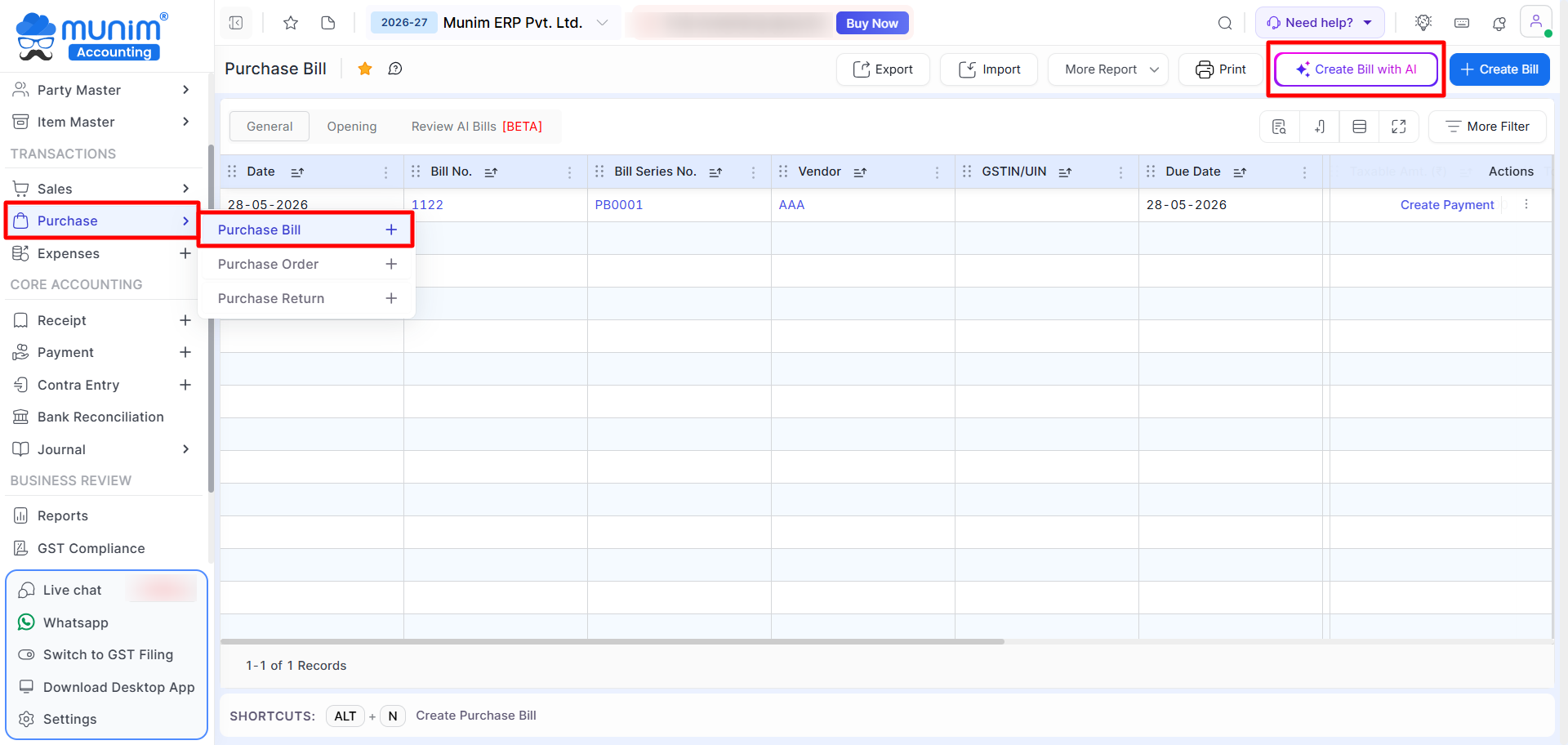
Step 1: Open Purchase Bill
Navigate to: Purchase → Purchase Bill
Click the Create Bill with AI button.
Step 2: Upload the Vendor Bill
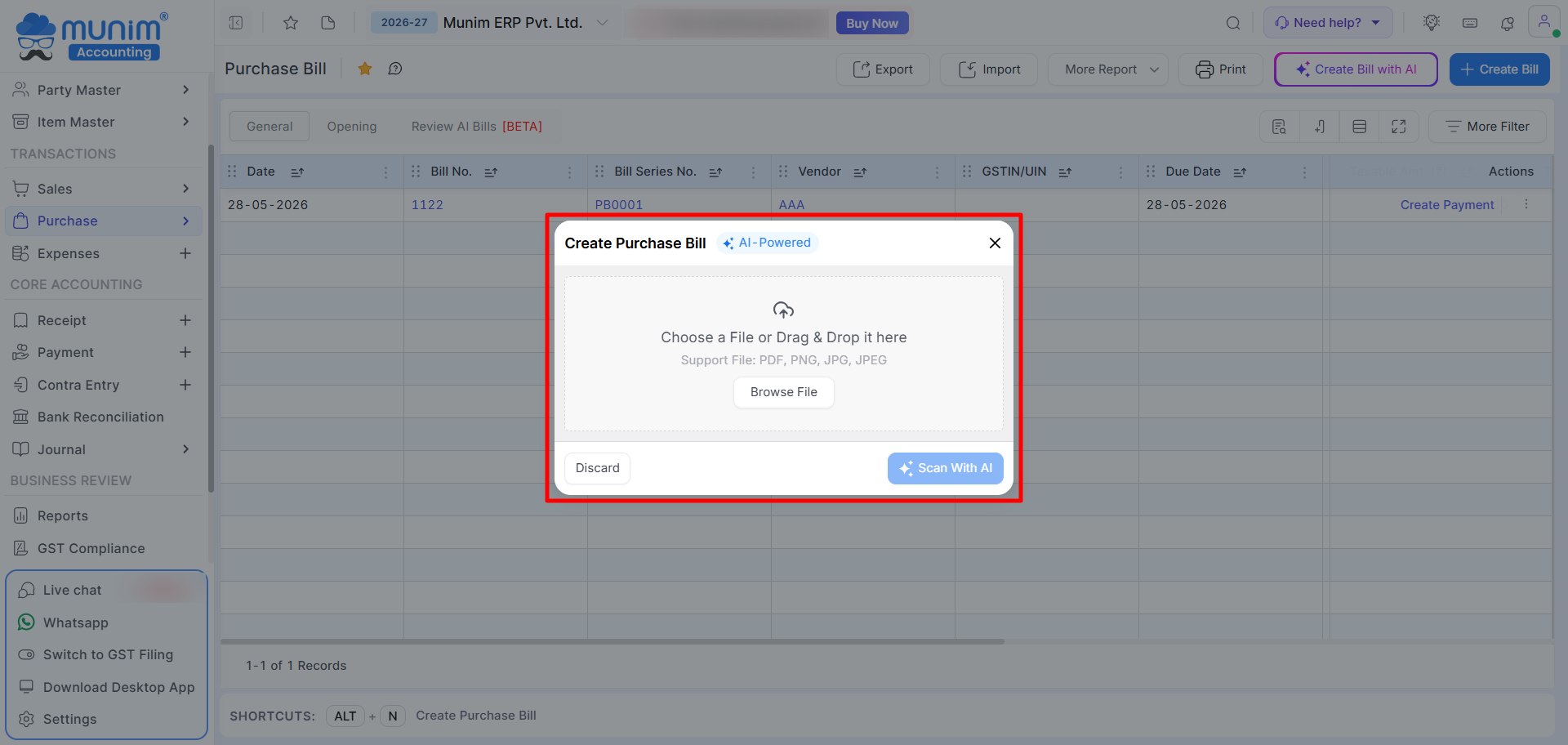
In the Create Purchase Bill window:
- Click Browse File to select a document. Or drag and drop the file into the upload area.
- Mobile users may also utilize their device’s camera to capture and upload images of bills directly.
Supported formats:
- PNG
- JPG
- JPEG
Step 3: Scan the Bill
Click Scan With AI.
Munim AI will analyze the uploaded document and extract the available bill information.
Review AI Bills
After uploading a document, you can track its processing status from the Review AI Bills tab.
Navigate to:
Purchase → Purchase Bill → Review AI Bills
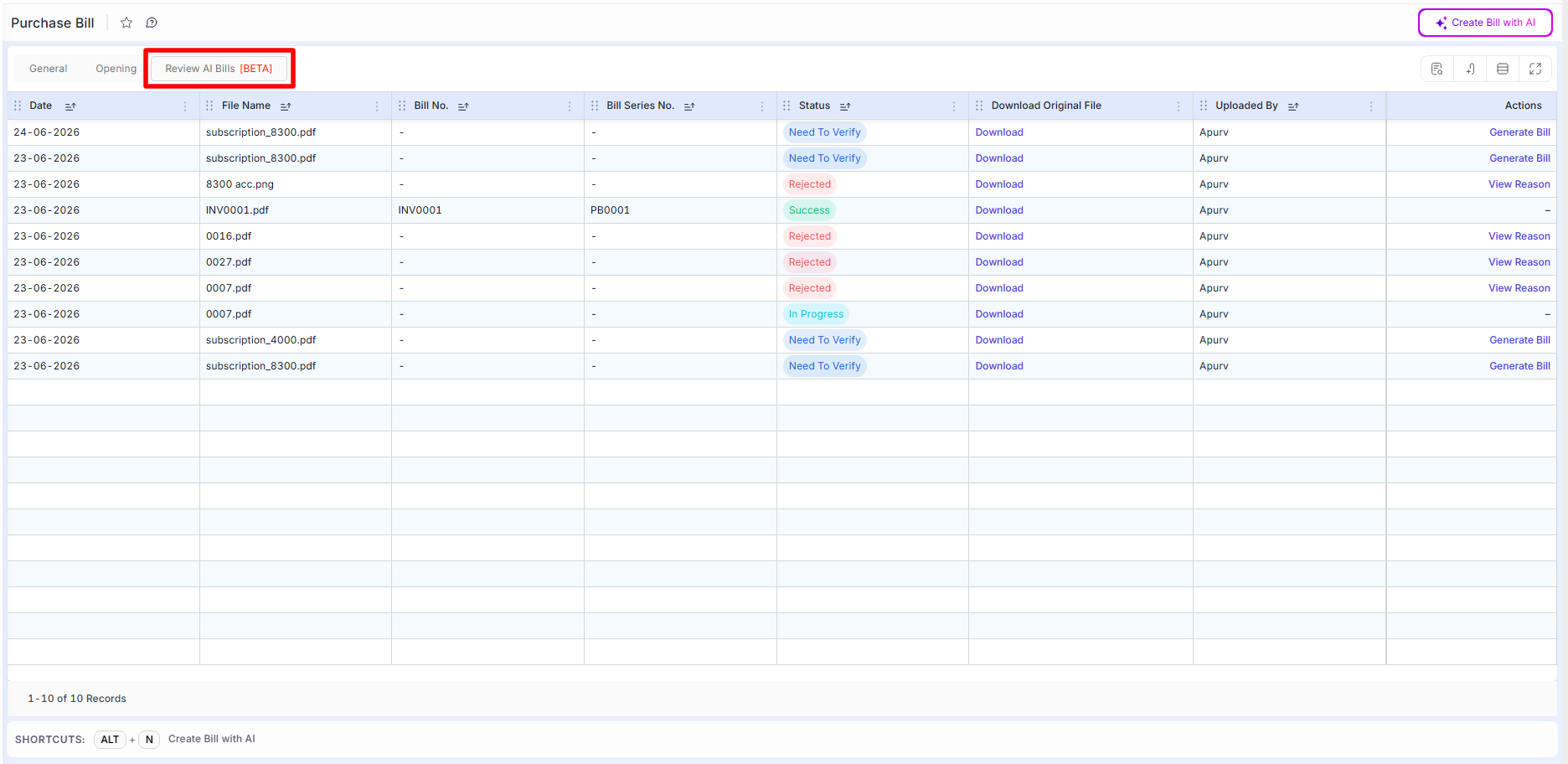
The screen displays columns:
- Upload Date
- File Name
- Bill Number
- Bill Series Number
- Status
- Original File Download
- Uploaded By
- Action
Bill Statuses
On the Review AI Bills list page, you may conveniently monitor the processing status of your uploaded bills.
In Progress –
If the document is currently being analyzed by AI, the status will appear as In Progress.
Once processing is completed, the status will automatically update.
Note: General bill processing typically requires between 30 secs to 2 minutes to complete. Meanwhile you can also upload another bills or perform operations.
Need To Verify –
When AI successfully extracts bill data but requires user verification, the bill will appear with a Need To Verify status.
Click Generate Bill to:
- Review extracted details
- Verify the information
- Make corrections if required
- Save the Purchase Bill
Rejected –
If AI is unable to process the uploaded document, the bill will be marked as Rejected.
Click View Reason to see the rejection details and identify the issue with the uploaded file.
Common reasons may include:
- Settings and validations
- Unclear document image
- Unsupported format
- Missing invoice information
Success –
When the bill is successfully processed and created, the status will be displayed as Success.
No further action is required.
Important Note: Please review all settings and bill data carefully before processing, as each document upload will deduct one credit from your balance.
Important Notes
- Upload clear and readable invoice documents for best results.
- Supported file formats are PDF, PNG, JPG, and JPEG.
- Always review bill details before saving.
- Rejected bills can be re-uploaded after correcting document issues.
- Bills with Need To Verify status must be reviewed and saved manually.
Result
Purchase Bills can be created faster using AI-powered document scanning while maintaining accuracy through user verification.
Need Assistance?
If you face any issues while using the Create Purchase Bill with AI feature, contact the Munim Support Team.


