
 1141 views
 Overview
The Serial Number / IMEI Management feature helps you track every product individually using its unique Serial Number or IMEI. It enables accurate stock management, warranty tracking, barcode printing, faster billing through scanning, and complete traceability from purchase to sale.
Benefits
- Track every item using a unique Serial Number or IMEI.
- Manage warranty details for individual products.
- Prevent duplicate or incorrect serial entries.
- Scan Serial/IMEI numbers for faster billing.
- Print Serial/IMEI barcode stickers.
- Maintain accurate stock during purchases, sales, and stock adjustments.
- Track sold items and warranty information through reports.
Enable Product Serial/IMEI Number Feature
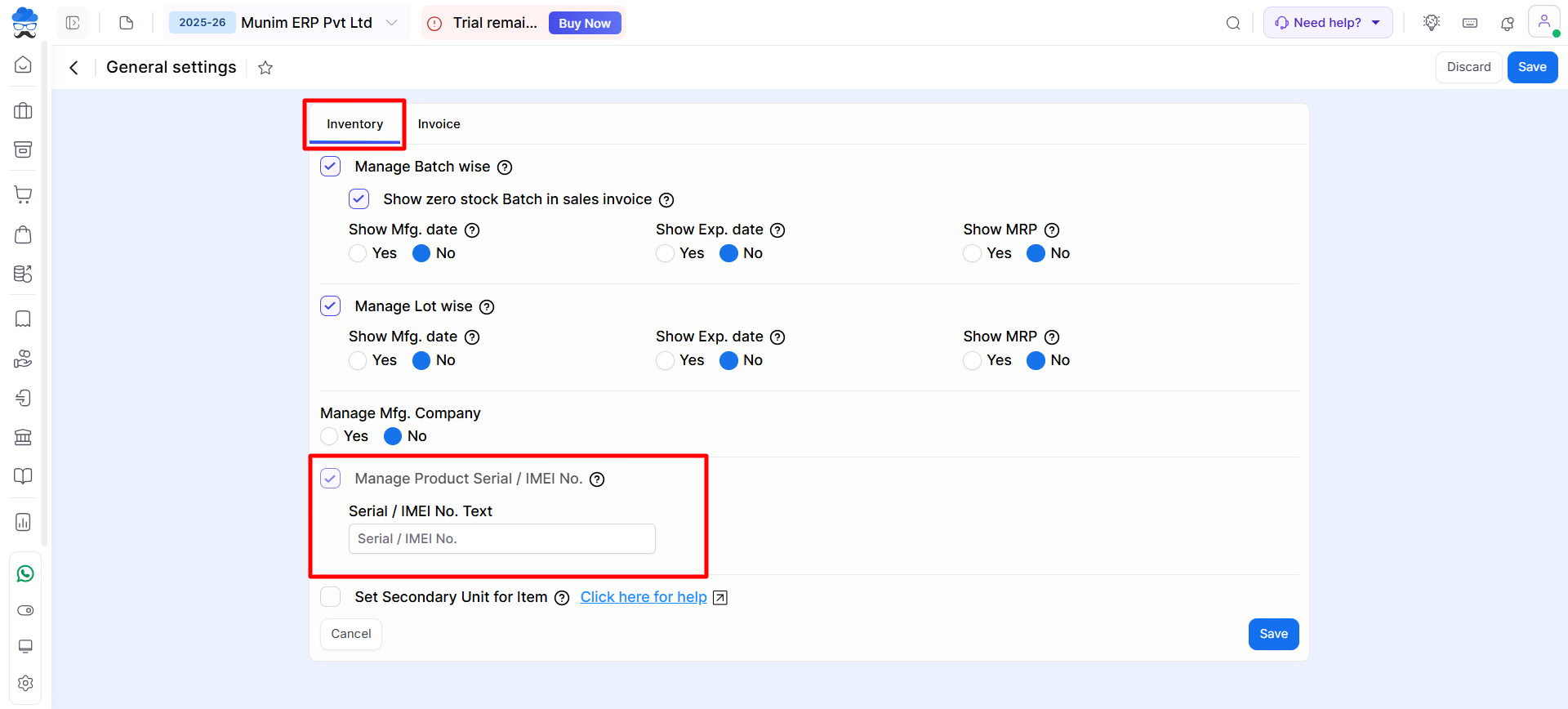
- Go to Settings > General Settings > Inventory tab. Here, check the Manage Product Serial / IMEI No. option
- Enable this option to create and manage items Serial/IMEI number-wise.
- Once enabled, serial number related options will be available in the item master.
- Here, you can rename it according to your requirement at the module level.
+−⟲
Create Item with Serial/IMEI Number Tracking
- Navigate to Item Master > Item > Create New Item.
- In the Manage Stock section, choose the Serial-wise option.
+−⟲
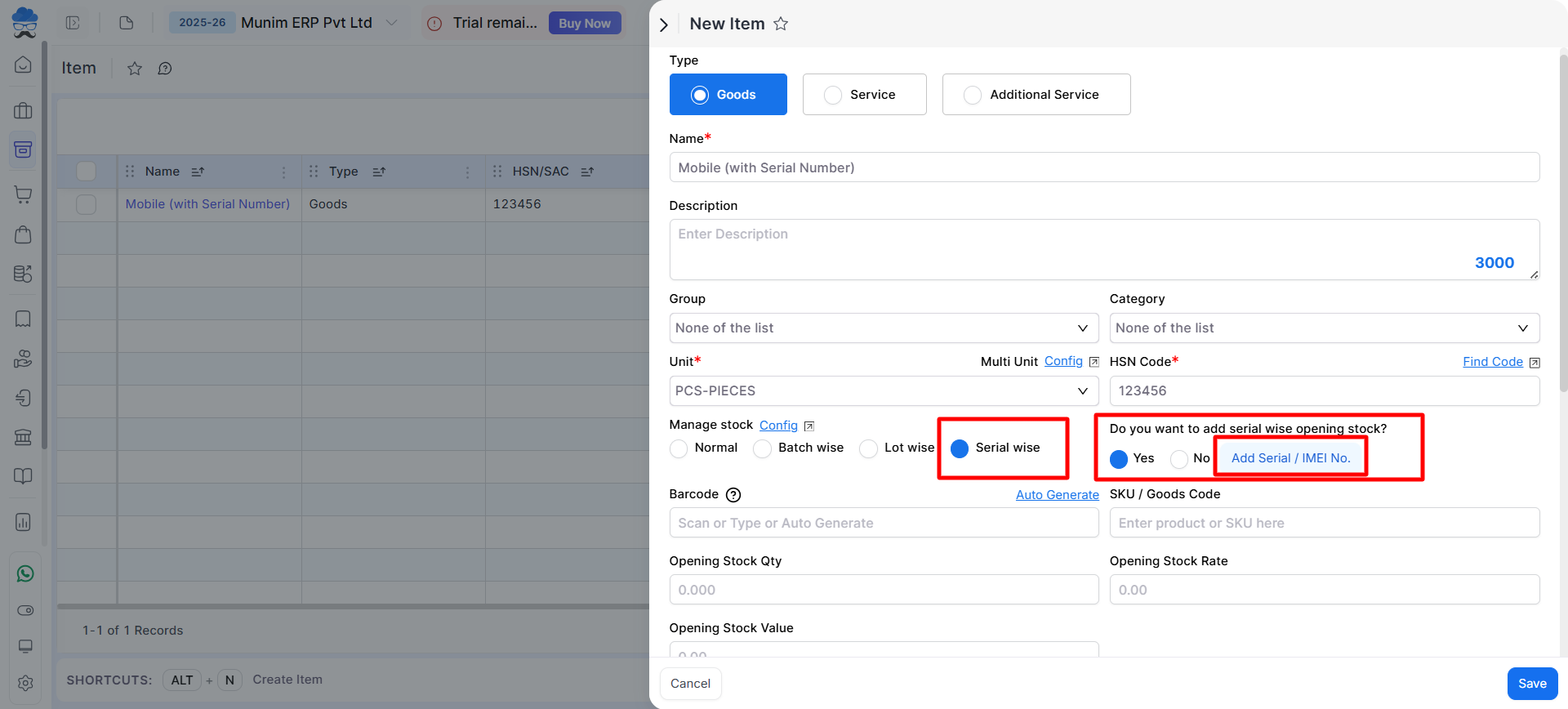
- You will also see the question: Do you want to add serial wise opening stock?
- If you already have stock with you for that item, then you can add it as an opening by clicking Yes.
- Now click Add Serial / IMEI No. If you want to add opening stock with serial numbers.
Add Serial Numbers in Opening Stock
- On clicking Add Serial / IMEI No., a pop-up opens.
+−⟲
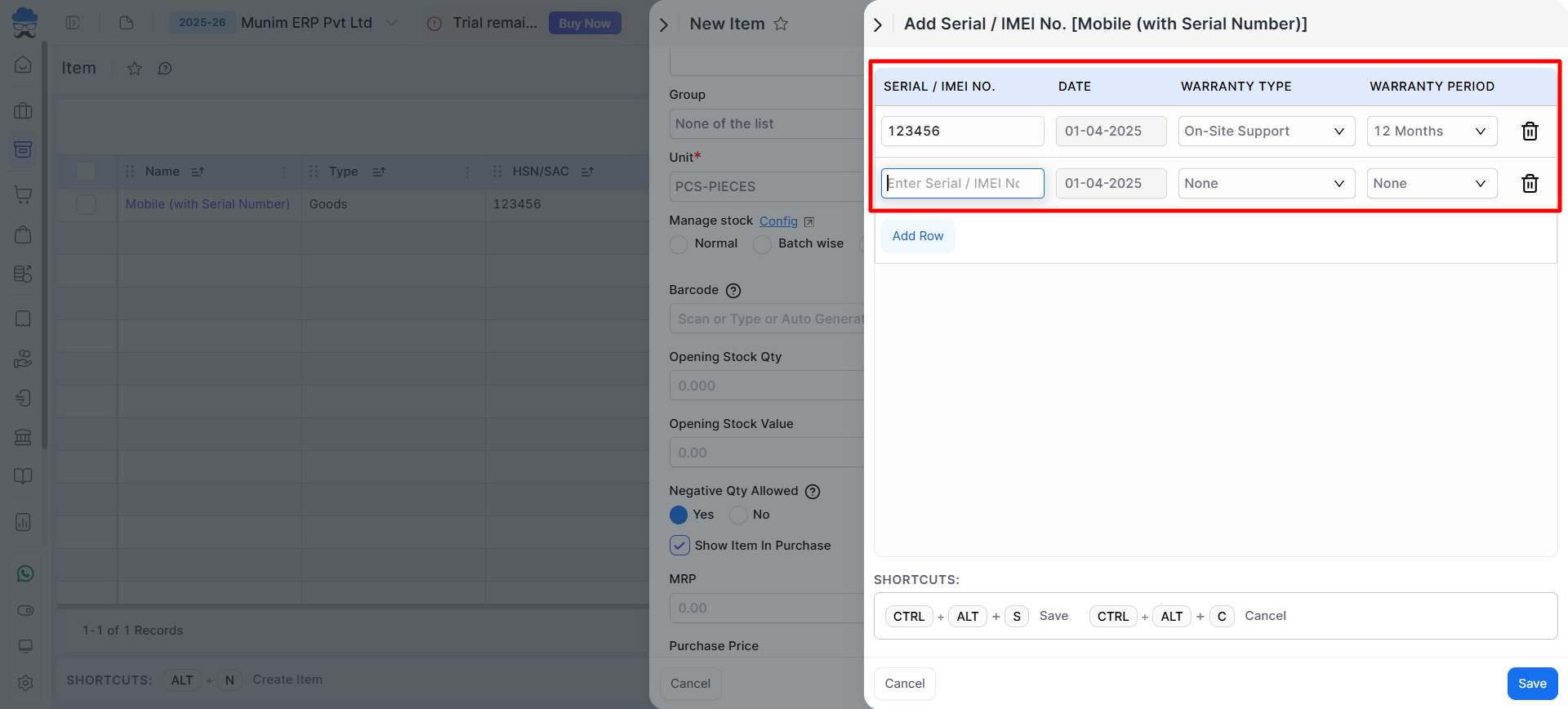
- Here you have to enter:
- Serial Number, Warranty Type, Warranty Period
- Use Add Row to add multiple serial numbers.
- Click Save to add all serial numbers.
+−⟲
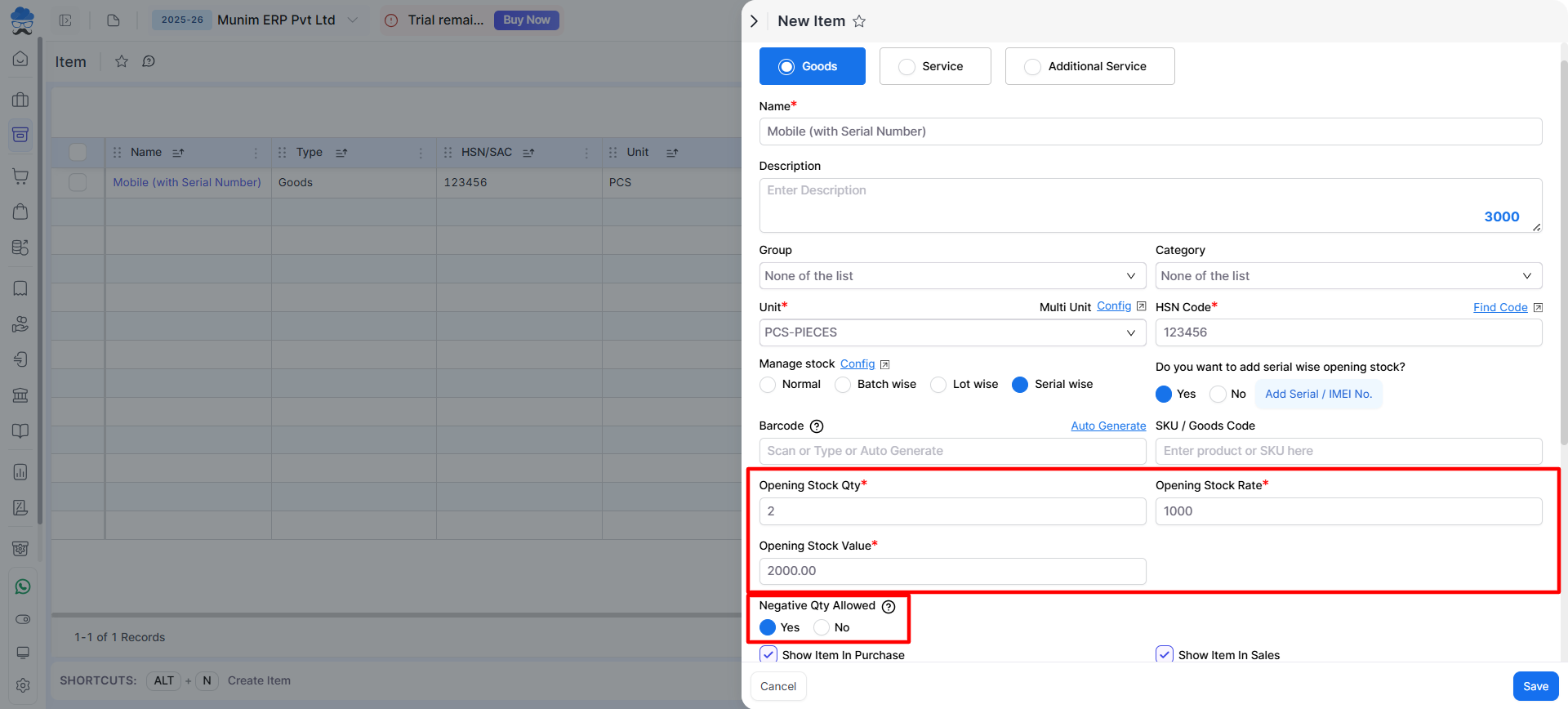
- After adding serial numbers, fill the Opening Stock Rate field by adding the product rate.
- The Opening Qty will already be auto-filled by the serial number you have already added.
- The system will automatically calculate Opening Stock Value = Qty × Rate.
- Also, you have the option to utilise the “Negative Qty Allowed” setting to create sales invoices even without adding stock.
- Click Save to complete the item creation.
Add Purchase Bill with Serial Number
- Go to the Purchase Bill Module.
- When selecting a Serial Number-wise item, a Serial Number field will appear.
+−⟲
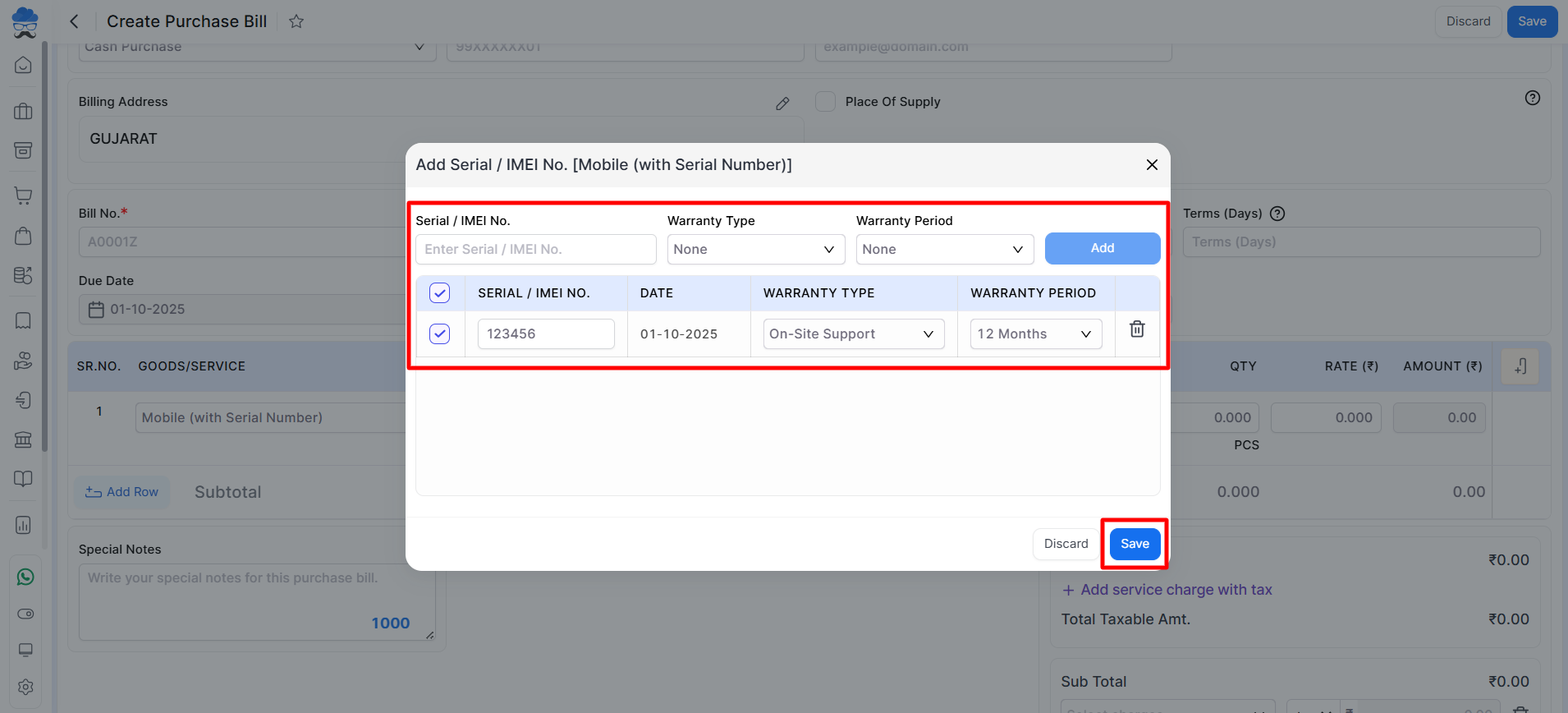
- Enter the serial numbers and other details of purchased items, then click the Add button. Click Save to add it to the Purchase Bill.
- Save the Purchase Bill to add them into the stock with new serial numbers.
Add Sales Invoice with Serial Number
- Go to the Sales Invoice Module.
- When selecting a Serial Number-wise item, a Serial Number field will appear with the available serial numbers.
+−⟲
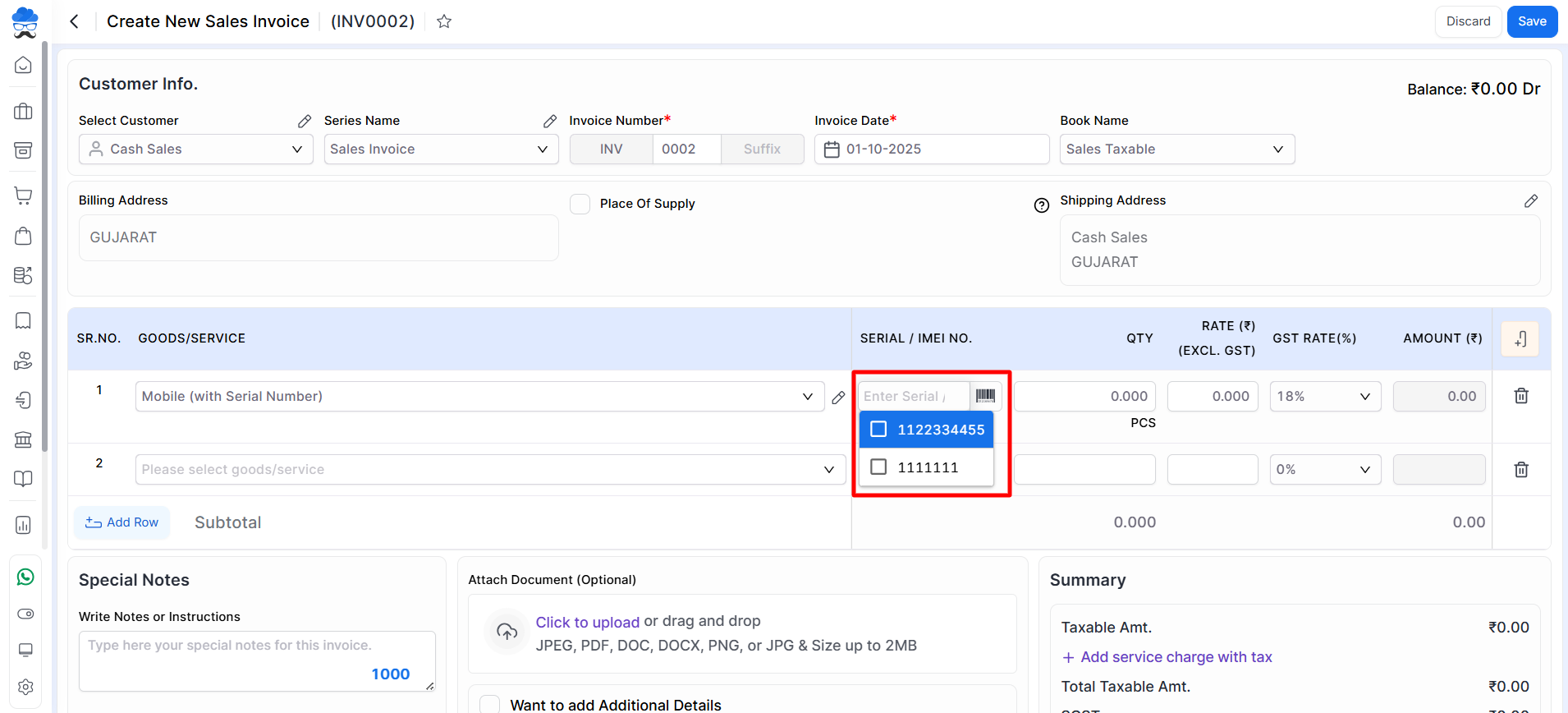
- Select the serial numbers from the dropdown and add other required details of the item.
- Also, you can scan the Serial/IMEI No. available on the item to fetch that item with the serial number automatically.
- (Optional) If the “Negative Qty Allow” option is selected within the item settings, you may click on the Serial No. icon to add a new serial number for sales transactions. The item stock will then be displayed as negative in reports.
+−⟲
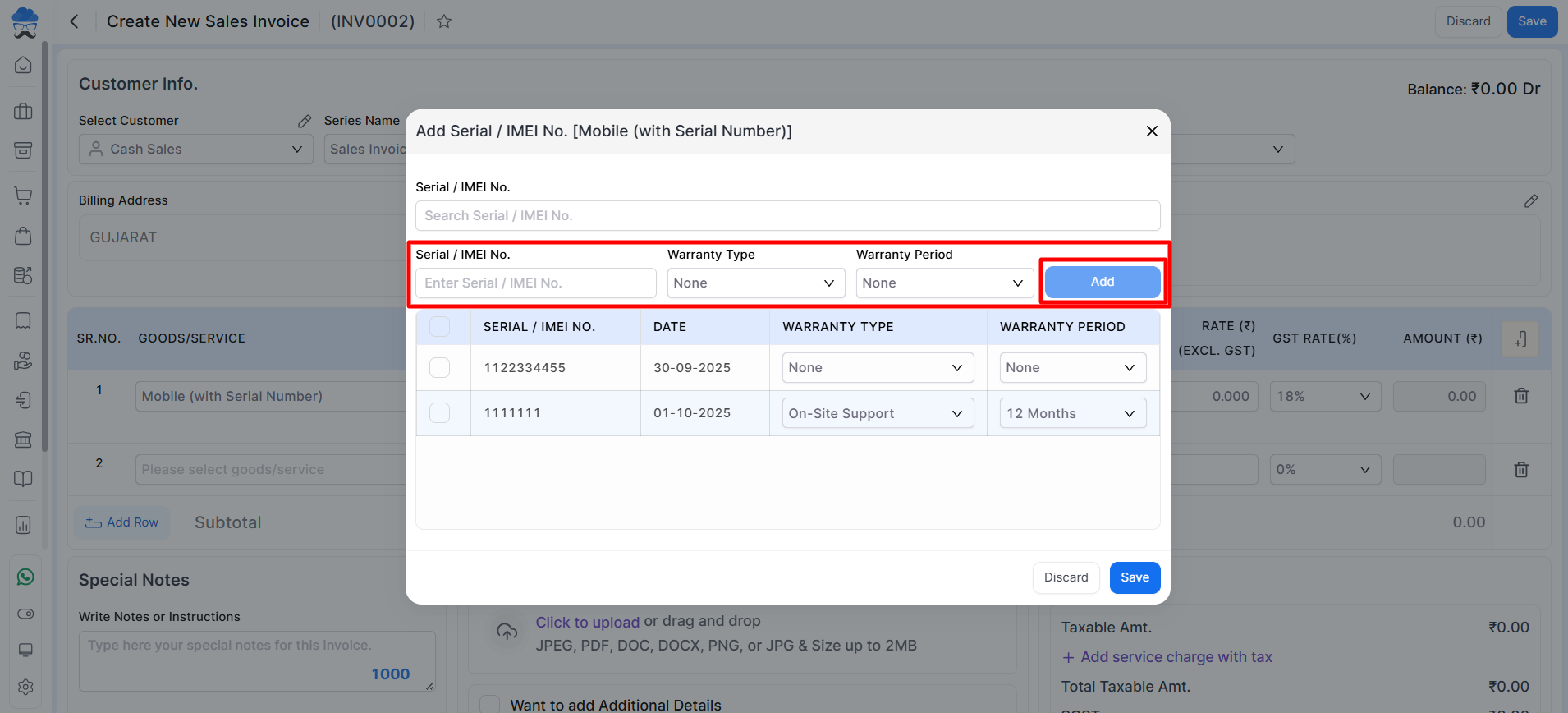
- Fill in the new Serial/IMEI number details and then click the Add button. Click Save to add it to the Sales Invoice.
- Following the addition of an item with the Serial/IMEI number, saving the Sales Invoice will result in the removal of that specific serial number’s stock from inventory.
Edit Serial Numbers details from Item List
- Go to the Item List Page from the Item Master module.
- In the Action Menu dropdown, select Edit Serial No. option for the particular Serial/IMEI number-wise Item.
- A sidebar will open, enabling the editing and updating details of the serial/imei number for each available stock of the item. You can also check the stock mode type here.
+−⟲
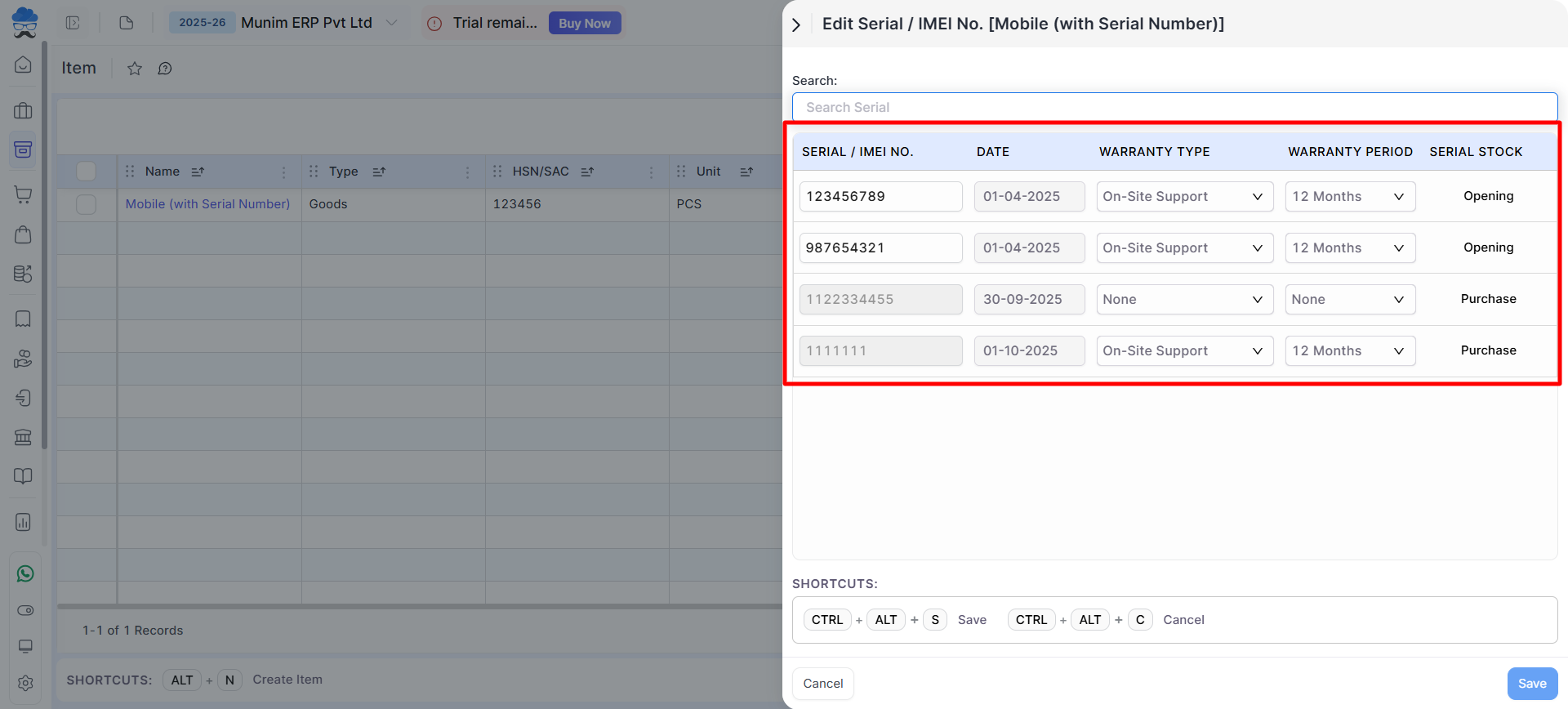
- Save changes to keep records accurate.
Adjust Serial Numbers in Stock Adjust Module
- Go to the Stock Adjust Module.
- While adding/reducing stock, click the Serial Number icon beside the Adjust Qty field.
+−⟲
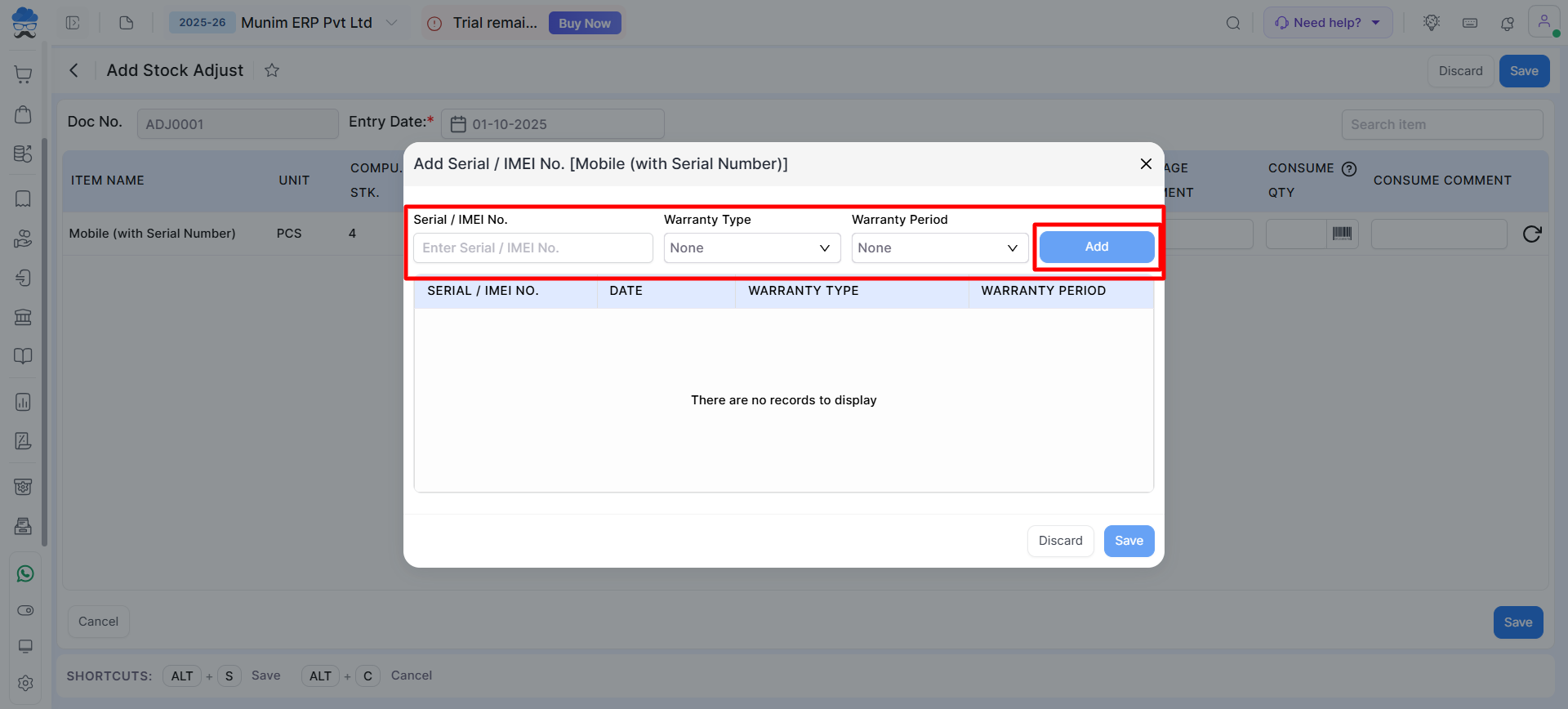
- Here you can add or reduce stock according to your Physical Stock available:
- Add new serial numbers (when increasing stock).
- To add a new serial number, select the “+” within the Adjust Qty field, and then click on the serial number icon to access the pop-up window and Add a new serial number.
- Remove available serial numbers (when decreasing stock).
- To remove the serial number, select the “–” within the Adjust Qty field, and then click on the serial number icon to access the pop-up window and select the serial number you want to remove.
- Add new serial numbers (when increasing stock).
- Save to finalise stock adjustments.
Print Serial / IMEI Numbers as Barcode Stickers and use them in Sales Invoice
- Instead of printing Barcode numbers, Munim also allows you to print Serial/IMEI numbers.
- Go to the Barcode Print Module to generate and print stickers for your items.
+−⟲
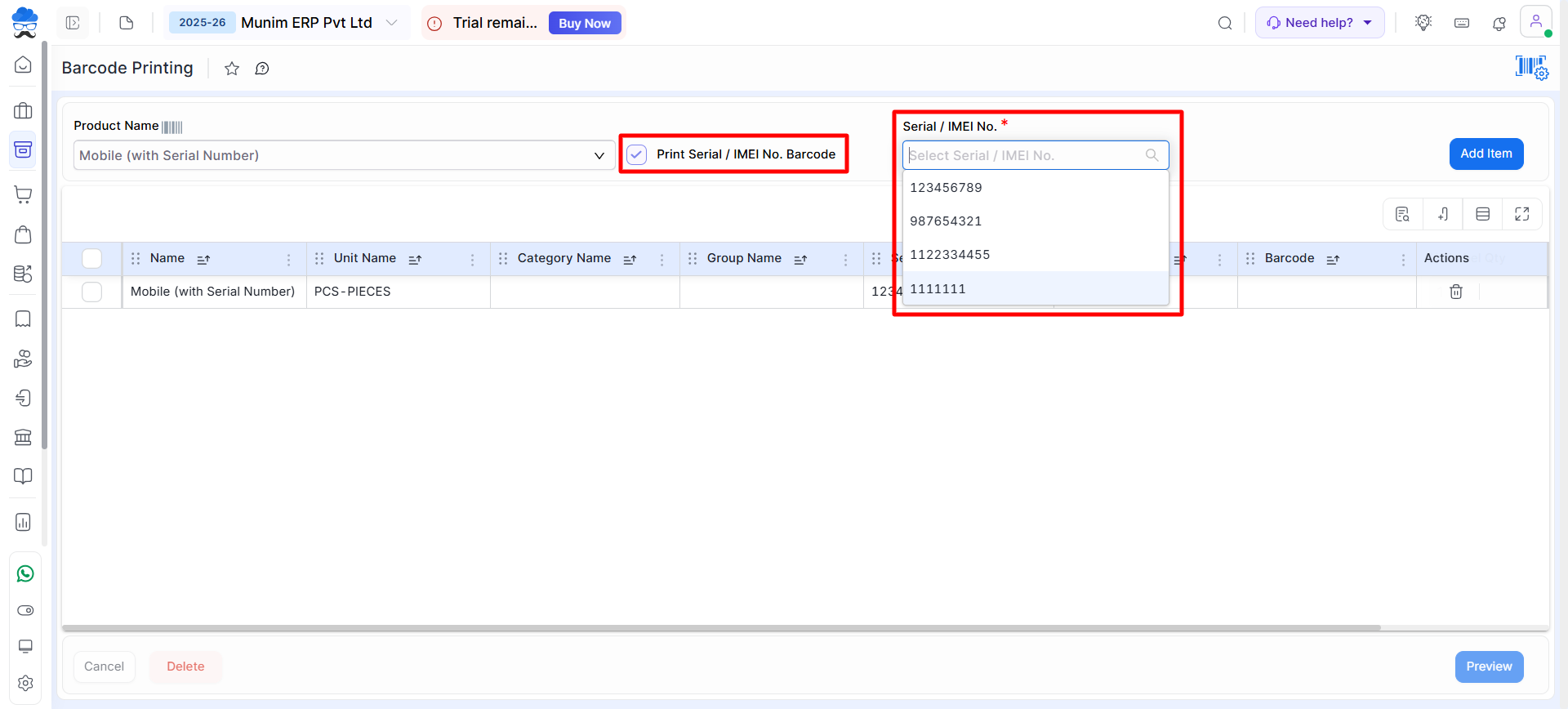
- Those stickers can be put on the products and used when making sales invoices by scanning.
- The user has the option to select either barcode or Serial/IMEI numbers for printing by selecting the “Print Serial/IMEI No.” option, provided that both number types have been added.
- Now, while creating a Sales Invoice, you don’t need to manually search for items.
- Simply scan the Serial/IMEI sticker printed earlier. The system will auto-select the product with that exact serial number.
- This ensures faster billing, error-free selection, and accurate stock deduction.
Serial Number Reports & Tracking
- Munim provides reports to track items serial number-wise.
- Go to Reports > General Report > Serial No. Report.
+−⟲
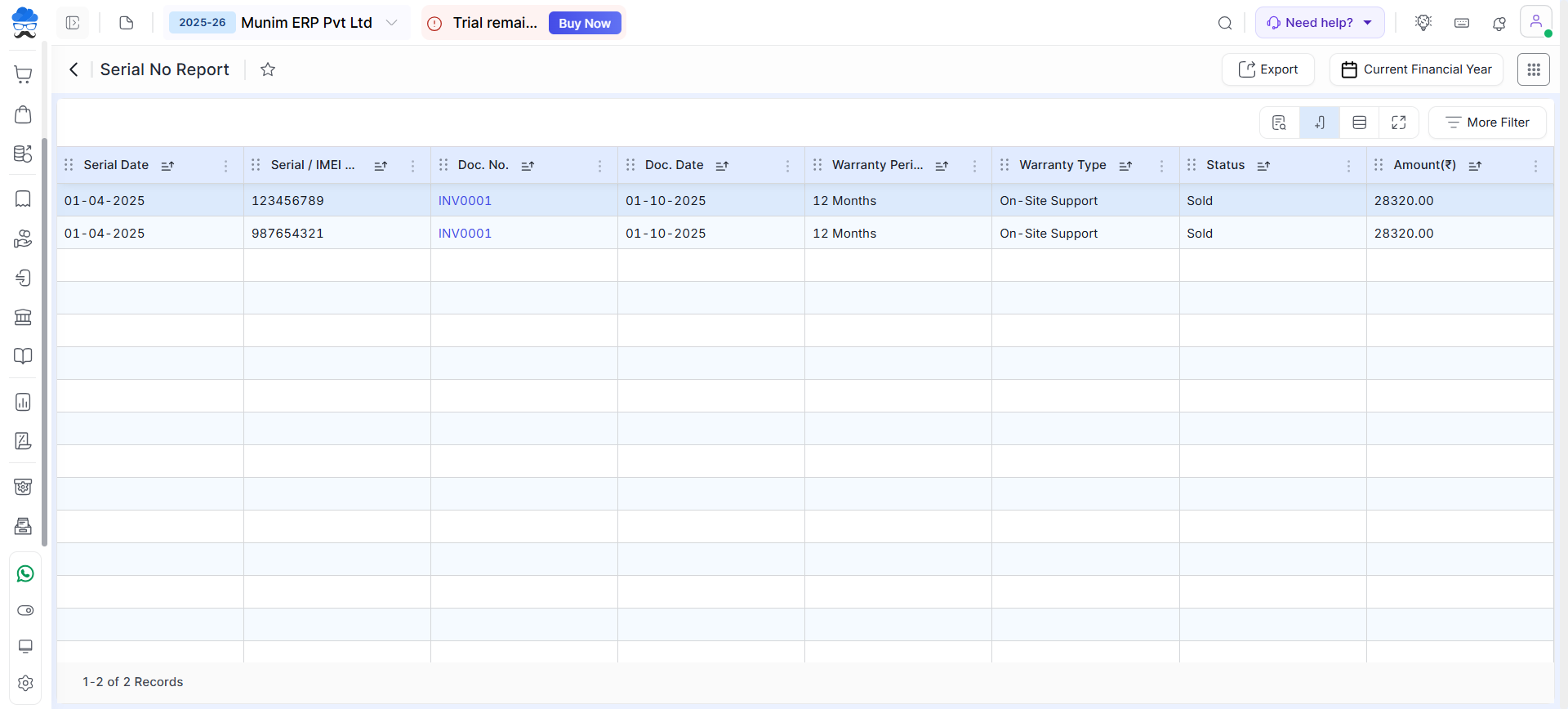
- You can view in this report:
- Which Invoice has which serial/IMEI number (sales tracking).
- Warranty details of each item with Doc. Date, Warranty Type and Warranty Period.
- Stock Status serial number-wise with the Status column.
- These reports help in after-sales support, warranty claims, and returns.
Invoice Print with Serial/IMEI Numbers
- When you generate and print a Sales Invoice that contains Serial/IMEI-managed items, the Serial/IMEI numbers will automatically be displayed below the item details.
- This ensures that both you and your customer have a clear record of which serial/IMEI numbers were sold.
- Example layout in the invoice print:
+−⟲
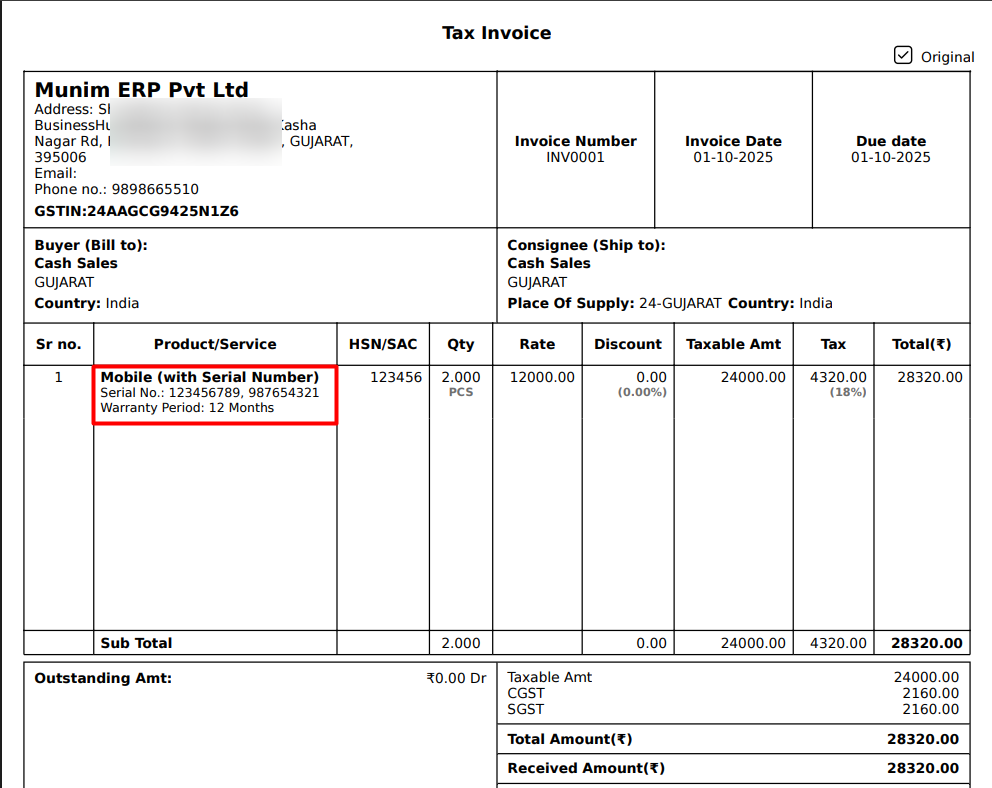
- This makes invoices more professional and provides customers with valid proof of purchase for warranty and after-sales support.
Important Note
- Enable Manage Product Serial / IMEI No. before creating Serial-wise items.
- Serial Numbers are unique and cannot be duplicated.
- Warranty details are maintained for each individual serial number.
- Barcode stickers can be printed using either Product Barcode or Serial/IMEI Number.
- If Negative Qty Allowed is enabled, new serial numbers can be added during Sales Invoice creation.
Need Assistance?
If you need help configuring or using the Serial Number / IMEI Management feature, please contact the Munim Support Team.


