
 3905 views
 Overview
The Payment QR Code feature allows you to display a UPI QR code on printed invoices. Customers can scan the QR code using any UPI-supported payment app, and the invoice amount is automatically populated, making payments faster and more convenient.
Benefits
- Accept UPI payments directly from the invoice.
- Automatically generate a payment QR code.
- Customers can pay by simply scanning the invoice.
- Reduce manual verification work during payment.
Configure Payment QR Code
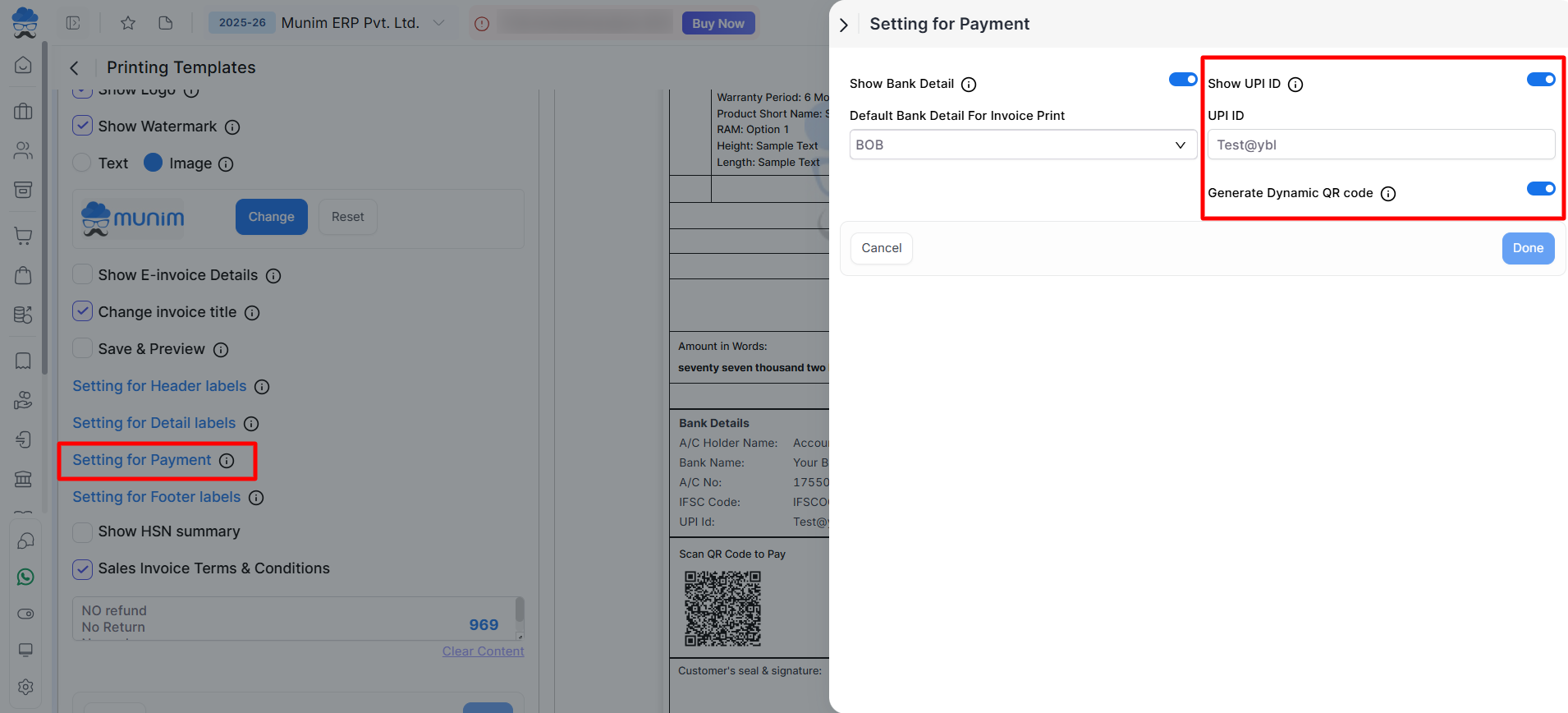
Go to Settings → Printing Templates → Setting for Payment.
Enable the following options:
- Show UPI ID
- Enter your UPI ID
- Generate Dynamic QR Code
Click Done to save the configuration.
Print Invoice with QR Code
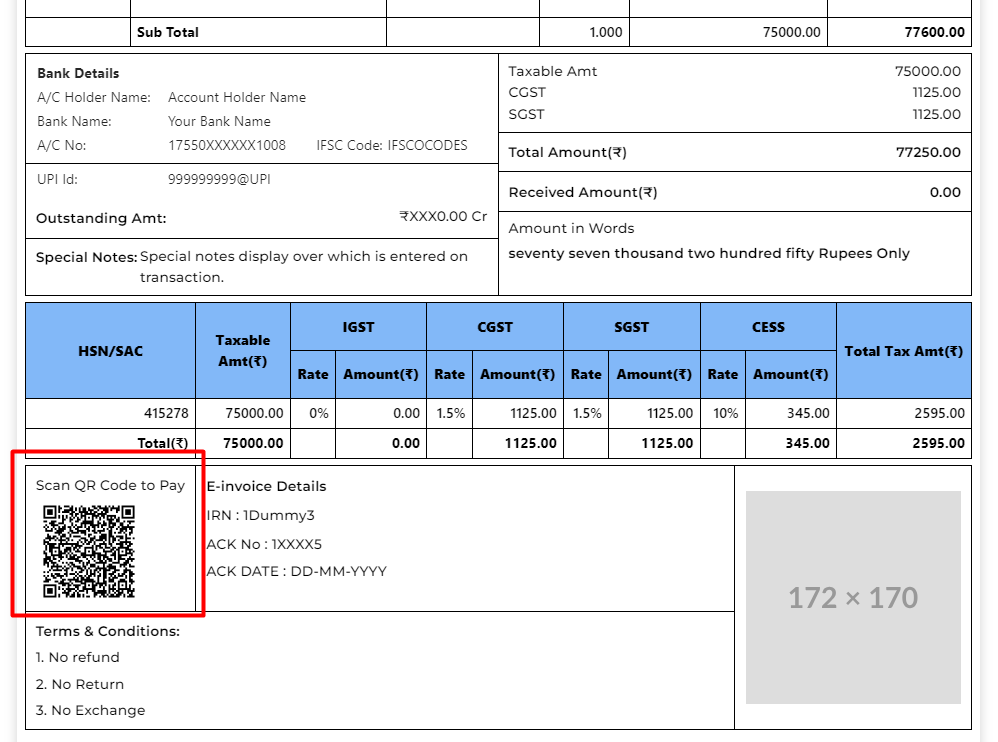
After enabling the settings, print or preview the invoice. The payment QR code is displayed on the invoice along with your UPI ID.
How It Works
When the customer scans the QR code using any UPI application:
- The configured UPI ID is automatically selected.
- The invoice amount is filled automatically. (based on pending amount)
- The customer only needs to confirm the payment.
Important Notes
- Enter a valid UPI ID before enabling the QR code option.
- The QR code is displayed only if Generate Dynamic QR Code is enabled.
- The QR code appears on the invoice according to the selected print template.
- Customers must have a UPI-supported payment application to complete the payment.
Need Assistance?
If the QR code is not appearing on the invoice, verify that Show UPI ID and Generate Dynamic QR Code are enabled and that a valid UPI ID has been entered in the Setting for Payment section.


