
 4369 views
 Overview
Munim allows you to display additional company information on Sales Invoice prints using Custom Fields. You can use this feature to show details such as:
- MSME Number
- Drug Licence Number
- FSSAI Number
- Factory Licence Number
- IEC Number
- PAN-related details
- Any other company-specific information
These custom fields are displayed below your company details on the invoice print.
Why Use Custom Fields?
Custom fields help you:
- Display important registration numbers on invoices
- Meet industry-specific compliance requirements
- Provide additional business information to customers
- Customize invoice prints according to business needs
Add Custom Fields for Invoice Print
Step 1: Open Company Settings
- Go to Settings.
- Click on Company.
Step 2: Navigate to Custom Fields
- Open the company edit page.
- Scroll to the Custom Field section.
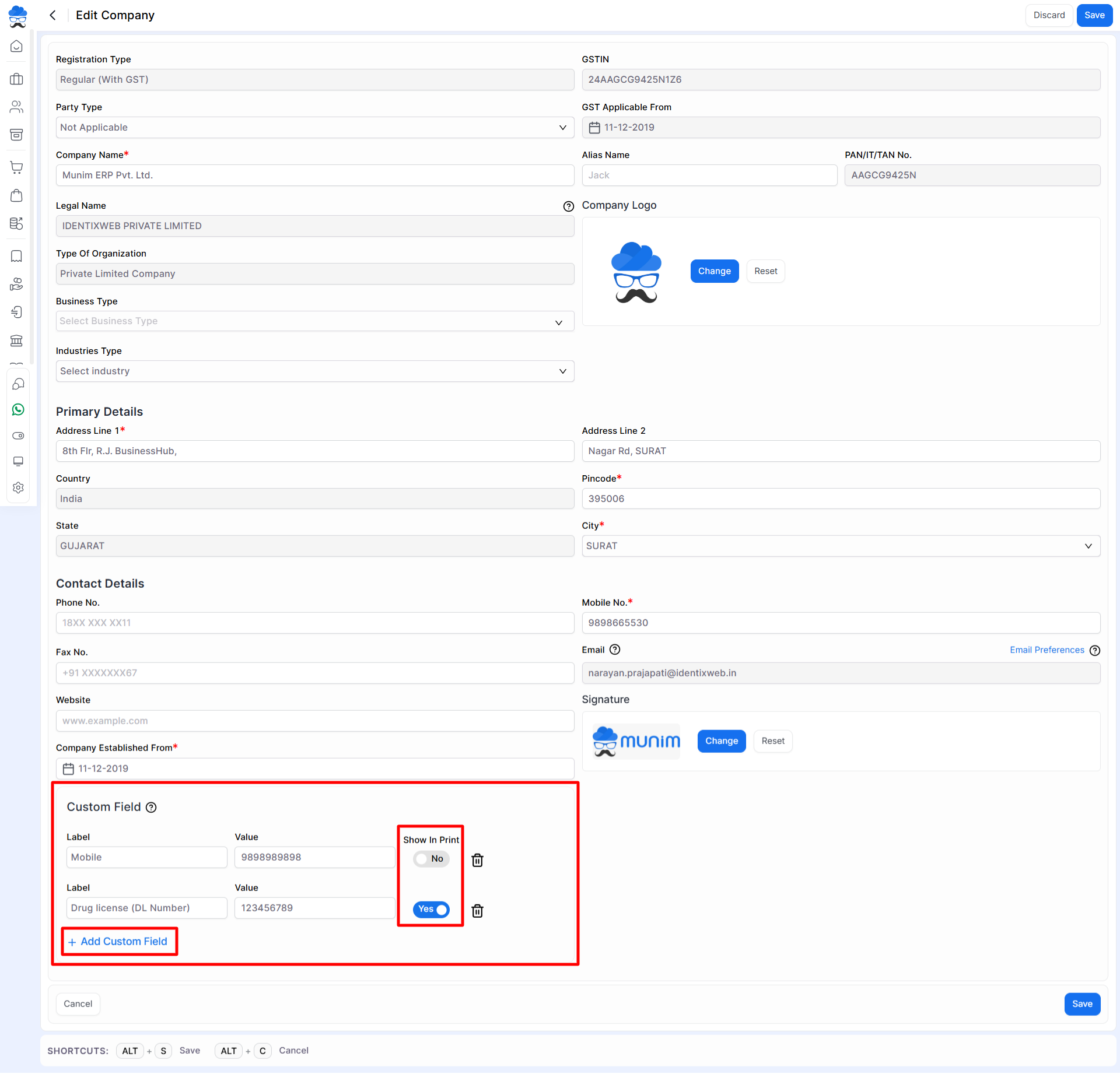
Step 3: Add a New Custom Field
- Click + Add Custom Field.
- Enter the required details:
- Label – Name of the field to be displayed.
- Value – Information to be shown on the invoice.
Examples:
| Label | Value |
|---|---|
| MSME Number | UDYAM-XXXXXXX |
| Drug Licence Number | DL123456789 |
| FSSAI Number | 12345678901234 |
Step 4: Enable Show in Print
- Locate the Show in Print option beside the custom field.
- Enable the toggle for the fields you want to display on invoice prints.
- Disable the toggle for fields that should remain hidden.
Step 5: Save the Configuration
- Verify the custom field details.
- Click Save to apply the changes.
The selected custom fields will now be available on invoice prints.
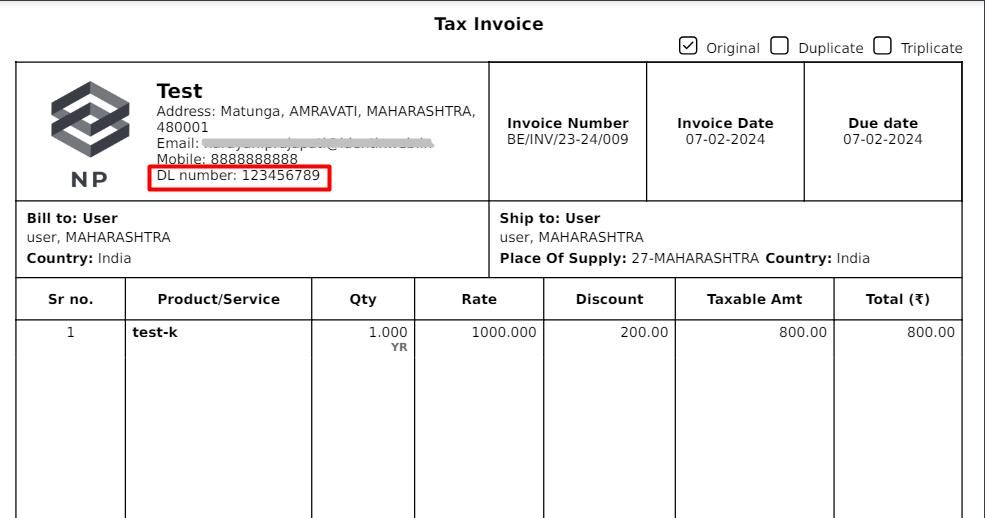
How Custom Fields Appear on Invoice Print
After enabling Show in Print:
- The custom field label and value are displayed under company information.
- The details appear on the Sales Invoice print automatically.
- Multiple custom fields can be displayed simultaneously.
Available Predefined Labels
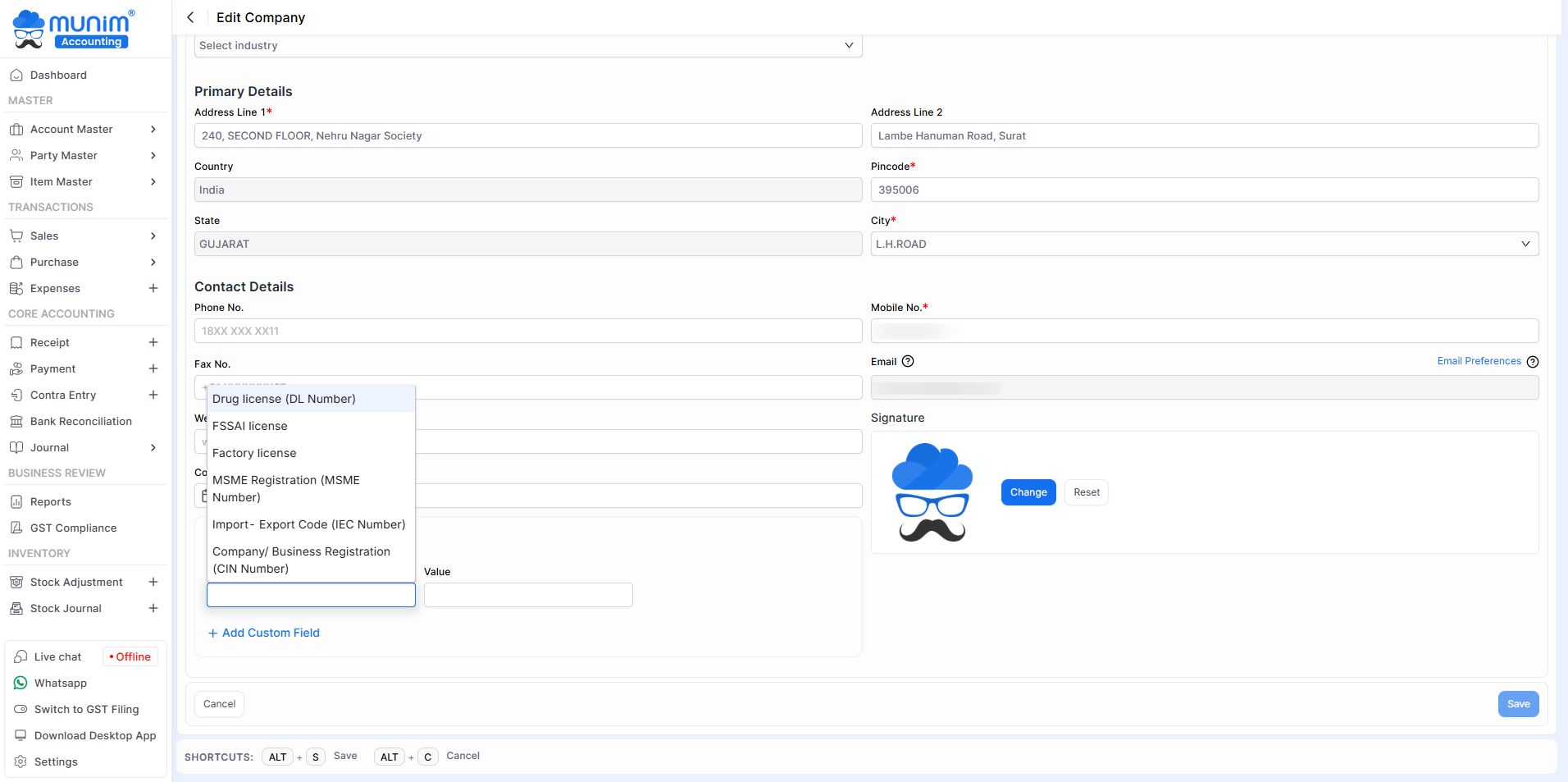
Munim provides several predefined labels that can be selected from the dropdown list, including:
- Drug Licence Number
- FSSAI Number
- Factory Licence Number
- MSME Registration Number
- Import – Export Code (IEC Number)
- Company’s Exclusive Registration Number (ICIN Number)
You can also enter a custom label manually if required.
Important Notes
- Multiple custom fields can be added for a single company.
- Only fields with Show in Print enabled will appear on invoice prints.
- Labels and values can be modified anytime from Company Settings.
- Changes are reflected on newly generated invoice prints after saving.
Result
The selected custom fields will be displayed under the company details section of the Sales Invoice print, providing additional business information wherever required.
Need Assistance?
For any assistance related to company settings or invoice printing, please contact the support team.


