
 3218 views
 Overview
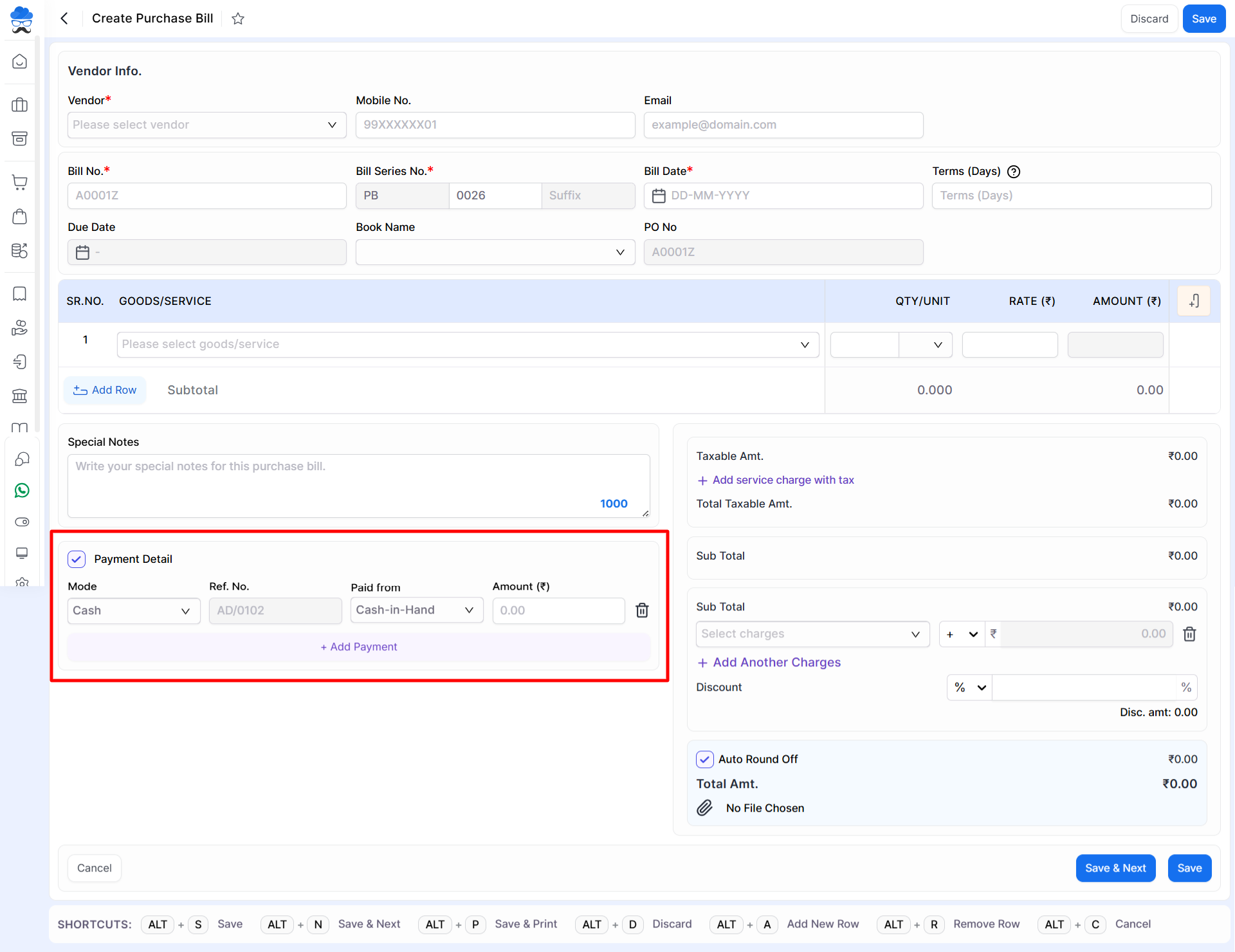
The Payment Details option in the Purchase Bill module allows you to record payment information while creating a purchase bill. This eliminates the need to create a separate payment entry later and helps keep purchase and payment records synchronised.
Benefits
- Save Time by recording bill and payment details in a single entry.
- Reduce Manual Work by avoiding separate payment voucher creation.
- Improve Accuracy with automatic transaction creation.
- Simplify Vendor Payment Tracking within the purchase process.
- Maintain Real-Time Records of purchases and payments.
Record Payment Details During Purchase Bill Entry
Steps
- Go to Purchase → Purchase Bill.
- Click Create Purchase Bill.
- Enter the vendor and purchase bill details.
- Enable the Payment Detail option.
- Enter the payment information:
- Mode (Cash, Bank, etc.)
- Reference Number
- Paid From Account
- Amount
- Use Add Payment if multiple payment entries are required.
- Save the purchase bill.
+−⟲
Automatic Payment Entry Creation
When payment details are entered during purchase bill creation, the system automatically creates the corresponding transaction in the Payment Module.
This ensures that both the purchase bill and payment records are created together without additional manual entries.
Important Notes
- Payment Details can be entered while creating a new Purchase Bill.
- Ensure the payment amount entered is correct before saving.
- Multiple payment entries can be added using the Add Payment option.
- The selected payment account should have been created in the system.
- Payment transactions are automatically linked with the corresponding purchase bill.
Result
- Purchase bill and payment details are recorded in a single process.
- A payment transaction is automatically created in the Payment Module.
- Vendor payment records remain accurate and up to date.
- Manual payment entry work is reduced.
Need Assistance?
If you need help configuring or using Payment Details in Purchase Bills, please contact the support team.


