
 2018 views
 Overview
The GST Rate and MRP Update feature in Munim allows you to change the GST percentage and update the MRP of items whenever there is a change in government tax rates or product pricing. You can update these details for individual items or multiple items at once.
Benefits
- Quickly update GST rates and MRP values for your products.
- Supports both single-item and bulk updates.
- Automatically recalculates the New MRP based on the updated GST rate.
- Ensures future transactions use the latest GST and MRP values.
- Helps maintain compliance with revised GST notifications.
Step 1: Go to the Items Module
- Log in to Munim Accounting software.
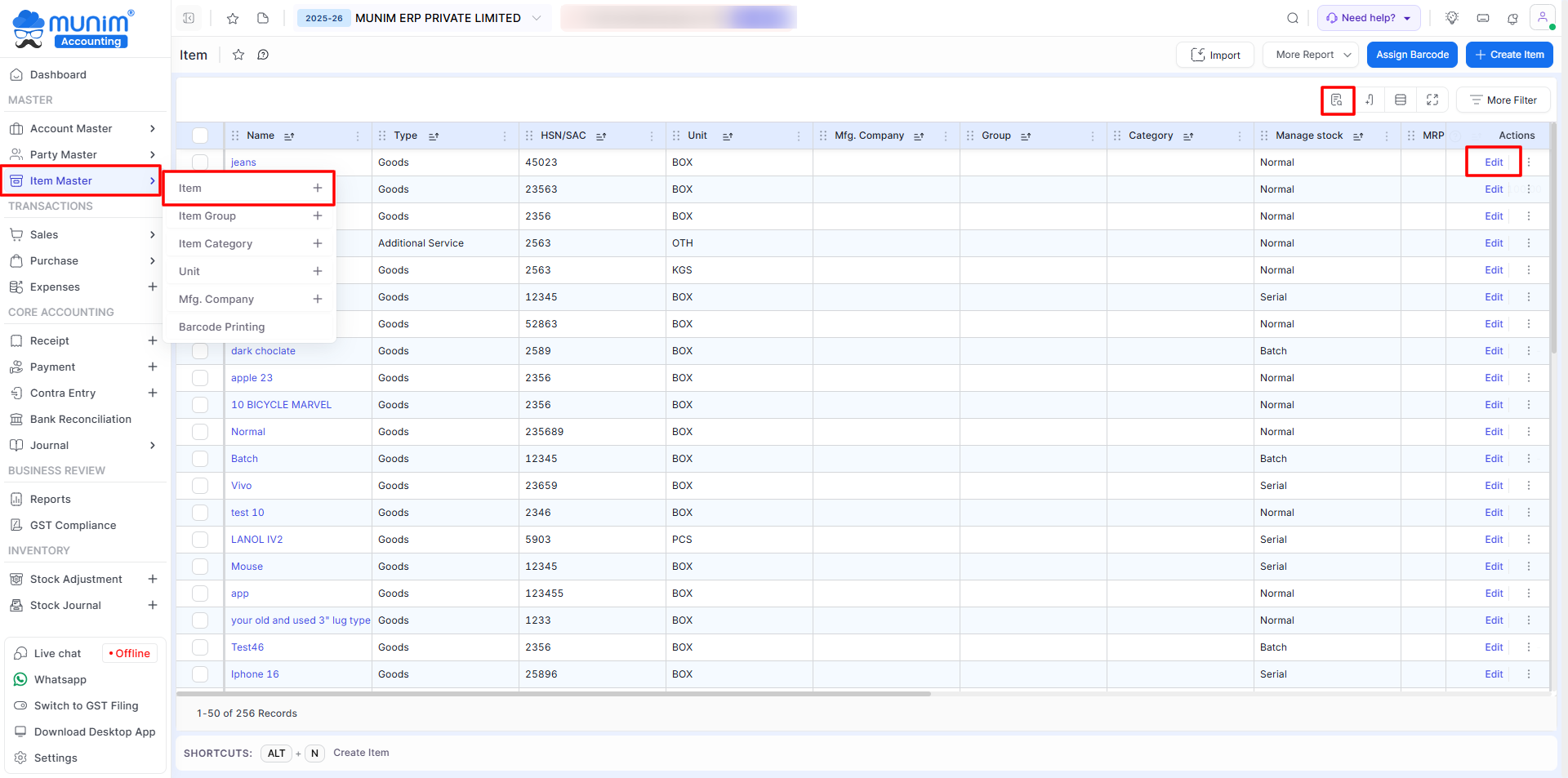
- From the left-side menu, open Item Master > Item module.
- You will see the list of all items here.
+−⟲
Step 2: Search and Edit Item GST Rates and MRP details
- On the Item list page, Use the Show Column search option to open the search field to find the item you want to update one by one.
- Find the item and click on Edit for that item to open the sidebar with all details.
- In the Item Details form, scroll down to the tax and rate section.
- Find the GST Rate (%) field. Enter the new GST rate as per the government notification.
- Example: Change from 12% to 5%.
+−⟲
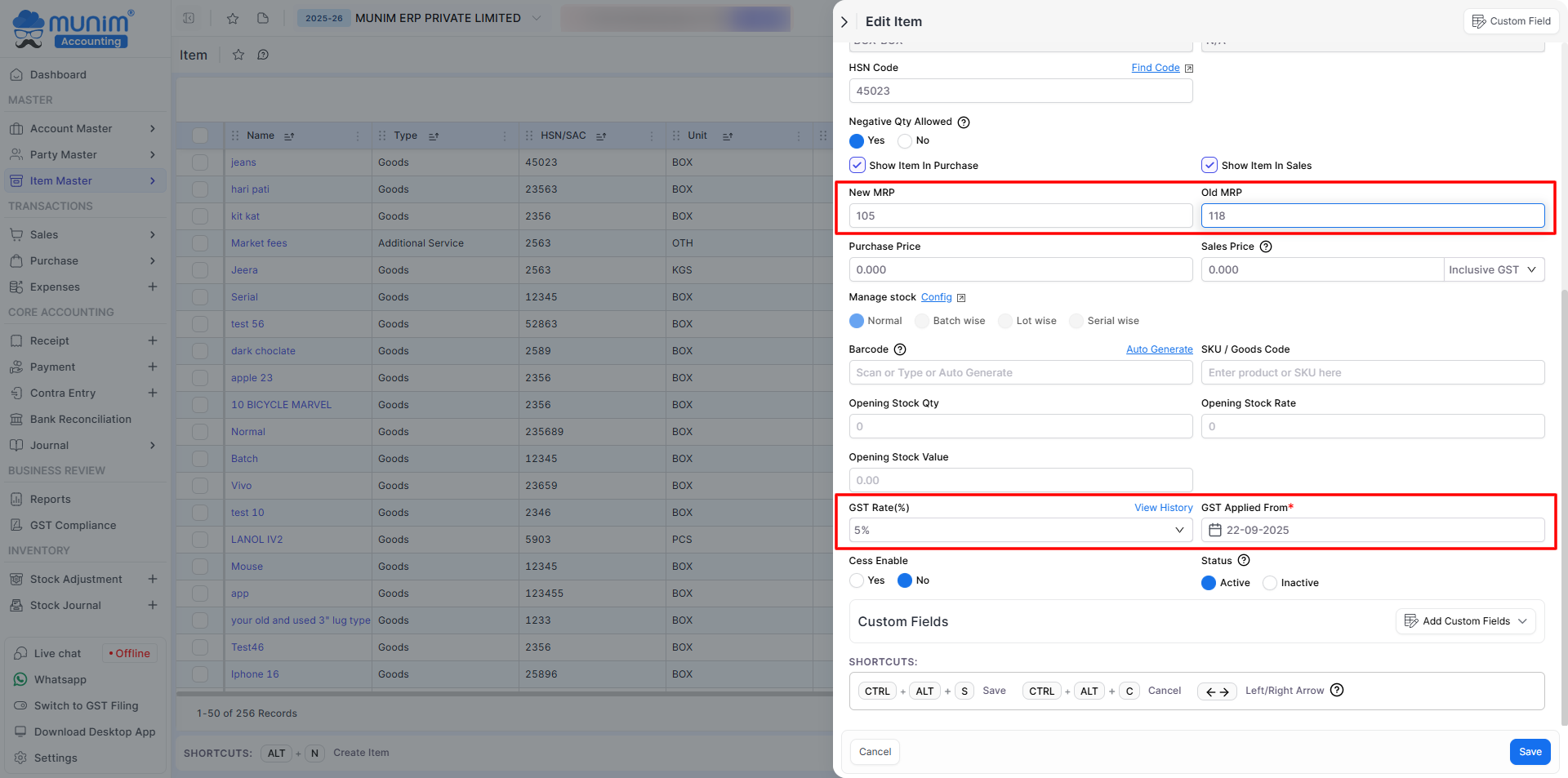
- On changing the tax rate, you must select the GST Applied from Date. Also, update the MRP and Old MRP fields and then click on Save.
- The updated GST rate and MRP will apply to all future invoices and purchase bills from the date the GST change is applied.
Step 3: Update Items GST Rate in Bulk
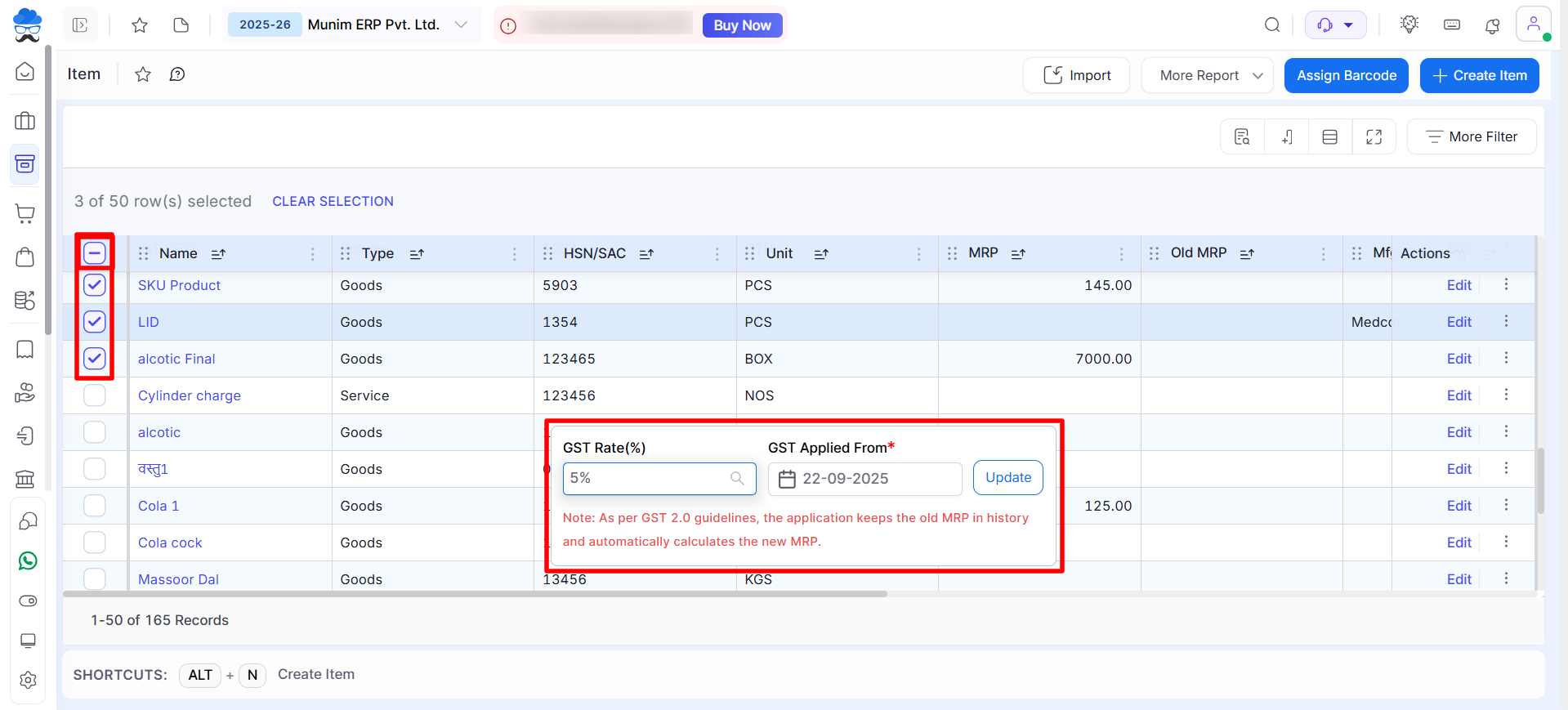
- You can also update GST rate and MRP data in bulk by going to Master > Item Master > Item.
- When updating the GST rate, it is required to select each product one by one or select all at once to ensure that the correct tax rate is applied to each item in your inventory.
- Now, in the pop-up below, input the desired GST Rate for the chosen product and select the GST Applied From Date, which is by default selected as per the recent rate change date.
- If the MRP for the items has been previously entered, the system will automatically adjust the MRP according to the new GST rate and record the previous MRP in the Old MRP field. The Old MRP will also be displayed on the printed output.
- Now click on the ‘Update‘ button to save the changes, and all selected items’ GST rate has been updated successfully.
+−⟲
Important Notes
- Existing transactions are not affected by GST or MRP changes.
- Changes apply only to new transactions created after the selected GST Applied From Date.
- Both New MRP and Old MRP are displayed in the MRP column while printing.
- Repeat the process for each item that requires a GST and MRP update.
Result
The selected items will use the updated GST Rate and MRP values in all future transactions from the specified effective date.
Need Assistance?
If you need help updating GST rates or MRP values, please contact our support team. We’re happy to assist you.


