
 38 views
 Overview
The Job Work feature in Munim GST allows you to manage outsourced manufacturing processes seamlessly. You can configure job work settings, record raw materials sent out via Delivery Challans (DC Out), track finished goods received (DC In), link raw material consumption, and review job work registers and reports in real time.
Benefits
- Centralised Job Work Tracking: Efficiently manage materials dispatched to and received from job workers in one place.
- Automated Stock & Raw Material Consumption: Link raw materials to items to automatically track inventory consumption.
- Detailed Record Keeping: Create customised Delivery Challans for both DC Out (Dispatch) and DC In (Receipt).
- Comprehensive Reports: Monitor job work status, pending finished goods, and worker registers through built-in reporting tools.
Step 1: Enable Job Work & Consumption Settings
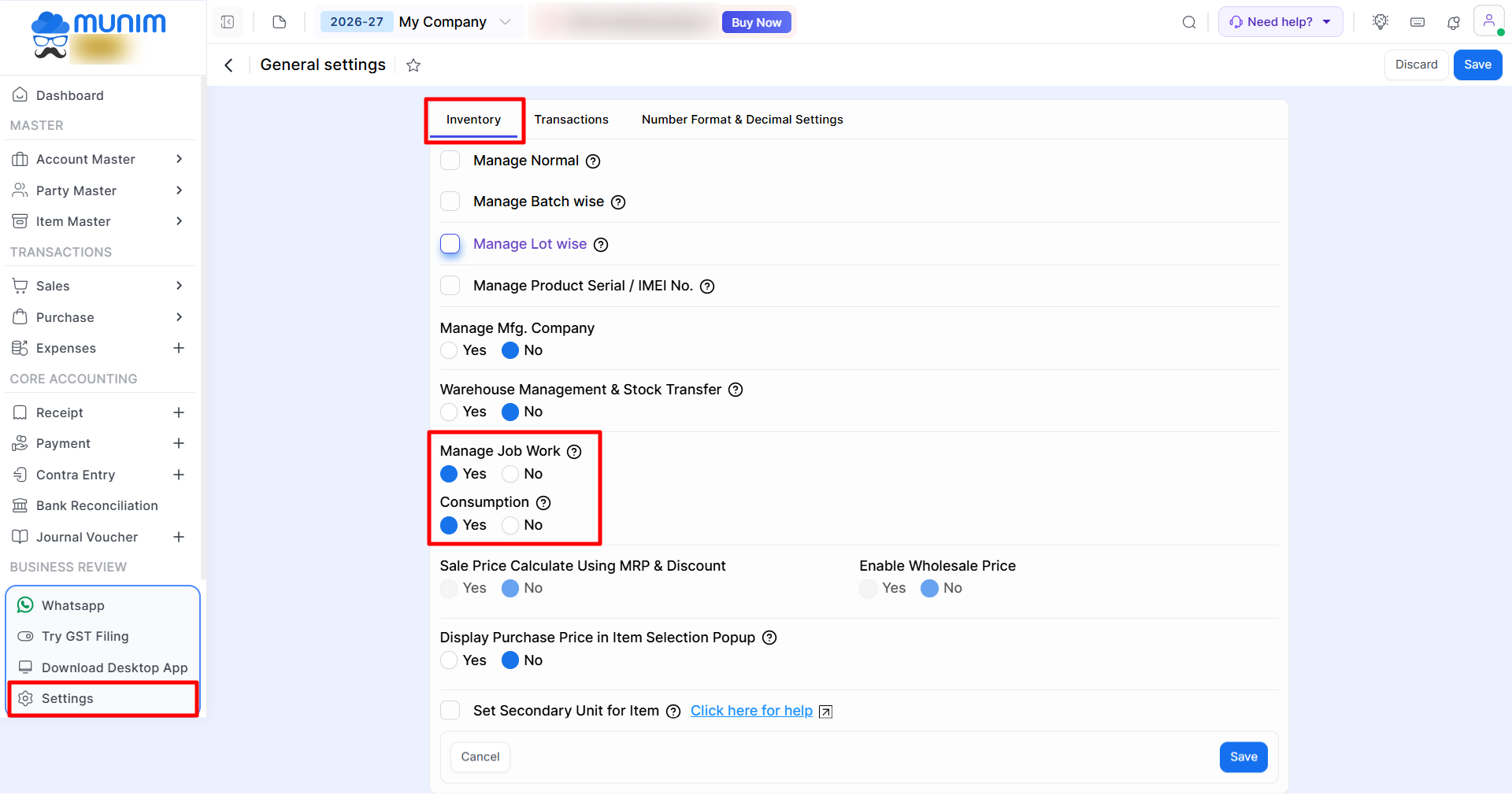
- Go to Settings in the left sidebar menu. Click General Settings.
- Under the Inventory tab, locate Manage Job Work and set it to Yes.
- Set Consumption to Yes. Click Save to apply changes.
Step 2: Configure Item Raw Material Consumption (Optional)
To automatically map raw material usage when finished goods are created:
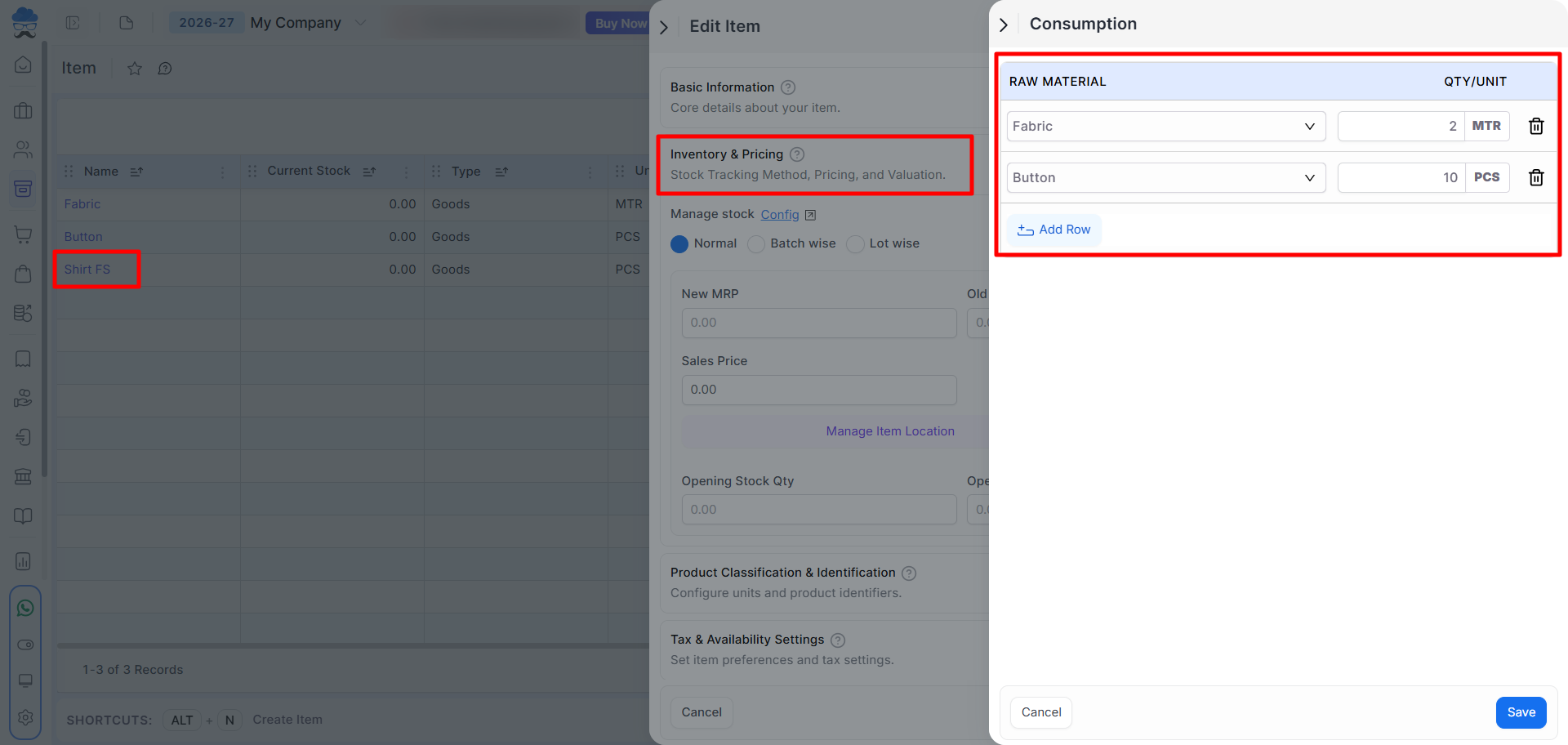
- Navigate to Master > Item Master > Item. Click + Create Item (or edit an existing item).
- Expand the Inventory & Pricing section and click Manage Consumption.
- Map the required Raw Material items from the existing items list and add Quantity in the QTY/Unit field. Click Save.
Step 3: Create DC Out (Send Raw Materials to Job Worker)
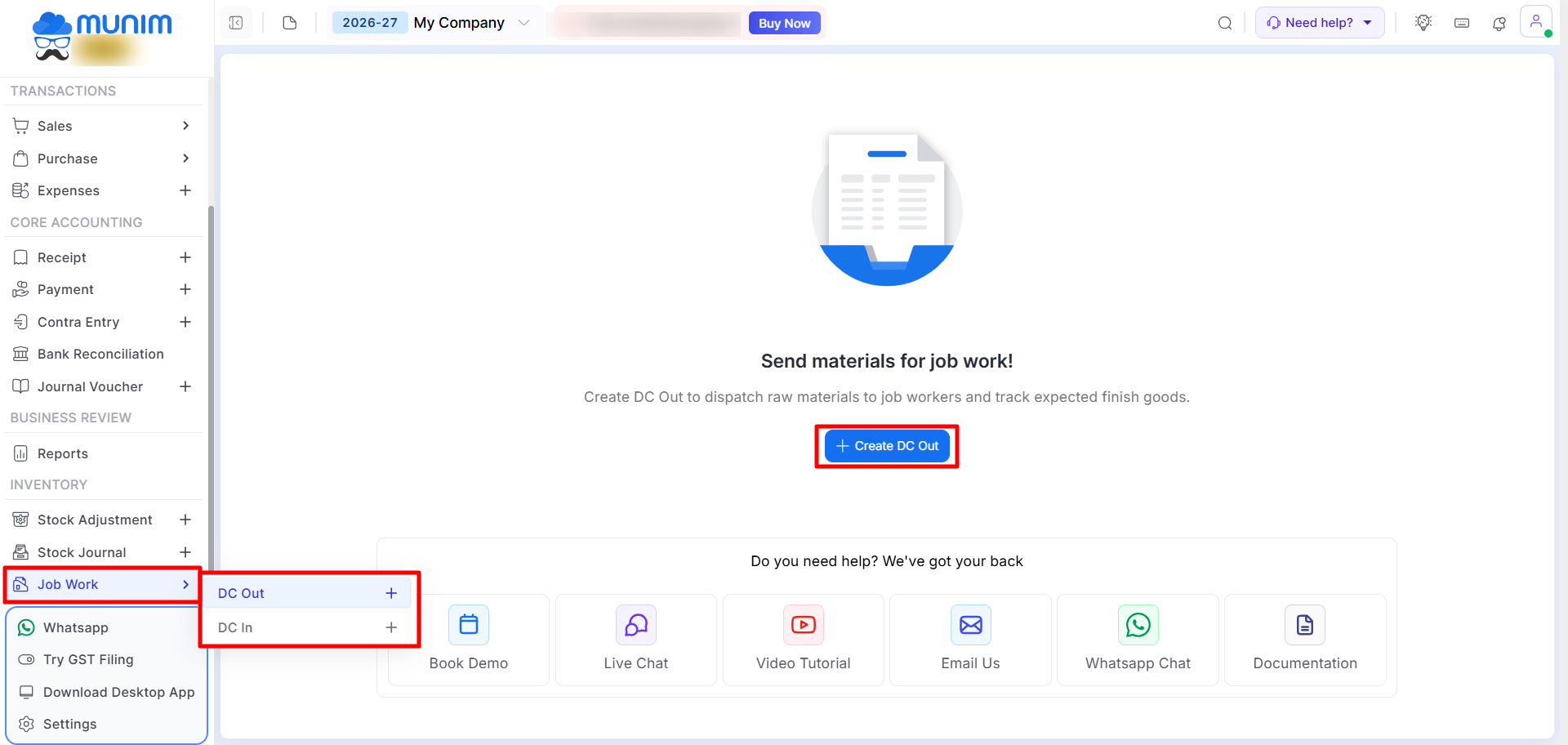
- Go to the Inventory section, click Job Work module in the left navigation panel.
- Select DC Out and click + Create DC Out button.
Fill in the Dispatch Details:
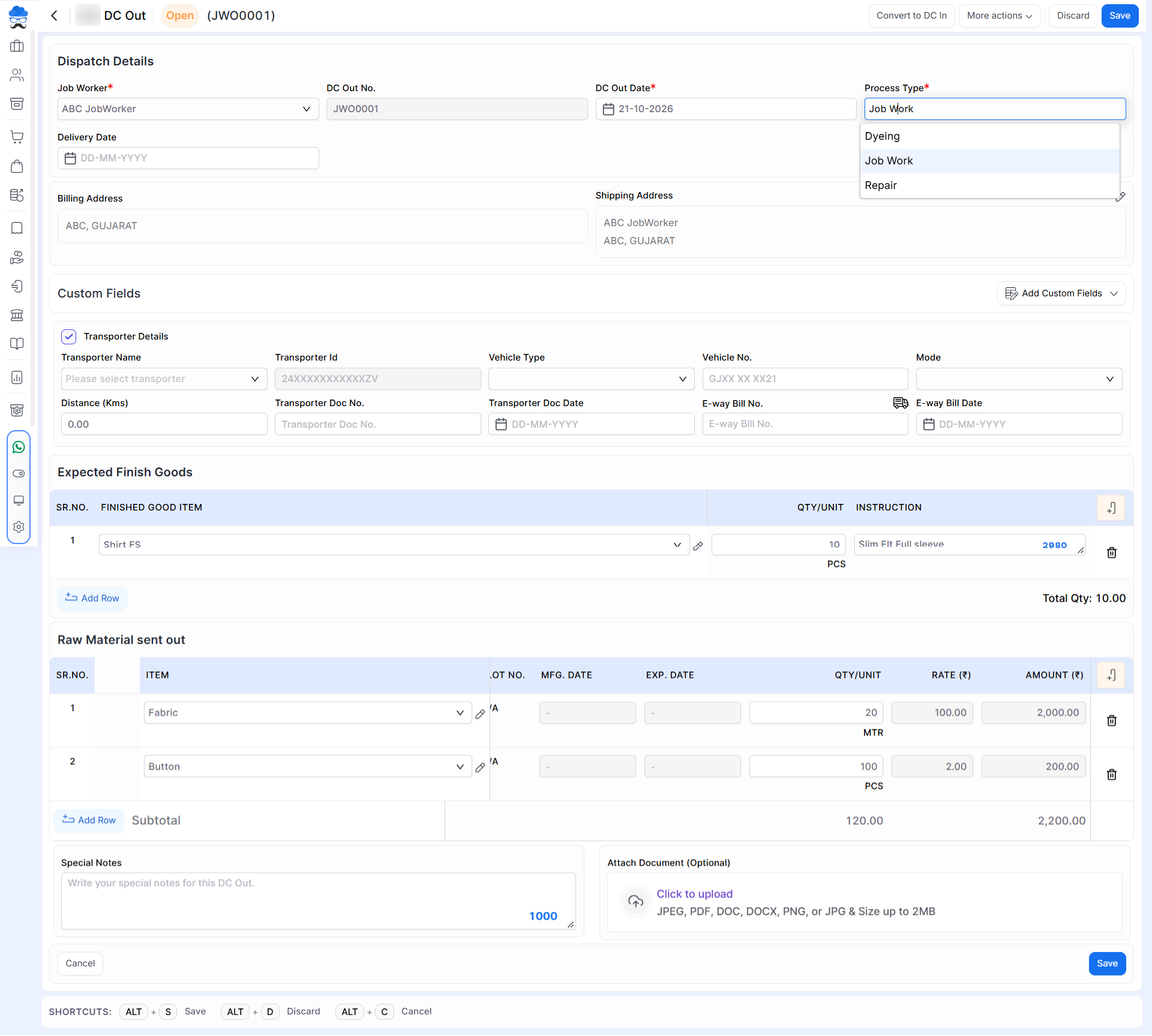
- Job Worker: Select the vendor/worker (or create a new job worker directly).
- DC Out No. & Date: Verify or adjust the delivery challan number and date.
- Process Type: Select the required job work process (e.g., Dyeing, Job Work, Repair).
- Delivery Date: Add expected delivery dates.
- Transporter Details: vehicle/e-Way bill info if you want to create an E-way bill.
Enter Expected Finish Goods:
- Select expected finished items and set the target quantity. Instructions can be added as well.
Enter Raw Material Sent Out:
- Select raw material items and specify quantities. Rate and batch/expiry details will be fetched if available.
- The system will automatically populate item quantities and rate based on the consumption values defined in the Item Master.
- Click Save or Save & Next.
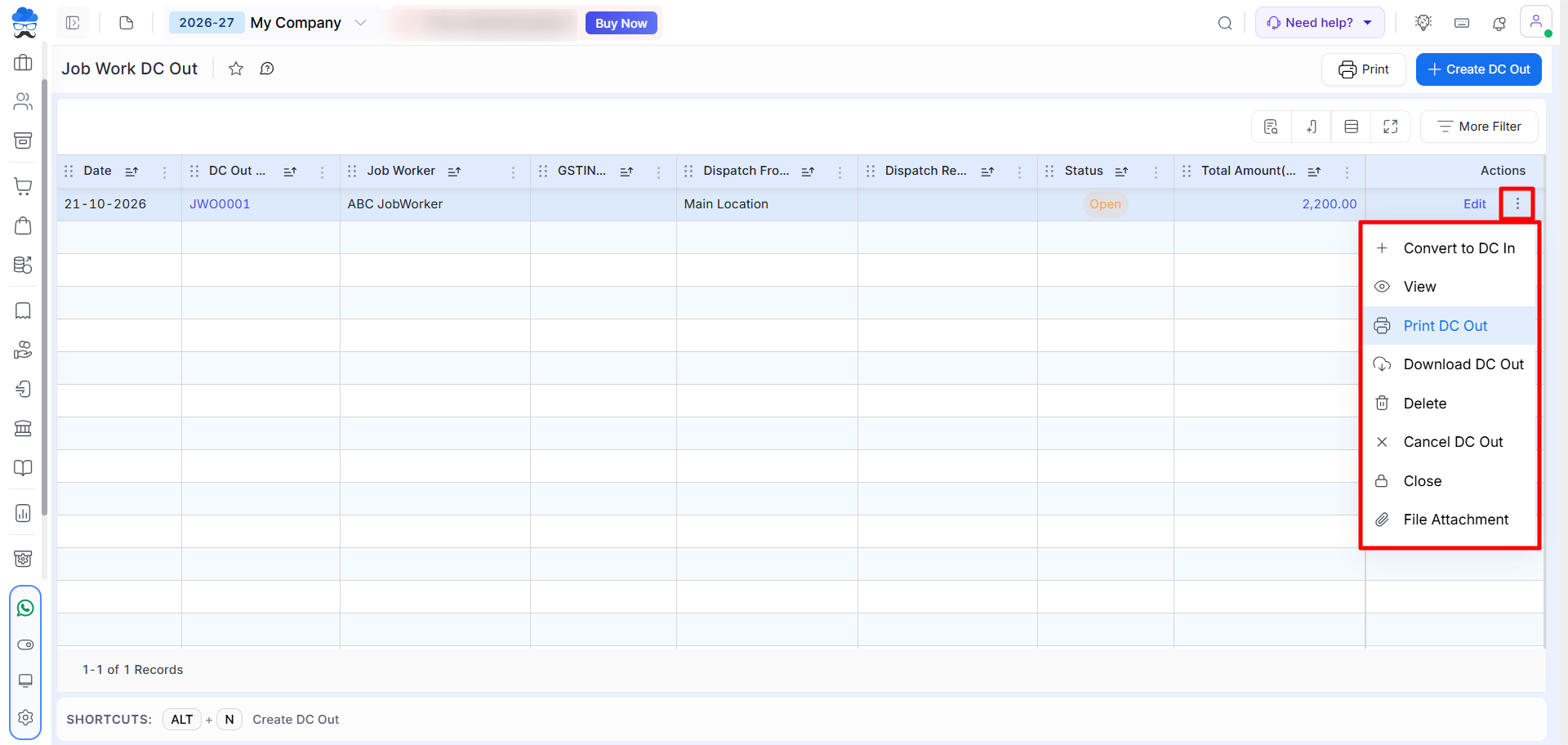
- Once the DC Out record is saved, you will be redirected to the Job Work DC Out list page.
- From here, you may utilise the action menu to Convert to DC In, View, Print DC Out, Download, Delete, Cancel, Close, or manage File Attachments.
- Utilise the “Convert to DC In” option to generate a DC In record from the existing DC Out once the job work has been completed.
Step 4: Create DC In (Receive Finished Goods from Job Worker)
Go to Inventory section, open Job Work and click on DC In. Click + Create DC In.
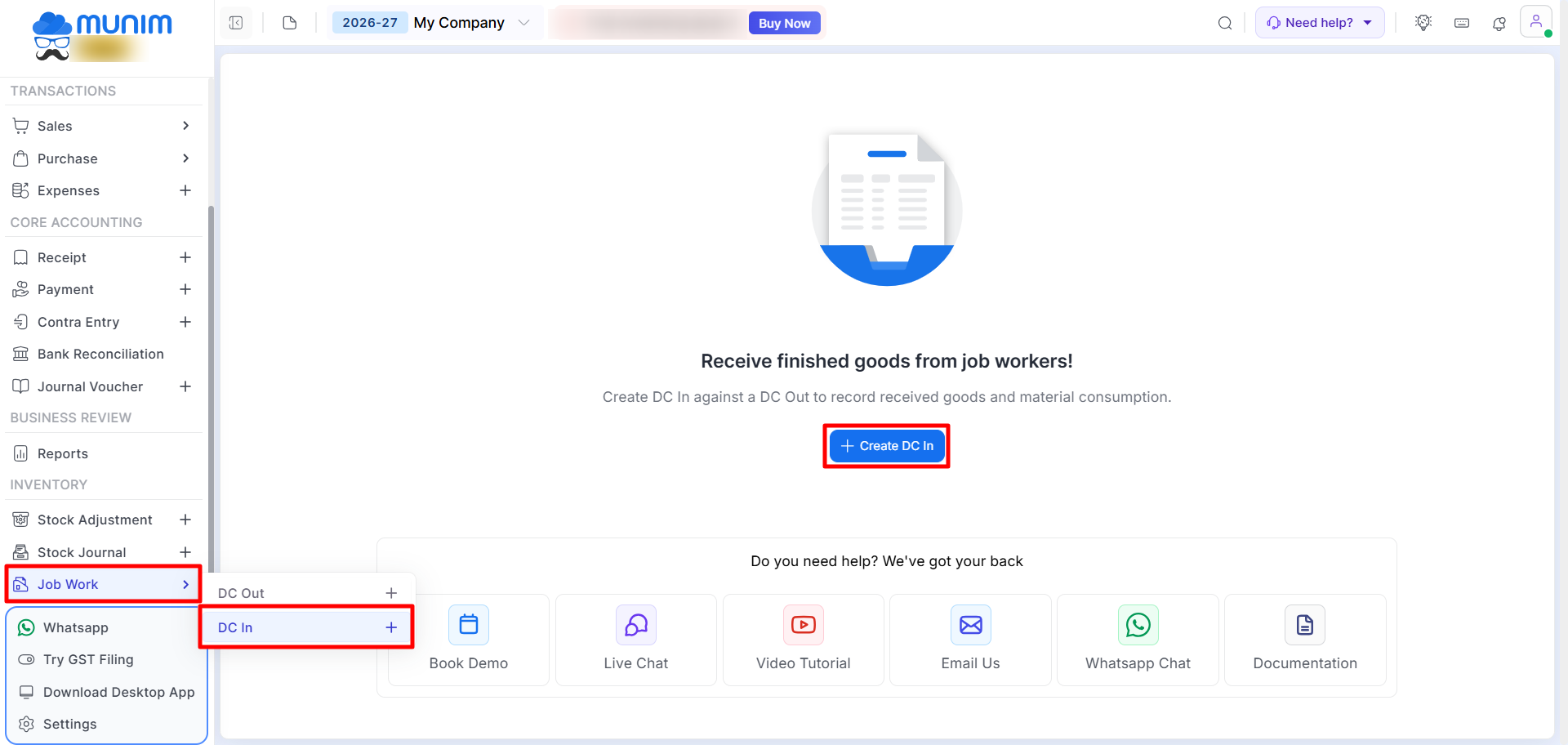
Fill in Receipt Details:
- Job Worker: Select the relevant job worker. All pending job work DC Out entries will be seen in the sidebar for selection.
- DC In Date & Reference DC Out No.: Add the incoming delivery to the corresponding DC Out.
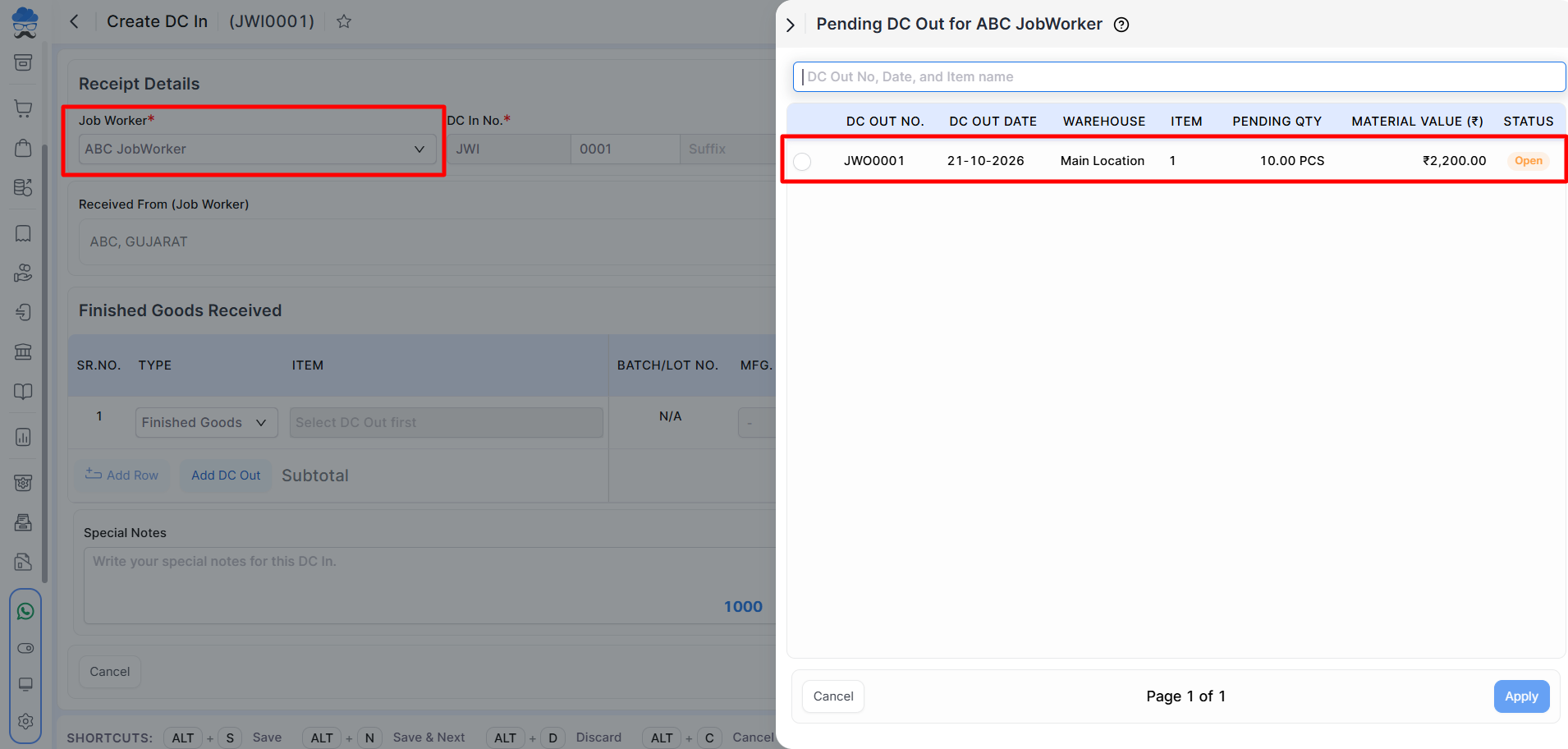
Under Finished Goods Received:
- Select item type (Finished Goods, Rejected Goods, or Scrap).
- All details such as item details and received quantity will be auto-fetched from the selected DC Out.
- Specify the Cost of Goods to determine the valuation of the received finished goods.
- Use the Calculate icon next to the Cost of Goods field to determine the estimated production cost per unit of the finished good.
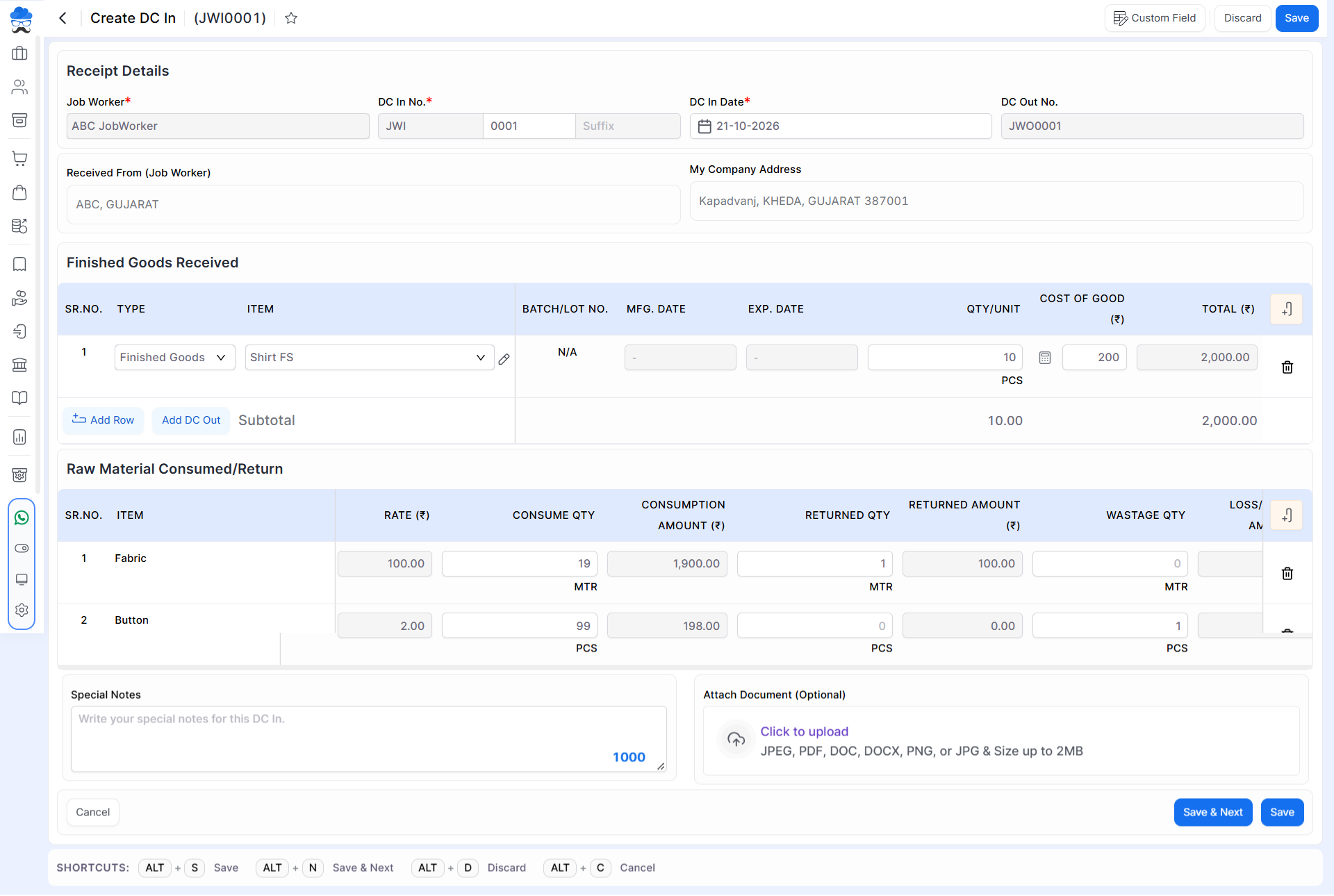
Under Raw Material Consumed/Return:
- In this section, you may specify and record the stock utilised during the job work process. Categorise quantities as consumed, returned, or identified as wastage.
- Stock updates are determined by the section in which the data is recorded: consumed items will reduce stock levels, returned items will increase stock levels, and wastage will remove stock.
- Click Save to finalise this DC In and redirect to the DC In List page to Download, Print, Delete, etc.
Step 5: Monitor Job Work Reports
To view and check job work transactions, go to Reports from the main sidebar:
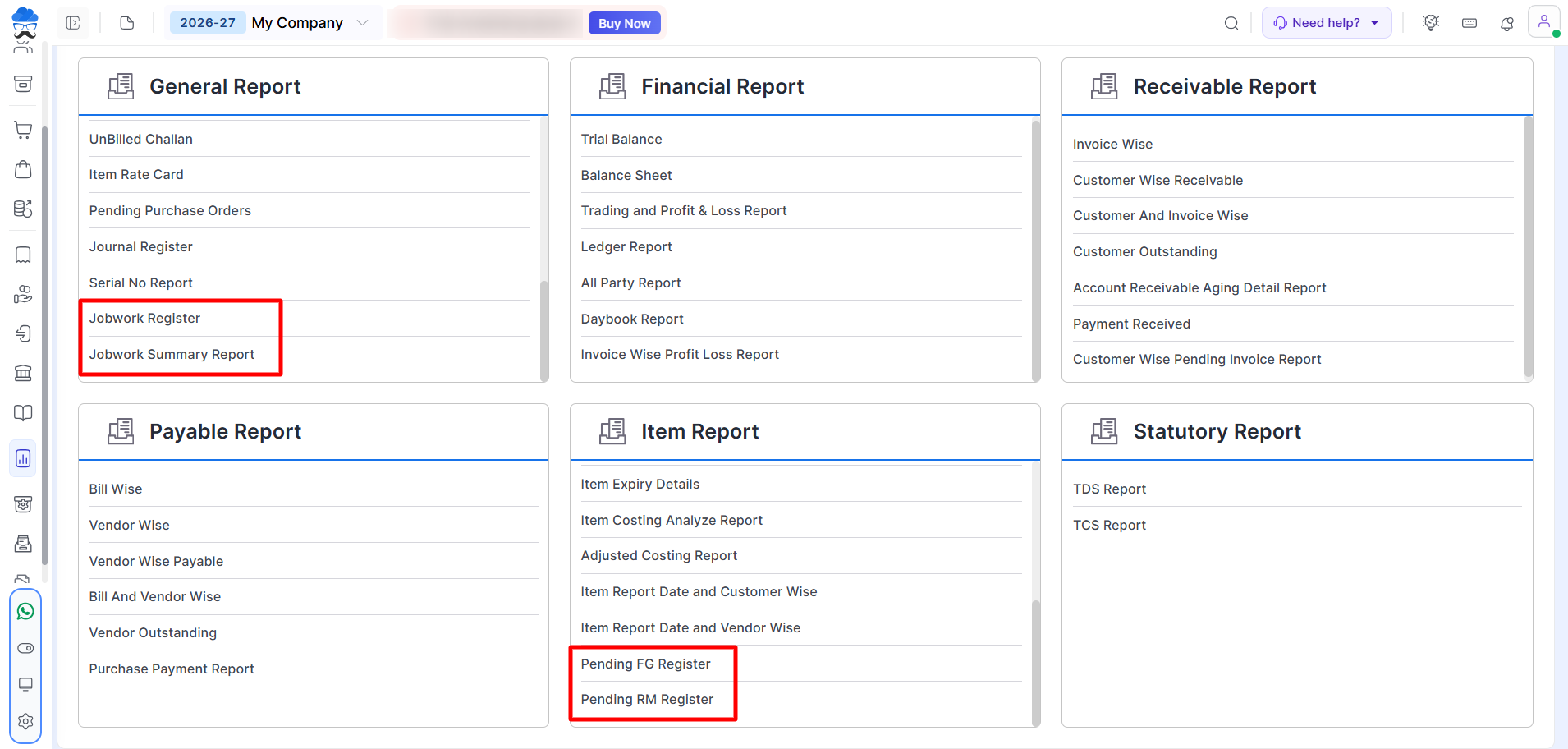
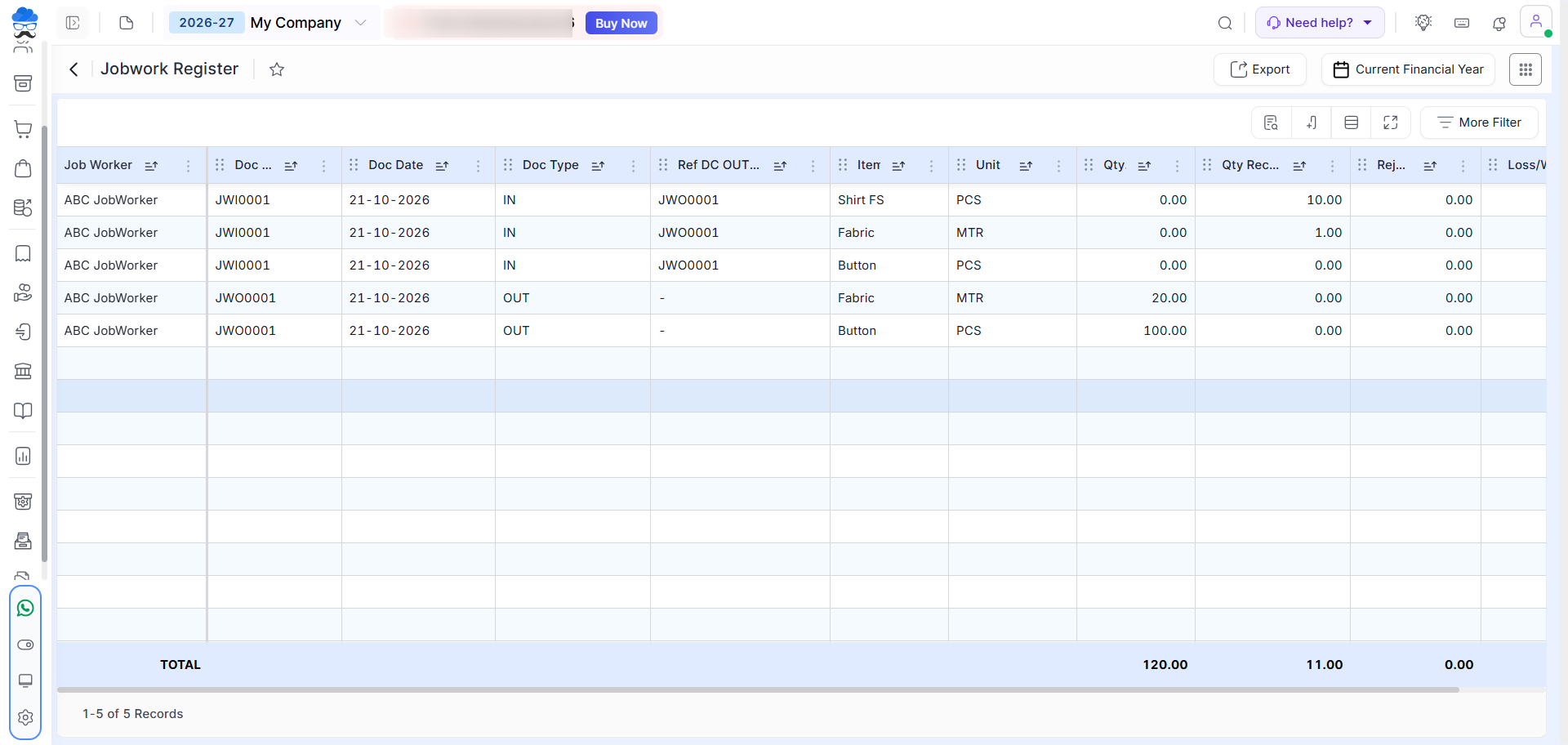
- Jobwork Register: Under General Report, view all DC Out and DC In records line-by-line.
- Jobwork Summary Report: Under General Report, Review comprehensive worker-wise dispatch and receipt summaries.
- Pending FG Register: Under Item Report, track remaining Finished Goods expected from job workers.
- Pending RM Register: Under Item Report, track remaining Raw Materials expected from job workers.
Important Notes
- Ensure Manage Job Work and Consumption settings are enabled in General Settings before creating Delivery Challans.
- Select or create the correct Job Worker (Vendor) to maintain accurate balance records.
- If consumption items are configured in Item Master, system will auto-populate the required raw materials qty when creating a DC Out entry.
- You can create an E-Way Bill for DC Out whenever it is applicable.
- Currently, you can manage Outsourced manufacturing processes only.
Need Assistance?
If you face issues configuring Job Work, creating Delivery Challans, or generating reports, contact the Munim Support Team for assistance.


