

 1219 views
 Overview
Munim allows you to quickly share Sales Invoices with customers through WhatsApp. This feature helps in faster communication, instant invoice delivery, and timely payment follow-ups without downloading and sharing invoices manually.
Benefits
- Share invoices instantly with customers through WhatsApp.
- Reduce manual effort in downloading and sending invoices.
- Improve customer communication and payment follow-ups.
- Send invoices directly from the Sales Invoice List or during invoice creation.
- Manage multiple customer mobile numbers from a single screen.
Enable WhatsApp Integration
Before sending invoices on WhatsApp, ensure that WhatsApp sharing is enabled for the required transaction type.
Navigation:
Settings → WhatsApp Integration
- Open WhatsApp Integration settings.
- Enable WhatsApp sharing for the required transaction types.
- Save the settings.
Once enabled, the WhatsApp option will become available for the selected transaction types.
Open Sales Invoice List
Navigation:
Sales → Sales Invoice
- Go to the Sales module from the left menu.
- Open the Sales Invoice List page.
- Locate the invoice you want to share.
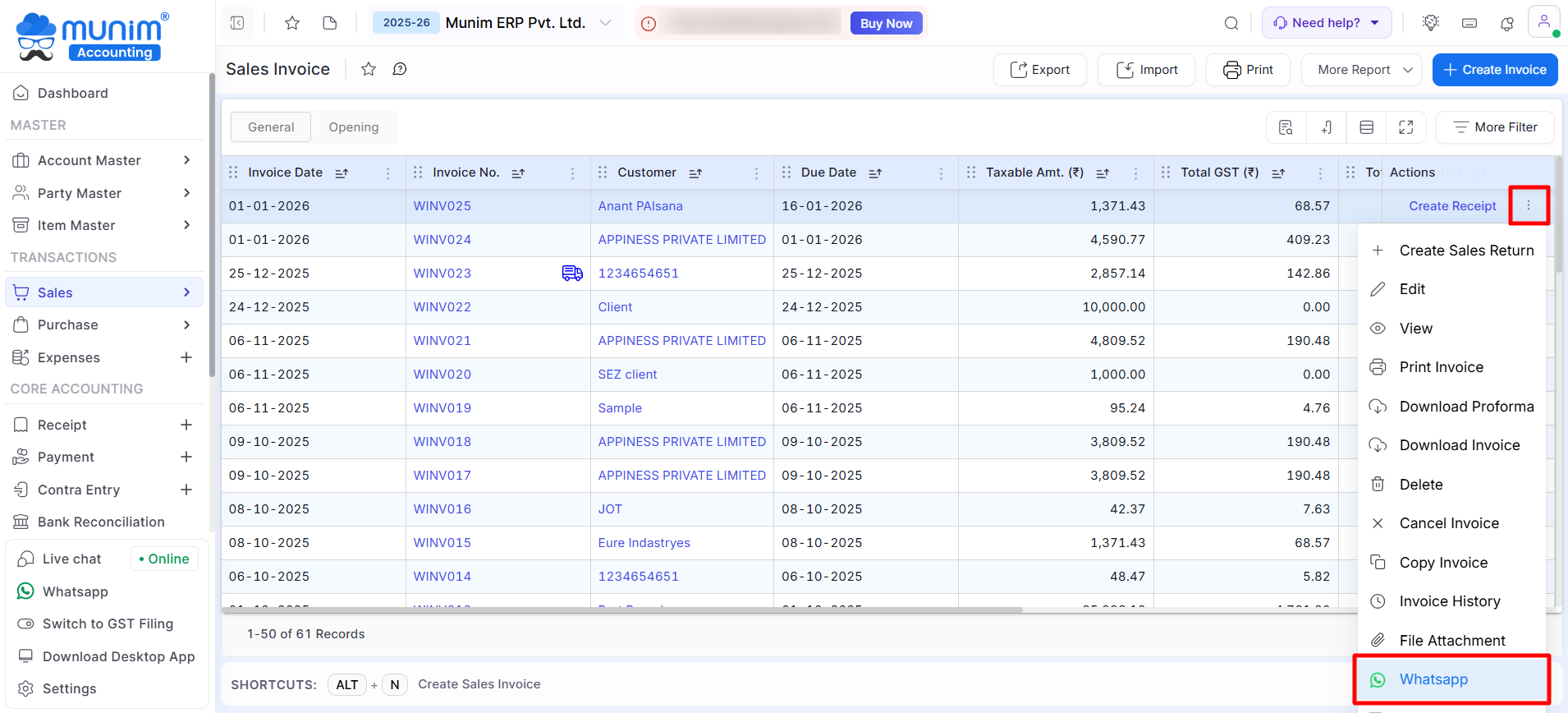
Open WhatsApp Option
- Click the three-dot (⋮) menu under the Actions column.
- Select WhatsApp from the dropdown menu.
A Send WhatsApp pop-up will appear.
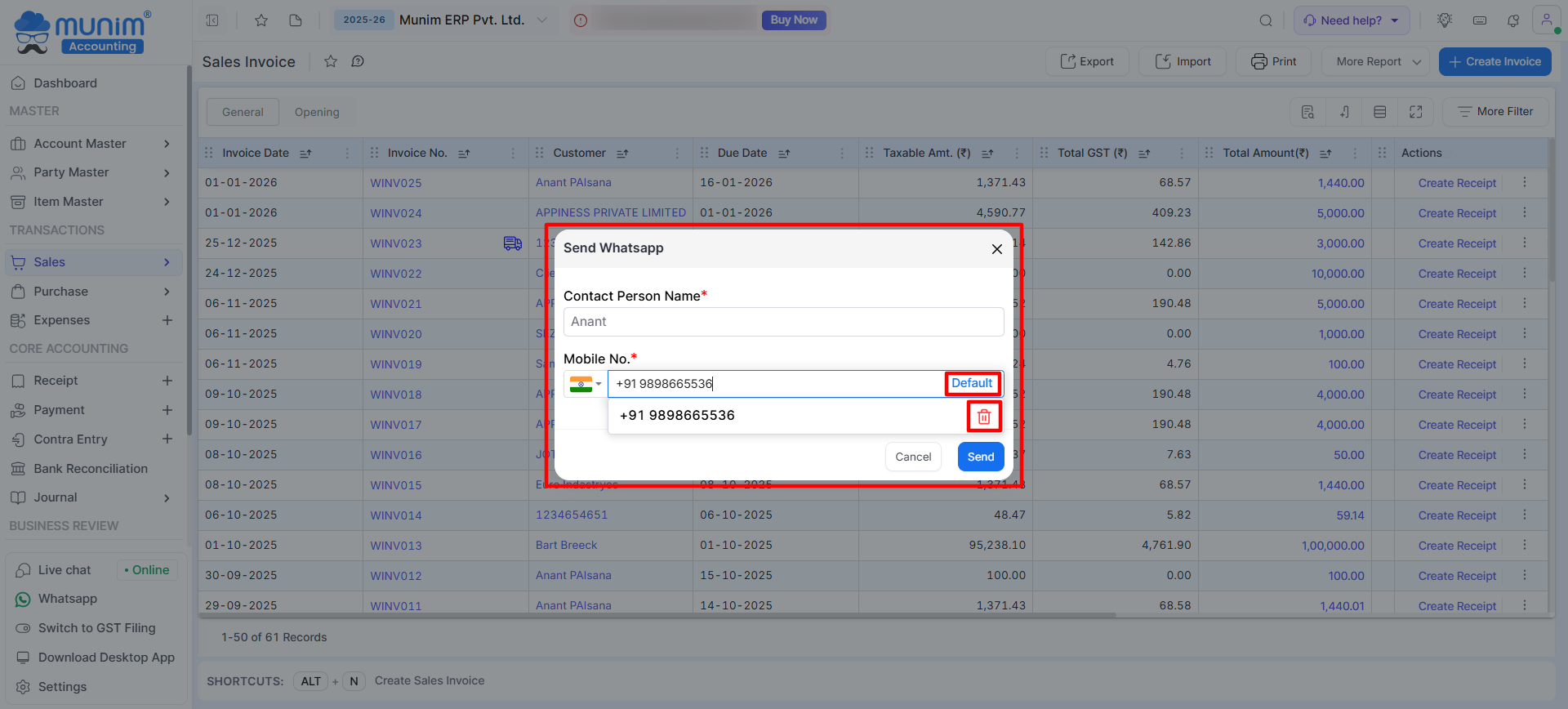
Review Customer Details
The pop-up displays:
- Contact Person Name
- Mobile Number(s)
The customer details are automatically fetched from the Party Master.
Select or Manage Mobile Number
If multiple mobile numbers are available:
- Select the required number.
- Mark a number as Default, if needed.
- Remove unwanted numbers using the Delete icon.
- Ensure the selected mobile number is active on WhatsApp.
Send Invoice via WhatsApp
- Verify the customer details and mobile number.
- Click Send.
- A new browser tab or the WhatsApp application will open automatically.
- The invoice will be shared with the customer through WhatsApp.
Important Notes
- The WhatsApp option is available only for transaction types enabled in Settings → WhatsApp Integration.
- Mobile numbers are fetched from the Party Master and can be managed during sending.
- Ensure the customer’s mobile number includes the correct country code.
- A stable internet connection is required to send messages successfully.
- You must be logged in to WhatsApp Web or the WhatsApp application.
Result
The selected invoice is instantly shared with the customer through WhatsApp, enabling faster invoice delivery and improved communication.
Need Assistance?
If you face any issues while sending invoices through WhatsApp or configuring WhatsApp Integration, please contact the Munim Support Team for assistance.


