

 149 views
 Overview
The Stock Transfer Register helps you view and track stock transferred between different warehouses or locations in Munim.
Benefits
- View stock transfer transactions in one place.
- Check the source and destination warehouse for each transfer.
- Track transferred items, quantities, units, and batch/lot details.
- Export the report for further reference.
How to View Stock Transfer Register
Step 1: Open the Report
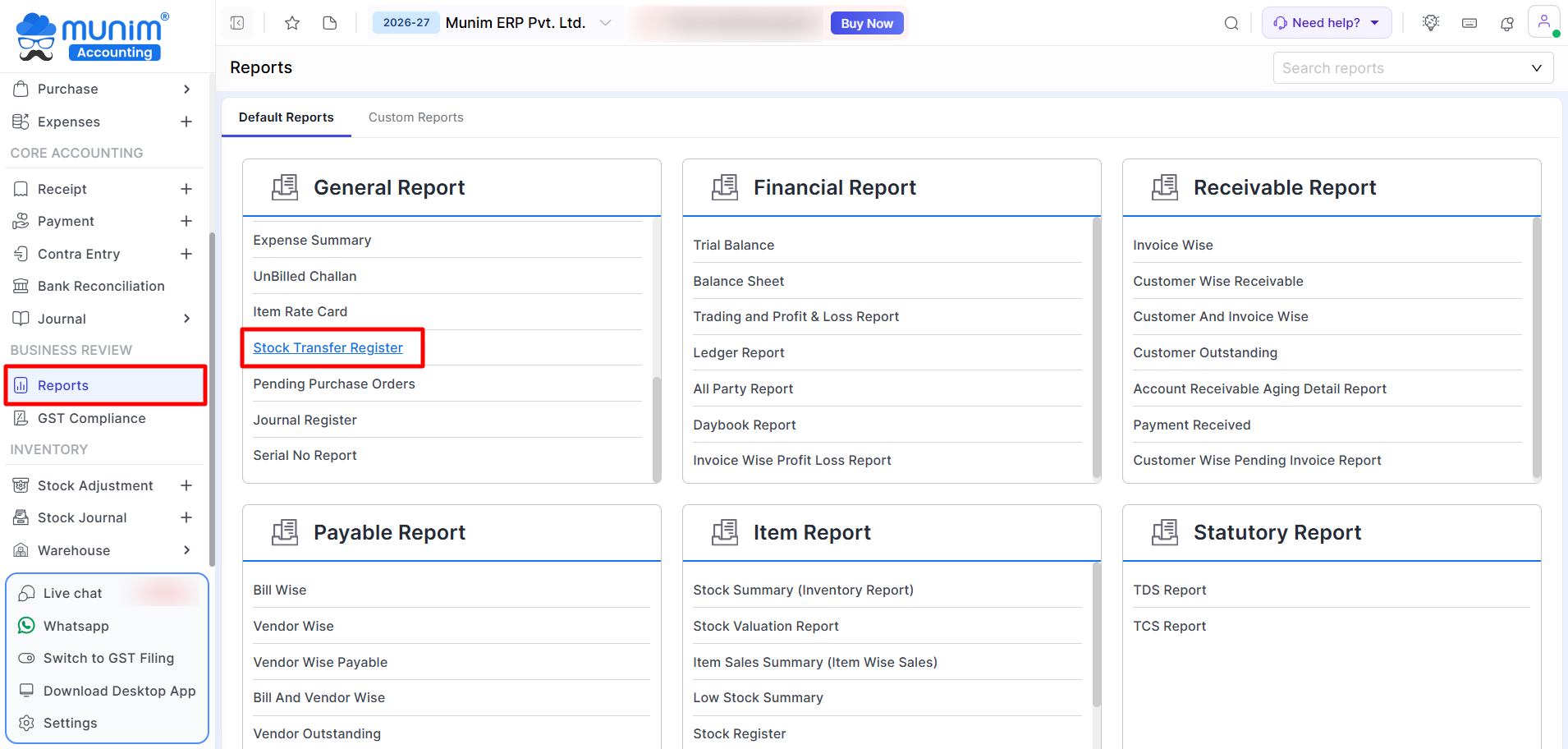
- Go to Reports from the left sidebar.
- Under General Report, click Stock Transfer Register.
+−⟲
Step 2: Select the Required Period
- Use the Current Financial Year option at the top to select the required financial year or period.
Step 3: Review Transfer Details
+−⟲
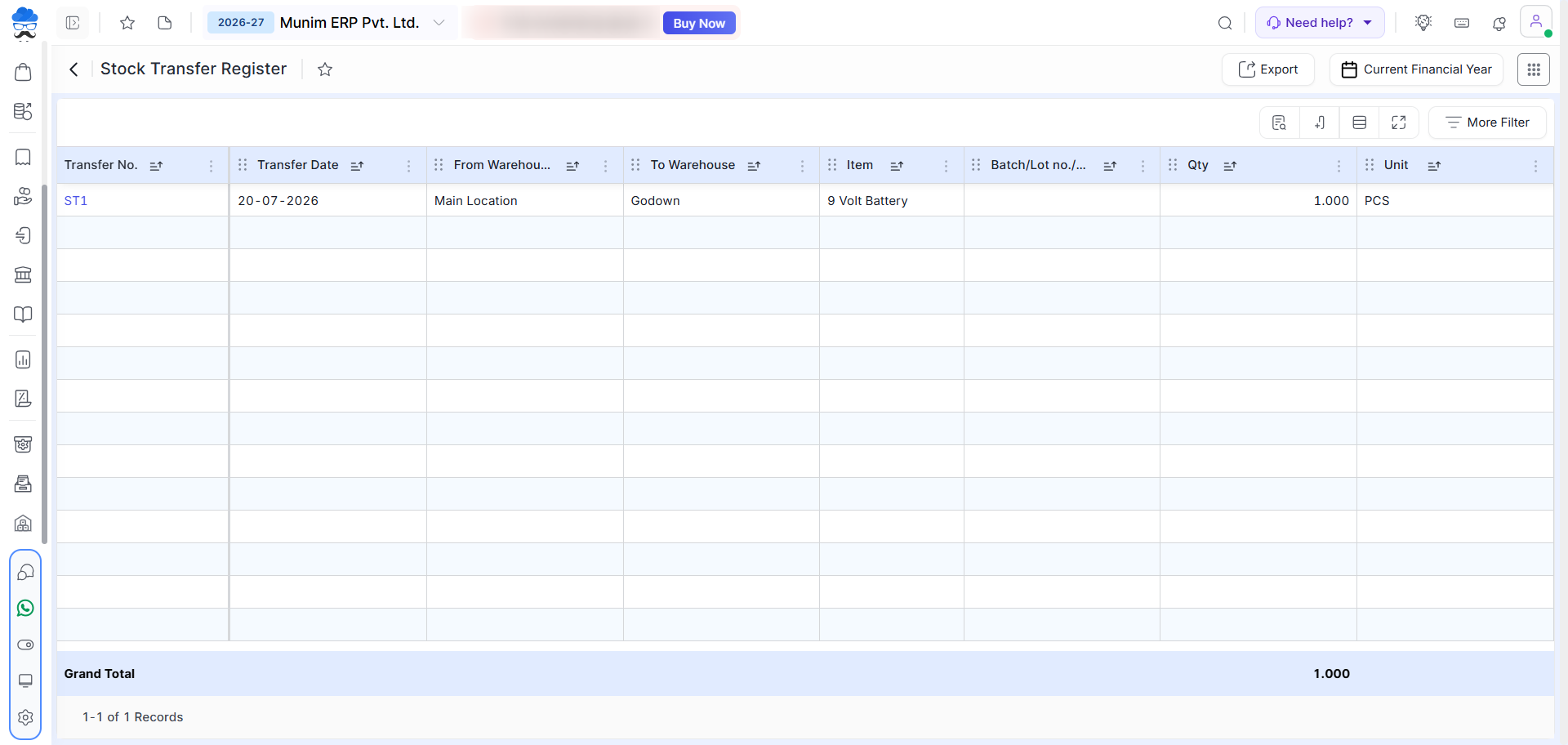
The report displays details such as:
- Transfer No.
- Transfer Date
- From Warehouse
- To Warehouse
- Item
- Batch/Lot No.
- Qty
- Unit
You can use More Filter to narrow down the displayed records.
Step 4: Export the Report
- Click Export to download the Stock Transfer Register in Excel format for further use or record keeping.
Important Notes
- The report includes stock transfer entries recorded between warehouses/locations.
- Use the Transfer No. to identify a specific stock transfer.
- Batch/Lot details are displayed where applicable.
- The Qty and Unit columns show the quantity transferred.
- Select the appropriate financial year or date range before reviewing the report.
- Filters can be used to find specific transfer records quickly.
Need Assistance?
If you need help understanding or exporting the Stock Transfer Register, contact the Munim Support Team.


