
 956 views
 The Serial No Report in Munim Accounting Software provides complete tracking of serial-number-based inventory items. This report helps users monitor the current status, inward and outward transactions, warranty details, and document references associated with each serial number.
Using this report, users can:
- View serial number-wise inventory records.
- Track item inward and outward movement.
- Check the availability status of serial-numbered items.
- Verify purchase and sales document references.
- Monitor warranty information associated with serial numbers.
- Export the report for further analysis and record keeping.
How to Access the Serial No Report
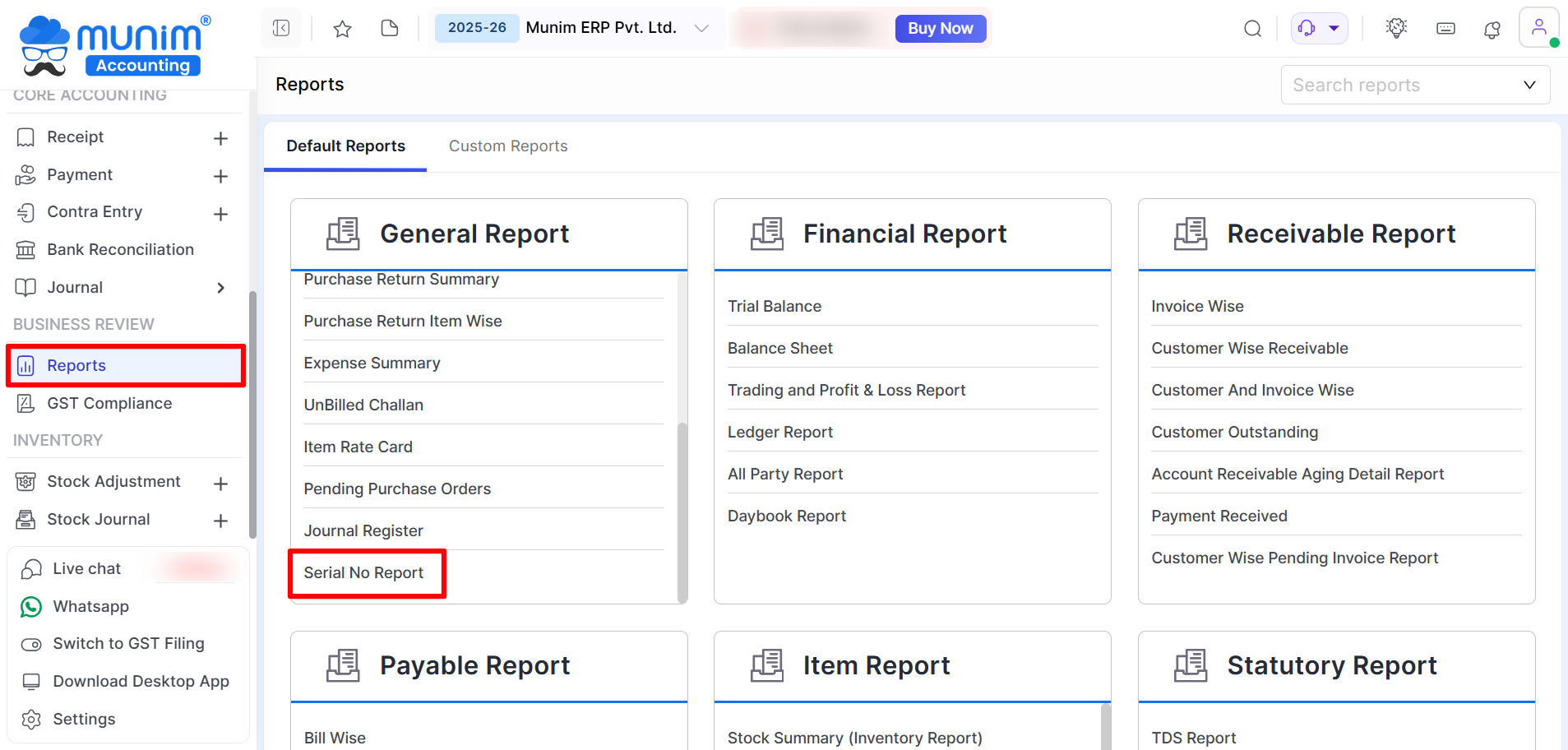
- Go to the Reports section from the left menu.
- Under General Report, select Serial No Report.
Using the Serial No Report
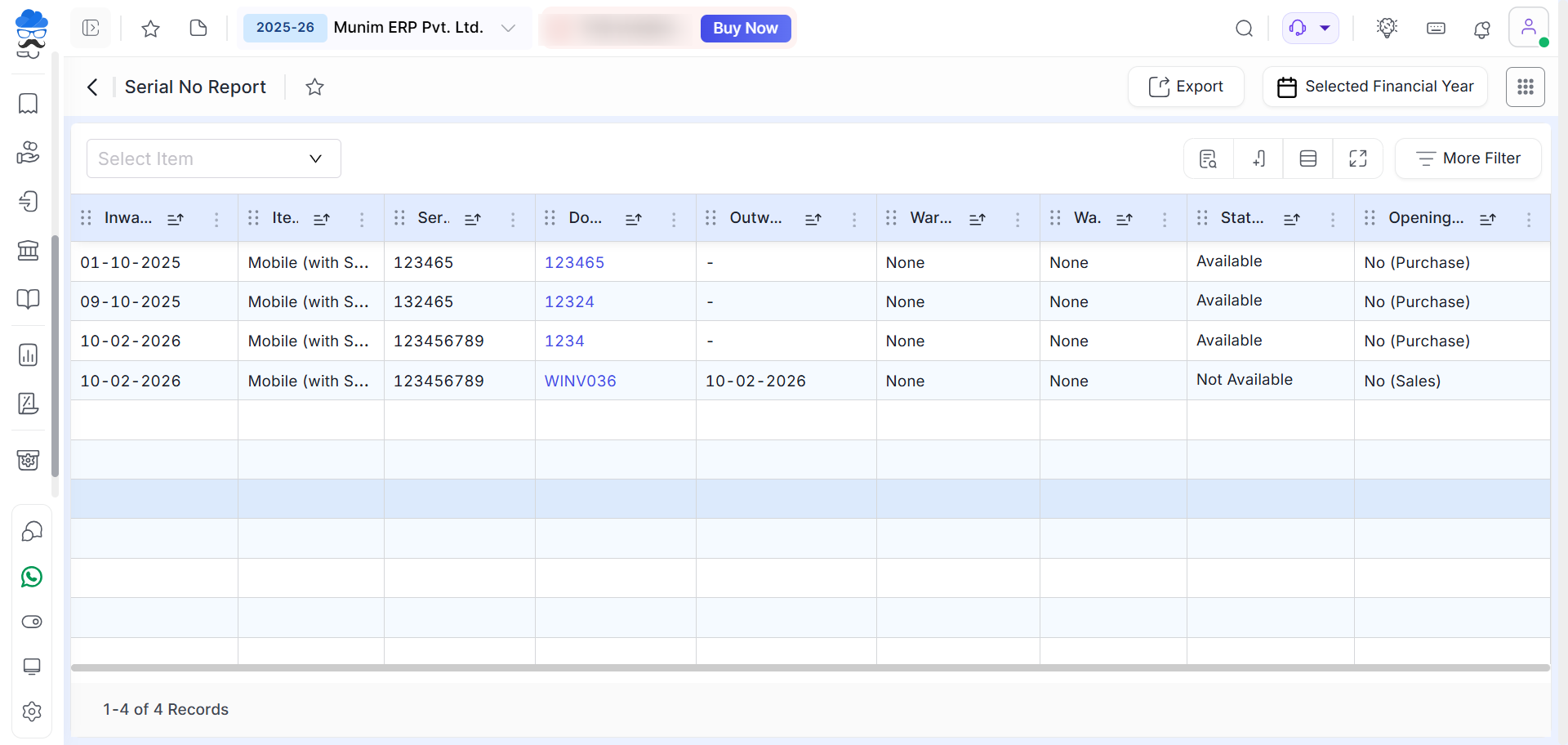
After opening the report, the system displays all available serial-number-wise inventory transactions.
You can use the Select Item filter at the top to view serial numbers for a specific item.
Understanding the Report Columns
The report provides the following information for each serial number:
- Inward Date – Date on which the item was received or purchased.
- Item Name – Name of the inventory item.
- Serial Number – Unique serial number assigned to the item.
- Document Number – Purchase or sales document reference number.
- Outward Date – Date on which the item was sold or issued.
- Warranty Reference – Warranty details linked with the serial number.
- Warranty Status – Current warranty status of the item.
- Status – Indicates whether the serial number is currently Available or Not Available.
- Opening Type – Displays whether the entry originated from Purchase, Sales, or Opening Stock.
You may filter the report by date using the options located in the top-right corner. Also, utilise the item selection field at the top left to search for specific inventory items.
Available Statuses
- Available – The serial number is currently in stock and available.
- Not Available – The serial number has been sold or issued and is no longer available in stock.
Exporting the Report
Click the Export button available at the top-right corner to download the report for further analysis or record keeping.
Need Assistance?
For any inquiries or assistance, please contact our support team.


