
 75 views
 Overview
The Bulk Action feature in Munim allows you to select multiple transactions at once and perform available actions on them together, instead of processing each transaction individually.
Benefits
- Perform actions on multiple transactions at the same time.
- Save time when handling a large number of records.
- Easily review the selected transactions before applying an action.
How to Use Bulk Action
Step 1: Open Bulk Action
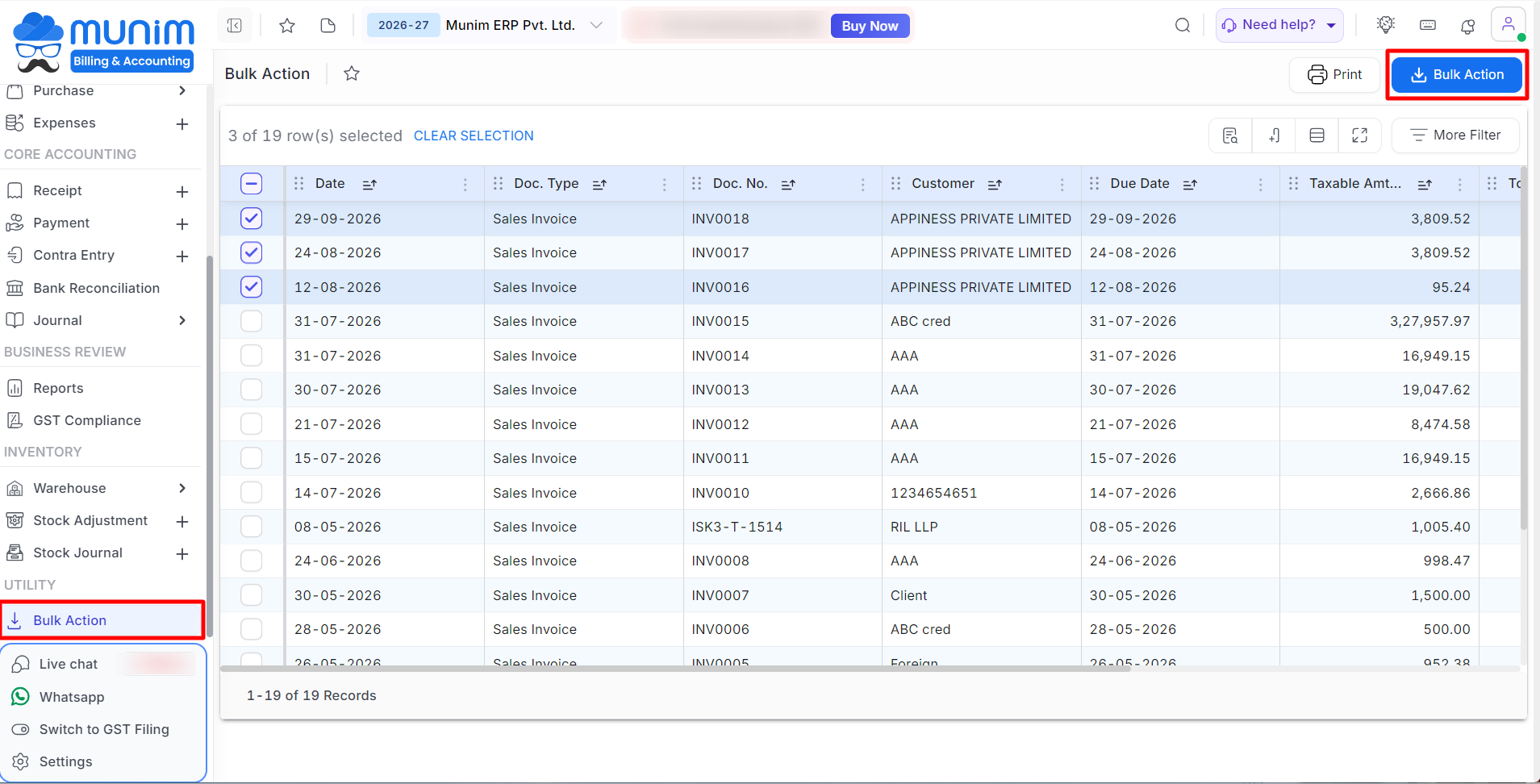
- Go to Bulk Action from the left sidebar main menu under the Utility section.
- The Bulk Action page displays the available Sales Invoice transaction records.
Step 2: Select Transactions
- Use the checkbox beside each transaction to select the required records.
- You can select multiple transactions or all at once.
- The number of selected records is displayed at the top of the list.
+−⟲
Step 3: Perform Bulk Action
- After selecting the required transactions, click the Bulk Action button at the top-right.
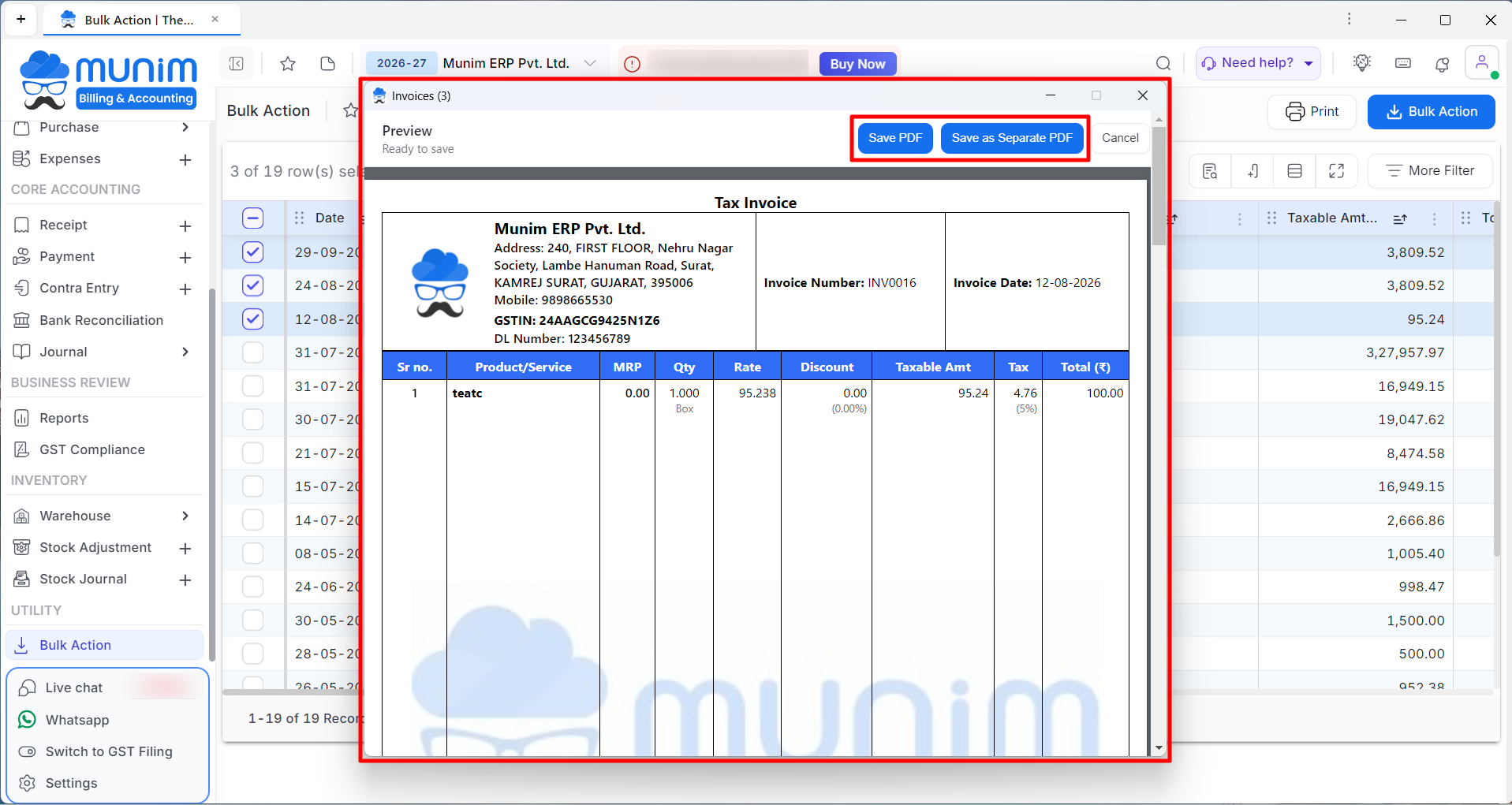
- Now it will open a preview window for your selected invoices before downloading.
- Select the required action from the available options at the top:
- Save PDF: This option generates a single, combined PDF file containing all the selected invoices.
- Save as Separate PDF: Generates individual PDF files for each selected invoice, downloaded as a single batch.
- The selected PDF files will be automatically downloaded to your local device.
+−⟲
Other Options
- Print: Use the Print button to check Printing template settings of Sales Invoice.
- More Filter and other icons: Apply filters to quickly find the transactions you want to select. Use icons to search or show/Hide columns.
- Select All: Use the checkbox in the header to select the available records displayed in the list.
- Clear Selection: Click this option at the top of the list to deselect selected transactions.
Important Notes
- Carefully review the selected transactions before performing a bulk action.
- Utilise column search option to search, select and download a particular party’s Invoices.
- The available bulk actions may vary depending on the transaction type and records selected.
- Use More Filter when working with a large number of transactions to quickly identify the required records.
Need Assistance?
If you need help using Bulk Action, contact the Munim Support Team for assistance.


