
 169 views
 The GSTR-2A Reconciliation feature helps you compare purchase data in your books with supplier data available in GSTR-2A and identify mismatches before filing returns.
Step 1: Go to GSTR-2A Reconciliation
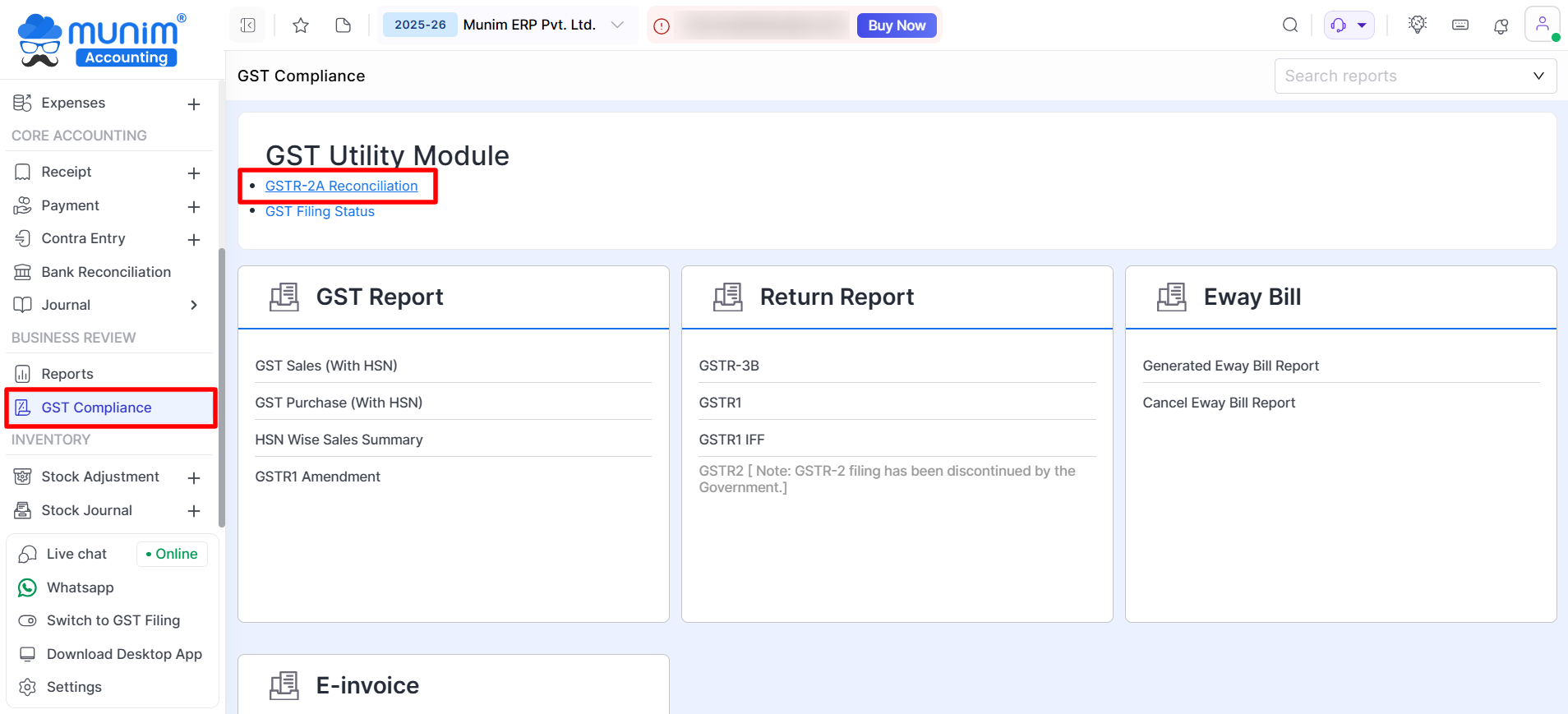
- Log in to Munim Accounting software, go to GST Compliance from the left main menu.
- Here, click on GSTR-2A Reconciliation. The reconciliation screen will open.
+−⟲
Step 2: Authorise with OTP and Select Period
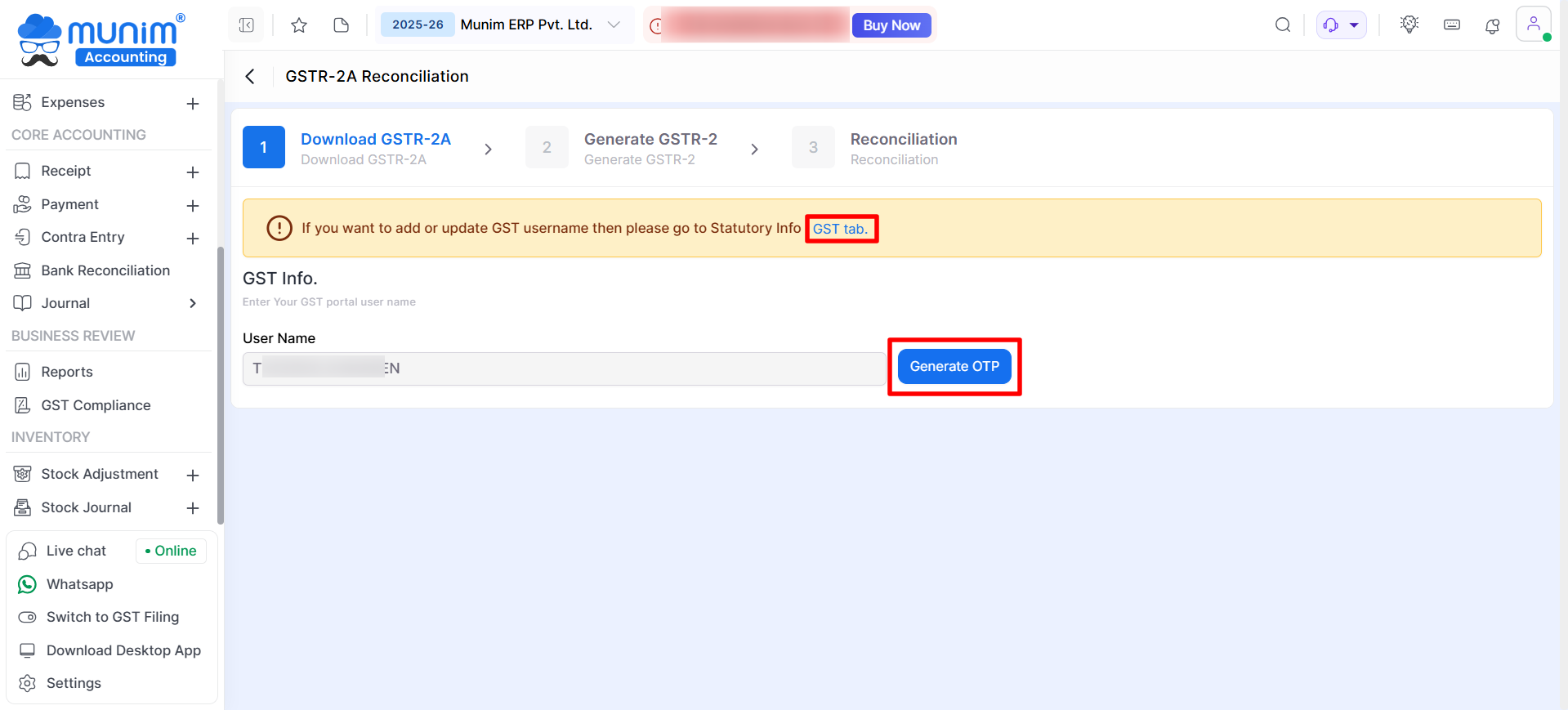
- On this page, click the “Generate OTP” option. Please input your GST portal username by clicking on the GST tab option if no User Name is showing.
- After requesting OTP, input the OTP to verify and proceed with the reconciliation.
+−⟲
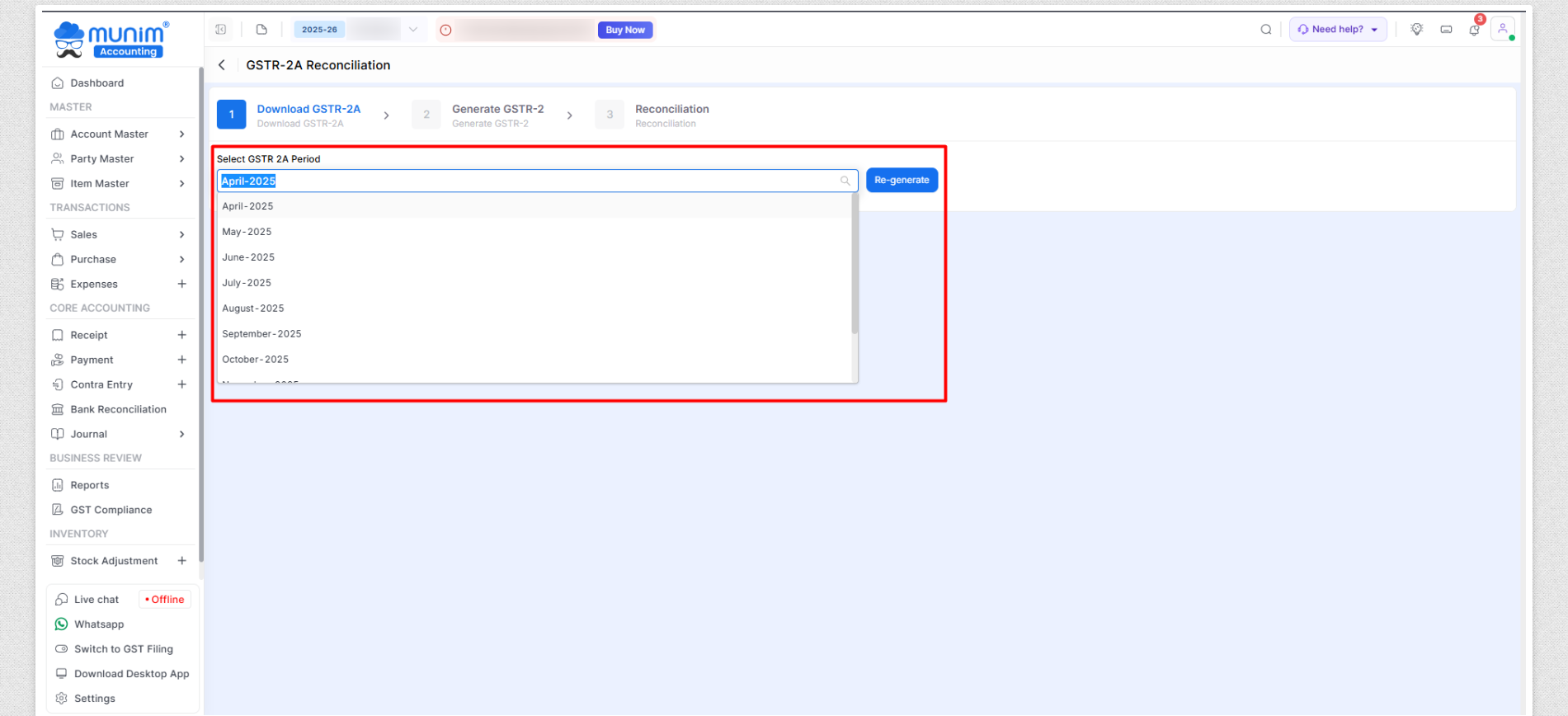
- Now, on this page, select the required GSTR-2A Period
- Select the corresponding Book Period (GSTR-2 period)
- Make sure both periods are selected correctly before starting reconciliation.
+−⟲
Step 3: Start Reconciliation
- Click on the Reconciliation button to generate the Reconciliation report.
+−⟲
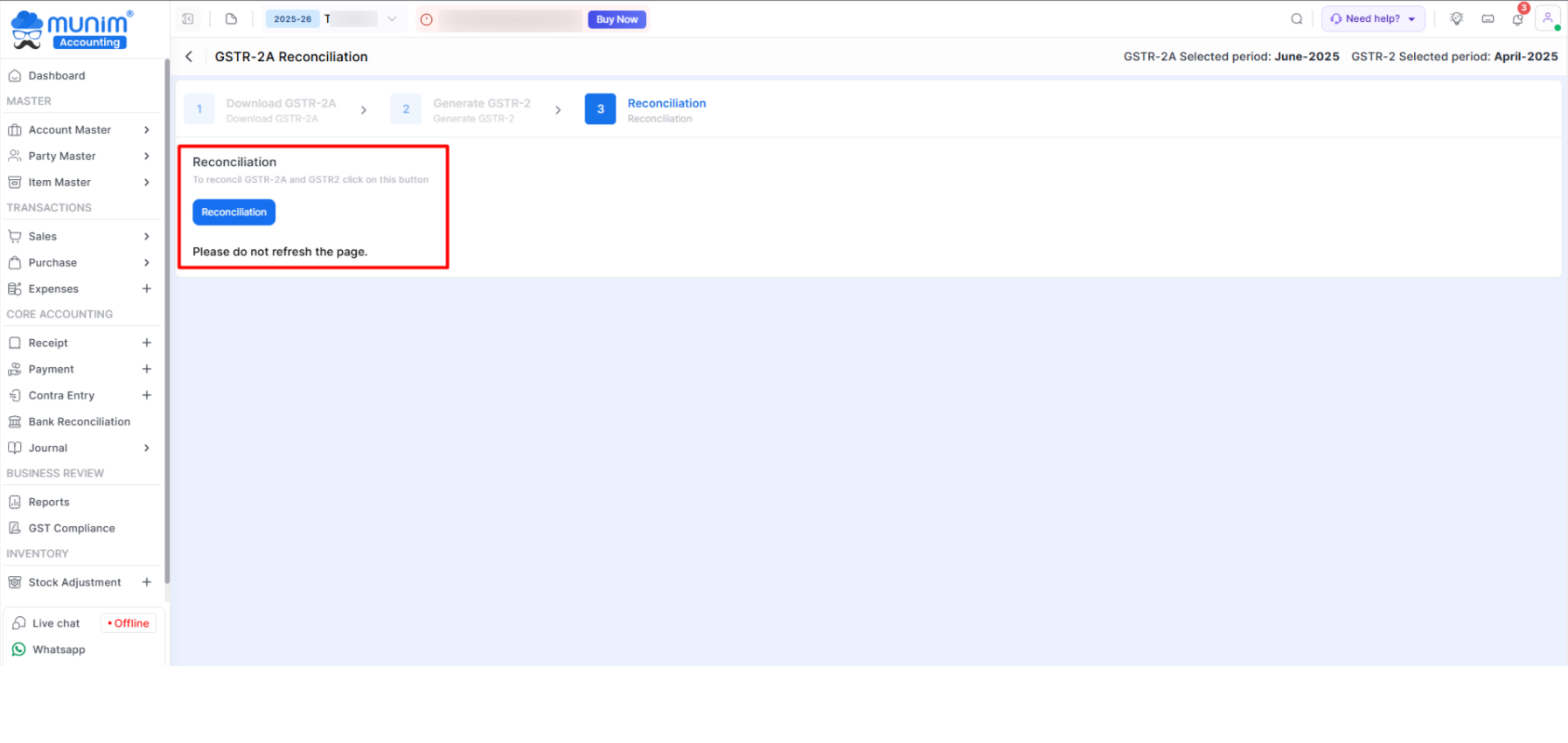
Important: Do not refresh the page, do not close the window and wait until processing is completed. Processing time depends on the number of invoices.
Once reconciliation starts, the system will:
- Compare GSTIN, Match Invoice Number, Verify Invoice Date, Compare Taxable Value and GST Amount
No manual action is required during processing.
Step 4: View Summary Tab
- After completion, you will land on the Summary tab.
- Here you can see the summarised data of B2B and CDNR reconciliation.
+−⟲
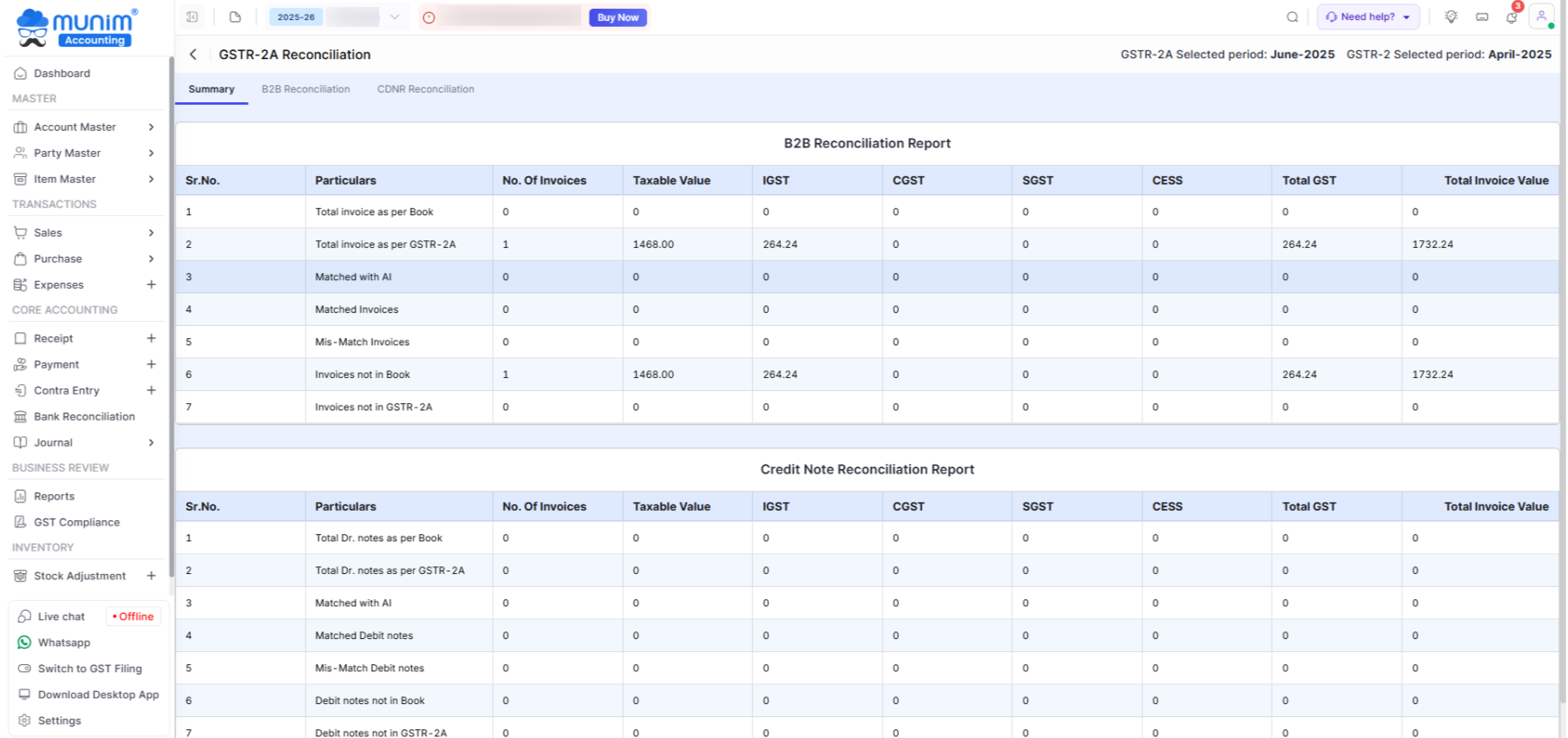
Here you can see:
B2B Reconciliation Report
- Total invoice as per Book, Total invoice as per GSTR-2A, Matched with AI, Matched Invoices, Mis-Match Invoices, Invoices not in Book and Invoices not in GSTR-2A
- With complete tax breakup: Taxable Value, IGST, CGST, SGST, CESS, Total GST, Total Invoice Value.
Credit Note Reconciliation Report (CDNR)
- Total Dr. notes as per Book, Total Dr. notes as per GSTR-2A, Matched Debit Notes, Mis-Match Debit Notes, Debit notes not in Book and Debit notes not in GSTR-2A
Step 5: Check Detailed Reports
You can click on:
- B2B Reconciliation tab to see invoice-wise details
- CDNR Reconciliation tab to see debit/credit note details
Here you can review each invoice and identify exact differences.
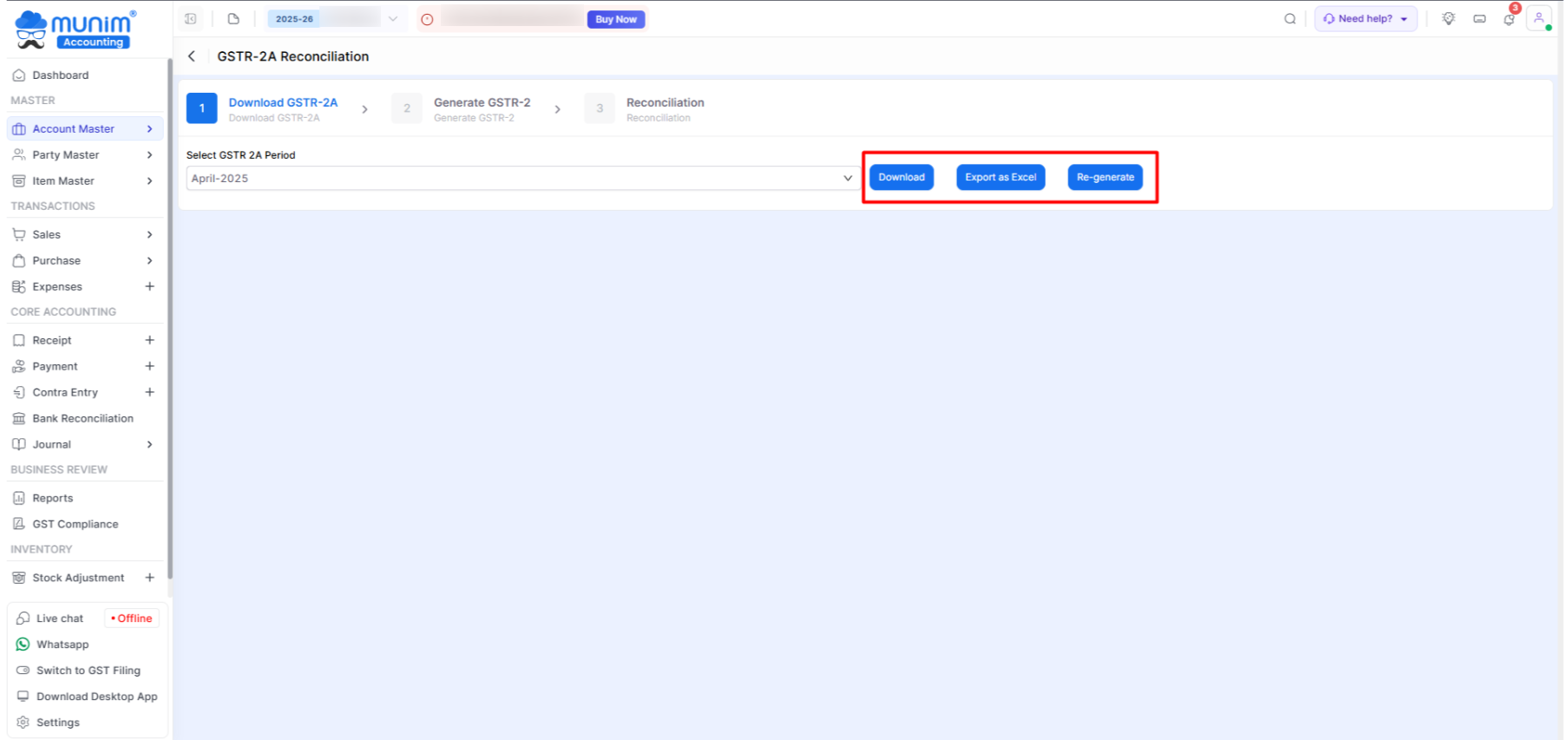
Step 6: Download Report
- After checking the report, once you get back to the GSTR-2A Download section, you will get the Download, Export as Excel and Re-Generate buttons.
+−⟲
Step 7: Take Necessary Action
Based on reconciliation results:
Finalize eligible ITC
Contact vendor for missing invoices
Correct purchase entry if wrongly entered
Verify tax amount differences
Remove duplicate entries if any


