
 258 views
 Munim Accounting allows you to quickly share your Sales Invoice with customers through WhatsApp. This helps in faster communication, instant invoice delivery, and timely payment follow-ups.
Follow the steps below to share an invoice on WhatsApp.
Steps to Share Sales Invoice on WhatsApp
Step 1: Open Sales Invoice List
- Go to Sales from the left-side menu.
- The Sales Invoice list will be displayed with all created invoices.
Step 2: Open Invoice Action Menu
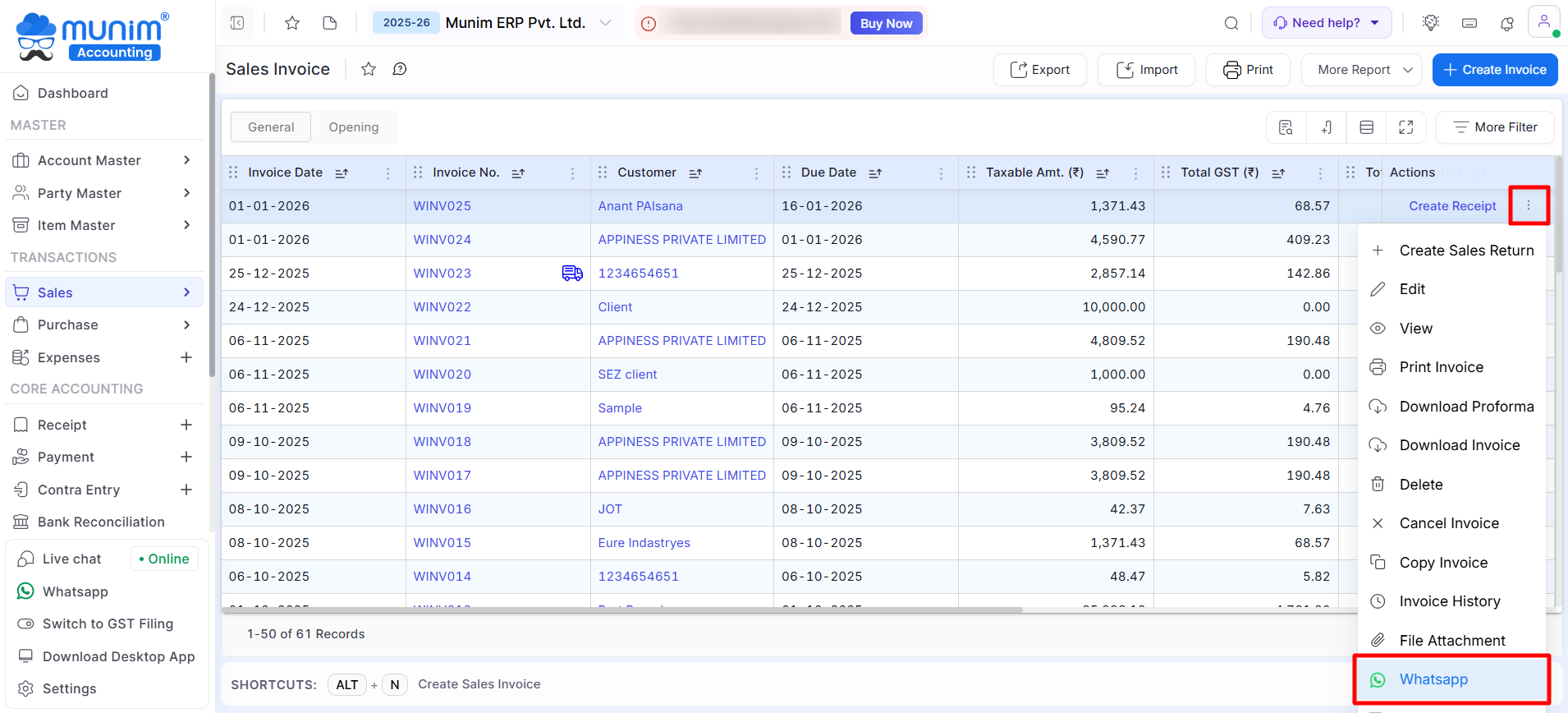
- Locate the invoice you want to share.
- Click on the three-dot (⋮) menu available under the Actions column.
- From the dropdown list, click on WhatsApp.
+−⟲
Step 3: Send WhatsApp Popup
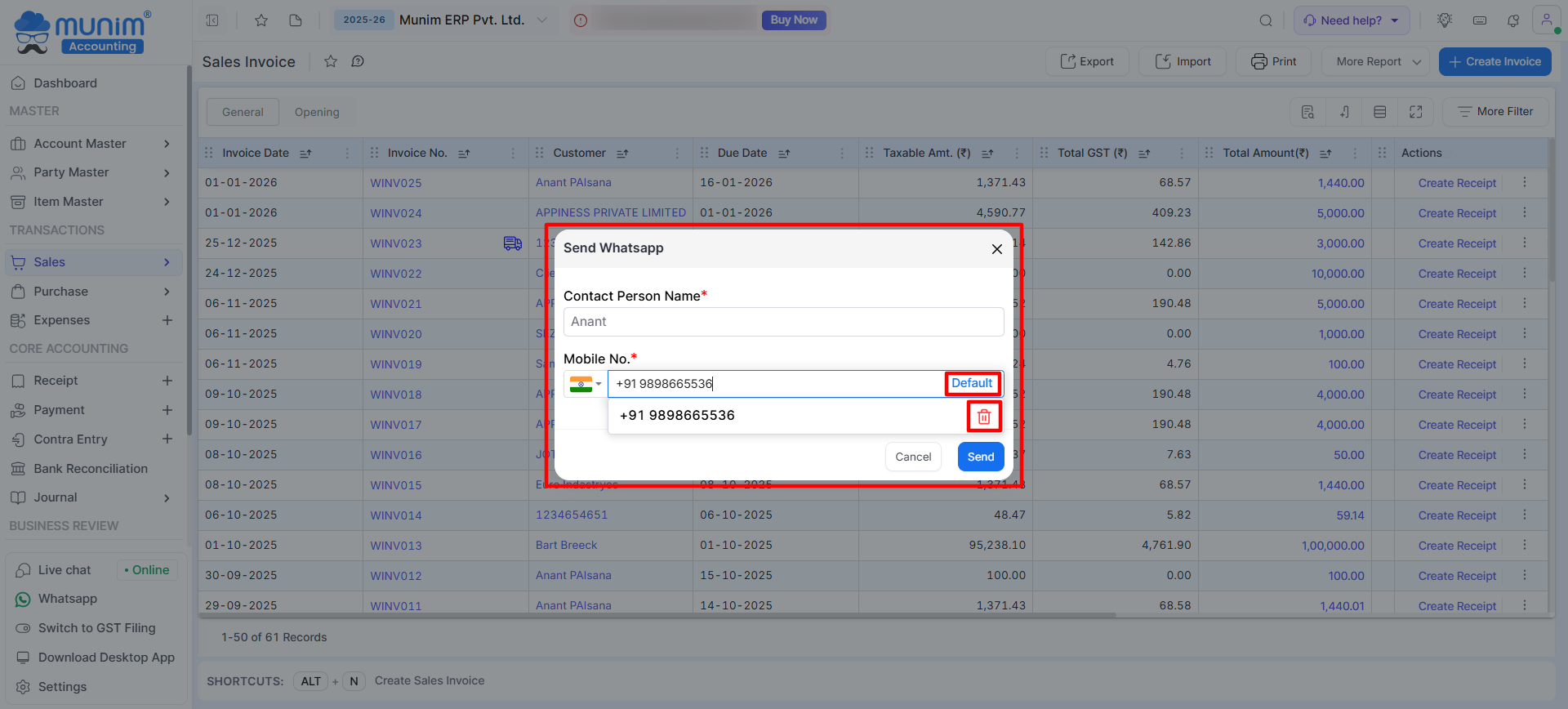
- A Send WhatsApp pop-up will appear.
- The following details will be shown:
- Contact Person Name (auto-filled from customer details)
- Mobile Number
+−⟲
Step 4: Select or Manage Mobile Number
- If multiple mobile numbers are available, select the required number.
- You can:
- Choose the Default mobile number for this customer.
- Delete unwanted numbers using the delete icon
- Ensure the selected number is active on WhatsApp.
Step 5: Send Invoice via WhatsApp
- After verifying the details, confirm the action by clicking the Send button.
- A WhatsApp new tab will open or redirect to the WhatsApp application if you are already logged in.
- The invoice will be shared with the customer via WhatsApp once you click send.
Important Notes
- WhatsApp option is available on Sales Invoice list, and the Save & Send functionality can be utilized during invoice creation.
- Mobile number is fetched from Party Master. You can change it while sending and make them default.
- Make sure the customer’s mobile number includes the correct country code.
- A stable internet connection and prior login to WhatsApp in system are required to send messages.
Need Assistance?
If you face any issues while sharing invoices via WhatsApp or need help updating customer contact details, feel free to contact our support team.


