
 69 views
 The Party Balance Confirmation Report feature allows you to generate balance confirmation statements for Customers and Vendors directly from the Party Master. This report helps in verifying account balances and is useful for reconciliation and audit purposes.
How to Access the Party Balance Confirmation Report
- On the My Company page, go to the Party Master section.
- Open either the Customer or Vendor list page.
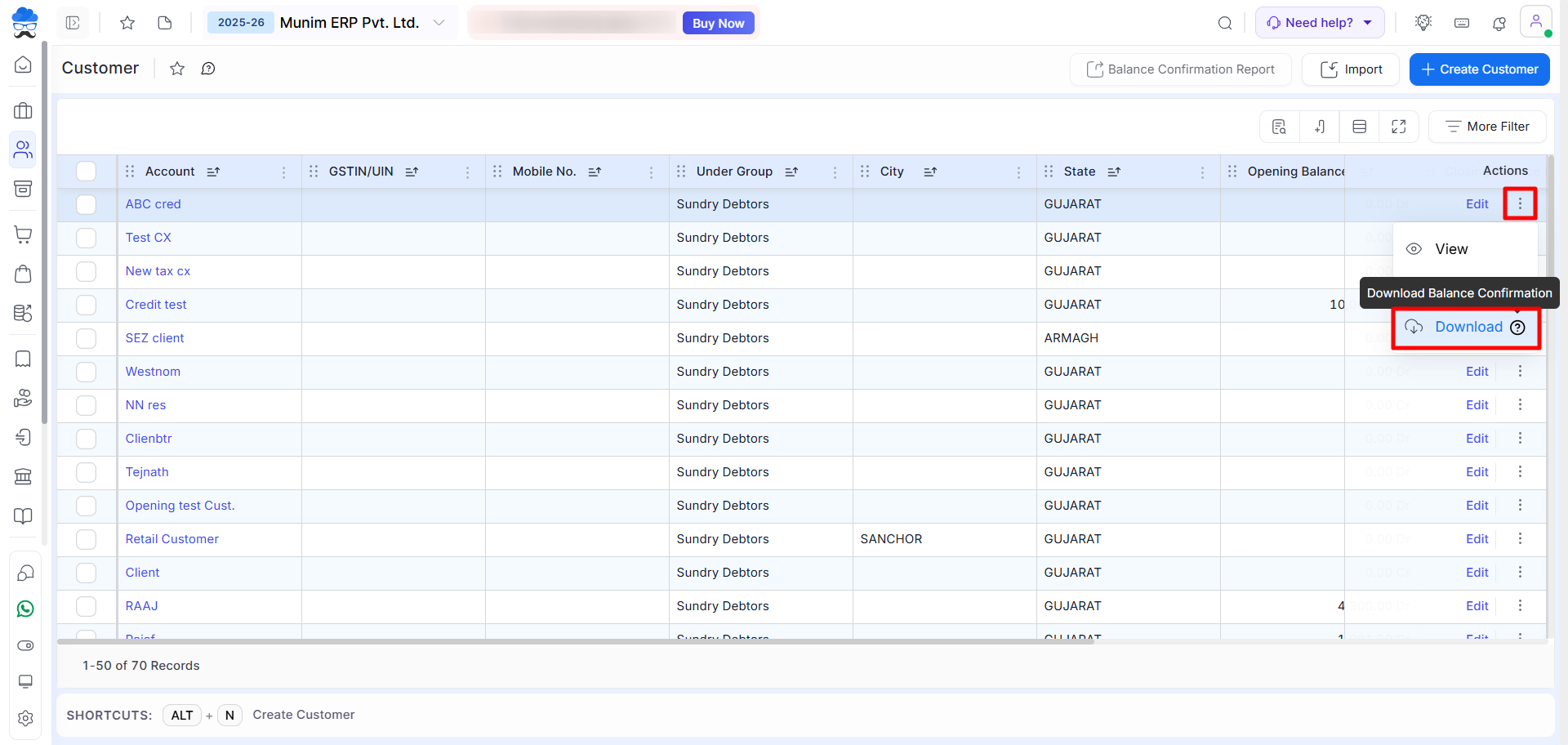
- Here, you may select the “Action” menu for any account and then choose the “Download” option from the dropdown.
+−⟲
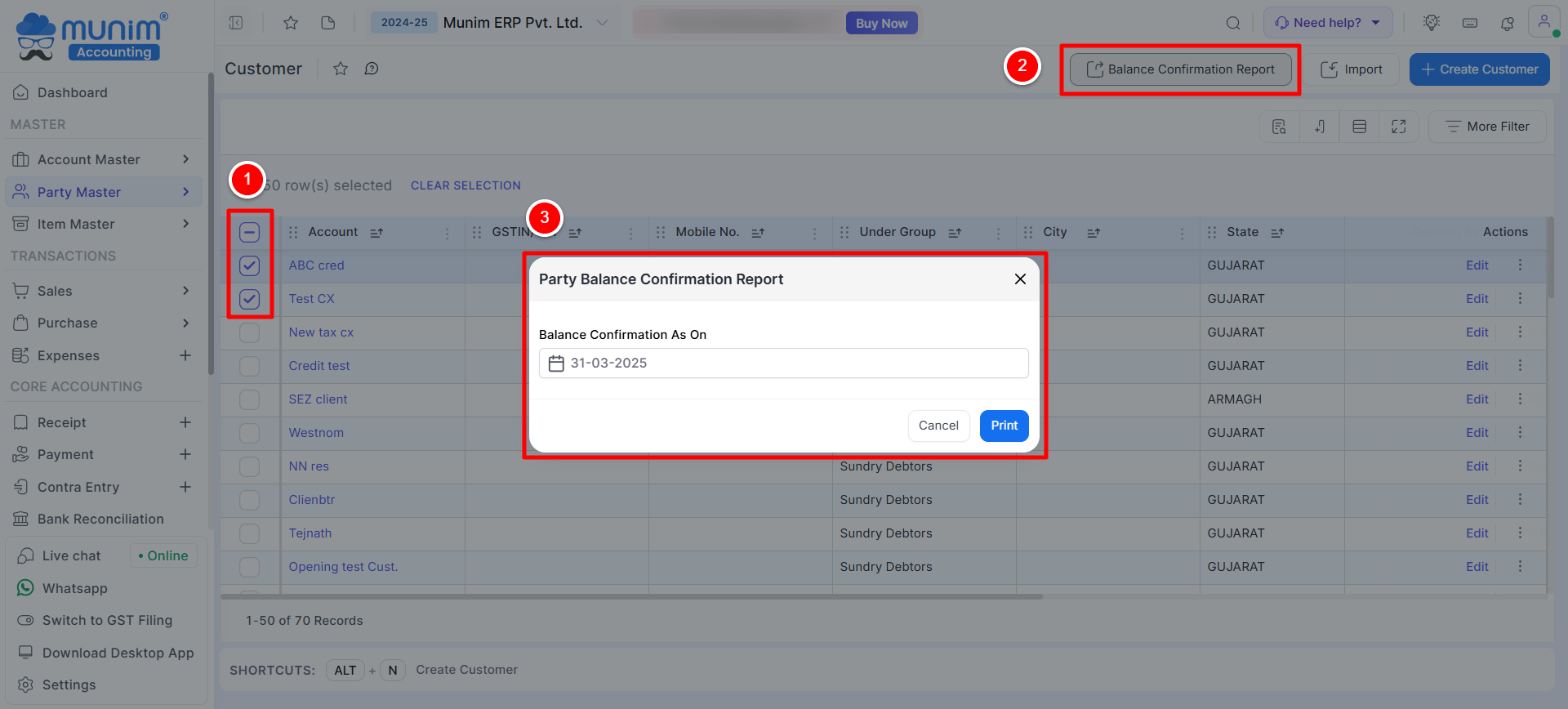
- Alternatively, select multiple parties by ticking the corresponding checkbox.
- Click on the Balance Confirmation Report button available at the top.
+−⟲
Generate the Report
- After clicking the Balance Confirmation Report button, a pop-up window will appear.
- Enter the Balance Confirmation As On date.
- Click on the Print button to generate the report.
Report Format & Details
The generated report includes the following information:
- Company Name and Address, Customer/Vendor Name and Address
- Balance as on selected date, Closing Balance (Dr/Cr)
- Confirmation section (Confirmed / Not Agreed)
- Difference amount field if not agreed
- Remarks section and Authorised Signatory details
+−⟲

Confirmation Methods
The balance can be confirmed using any of the following methods available in the Instructions for Confirmation section:
1. Confirmation by Email Reply
- The party can confirm the balance by replying to the email with the prescribed confirmation statement.
- If the balance matches, they can confirm agreement.
- If not, they can mention the correct balance along with the difference amount and remarks.
2. Confirmation by Signed Copy
- The party can print the report, sign and stamp it, and share the scanned copy as confirmation.
Key Benefits
- Helps in easy balance confirmation with parties
- Useful during account reconciliation
- Supports audit and compliance requirements
- Can be printed and shared with customers/vendors for confirmation
Need Assistance?
If you have any questions or need further assistance, please contact our support team. We’re here to help!


