
 3367 views
 Overview
The Secondary Unit feature allows you to maintain inventory and transactions using two units of measurement for the same item. By defining a secondary unit and conversion rate, you can manage stock, sales, and reporting more accurately.
Benefits
- Manage Multiple Units for the same item.
- Automatic Unit Conversion based on defined conversion rates.
- Flexible Inventory Management for items purchased and sold in different units.
- Improved Reporting Accuracy in stock-related reports.
- Consistent Stock Calculations across transactions.
Enable Secondary Unit
Steps
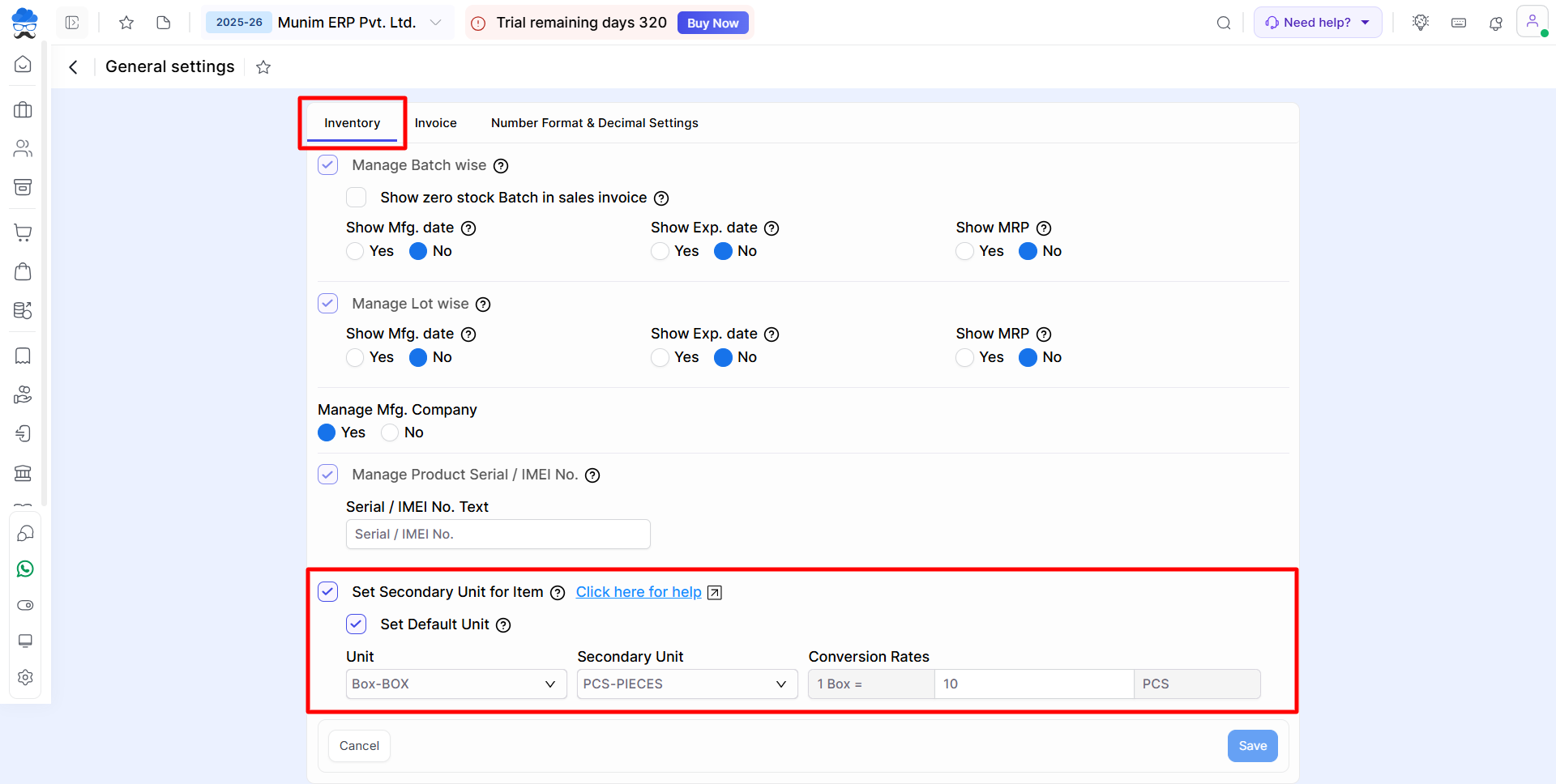
- Go to Settings → General Settings → Inventory.
- Enable Set Secondary Unit for Item.
- (Optional) Enable Set Default Unit if you want predefined units for new items.
- Select:
- Unit
- Secondary Unit
- Conversion Rate
- Click Save.
+−⟲
Configure Secondary Unit in Item Master
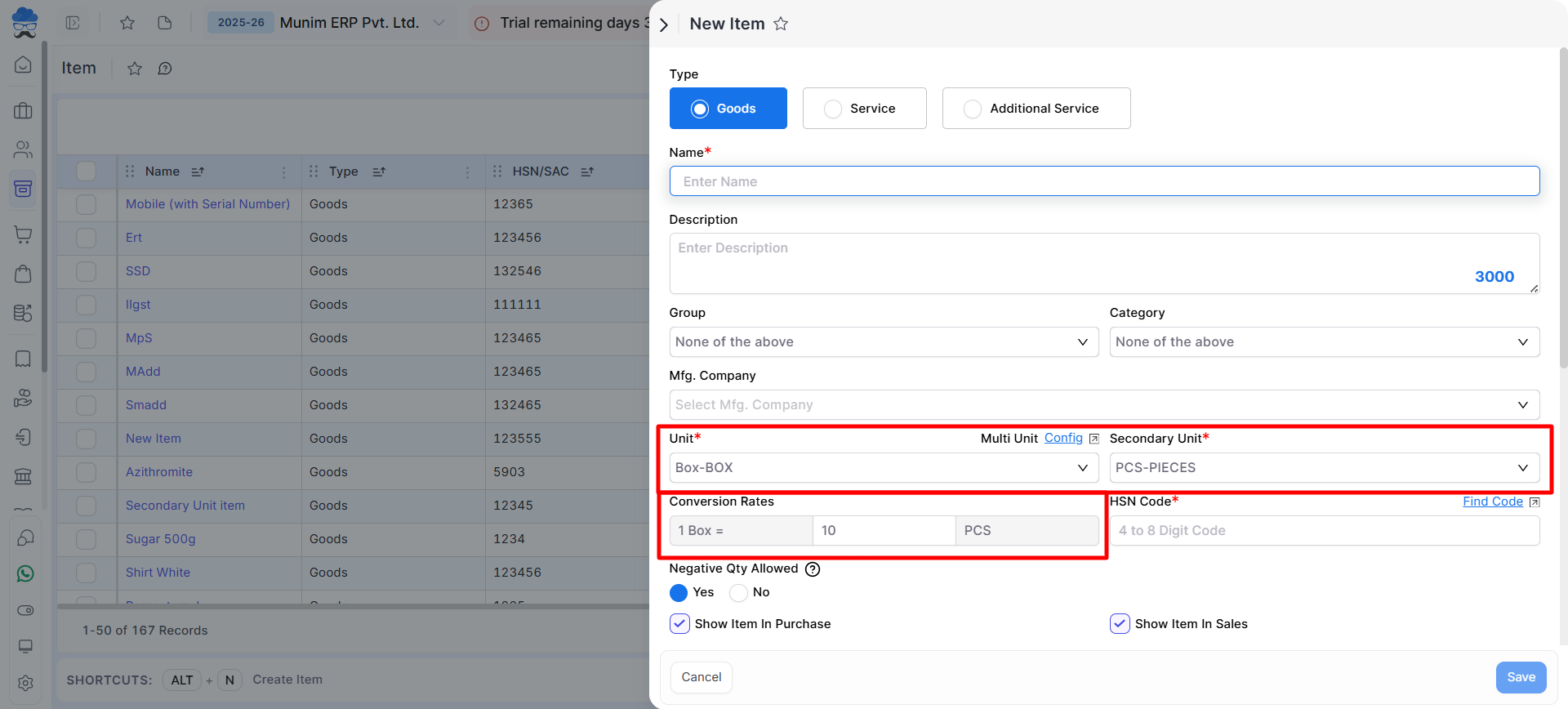
Once the feature is enabled, additional fields become available in the Item Master.
Steps
- Open Item Master and create a new item or edit an existing item.
- Enter the primary Unit.
- Select the Secondary Unit.
- Define the Conversion Rate between both units.
- Save the item.
Example:
- 1 Box = 10 Pieces
+−⟲
Use Secondary Unit in Transactions
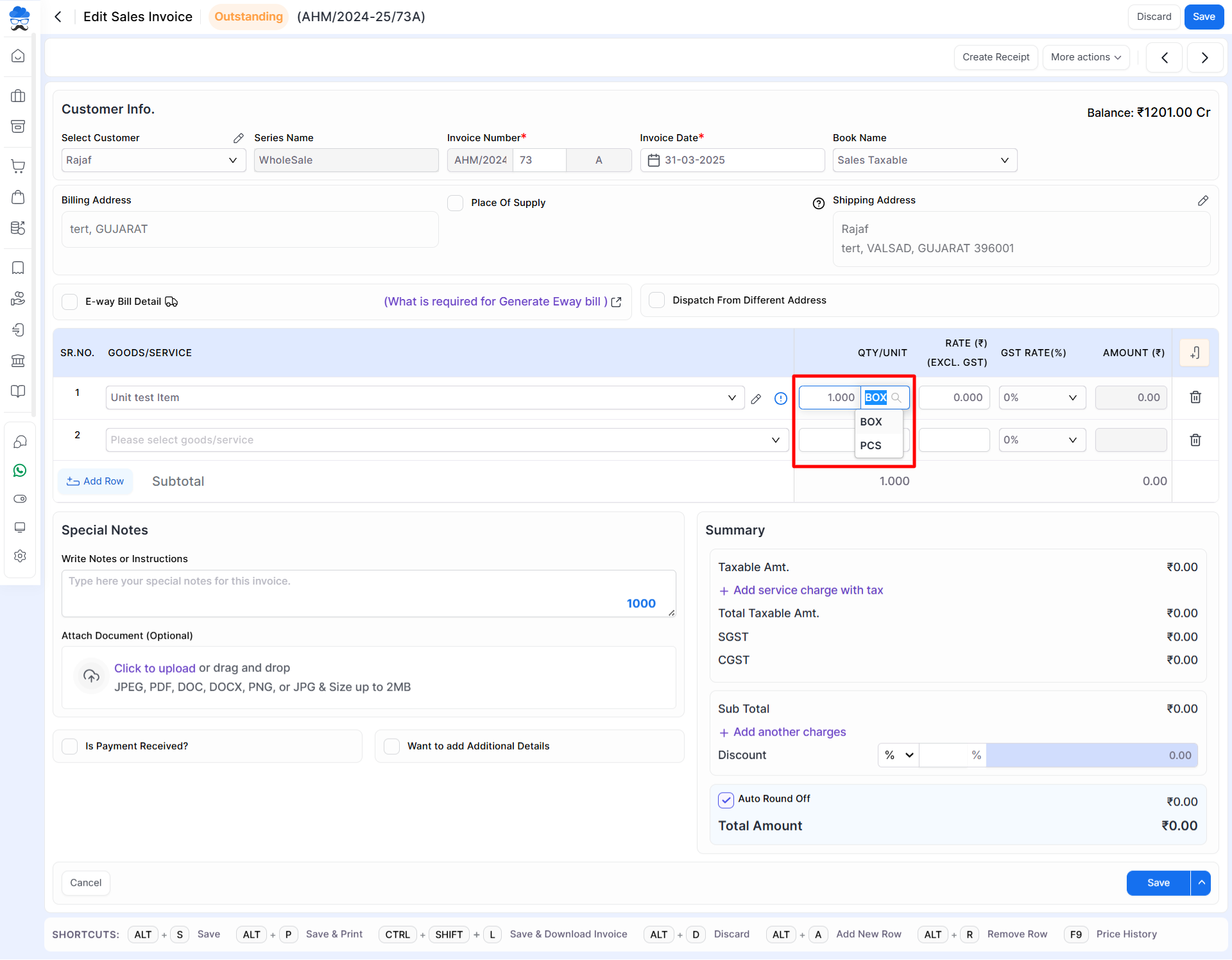
After configuring the item, the defined secondary unit and conversion rate are available during inventory and sales transactions.
Steps
- Create a sales, purchase, or inventory transaction.
- Select the item configured with a secondary unit.
- Enter quantities as required.
- The system calculates stock values based on the configured conversion rate.
+−⟲
Effect on Reports
The Secondary Unit configuration impacts inventory reports and stock calculations.
Examples:
- Stock Summary
- Inventory Reports
- Stock Valuation Reports
Report quantities are calculated according to the conversion rate defined for the item.
Important Notes
- Secondary Unit can only be used after enabling the feature in General Settings.
- A valid conversion rate must be defined between the primary and secondary units.
- Conversion rates should accurately reflect actual inventory measurements.
- Changes to conversion rates may affect future stock calculations and reports.
- The same item can be tracked using both primary and secondary units for better inventory control.
Result
- Items can be managed using both primary and secondary units.
- Stock quantities are automatically converted using the configured conversion rate.
- Inventory transactions and reports reflect accurate unit conversions.
- Stock management becomes more flexible for items sold or purchased in different units.
Need Assistance?
If you need help configuring Secondary Units or conversion rates, please contact the support team.


