
 484 views
 Overview
The Sales Order feature helps businesses record customer orders before creating a Sales Invoice. It allows you to track pending orders, manage order fulfilment, and create invoices directly from approved orders.
Sales Orders help streamline the sales process and provide better visibility into customer commitments.
Benefits
- Record customer orders before invoicing.
- Track order status efficiently.
- Convert Sales Orders into Sales Invoices.
- Generate Delivery Challans from Sales Orders.
- Manage open, completed, and cancelled orders.
- Maintain a complete order history.
Create a Sales Order
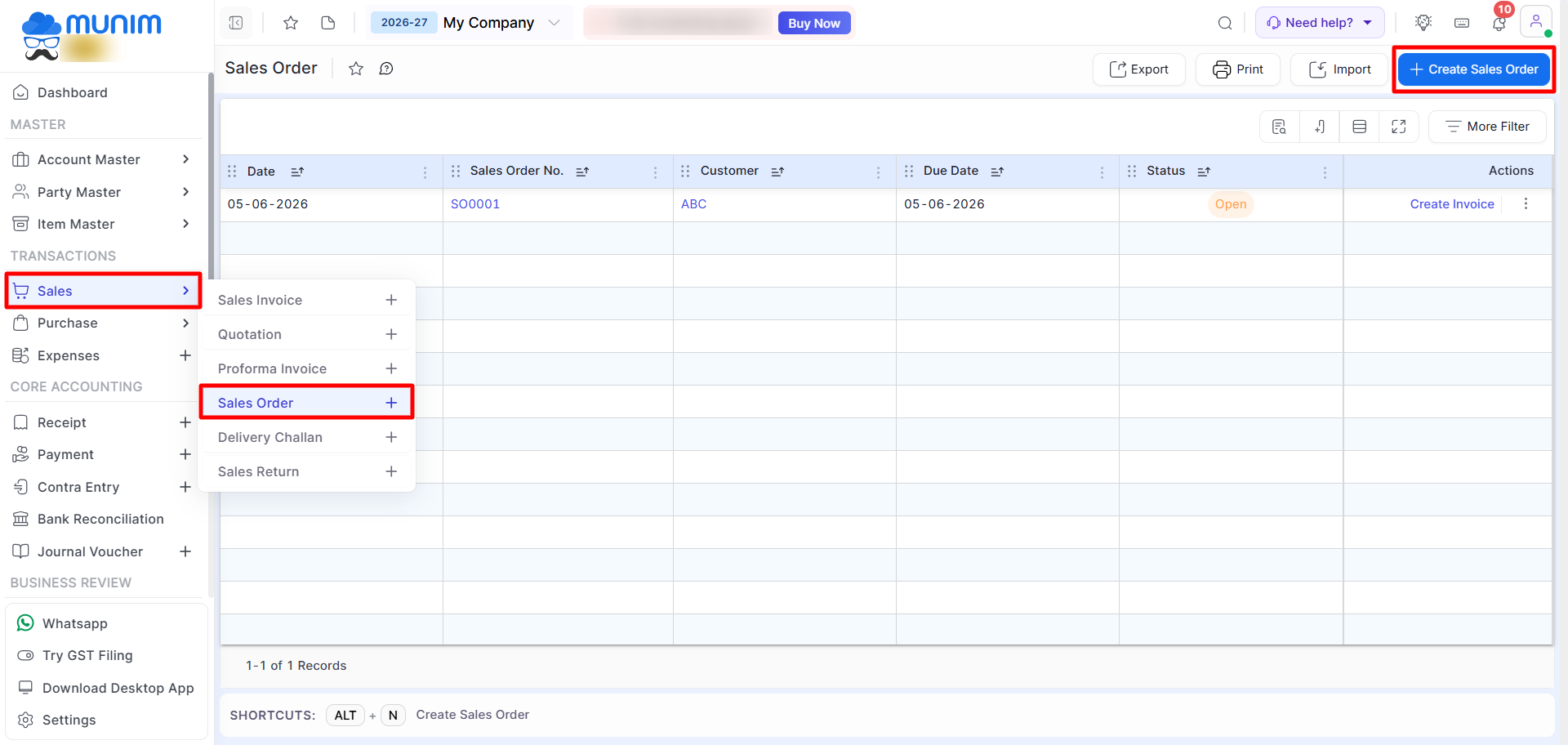
Step 1: Open Sales Order Module
- Go to the Sales module.
- Click Sales Order option.
- Click the Create Sales Order button or press Alt + N.
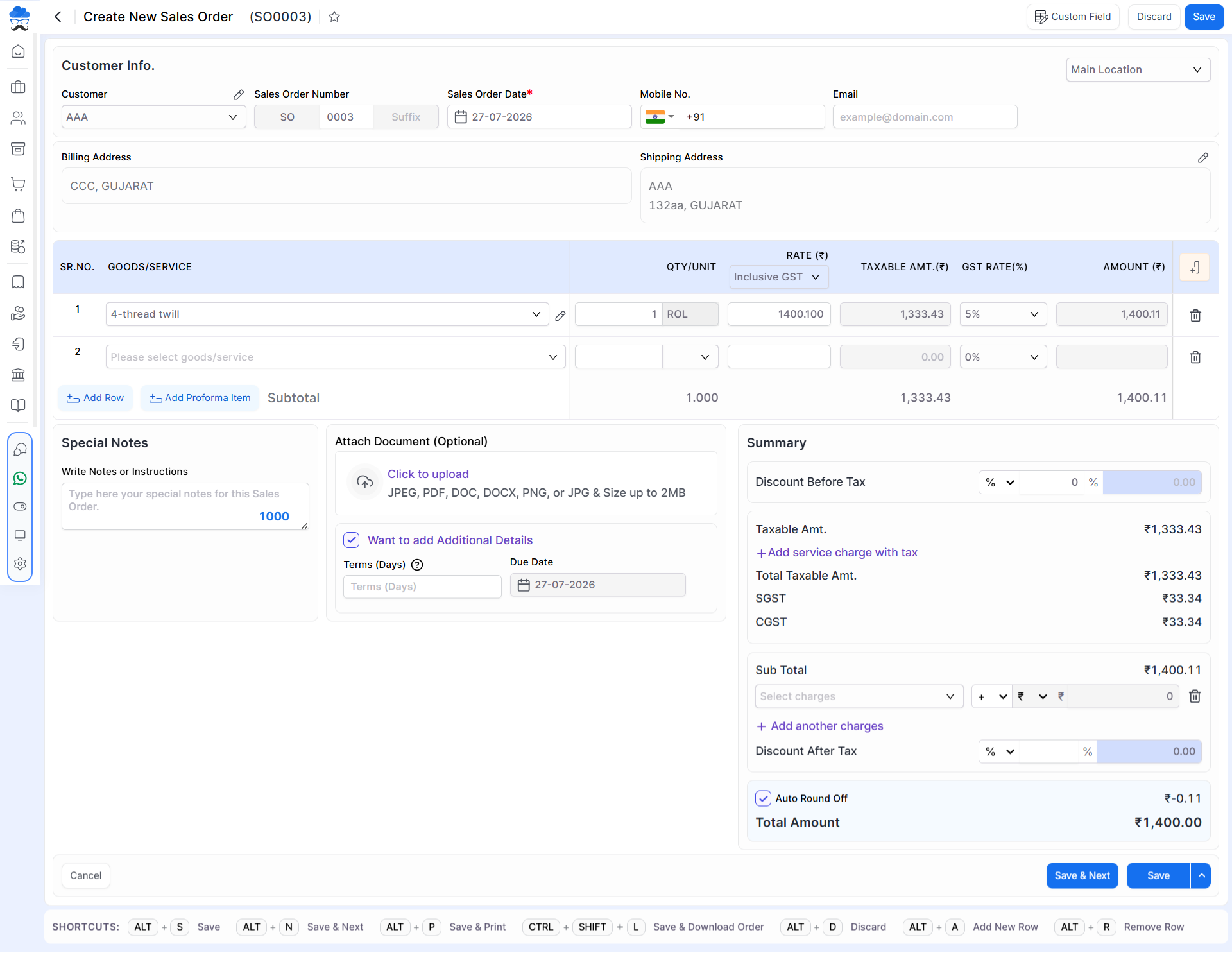
Step 2: Enter Customer Details
- Select the customer.
- Verify the billing address.
- Verify the shipping address.
- Enter the customer’s mobile number and email address if required.
- Select a specific location, which filters and displays stock levels relevant to that location.
Step 3: Add Item Details
- Select the required goods or services.
- Enter the quantity.
- Enter the item rate.
- Verify the taxable amount and total amount.
- Additional Item fields can be enabled from the Show/Hide icon at the end.
Step 4: Add Additional Information (Optional)
You can add:
- Special Notes
- Document Attachments
- Terms (Days)
- Due Date
- Additional Charges
- Discounts
Step 5: Save the Sales Order
- Review all entered details.
- Click Save.
The Sales Order will be created successfully and assigned a unique Sales Order Number.
Note: On creating sales order, specified quantity is reserved and unavailable for other transactions. If item stock is 0 and allow negative qty is disabled, you won’t be able to create sales order due to low stock.
Manage Sales Orders
Once a Sales Order is created, it will appear in the Sales Order list with its current status.
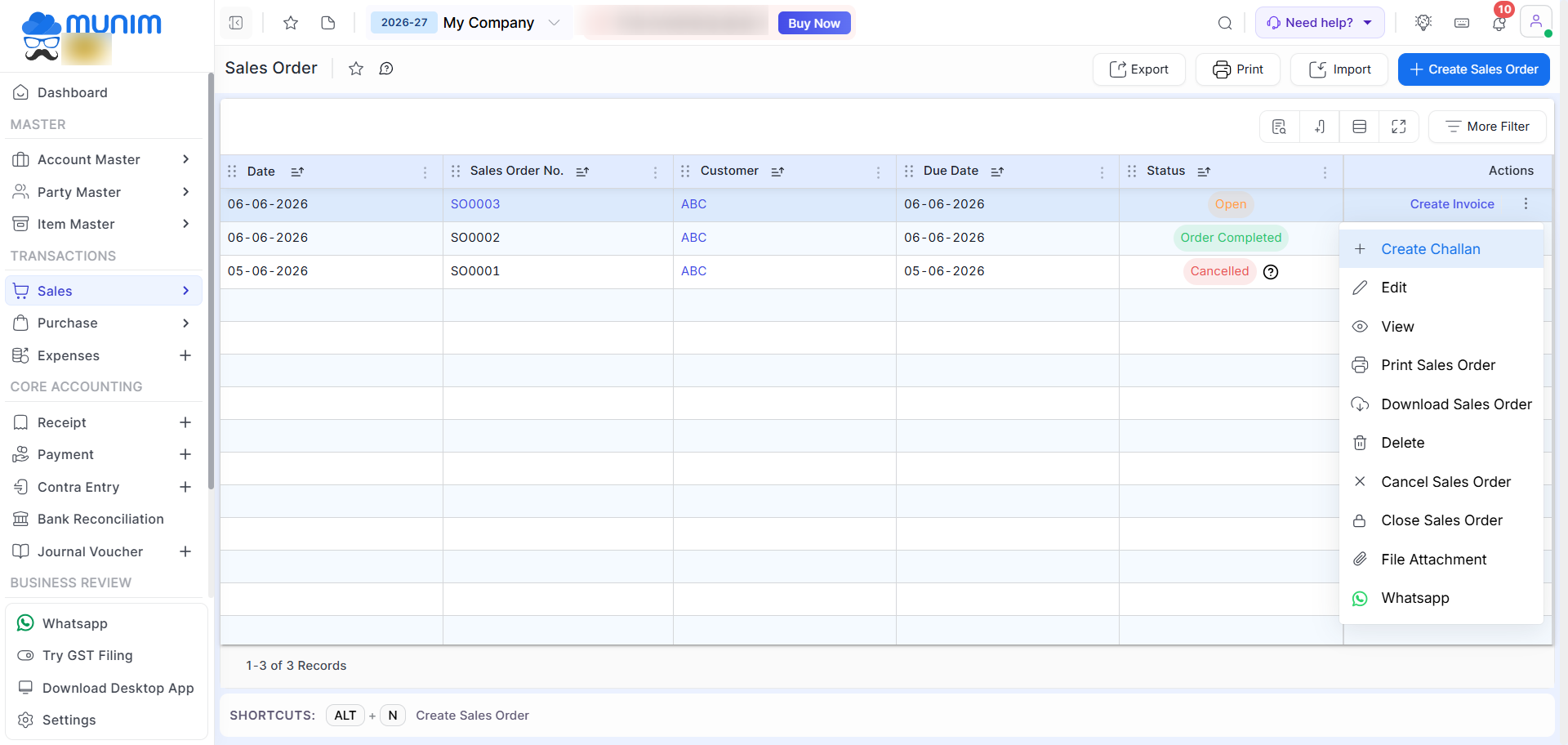
Available Actions
Click the Action Menu (⋮) beside a Sales Order to access the following options:
| Action | Description |
|---|---|
| Create Invoice | Generate a Sales Invoice from the Sales Order |
| Create Challan | Generate a Delivery Challan |
| Edit | Modify Sales Order details |
| View | View Sales Order information |
| Print Sales Order | Print the Sales Order |
| Download Sales Order | Download the Sales Order |
| Delete | Permanently delete the Sales Order |
| Cancel Sales Order | Mark the order as cancelled, can be recovered if needed |
| Close Sales Order | Mark the order as closed |
| File Attachment | Manage attached documents |
| Share the Sales Order through WhatsApp |
Available Statuses
| Status | Description |
|---|---|
| Open | Order is active and pending fulfillment |
| Order Completed | Order has been completed by converting into a delivery challan or Sales Invoice. |
| Cancelled | Order has been cancelled |
Sales Order – Quick Conversion Flow
- Quotation → Sales Order
- Proforma Invoice → Sales Order
- Sales Order → Delivery challan
- Sales Order → Sales Invoice
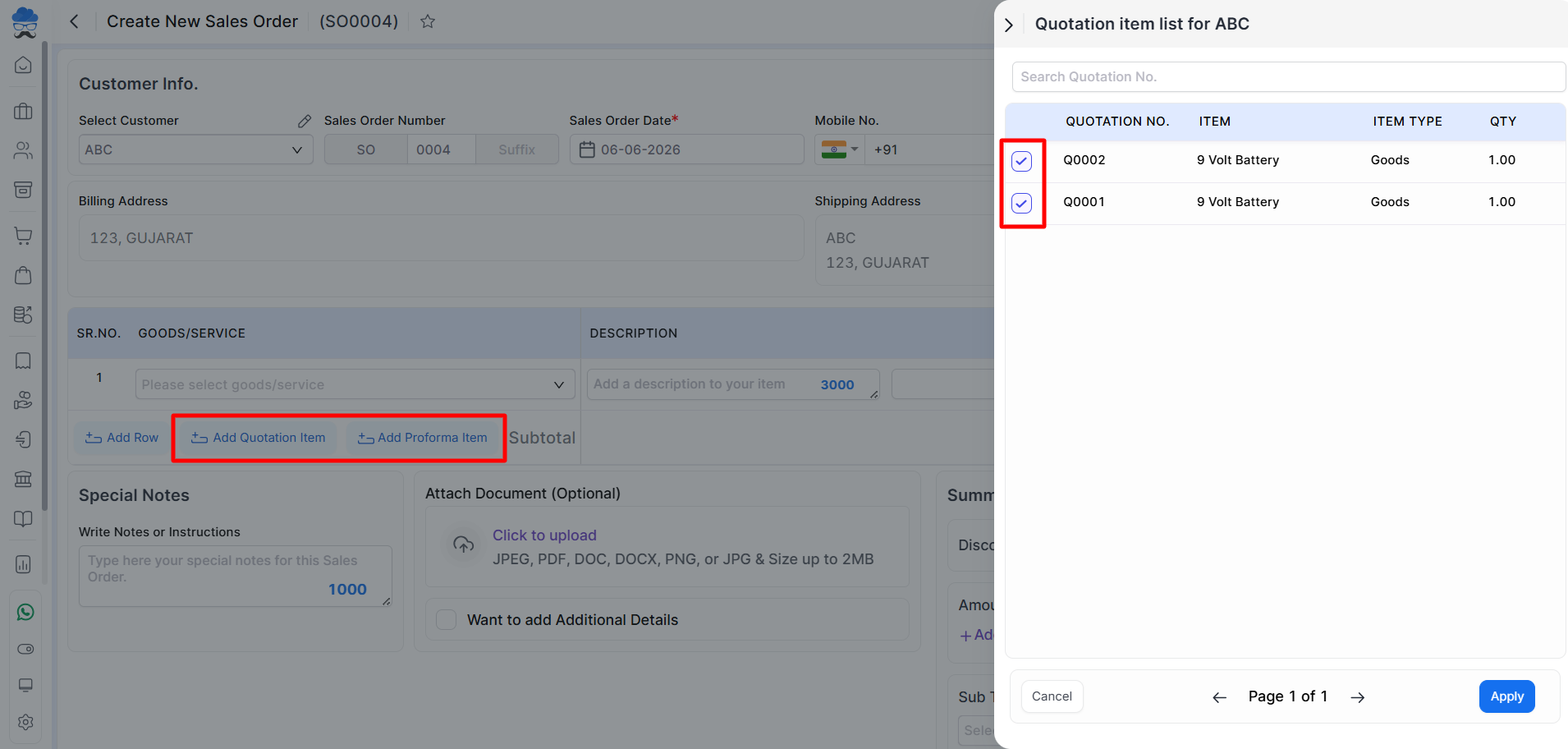
Note: The functionality for adding multiple entries is available for certain modules for conversion, as demonstrated in the screenshot.
- While creating a Sales Order, you can add multiple Quotations or Proforma Invoices to it.
- While creating a Sales Invoice, you can add multiple Sales Orders to it. (Use this method for proper conversion of remaining qty.)
Printing Template and Reports
- We offer a distinct print template for Sales Order, accessible through the Printing templates Settings module and the Sales Order list page Print Icon.
- You may utilize our comprehensive reports to monitor sales orders, item details, reserve quantity, and other key metrics.
- Please navigate to the Reports module and under the General Reports section, where you can access the Sales Order Item-wise or Sales Order Conversion reports to gain these insights.
Important Notes
- Sales Orders do not affect accounting entries until converted into transactions.
- Multiple Sales Orders can be tracked from reports only.
- Sales Orders can be converted into Sales Invoices/Challan when required.
- Orders can be closed or cancelled/recovered based on business requirements.
- Supporting documents can be attached to Sales Orders for reference.
Result
Sales Orders help manage customer order processing efficiently and provide a structured workflow from order creation to invoice generation.
Need Assistance?
For any assistance related to Sales Orders, please contact the support team.


