

 4125 views
 Overview
Munim allows you to calculate item rates either Inclusive GST or Exclusive GST. You can set the default calculation method for all invoices from General Settings or define it individually for each item during item creation. This feature is available only for Sales Invoice, Quotation, Proforma, Sales Order and Delivery Challan.
Benefits
- Set a default GST calculation method for invoices.
- Override the calculation for specific items.
- Automatically calculate taxable value and GST based on the selected method.
- Create invoices according to your business or customer requirements.
Set Default Item Rate Calculation
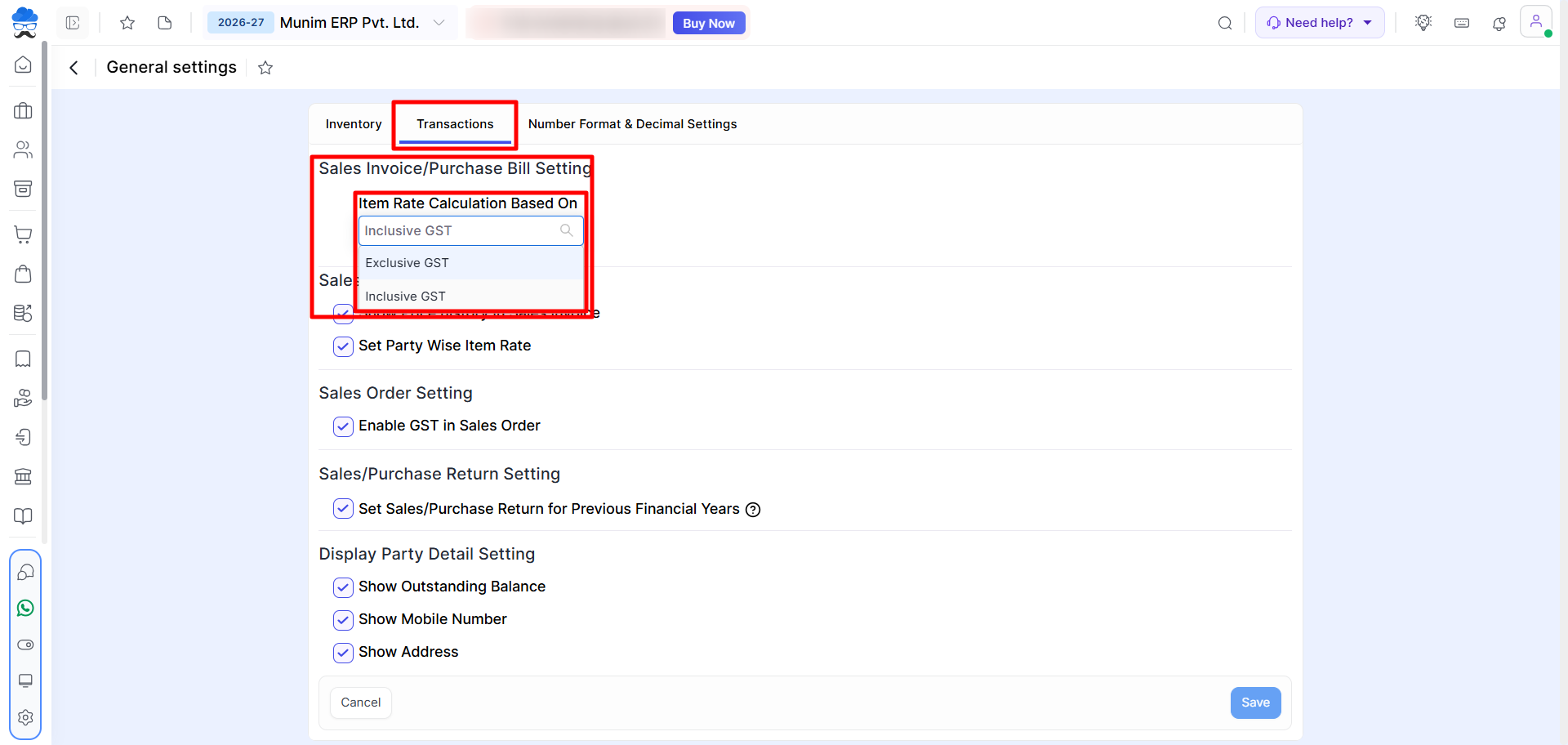
Go to Settings → General Settings → Transactions tab.
Select Item Rate Calculation Based On, choose either Inclusive GST or Exclusive GST, and click Save.
Set Item-wise Rate Calculation
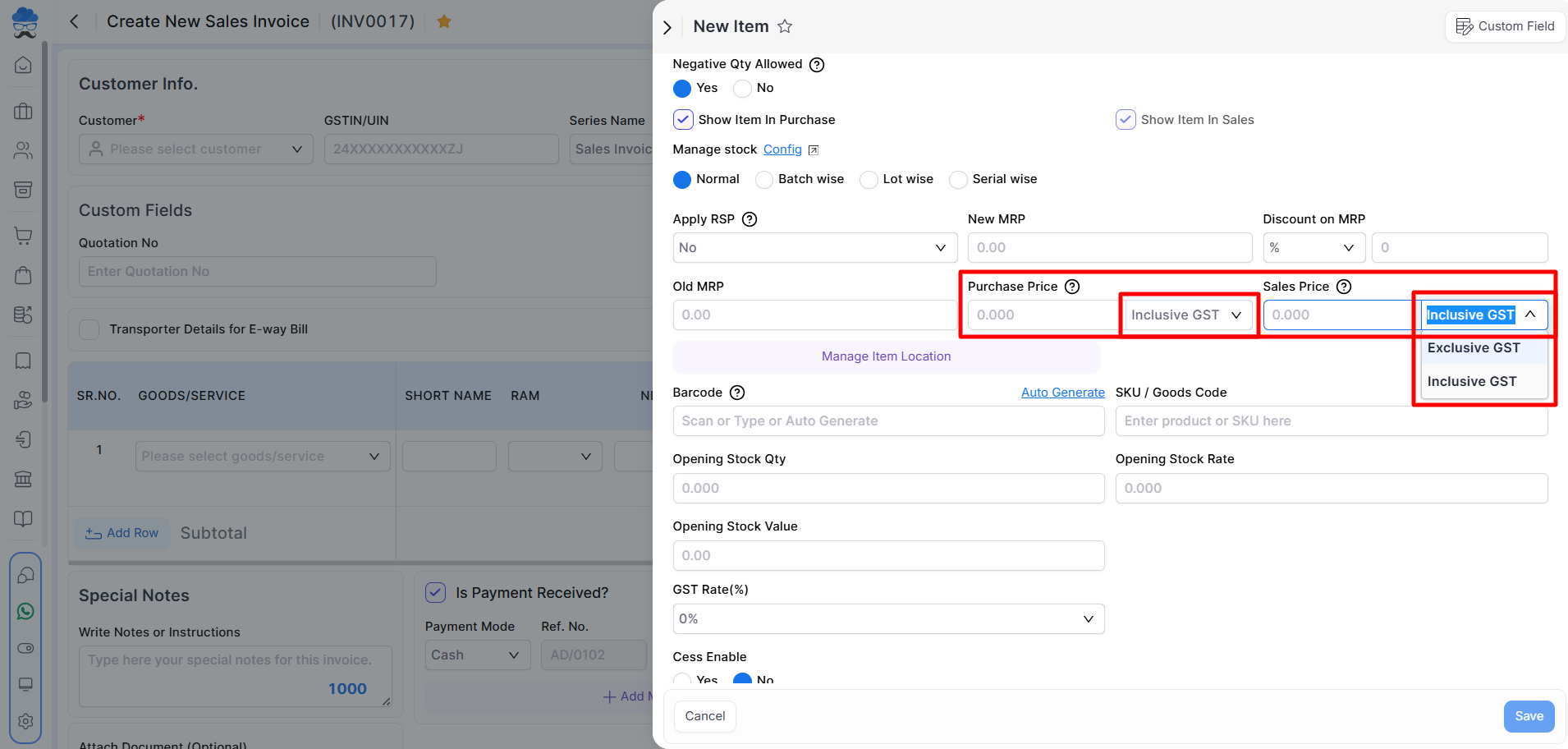
While creating or editing an item, select the required Sales Invoice/Purchase Bill Item Rate calculation type:
- Inclusive GST
- Exclusive GST
Save the item to apply the selected calculation method.
Create an Invoice
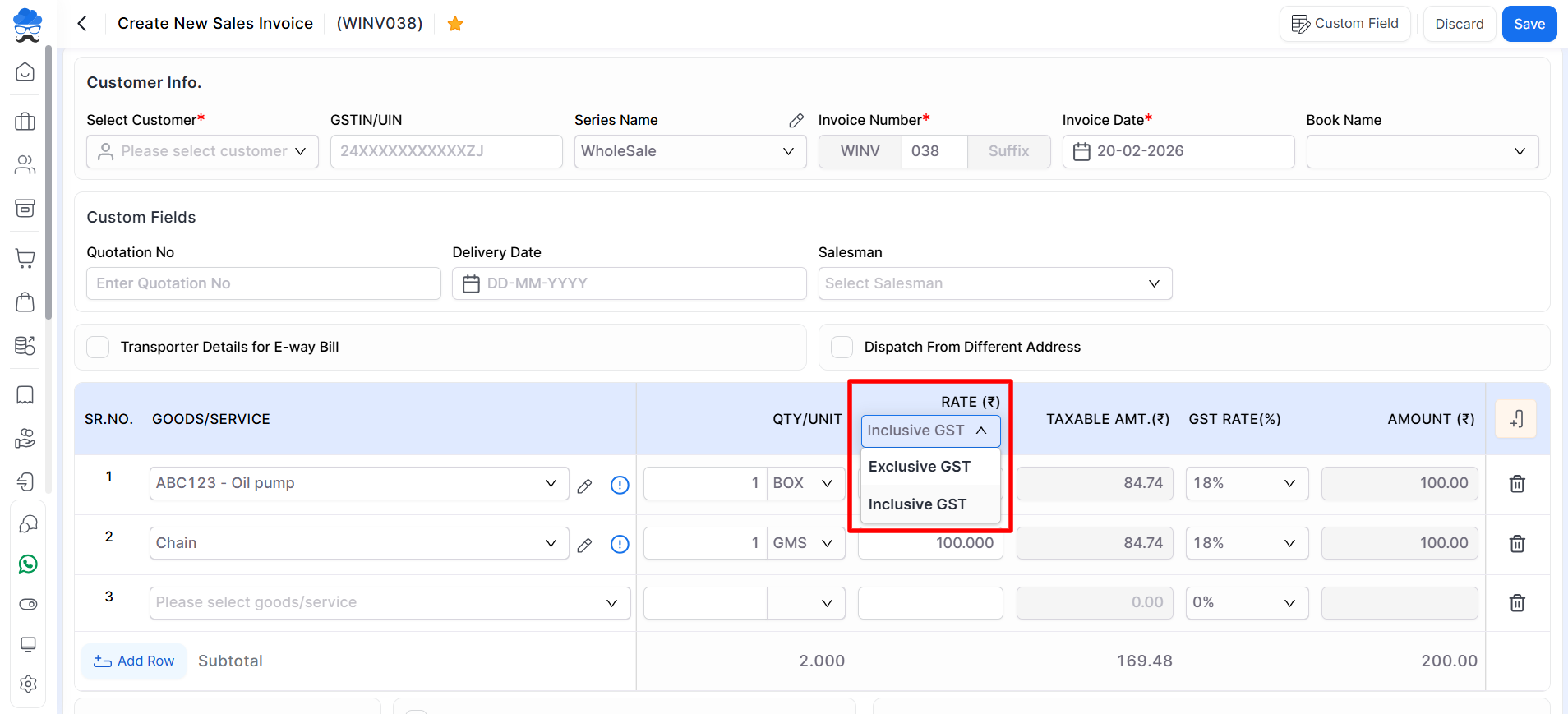
When creating a Sales Invoice, Quotation, Delivery Challan, Proforma Invoice, Sales Order, Purchase Order, or Purchase Bill, the selected calculation method is applied automatically.
- Inclusive GST: The entered rate already includes GST, and Munim calculates the taxable amount and GST from the total price.
- Exclusive GST: GST is calculated separately and added to the entered item rate.
Important Notes
- Available only for major Sales and Purchase Transactions.
- The default setting applies to newly created transactions unless an item has its own calculation method.
- Item-level configuration doesn’t override the default invoice settings but adjusts the item rate during the invoice creation process.
- Changing the calculation method affects how taxable value, GST amount, and invoice total are calculated.
- In Purchase transactions, selected vendor must be created with a Regular GST registered number to show this setting.
Need Assistance?
If the item rate calculation is not working as expected, verify the General Settings and the Item Sales Price configuration. If the issue persists, contact the Munim Support Team.


