

 3782 views
 Overview
The Quotation Printing Template allows you to customise the appearance and content of printed quotations. You can choose different layouts, configure labels, adjust font size, display your company logo, and preview the quotation before printing.
Uses of Quotation Printing Templates
- Customise quotation print layouts.
- Choose from multiple template designs.
- Display your company branding.
- Configure header, detail, and footer labels.
- Preview the quotation before printing.
Open Quotation Printing Templates
You can access the quotation print settings in either of the following ways:
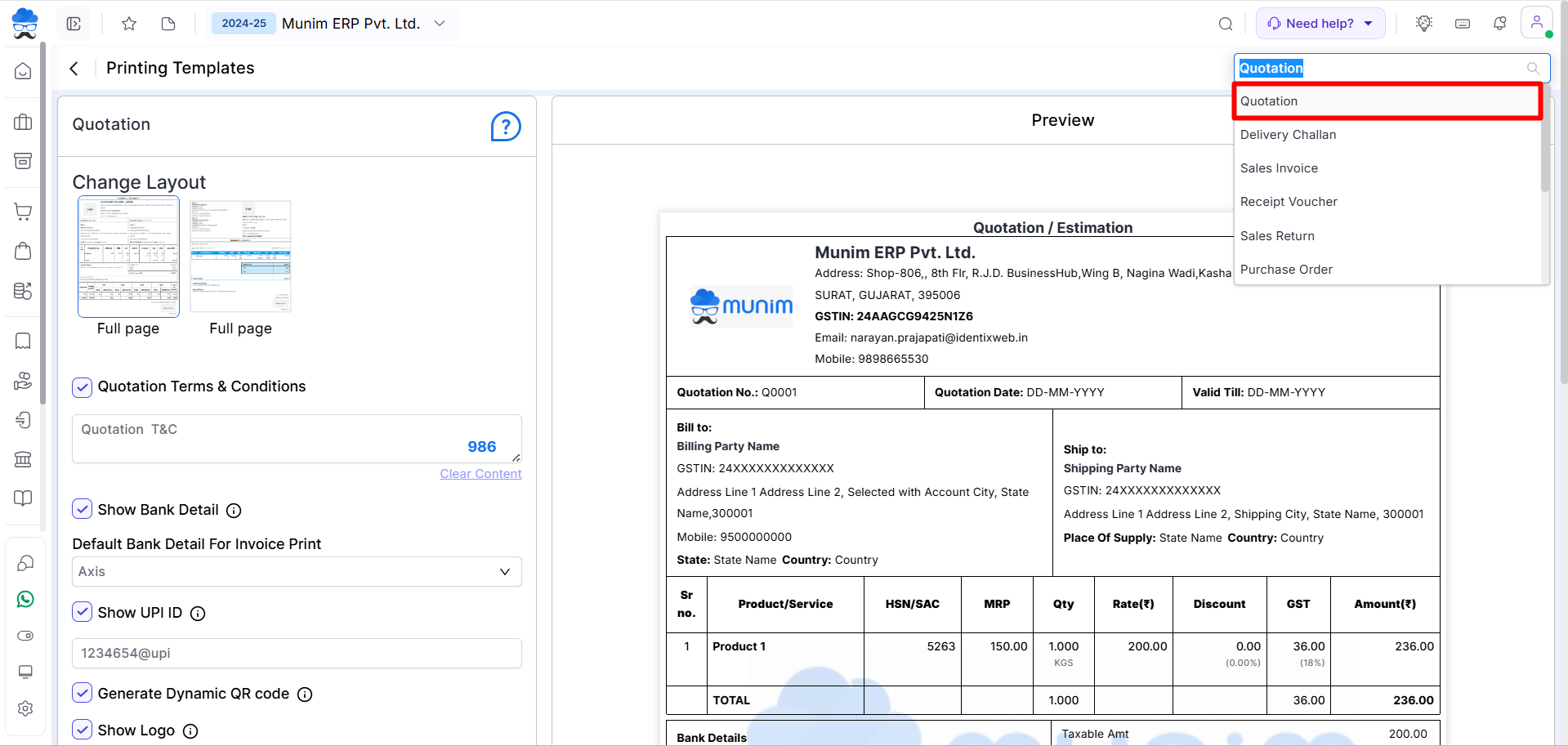
Method 1: From Settings
- Go to Settings. Click Printing Templates.
- Select Quotation from the module dropdown at the top right corner.
+−⟲
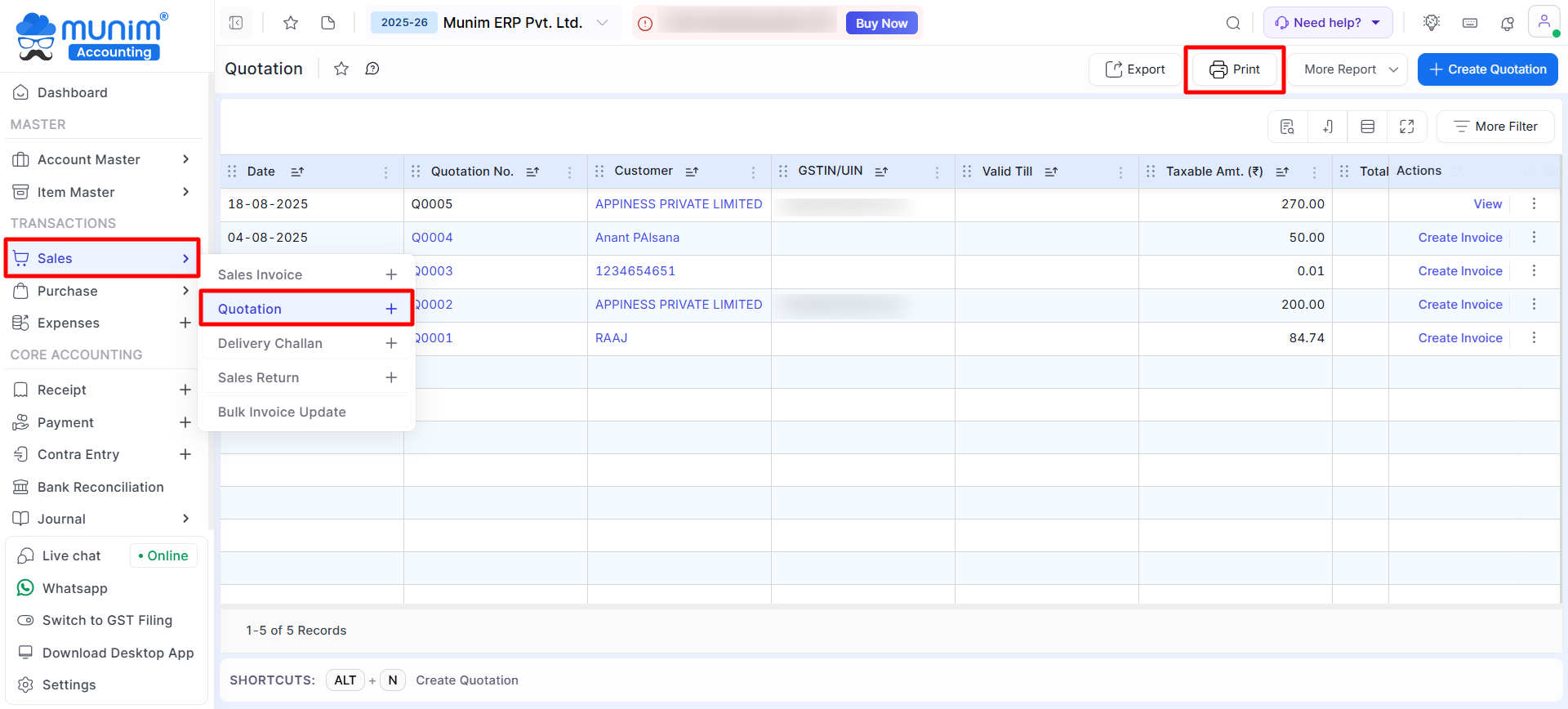
Method 2: From the Quotation Module
- Go to Sales > Quotation. Click the Print icon.
- The Quotation Printing Templates page will open.
+−⟲
Customise the Quotation Template
+−⟲
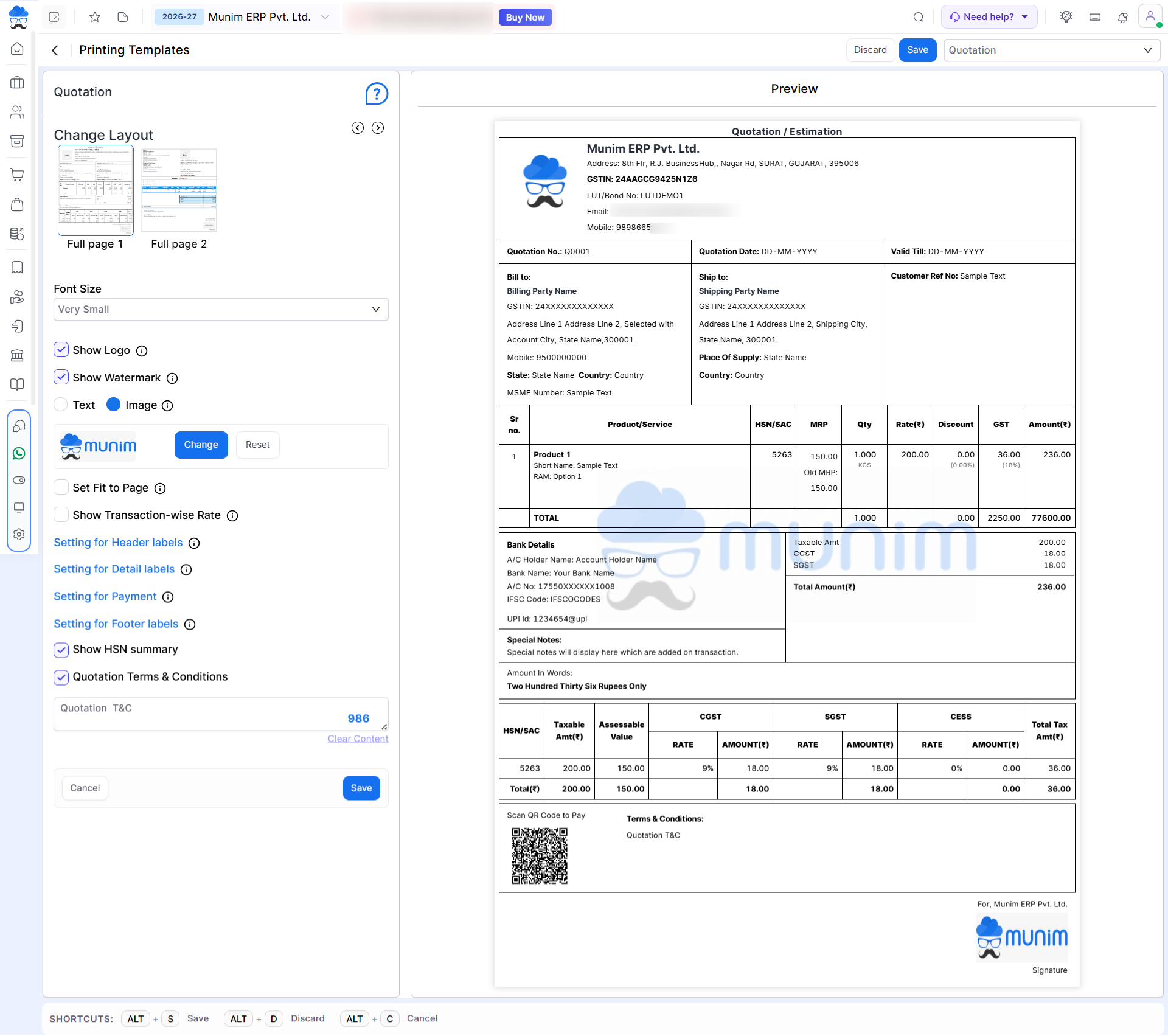
The following options are available:
| Option | Description |
|---|---|
| Change Layout | Select the preferred quotation template layout. |
| Font Size | Choose the print font size from Very Small to Extra Large. |
| Show Logo | Display or hide the company logo on the quotation. |
| Show Watermark | Display a text or image watermark. |
| Header Labels | Show, hide, or rename header fields. Like Title, Address, Mobile, Email. etc |
| Detail Labels | Customise labels in the item section. Like Tax, Rate, Amount, HSN code. etc |
| Setting for Payment | Here you can enable Bank details, UPI Id and QR code for payment. |
| Footer Labels | Show, hide, or rename footer information. Like Amounts, Signature, Terms & Conditions, Special Notes. etc |
| HSN Summary | Display the HSN summary on the quotation. |
| Terms & Conditions | Add or edit quotation terms and conditions |
Preview the Template
After making the required changes:
- Review the Preview panel.
- Verify that the layout and displayed information are correct.
- Click Save to apply the settings.
Result
After saving:
- All quotation prints will use the configured template.
- The selected layout and display settings will be applied automatically.
- Your quotations will have a consistent and professional appearance.
Important Notes
- Changes affect only the Quotation printing template.
- Always review the preview before printing or exporting the quotation.
- You can modify the template at any time from Printing Templates.
Need Assistance?
If your quotation template is not printing as expected or you need help customising it, contact the Munim Support Team.


