
 4213 views
 Overview
Munim allows you to enable Tax Collected at Source (TCS) and apply it to eligible customer transactions. TCS can be configured at the company level and then enabled for specific customers.
Benefits
- Review collected TCS through the TCS Report.
- Enable TCS as per applicable transactions.
- Maintain TCS settings for individual customers.
- Automatically apply TCS in sales invoices.
- Apply TCS to purchase bills where applicable.
Step 1: Enable TCS in General Settings
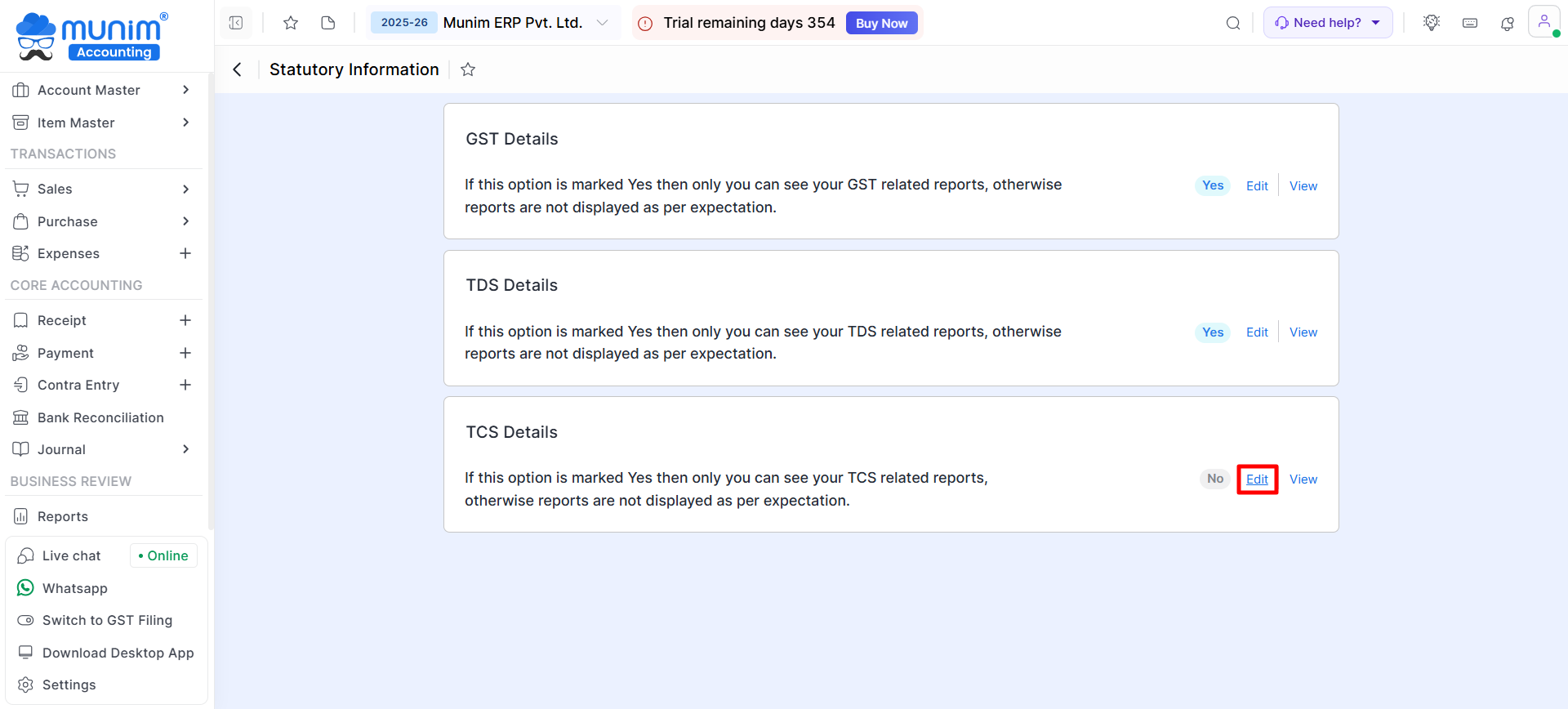
- Go to Settings > Statutory Information > TCS Details. Click Edit here.
+−⟲
- Enable the option Tax Collected at Source (TCS)? by selecting Yes.
- Enter statutory details such as TAN, Deductee Type, and Deductor Branch/Division.
- Specify the preferred method for TCS calculation in Apply TCS on: either the Total invoice amount or the Total taxable amount.
+−⟲
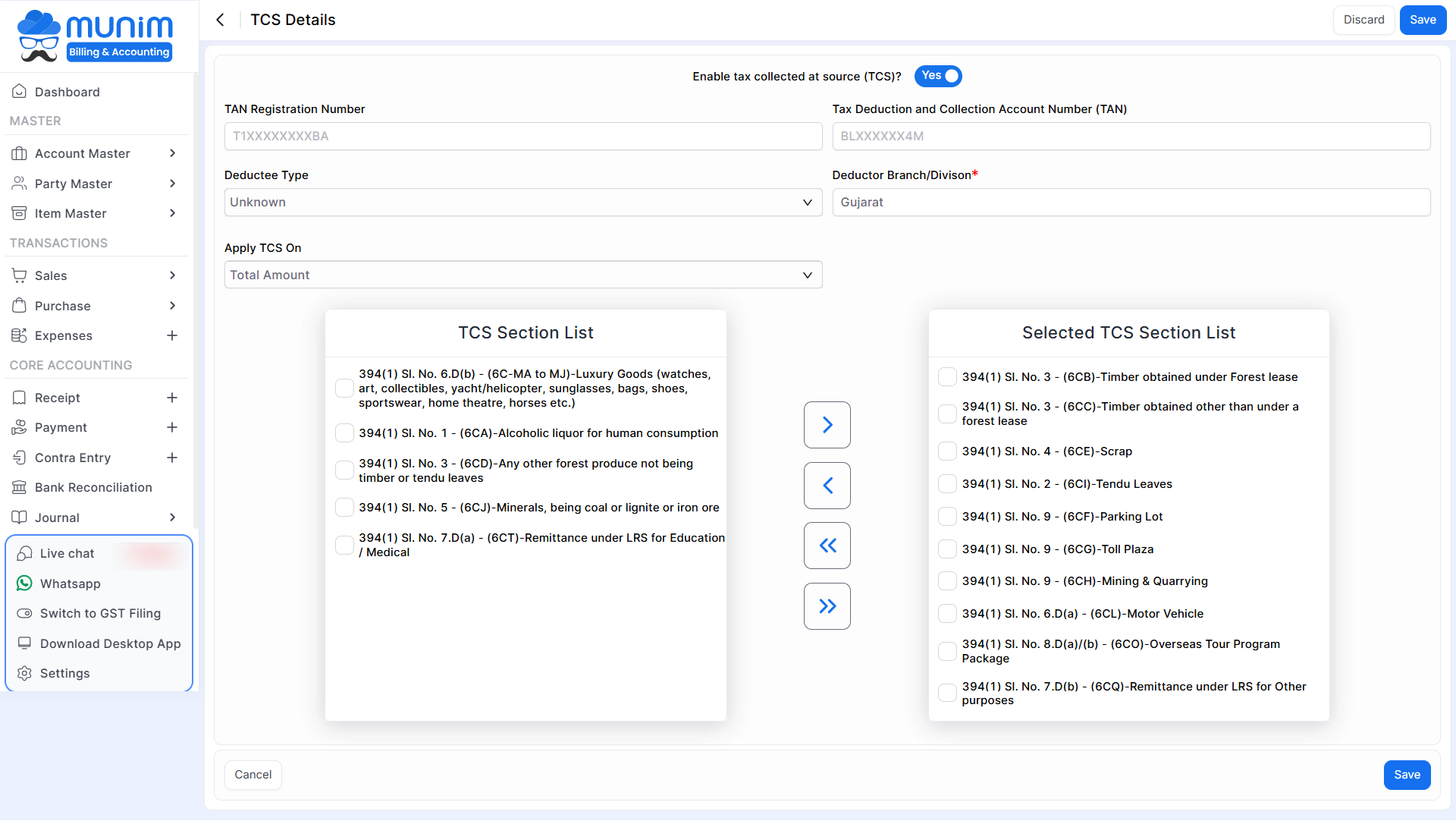
- In the TCS section list, select the required TCS sections for your transactions and move them to the right-hand box to ensure they are available for use.
- Click Save to continue.
Step 2: Enable TCS for a Customer
- Navigate to Account Masters > Account.
- Here search customer and Edit the customer account.
+−⟲
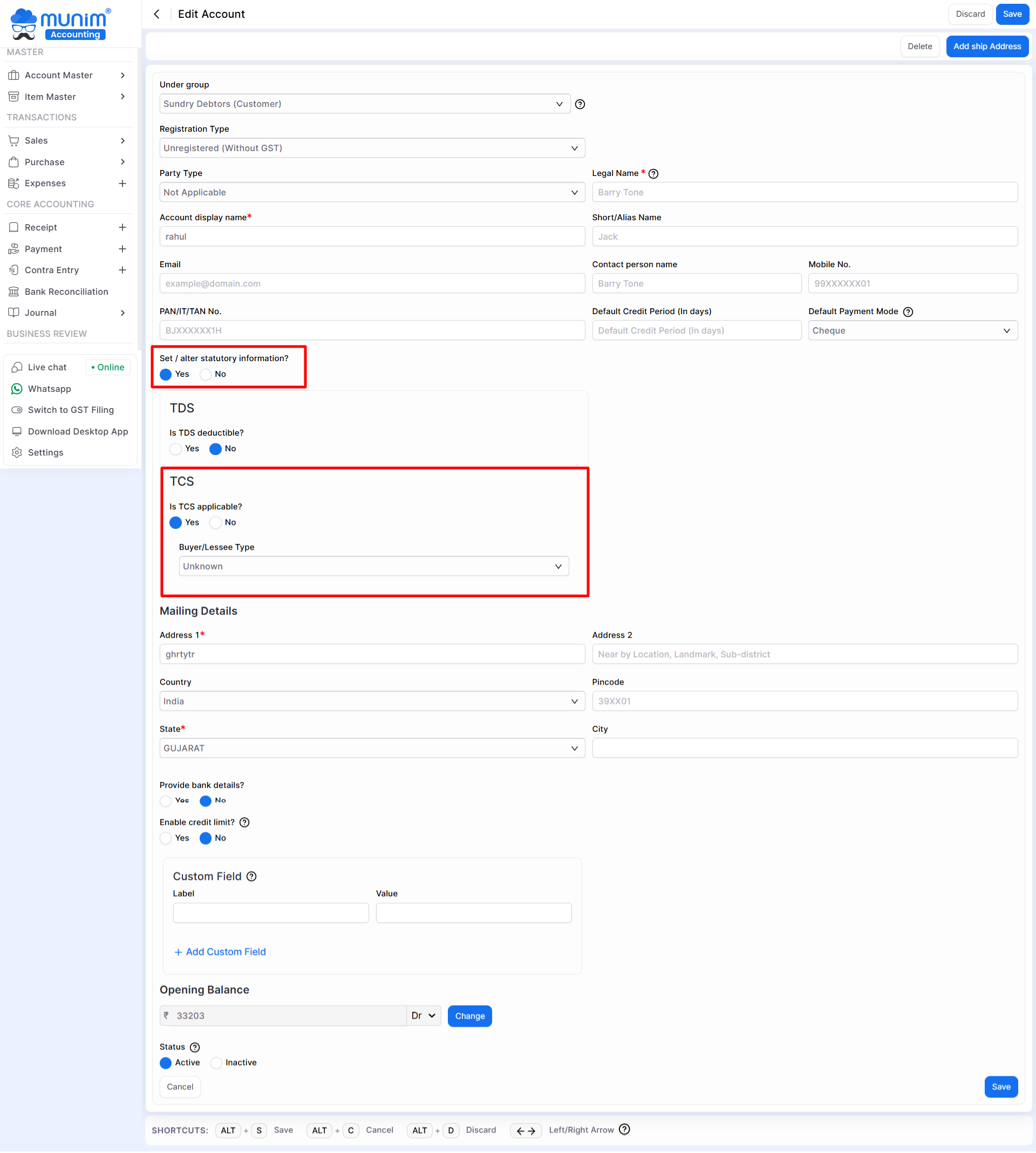
- In the statutory information section, enable Set / alter statutory information? → Yes.
- Here, Turn on Is TCS applicable? by selecting Yes.
- Add Buyer Type and Save changes.
Step 3: Apply TCS in Sales Invoices
- While creating a Sales Invoice, select the TCS-enabled customer.
- In the invoice entry page, choose the correct TCS section from the dropdown.
- TCS will be automatically calculated and added to the invoice.
+−⟲

Step 4: Apply TCS in Purchase Bills (if applicable)
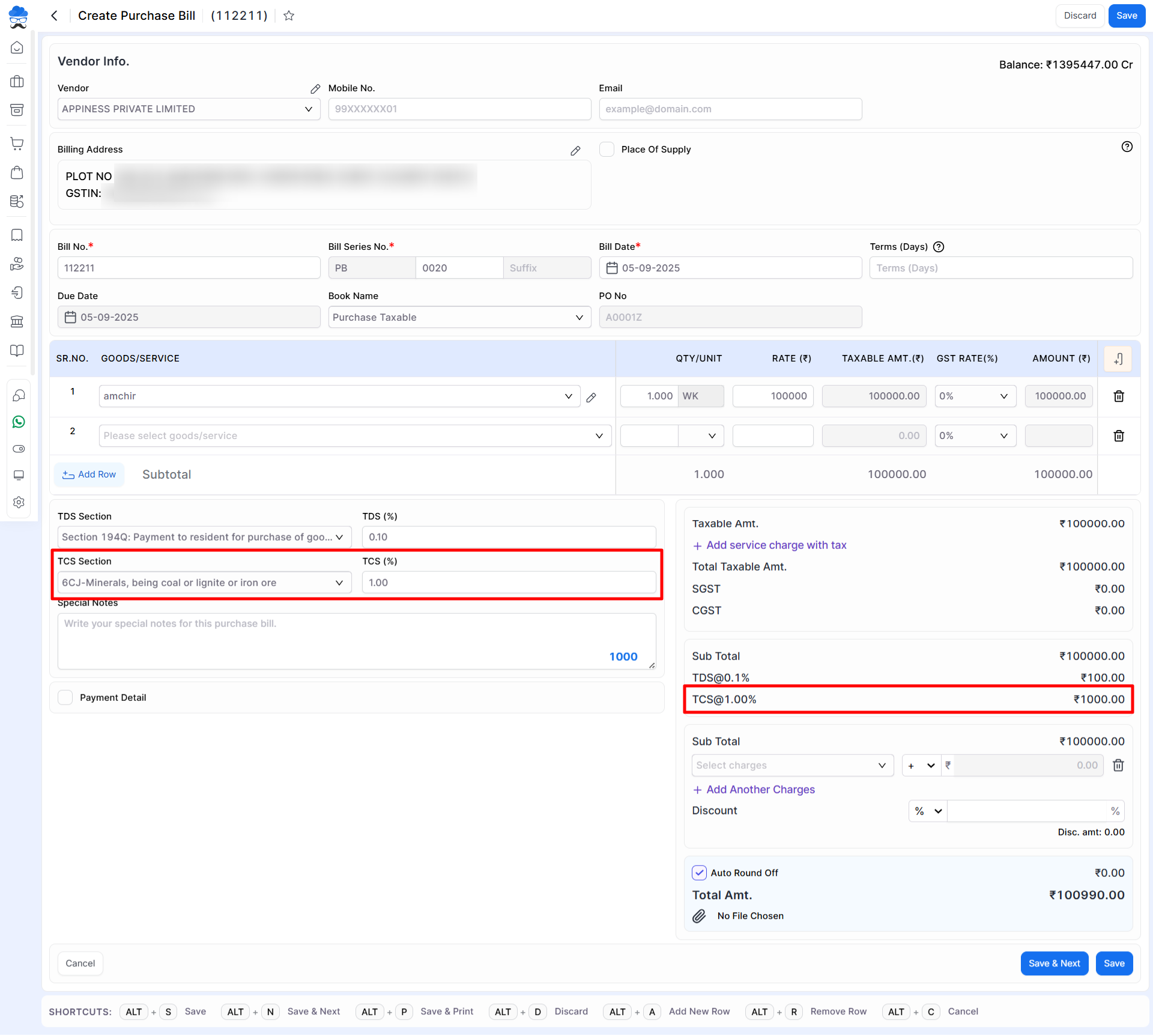
- While creating a Purchase Bill, select a TCS-enabled vendor.
- Add required fields and then choose the TCS section in the bill.
- TCS will be calculated as per the selected TCS Section.
+−⟲
Step 5: View TCS Reports
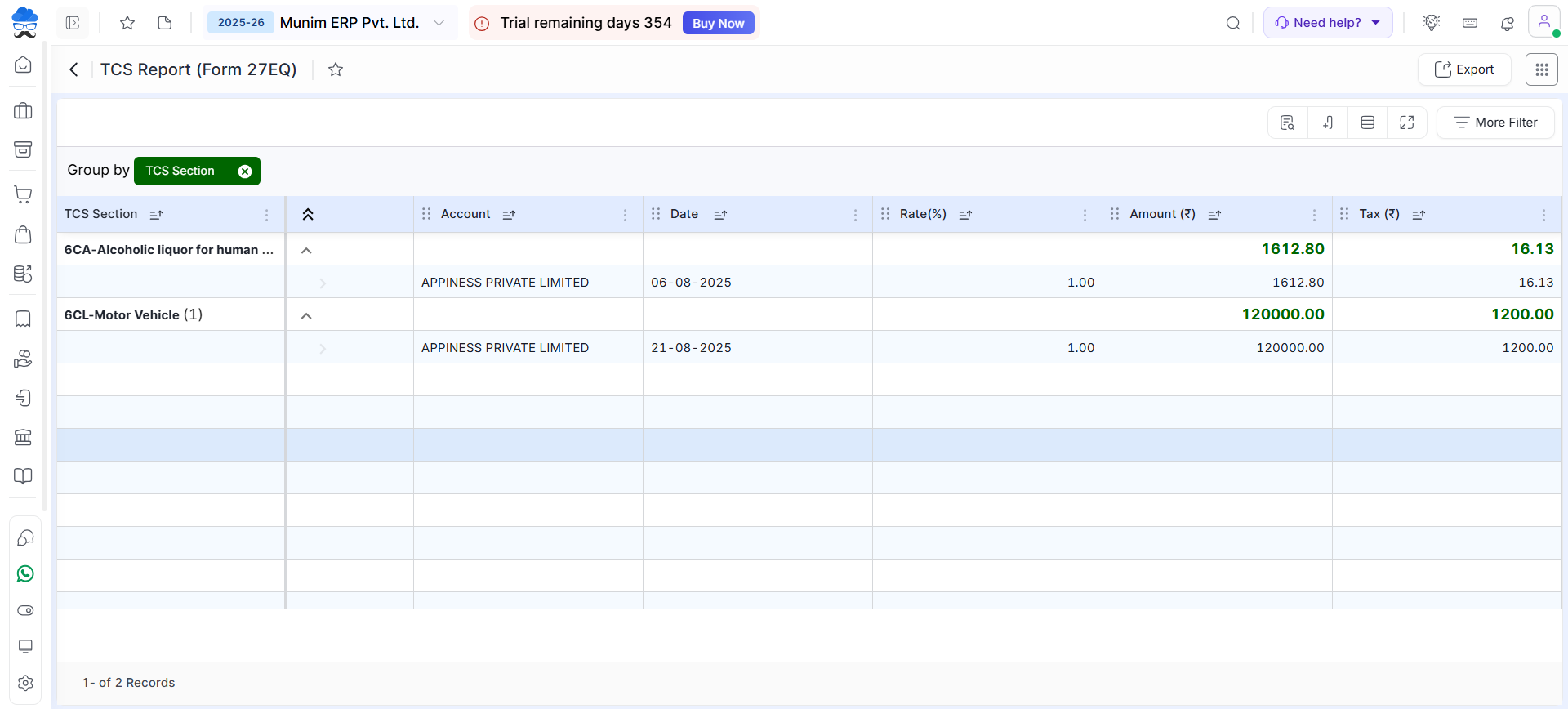
- Go to Reports > Statutory Report > TCS Report.
- Check all TCS collections and liabilities section-wise and customer-wise with Rate and Tax Amounts.
+−⟲
Commonly Used TCS Sections (with Thresholds and Rates)
| TCS Code | Nature of Transaction / Goods | TCS Rate (With PAN) | Threshold Limit (Per Financial Year) |
|---|---|---|---|
| 6CA | Alcoholic Liquor for human consumption | 1% | No Threshold (TCS on first ₹1) |
| 6CB | Timber obtained under a forest lease arrangement | 2.5% | No Threshold |
| 6CC | Timber obtained by any mode other than a forest lease | 2.5% | No Threshold |
| 6CD | Any other forest produce not being timber or tendu leaves | 2.5% | No Threshold |
| 6CE | Sale of scrap | 1% | No Threshold |
| 6CF | Parking lot leasing, licensing, or contract | 2% | No Threshold |
| 6CG | Toll plaza leasing, licensing, or contract | 2% | No Threshold |
| 6CH | Mining & Quarrying | 2% | No Threshold |
| 6CI | Tendu Leaves | 5% | No Threshold |
| 6CJ | Minerals, being coal or lignite or iron ore | 1% | No Threshold |
| 6CL | Sale of Motor Vehicle | 1% | Exceeding ₹10,00,000 (Per individual transaction) |
| 6C-MA to MJ | Luxury Goods (watches, art, collectibles, yacht/helicopter, sunglasses, bags, shoes, sportswear, home theatre, horses etc.) | 1% | Exceeding ₹10,00,000 |
| 6CO | Sale of an Overseas Tour Program Package | 5% (up to ₹7L) & 20% (above ₹7L) | No Threshold (5% up to ₹7,00,000, 20% on the excess) |
| 6CT | LRS Remittance (Foreign Education / Medical Expenses) | 5% | Only on aggregate amount exceeding ₹7,00,000 |
| 6CQ | LRS Remittance for Other Purposes (Investments, Travel, etc.) | 20% | Only on aggregate amount exceeding ₹7,00,000 |
*Rates are subject to change as per government notifications. Always verify before applying.
Important Notes
- Ensure TCS is enabled in both Statutory Settings and Customer Account.
- Always select the correct section in the invoice to avoid compliance issues.
- Reports can be exported from Munim for filing TCS returns.
Need Support?
This ensures compliance with TCS provisions while using Munim Accounting Software. If you need further assistance, review the provided instructions or contact Munim support for guidance.


