
 3389 views
 Overview
The WhatsApp Integration feature allows you to send invoices and transaction documents directly through WhatsApp from the Munim Desktop Application. You can choose to send messages using WhatsApp in Browser or WhatsApp Desktop, making invoice sharing faster and more convenient.
Why Use WhatsApp Integration?
- Share invoices directly from Munim.
- Choose between WhatsApp Desktop or WhatsApp Web.
- Send transaction messages with fewer clicks.
- Automatically send WhatsApp messages after creating supported transactions.
Note: This feature is available only in the Munim Desktop Application.
Access WhatsApp Integration
Go to Settings → WhatsApp Integration.
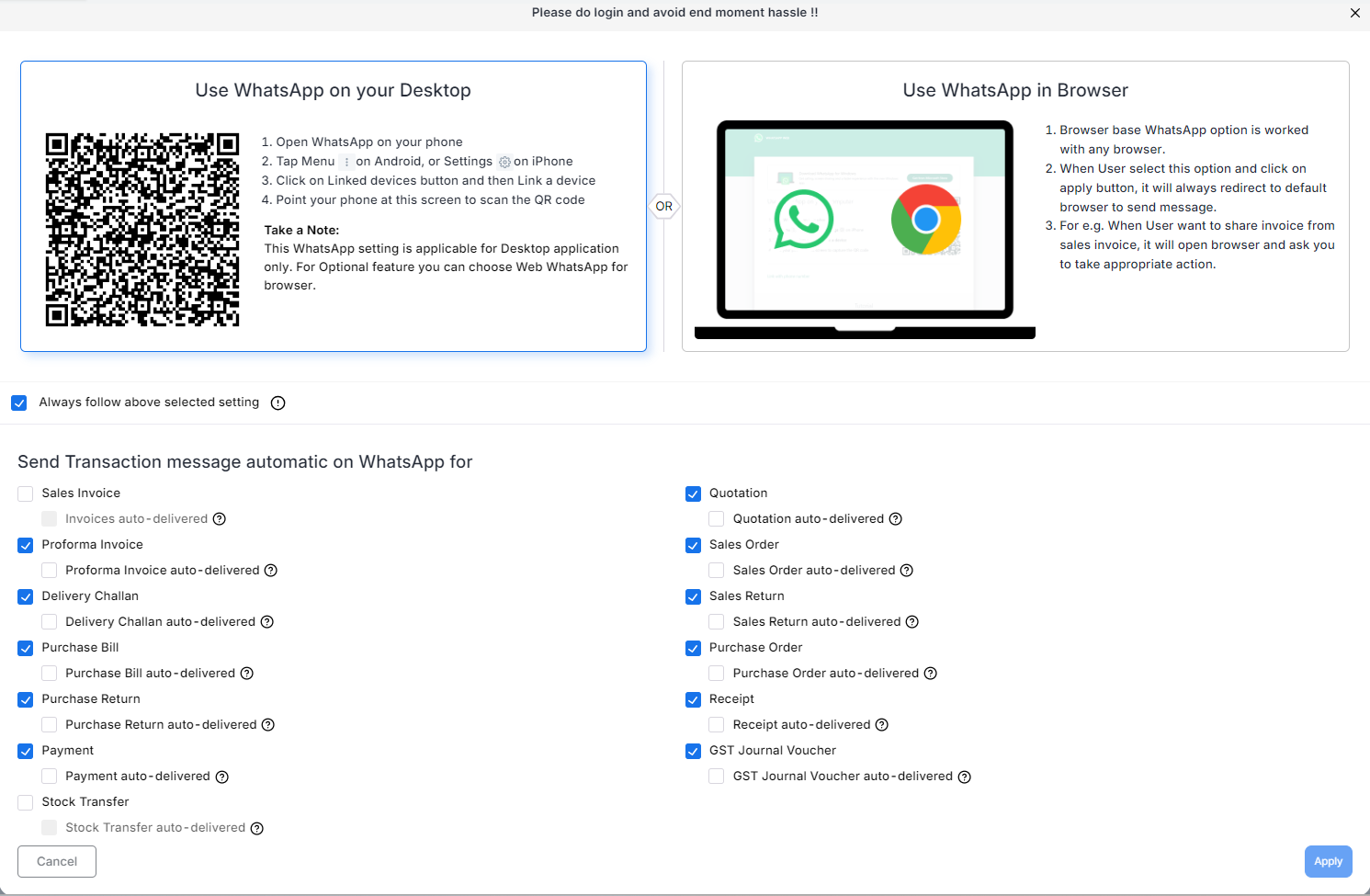
Munim provides two options for sending WhatsApp messages.
1. Use WhatsApp in Browser
Select Use WhatsApp in Browser if you prefer using WhatsApp Web.

How it works:
- Opens WhatsApp Web in your default browser.
- Works with any supported web browser.
- When you send a document from Munim, your browser opens WhatsApp Web with the prepared message.
2. Use WhatsApp on Desktop
Select Use WhatsApp on your Desktop to use the installed WhatsApp Desktop application using barcode login.
Link your WhatsApp account:
- Open WhatsApp on your mobile phone.
- Open Linked Devices.
- Tap Link a Device.
- Scan the QR code displayed in Munim.
- Your WhatsApp account will be linked to the desktop application.
Available Settings
Always Follow Above Selected Setting
Enable this option if you always want Munim to use the selected WhatsApp mode.
- You won’t be asked to choose the sending method every time.
- Disable it if you want to choose between Browser and Desktop whenever you send a message.
Send Transaction Messages Automatically
You can enable automatic WhatsApp messages for supported transaction types.
Depending on your version, options may include:
- Sales Invoice
- Sales Return
- Sales Order
- Purchase Bill
- Purchase Return
- Delivery Challan
- Purchase Order
- Quotation
- Receipt
You can also enable the Auto-delivered option (where available) to automatically send the WhatsApp message immediately after saving the transaction.
Sending Documents via WhatsApp
Once WhatsApp is configured:
- Open a supported transaction (such as a Sales Invoice).
- Click the WhatsApp option from the action menu.
- Select the recipient.
- Munim opens the configured WhatsApp mode with the prepared message.
- Review the message and click Send.
Important Notes
- WhatsApp Integration is supported only in the Munim Desktop Application.
- Browser Mode uses your default web browser and WhatsApp Web.
- Desktop Mode requires your WhatsApp account to be linked using the QR code.
- Automatic messaging is available only for supported transaction types.
- Internet connectivity is required to send WhatsApp messages.
Need Assistance?
If you need help configuring WhatsApp Integration or linking your WhatsApp account, contact the Munim Support Team.


