
 1821 views
 Overview
The Number Format & Decimal Settings in Munim allow you to customize:
- Decimal places for Item Quantity
- Decimal places for Item Rate
- Display format for Amount values
These settings help maintain consistency across invoices, reports, and print templates according to your business requirements.
Benefits
- Customize quantity and rate precision as per your industry requirements.
- Display amounts using the Indian numbering format (e.g., 1,23,456.78).
- Ensure consistency across transactions and printed documents.
- Improve accuracy in inventory and billing calculations.
- Make invoices and reports easier to read.
Follow these steps to update your number format and Decimal:
Navigate to General Settings
- Click Settings at the bottom of the left main navigation menu.
- Click the General Settings module.
Access Number Format & Decimal Settings
- In the General Settings screen, click the Number Format & Decimal Settings tab.
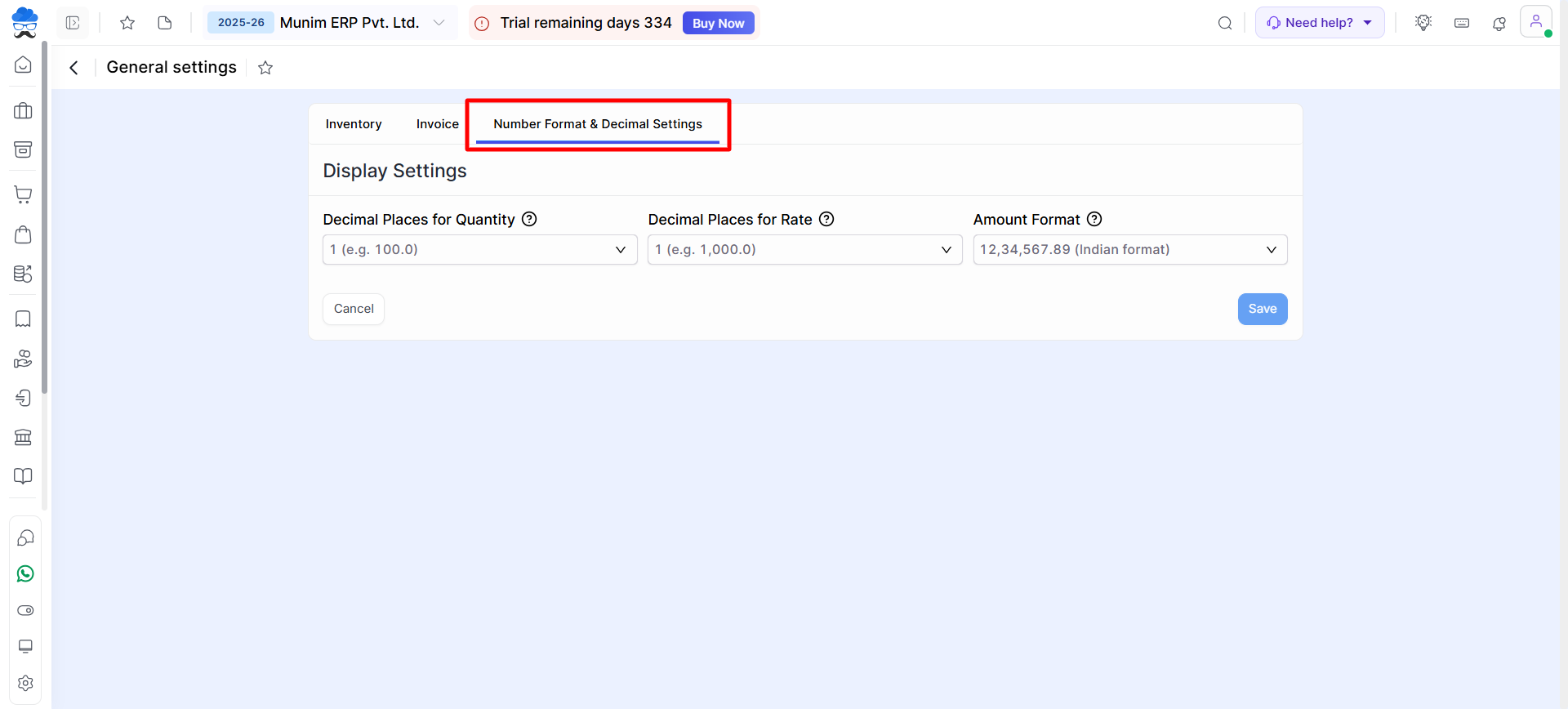
Change the Decimal Places for Item Quantity and Item Rate
Decimal Places for Quantity
- Under Display Settings, click inside the Decimal Places for Quantity field.
- Here, you can specify the number of decimal places to be displayed after the Item Quantity value.
- The number of decimal places can be set to a value between 0 and 3.
Decimal Places for Rate
- Under Display Settings, click inside the Decimal Places for Rate field.
- Here, you can specify the number of decimal places to be displayed after the Item Rate value.
- The number of decimal places can be set to a value between 0 and 3.
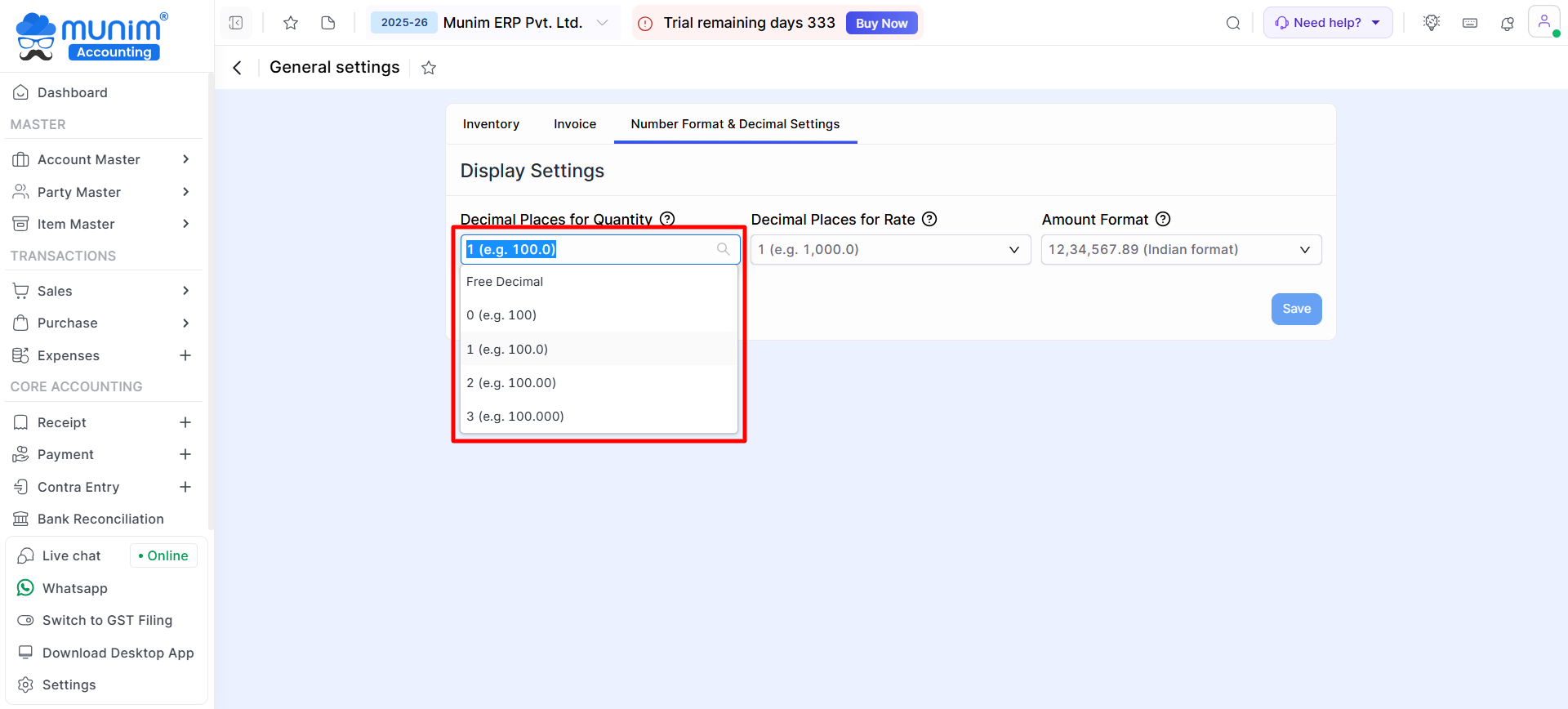
- Several decimal place options are available.
- Selecting Free Decimal allows for any number of decimals between 0 and 3 while creating any entry.
- Alternatively, you may select a specific number of decimal places you want by default, ranging from 0 to 3, based on your needs.
- These decimal changes will take effect while creating any entries and also in Print Templates.
Change the Amount Format
- Under Display Settings, click inside the Amount Format field.
- A dropdown menu will appear showing the available formats.
- Select the Indian format option:
12,34,567.89 (Indian format). - Click the Save button to apply the new format.
Your numbers will now be displayed using the Indian grouping standard across all invoices, forms, and reports, for example: 1,23,456.78.
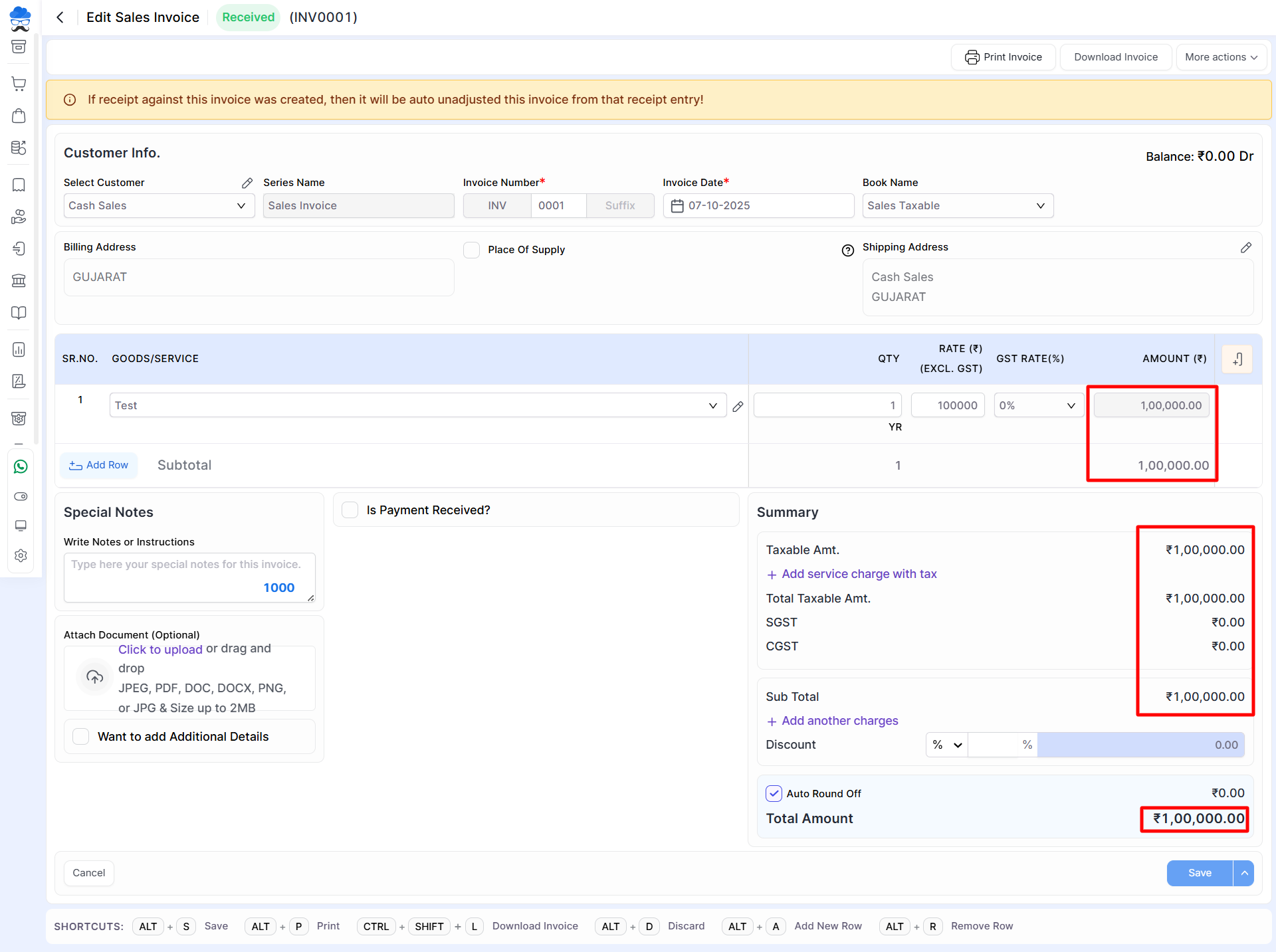
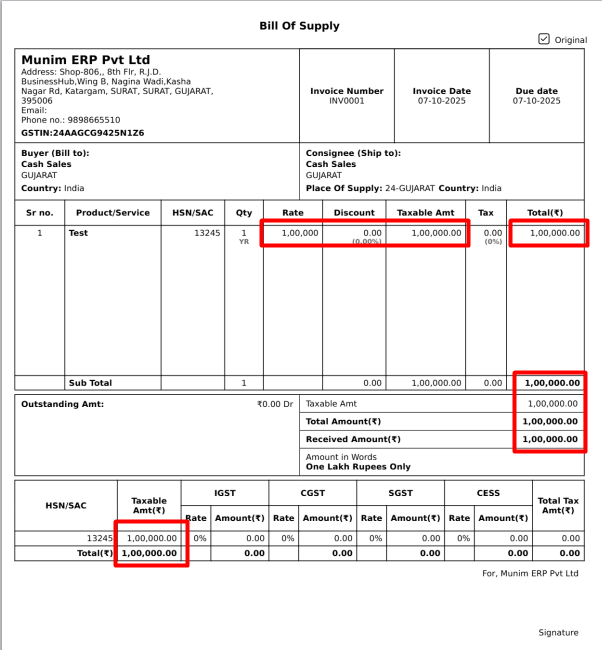
Decimal Settings for Item Quantity and Rate Values:
- To modify the decimal settings for item quantity and rate values, old users are required to submit a request to the Support team to enable this feature.
- When transitioning from fewer to a greater number of decimal places, the system will automatically append additional zeros to the end of all transaction values.
Important Notes
- Decimal settings for Quantity and Rate support values between 0 and 3 decimal places.
- Changes apply to newly created and edited transactions.
- Printed invoices and reports automatically use the selected amount format.
- If you need more than three decimal places for Quantity or Rate, please contact the support team for assistance.
Result
The selected decimal places and amount format will be applied across transactions, reports, and print templates in Munim.
Need Assistance?
If you need help configuring decimal places or amount formats, please contact the Munim Support Team. We’ll be happy to assist you.


