
 259 views
 Overview
The Warehouse Management & Stock Transfer feature allows you to manage inventory across multiple warehouse locations. You can create warehouses, transfer stock between them, select warehouses during transactions, and view warehouse-wise stock summaries for better inventory tracking.
Why Use Warehouse Management?
- Manage inventory across multiple warehouse locations.
- Transfer stock between warehouses without affecting stock accuracy.
- Track warehouse-wise stock availability.
- Select the appropriate warehouse while creating transactions.
- View stock reports for individual warehouses or all warehouses.
- Add different locations for items across warehouses.
- Easily identify item placement during stock movement and verification.
- Create an E-way bill for the stock transfer entry within software
Enable Stock Management
Before using warehouses, you need to enable the feature.
Steps
- Go to Settings. Open General Settings.
- Enable Warehouse Management & Stock Transfer option.
- Click Save.
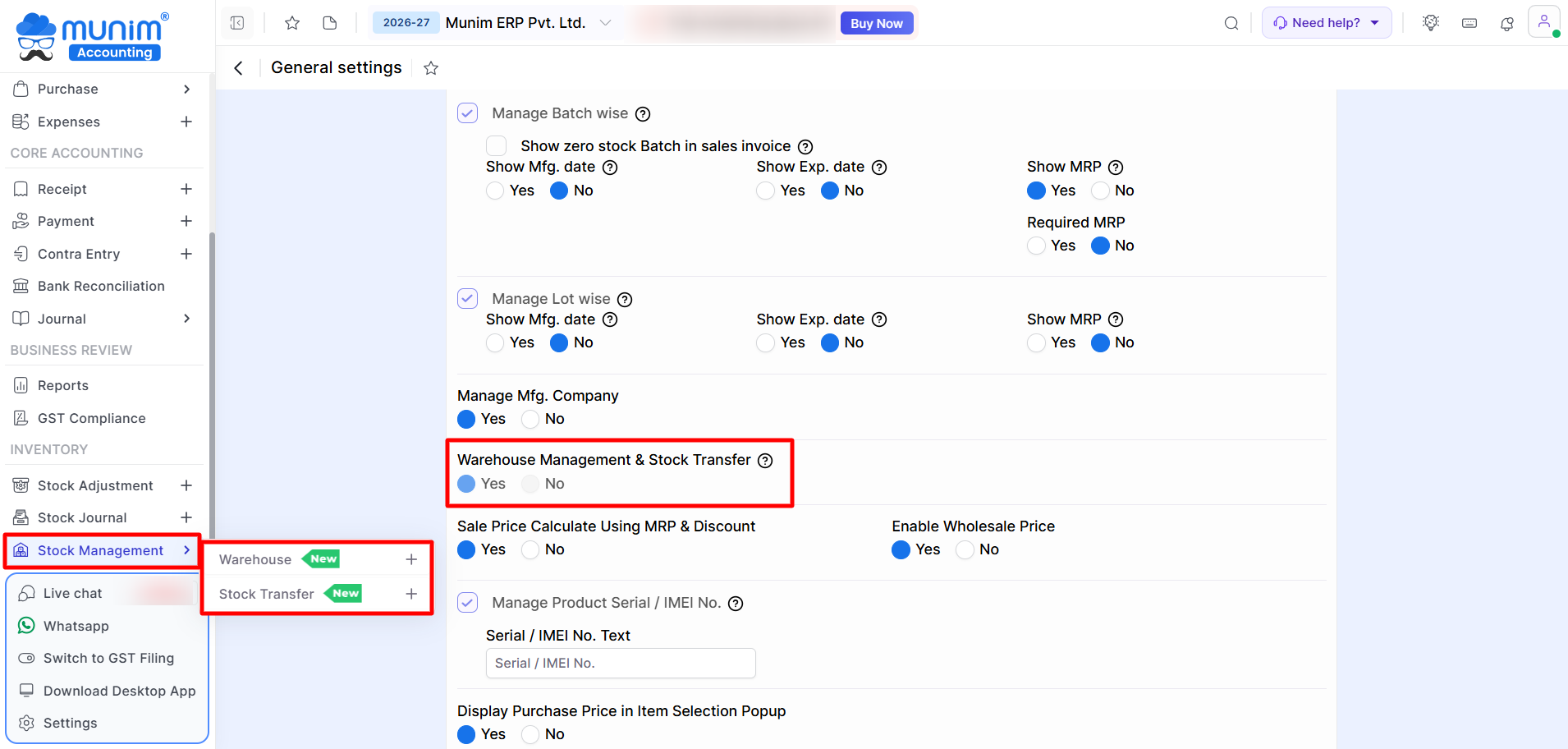
- After enabling the feature, a new module named Stock Management will be available in the main menu.
- Once you enable this feature, two new options, Warehouse and Stock Transfer, will become available under the Stock Management module.
Create a Warehouse
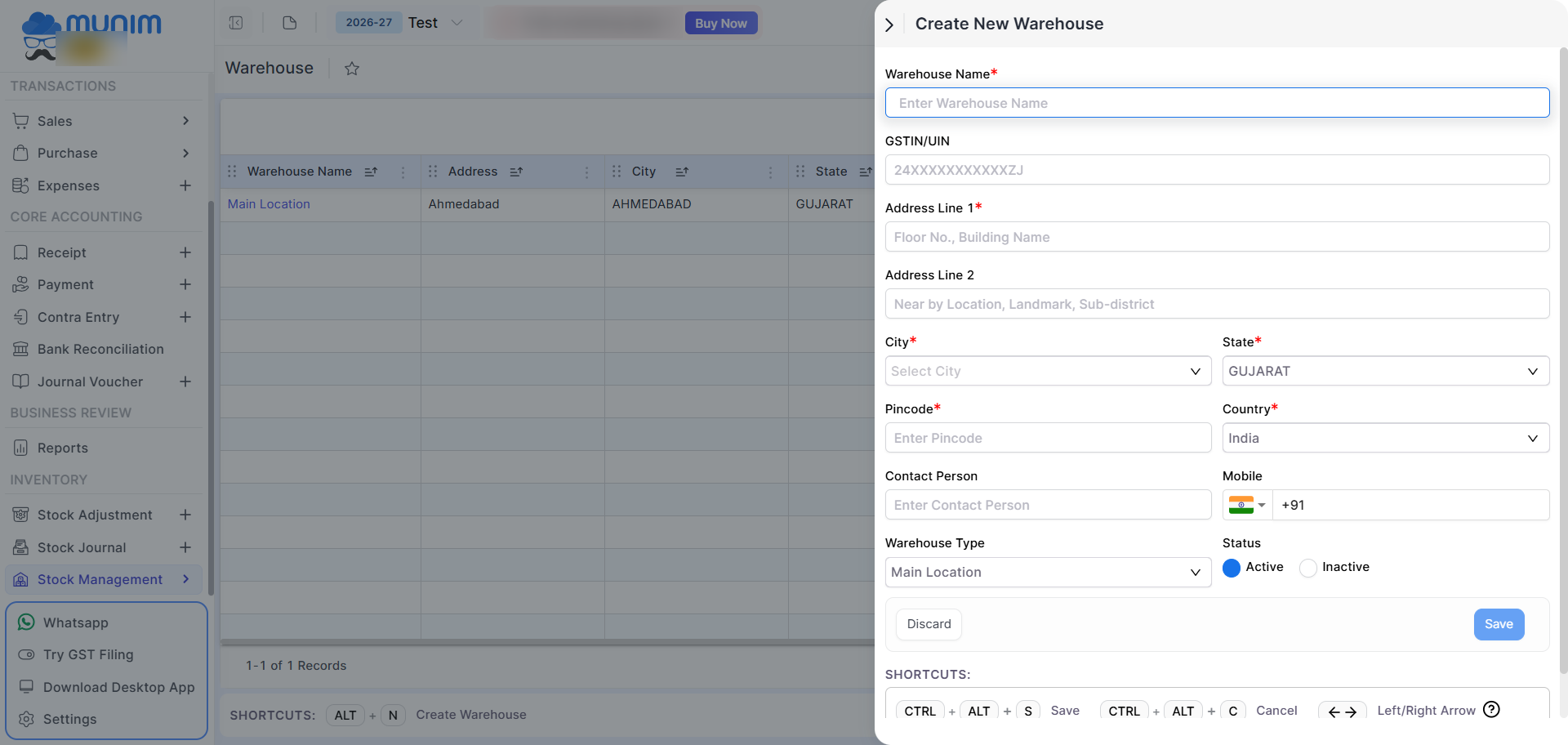
Go to the Warehouse option and create one or more warehouse locations.
Steps
- Go to Stock Management → Warehouse.
- Click + Add New Warehouse at the top right to create a new warehouse.
- Enter the required information:
- Warehouse Name
- Address
- City
- State
- Pincode
- Contact Person
- Mobile Number
- Warehouse Type
- Status
- Click Save.
Transfer Stock Between Warehouses
Use Stock Transfer to move inventory from one warehouse to another.
Steps
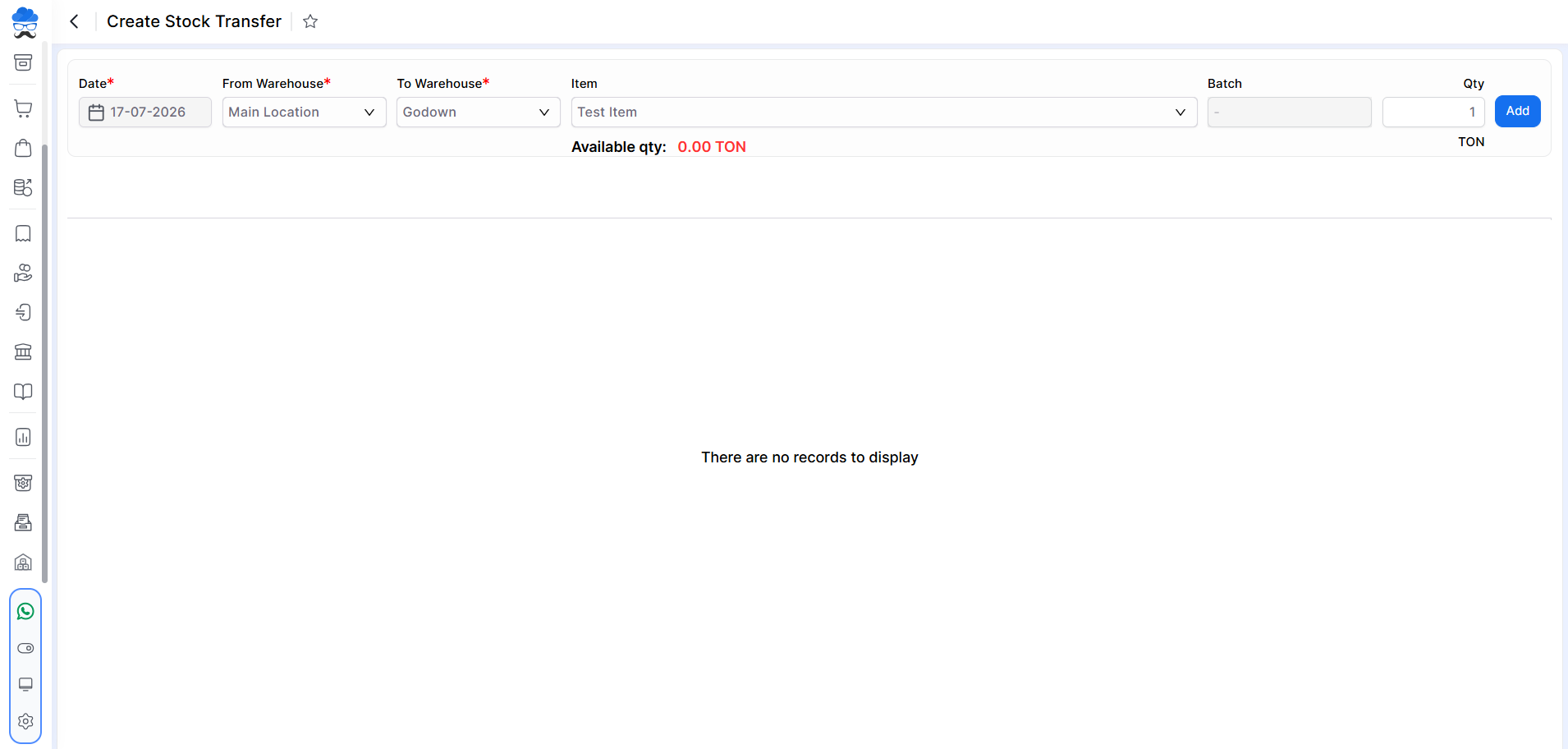
- Go to Stock Management → Stock Transfer.
- Select:
- Date
- From Warehouse
- To Warehouse
- Item
- Batch (if applicable)
- Quantity
- Click Add to include the item. Save the stock transfer.
Note: Transfers are limited to the current date, and quantity cannot exceed available stock to prevent negative balances.
Manage Stock Transfer Records
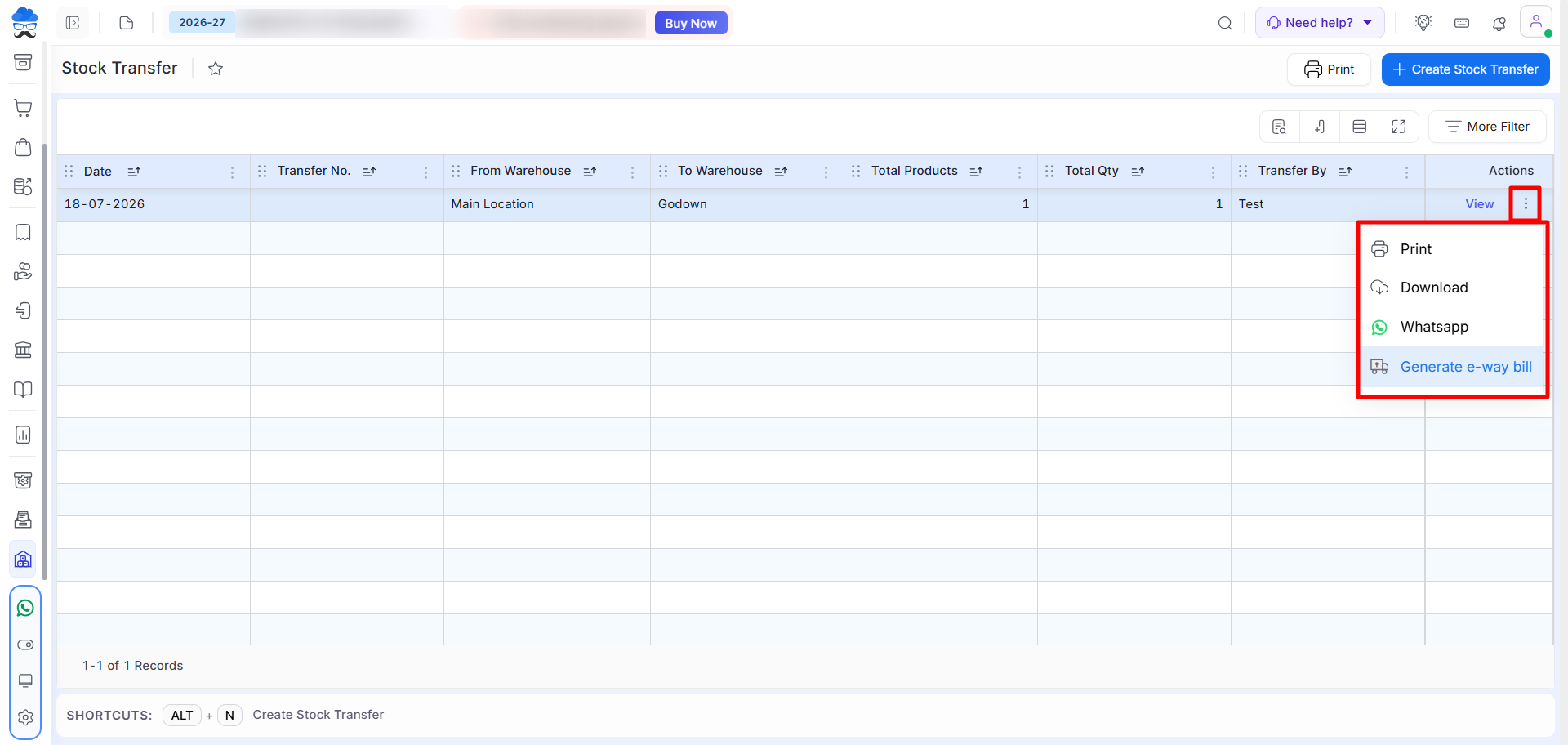
After creating a stock transfer, you can manage it directly from the Stock Transfer list page.
- Click View to open and review the transfer details.
- Use the Print option to generate a printable copy of the stock transfer.
- Select Download to save the transfer PDF document on your device.
- Share the stock transfer details instantly through WhatsApp.
- Click Generate E-Way Bill to create the e-way bill directly from the transfer record.
- The sidebar will open to add required details to create an E-way Bill.
- To create an E-Way Bill, E-Way Bill enable for Stock Transfer option from Statutory Information‘s GST settings needs to be enabled.
Manage Warehouse-wise Item Location
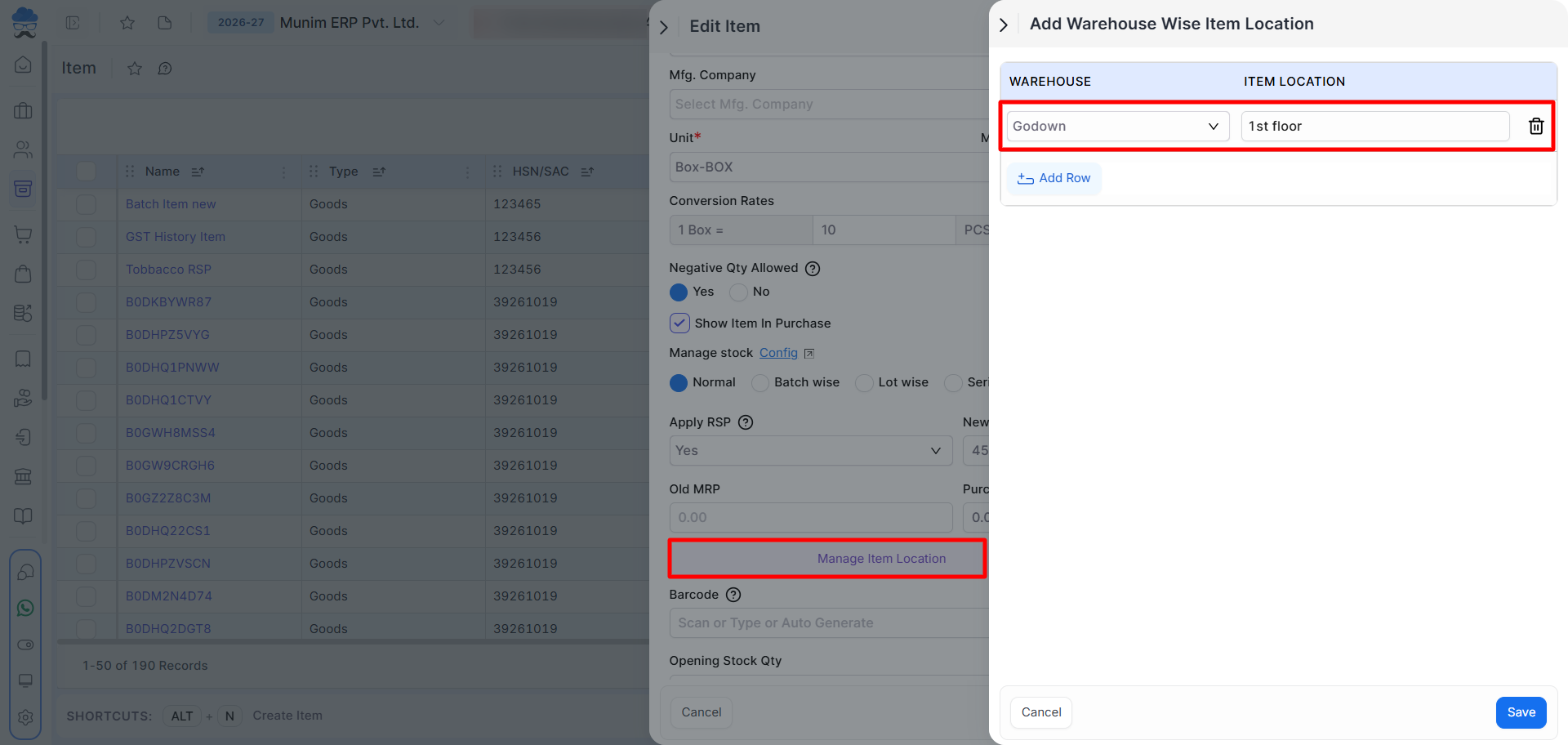
Assign a storage location for an item in each warehouse to make stock identification and retrieval easier.
How to Configure
- Open Item Master and edit the required item.
- Click the Manage Item Location option.
- Select the Warehouse and enter the Item Location.
- Click Save.
Select Warehouse During Transactions
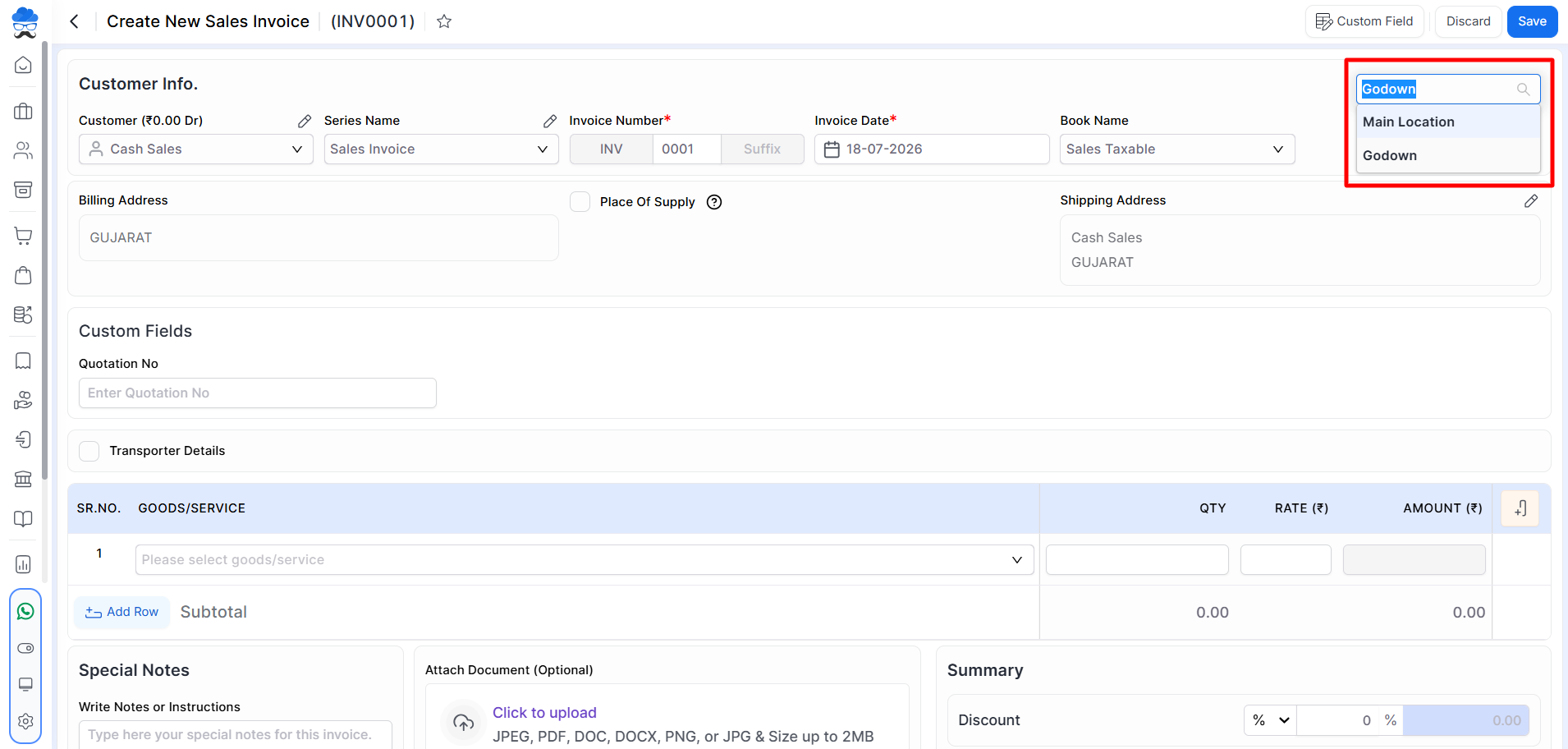
Once Warehouse Management is enabled, a warehouse selection option becomes available while creating transactions such as Sales Invoices.
Steps
- Create a new transaction (for example, Sales Invoice).
- Select the required warehouse from the warehouse dropdown at the top right.
- Continue creating the transaction as usual.
Note: Inventory levels, stock availability, and addresses will be displayed specifically for the warehouse location selected in different transactions.
View Warehouse-wise Stock Summary
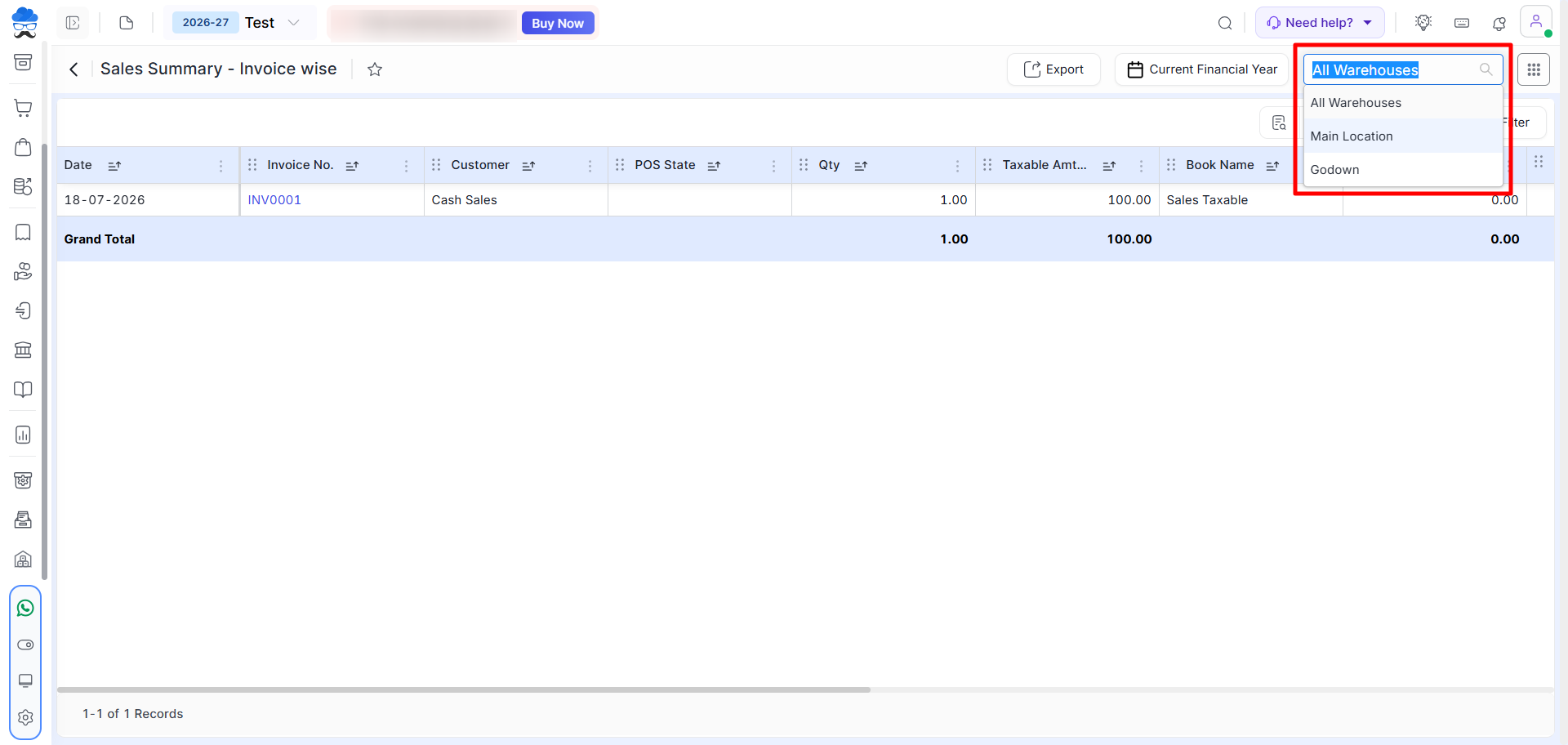
You can view stock availability for a specific warehouse or for all warehouses.
Steps
- Open Reports → Stock Summary.
- Select the desired warehouse from the warehouse filter.
- View warehouse-wise stock details.
Note: Item stock quantity and transactions will be displayed specifically for the warehouse location selected in many of the reports.
Important Notes
- Warehouse Management must be enabled before creating warehouses or performing stock transfers and setting item locations.
- At least two warehouses must exist before warehouse-based transfer transactions can be performed.
- Stock transfers update inventory between warehouses without changing the overall company stock.
- Warehouse selection will work according to the type of transaction or report you are working on.
Need Assistance?
If you’re facing any issues while enabling Warehouse Management, creating warehouses, or transferring stock, please contact the Munim Support Team for assistance.


