
 19 views
 Overview
The Item Expiry Details report helps you track expired and soon-to-expire items based on their expiry dates. You can view already expired items or check items that are expiring within a selected number of days. You can access this report directly from the Dashboard also.
Benefits
- Monitor expired and upcoming expiry stock.
- View batch/lot-wise stock details.
- Filter records by expiry period and warehouse.
- Access expiry details directly from the Dashboard.
How to Access Item Expiry Details
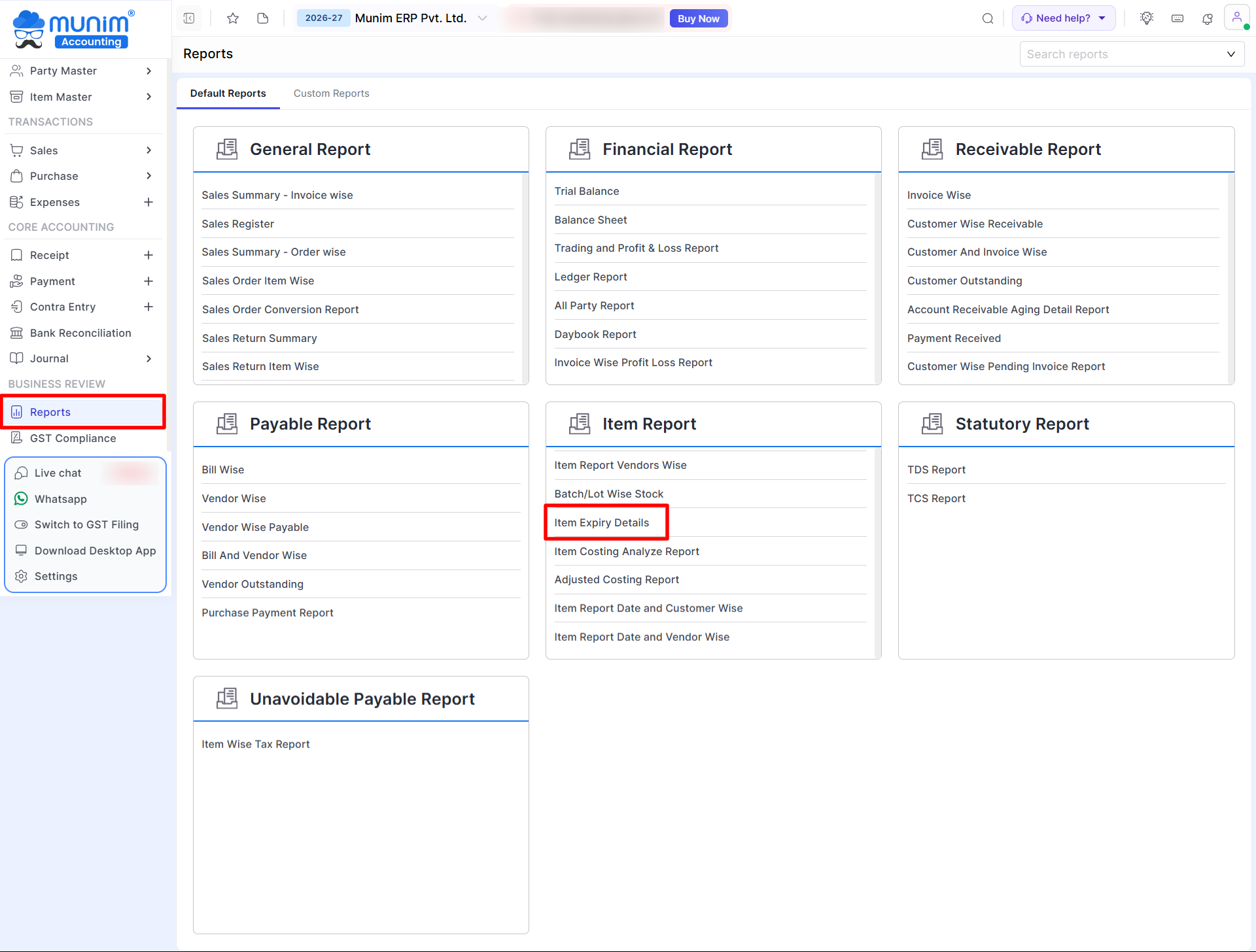
- Go to Reports module from main menu.
- Under Item Report section, click Item Expiry Details report.
+−⟲
Item Expiry Details
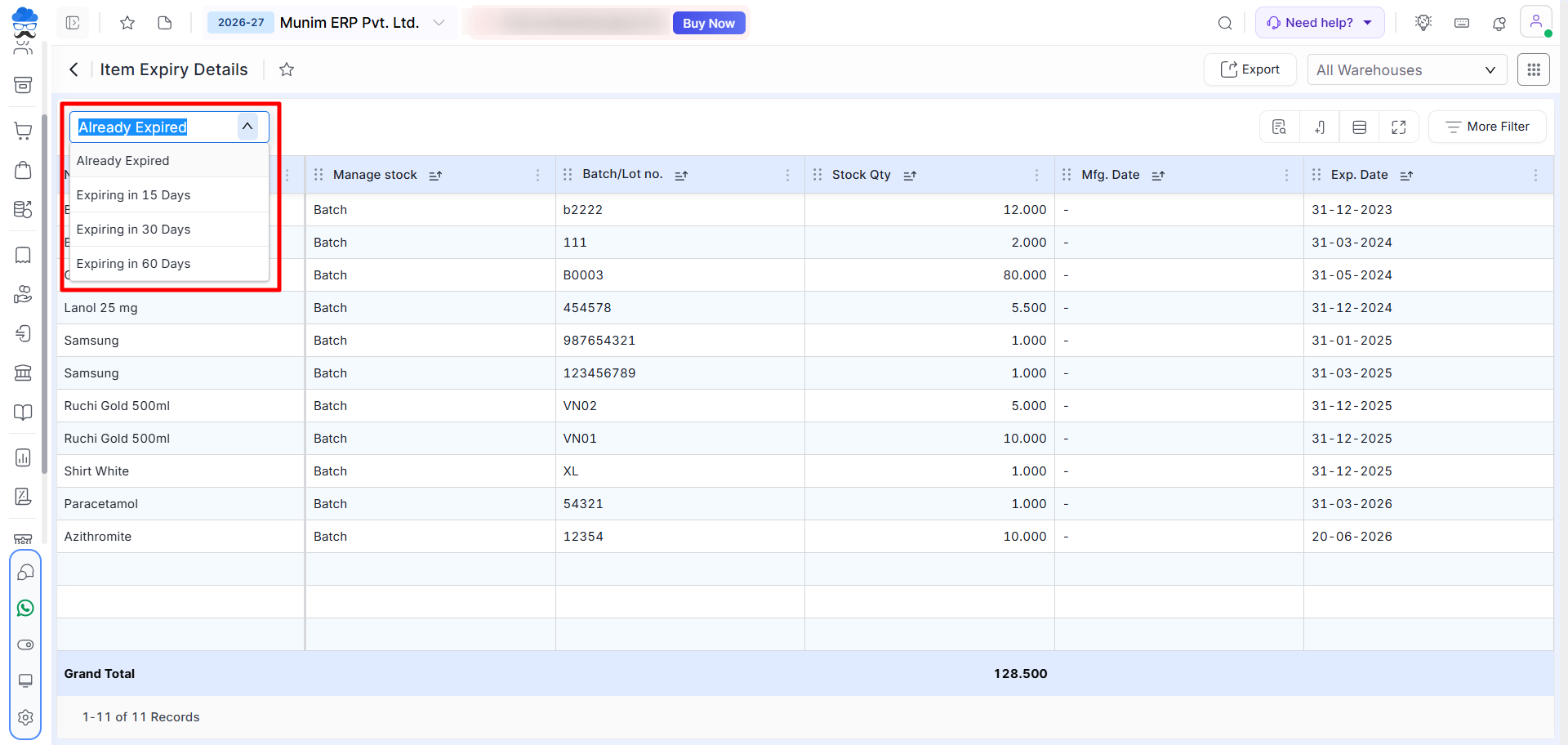
- In the report, use the available filters to view Already Expired, Expiring in 15 Days, Expiring in 30 Days or Expiring in 60 Days
- You can also select a specific Warehouse or choose All Warehouses.
- The report shows detailed information with columns, including Item Name, Batch Number, Stock Quantity, Manufacture Date, and Expiry Date.
- The Export button allows you to download or email the report in either Excel or PDF format.
+−⟲
View from Dashboard
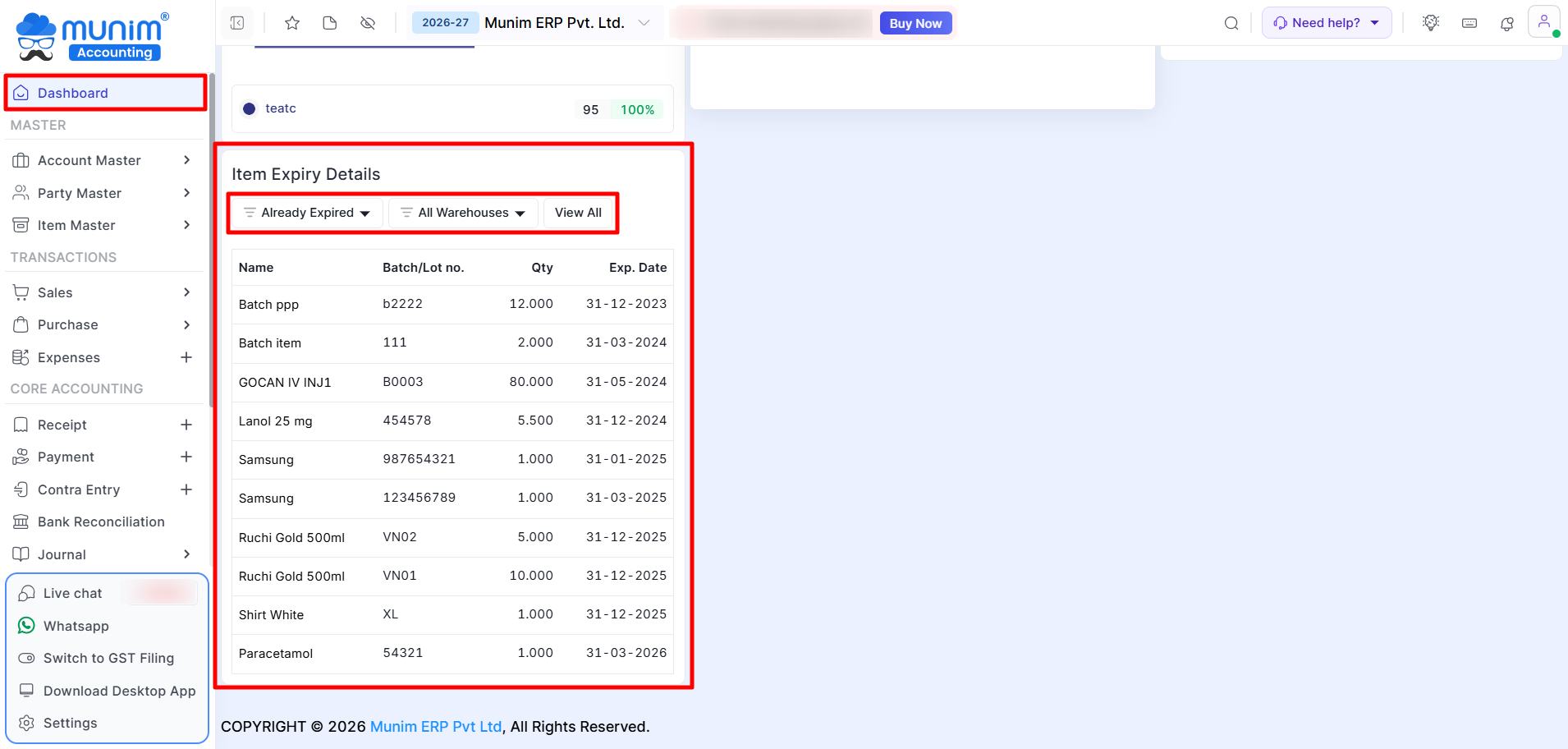
You can also access a quick view from the Dashboard.
- Go to Dashboard and scroll to the bottom of the page
- In the Item Expiry Details section, select the required expiry filter and warehouse.
- Click View All to open the complete report.
+−⟲
Important Notes
- Expiry details are displayed based on the selected date range filter and warehouse.
- The report includes details such as Batch/Lot No., Stock Qty, Mfg. Date, and Exp. Date.
- View All from the Dashboard opens the complete Item Expiry Details report.
- Accurate expiry and batch details are required to display correct records in the report.
Need Assistance?
If you need help with the Item Expiry Details report, please contact our support team.


